

Apple earphones are known for their quality, comfort, and reliable sound. However, counterfeit versions are common, often mimicking the appearance of the originals but lacking Apple’s build precision and performance. So, knowing how to verify authenticity ensures that you get a product that delivers the sound quality and durability Apple is known for. Listed below are the various ways to check if you have original Apple earphones.
Table of contents
- Why Authenticity Matters
- Here’s How to Check if Apple Earphones Are Genuine
- 1. Check the Packaging and Accessories
- 2. Examine the Serial Number
- 3. Inspect Build Quality and Design Details
- 4. Test the Sound Quality and Fit
- 5. Toggle Model-Specific Features
- 6. Test Find My and Precision Finding Features
- 7. Check for Firmware Version
- 8. Observe Connection Reliability
- 9. Test with Multiple Devices
- Additional Tips to Avoid Counterfeits
- Final Thoughts
- FAQs
Why Authenticity Matters
Authentic Apple earphones are designed to integrate seamlessly with iPhones, iPads, and Macs. They offer optimized sound tuning, better microphone performance, and safe charging components that comply with Apple’s quality standards.
Counterfeit earphones, on the other hand, often use low-cost materials, lack firmware support, and may cause device connection issues. Verifying authenticity protects both the device and the user experience, ensuring compatibility, comfort, and long-term reliability.
Don’t miss the best of The Mac Observer
Set us as a preferred source and our Apple reporting ranks higher in your Google Search results and Discover feed — one tap, no account changes.
Here’s How to Check if Apple Earphones Are Genuine
1. Check the Packaging and Accessories
Genuine Apple earphones come in precise, clean packaging with consistent fonts, printing, and layout.
- Look for Apple’s logo printed sharply without smudges or uneven edges.
- Ensure the box includes “Designed by Apple in California” with a matching model number.
- Verify that the barcode and serial number sticker look clear and aligned.
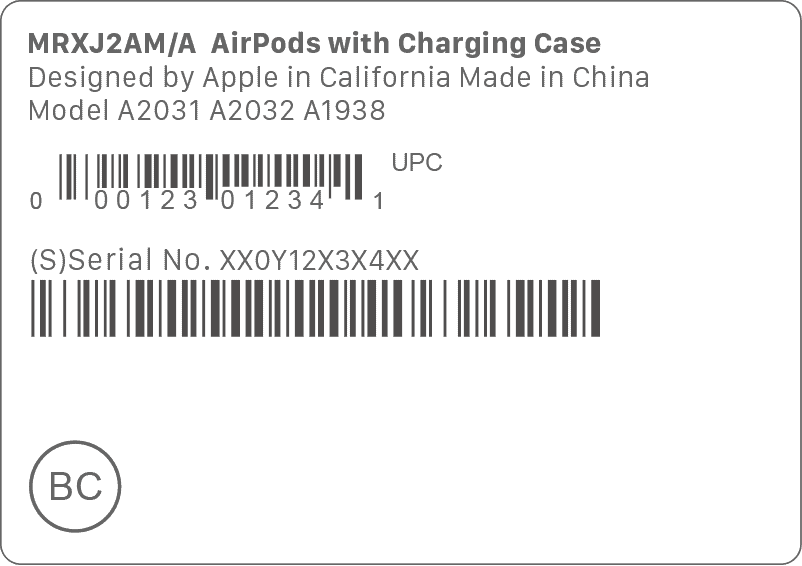
- Counterfeit packaging often shows spelling errors, faded text, or thin paper quality.

2. Examine the Serial Number
- Locate the serial number on the cable, inside the case (for AirPods), or inside the Bluetooth settings.
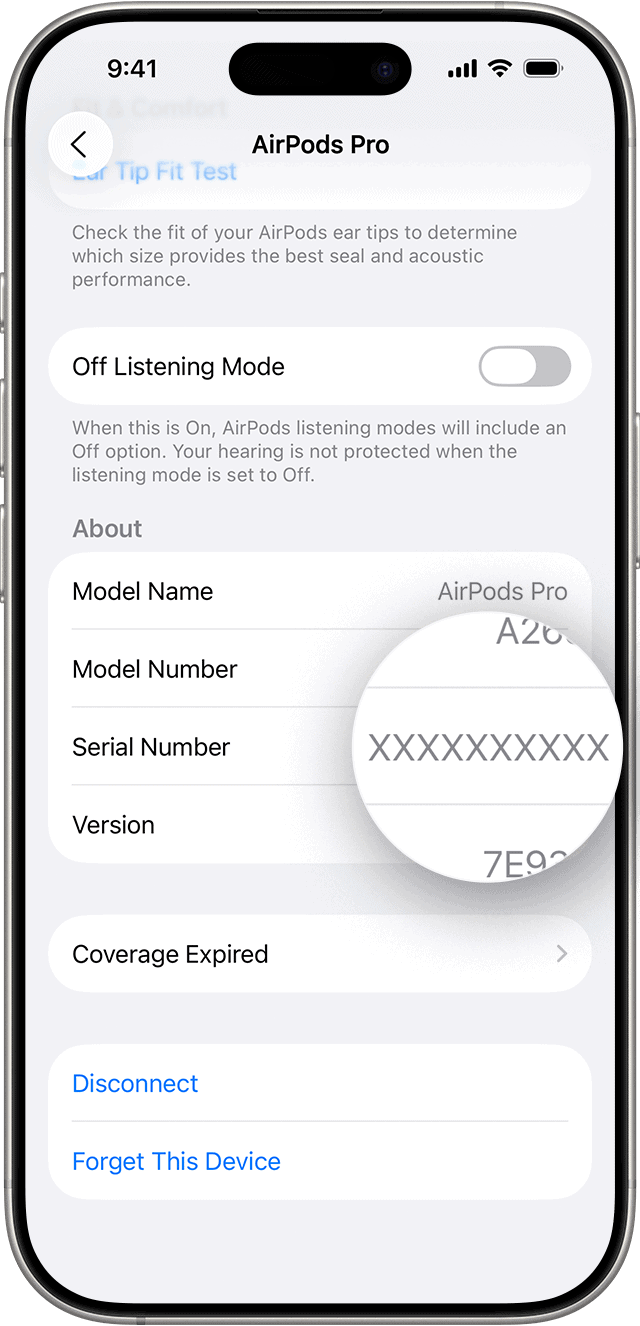
- Visit Apple’s Check Coverage page at checkcoverage.apple.com.
- Enter the number and verify if it corresponds to a legitimate Apple product.

If Apple’s site doesn’t recognize the number, the earphones are likely counterfeit.
3. Inspect Build Quality and Design Details
Apple earphones have exact proportions and finishes. Counterfeit versions often miss small design elements.
- Genuine cables are smooth, not rubbery or sticky.
- Lettering and engraving are consistent and sharp.
- Metal connectors are symmetrical with polished edges.
- Left (L) and Right (R) markings are precisely etched, not painted.
- The mesh grills are neat and aligned perfectly.
Even small design inconsistencies can indicate imitation models.
4. Test the Sound Quality and Fit
Sound quality is one of the clearest indicators.
- Connect the earphones to an iPhone or Mac.
- Play music and check for balanced audio with clear mids and highs.
- Authentic Apple earphones have consistent clarity, while fake ones may sound muffled or overly sharp.
- Observe the comfort and fit. Genuine ones maintain ergonomic balance, while fakes often feel uneven or heavier.
5. Toggle Model-Specific Features
Different Apple earphones support distinct software features.
- For AirPods, open the case near an iPhone and look for the connection animation.
- For AirPods Max, test Noise Cancellation and Transparency Mode under Settings > Bluetooth.
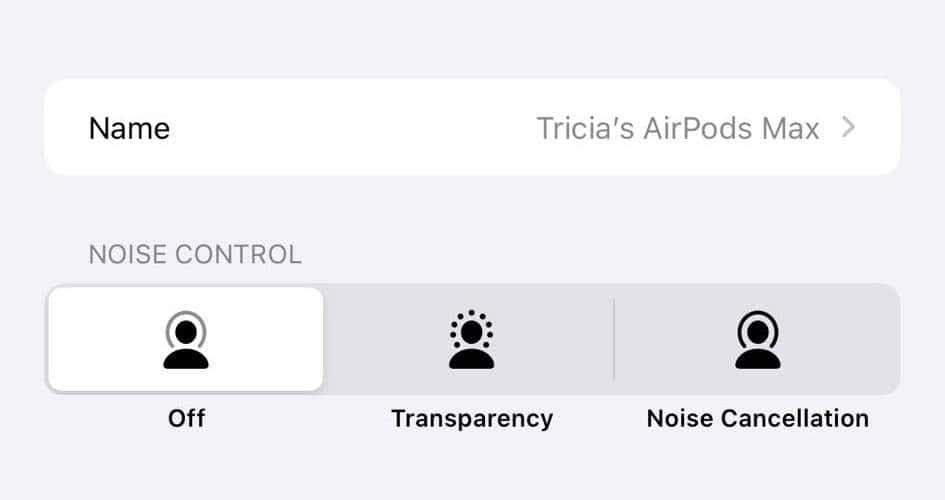
- For EarPods, check if the inline controls for volume and playback work smoothly.

Counterfeit products often lack these options or show generic settings when connected.
6. Test Find My and Precision Finding Features
- Open the Find My app and go to the Devices tab.
- Select your AirPods from the list.
- Genuine models should show options like Play Sound, Find Nearby or Precision Finding (depending on model and case), and Notify When Left Behind.

- AirPods Pro 2 with a UWB charging case support Precision Finding for the case itself and can play a tone from the built-in speaker.

If any of these features are missing or not functioning as expected, it’s a strong indication that the AirPods may not be authentic.
7. Check for Firmware Version
Firmware versions indicate whether the earphones run Apple’s authentic software.
- Go to Settings > Bluetooth on an iPhone.
- Tap the (i) icon next to your AirPods.
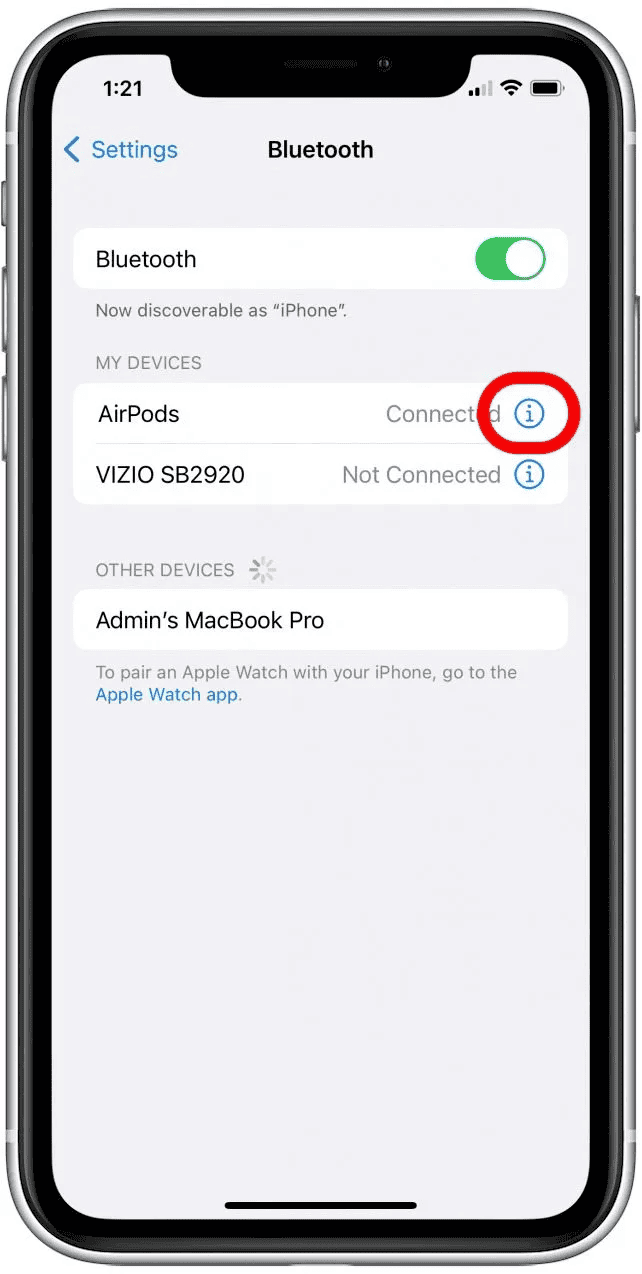
- Scroll down to view the Firmware Version.

Authentic devices show a valid firmware code and update automatically when connected to Apple devices. Counterfeits usually lack version data or display random alphanumeric strings.
8. Observe Connection Reliability
A genuine pair of Apple earphones maintains stable connections across all Apple devices.
- Observe if pairing is quick and automatic after the first setup.
- Check if audio switches smoothly between iPhone, iPad, and Mac using the same Apple ID.
- Counterfeit devices often disconnect randomly or take longer to pair.
9. Test with Multiple Devices
Connecting to different devices helps confirm hardware authenticity.
- Pair the earphones with an iPhone, iPad, or Mac.
- Monitor if they connect instantly and show Apple’s product name (e.g., “AirPods Pro”) rather than generic names like “Wireless Headset.”
- Verify that playback, mic input, and volume controls work consistently across all devices.
If performance varies drastically, the earphones are likely not original.
Additional Tips to Avoid Counterfeits
- Always purchase from Apple’s official store or certified resellers.
- Be cautious of extremely low prices or unsealed packaging.
- Check that accessories like the charging cable or case match Apple’s standard.
- Save the purchase receipt for warranty and verification.
- Compare your earphones with a known genuine pair at an Apple Store.
- Avoid sellers who refuse to provide serial numbers or offer “bulk” packaging.
Final Thoughts
Checking if Apple earphones are genuine involves more than just inspecting the box. It’s about recognizing Apple’s signature attention to detail. These include sound quality and connection reliability to firmware support, and packaging accuracy. Taking a few minutes to verify authenticity helps protect both your investment and your listening experience.
FAQs
Yes, but often with reduced audio quality, weaker connections, and no software support.
Go to Settings > Bluetooth, tap the (i) icon beside the AirPods, and check Firmware Version.
Yes. Each genuine Apple product has a unique serial number registered in Apple’s system.
The fastest method is to check the serial number on Apple’s official coverage page.
No. These features rely on Apple’s hardware and software integration, which fake models lack.



Discussion