

Tracking sleep with your Apple Watch can help you understand how well you rest, see your sleep stages, and even spot early health clues. In this guide, you will find simple, step-by-step instructions, so you can start using sleep tracking like a pro!
Table of contents
How to Track Sleep with an Apple Watch?
Step 1: Set Up Sleep Tracking
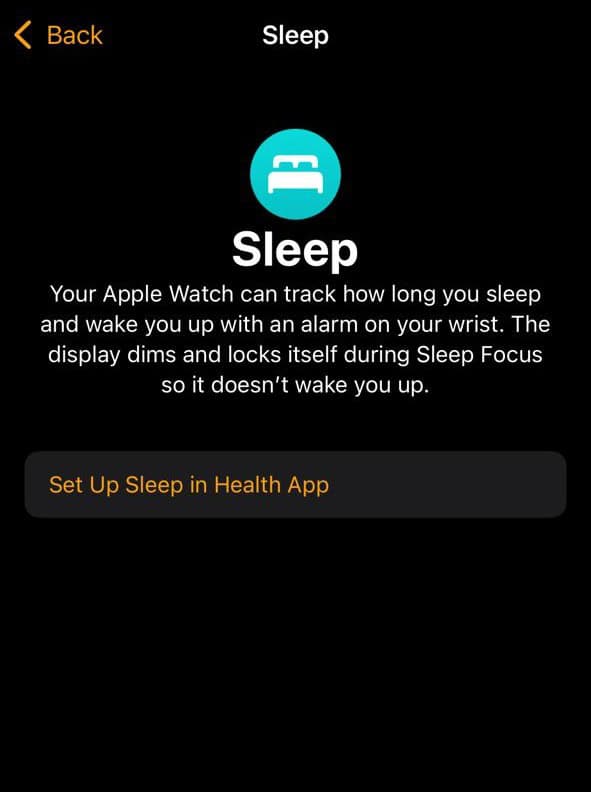
- On your iPhone, open the Watch app, go to My Watch > Sleep, and tap Set Up Sleep in Health App.
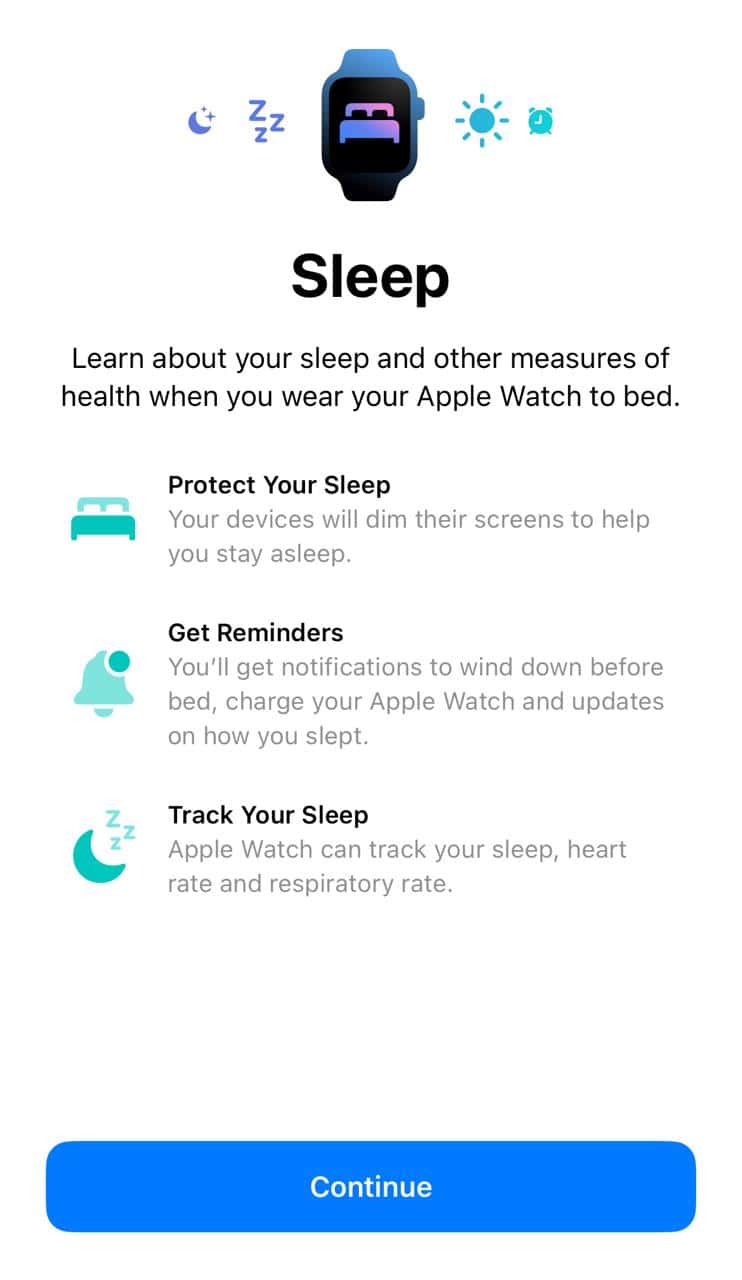
- In the Health app, tap Continue, then follow the prompts to set your sleep goal, bedtime, and wind-down time.


Step 2: Create Your Schedule
- Set your preferred bedtime and wake-up times.
- Add different schedules for weekdays or weekends if you like.
- Use the Next Wake Up Only option to adjust one night without changing all schedules.
Step 3: Wear Your Watch to Bed
- Wear the Apple Watch while you sleep. Tracking needs at least 1 hour of wear to work.
- Make sure the watch fits well, not too tight or too loose, for accurate tracking.
Step 4: Enable Sleep Focus and Charging Reminders
Enable Sleep Focus
- Open Health on iPhone > tap Browse > tap Sleep > tap Full Schedule & Options > turn on Use Schedule for Sleep Focus (Optional: Tap on Manage Sleep Focus in Settings > make the changes)

Sleep Focus limits distractions before and during sleep, simplifies your screens, and can turn on automatically with your schedule.
Turn On Charging Reminders
- Open the Watch app on your iPhone > scroll down and tap Sleep > find Charging Reminders > toggle it on so your watch notifies you to charge before bedtime.

Turn on Charging Reminders in the Watch or Health app so your watch charges before bedtime.
Don’t miss the best of The Mac Observer
Set us as a preferred source and our Apple reporting ranks higher in your Google Search results and Discover feed — one tap, no account changes.
Step 5: Check Your Sleep Data
- On your Watch: Open the Sleep app to see last night’s time asleep and sleep stages.
- On your iPhone: Use the Health app and go to Sleep. Choose daily, weekly, monthly, or six-month views. Tap Show More Sleep Data to see details like REM, Core, Deep, heart rate, respiratory rate, and wrist temperature if you have Series 8 or Ultra.

Understand How Sleep Tracking Works
- Apple Watch Series 3 or later with watchOS 9 or later uses motion and respiration data to estimate sleep stages such as REM, Core, Deep, and Awake.
- The watch uses advanced algorithms that have been validated with lab data to make these estimates.
For deeper insights, consider getting a top-rated sleep app for your Apple Watch.
Tips
- Use a snug but comfortable fit.
- Keep watchOS and iOS updated for the best features.
- Let Sleep Focus control your lock screen and notifications.
- Charge it to at least 30 percent so your watch lasts through the night.
- Use the Vitals feature to see overnight heart rate, respiratory rate, and sleep stages together.
- Set up ambient music or sleep meditations on your iPhone to wind down more easily at bedtime.
Frequently Asked Questions
Any Apple Watch with watchOS 8 or later supports sleep tracking. Advanced features like wrist temperature tracking appear on Series 8 and Ultra.
No. Apple Watch uses accelerometer and motion data to estimate sleep stages. It is helpful but not a replacement for medical equipment.
Try unpairing and reinstalling the app, wear the watch a bit tighter, or make sure Sleep Focus and your scheduled sleep times are active.
Yes. Newer models with watchOS 11 and above can detect breathing disturbances and suggest possible sleep apnea. This feature uses machine learning and has been validated in studies.
Summary
- Enable Track Sleep in the Watch app or Health app.
- Create sleep schedules with Wind Down and Sleep Focus.
- Wear your watch comfortably while sleeping.
- Keep the battery above 30% and let Charging Reminders help.
- Review sleep stages and trends in the Sleep app on your Watch or the Health app on your iPhone.
- Use Vitals and ambient sleep routines to improve your rest.
Conclusion
Sleep tracking with Apple Watch is now simpler and more insightful with updated watchOS features. With the right setup, schedules, and morning reviews, you can understand your rest patterns and improve your sleep habits.
Trust your watch as a guide, not a doctor, and use the data to help your body rest better night after night.
Also, if you face any issues, find out what to do when the Apple Watch is not tracking sleep!


Discussion