
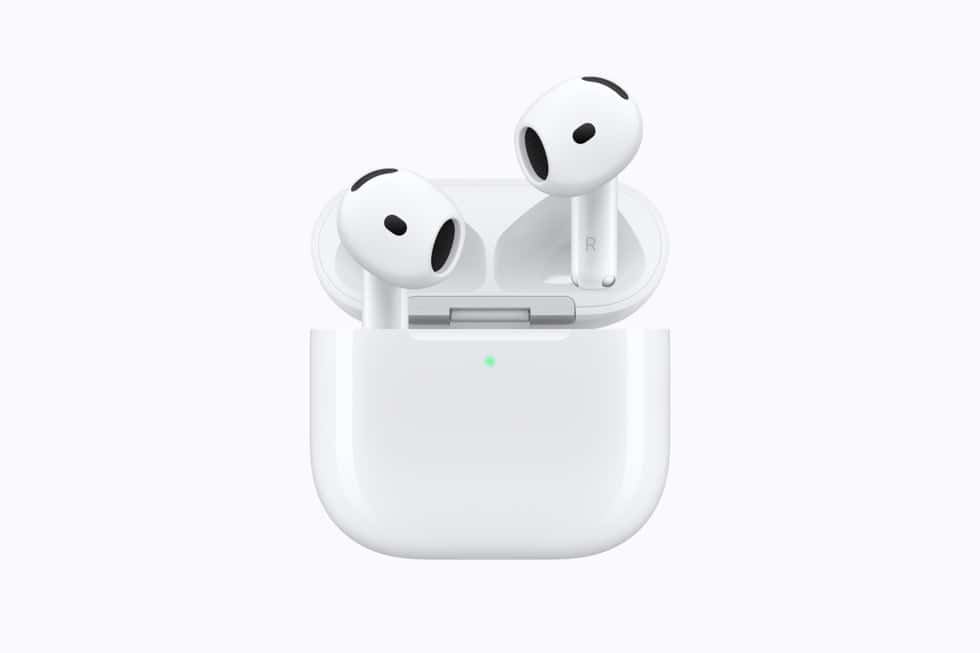
AirPods 5 can start and stop a recording on an iPhone 18 Pro, and they can capture your voice while they do it. Apple sets the first up in Settings > your AirPods name > Camera Remote, and the second in Control Center, with one important catch: Apple says using AirPods as a camera microphone “isn’t available in all countries or regions, including the EU.”

Both are worth doing during setup rather than discovering them a month later, because the shutter gesture has to be chosen before it does anything. Apple lists the feature for “AirPods 4, AirPods 5, AirPods Pro 2, AirPods Pro 3, or AirPods Max 2”, and requires iOS 26 or iPadOS 26 and later, so an iPhone 18 Pro running iOS 27 clears the bar on day one.
Turn the stem into a shutter button
Nothing happens when you squeeze a stem in the Camera app until you pick a gesture. Apple puts the choice in the AirPods settings page, not in Camera.
Don’t miss the best of The Mac Observer
Set us as a preferred source and our Apple reporting ranks higher in your Google Search results and Discover feed — one tap, no account changes.
- Connect your AirPods 5, then open Settings and tap the name of your AirPods near the top of the screen.
- Tap Camera Remote. If you do not see it, tap Controls & Gestures first, as Apple’s page notes.
- Choose Press Once or Press and Hold.
- Open the Camera app, select Video mode if you are shooting video, and press or press and hold the stem.
On AirPods Max 2 the same gesture uses the Digital Crown instead of a stem.
The two options are not interchangeable, and Apple is explicit about the cost of each. Choose Press Once and, in Apple’s words, media control gestures are temporarily unavailable. Choose Press and Hold and listening modes and Siri gestures are temporarily unavailable instead. Apple does not say how long “temporarily” runs, so read it as the period the gesture is doing camera duty. If you ride the noise controls all day, the first option costs you less. If you pause and skip constantly, take the second.
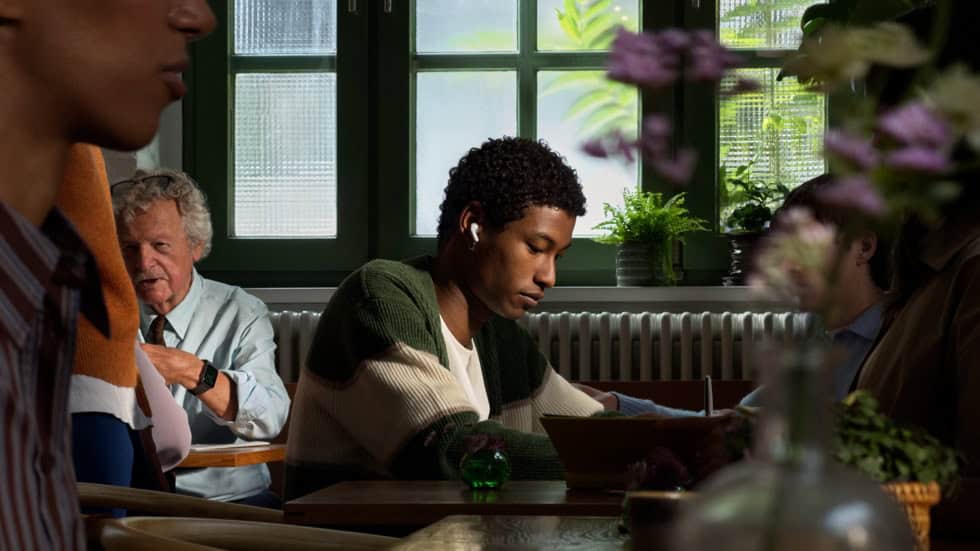
Use AirPods 5 as the microphone
This is the half that matters for anyone filming themselves. Instead of the phone picking up your voice from across a room, the audio comes from the buds in your ears.
- Wear your AirPods and make sure they are connected.
- Open the Camera app and select Video mode.
- Open Control Center, tap Camera Controls, then select your AirPods below Input.
- Choose a Mic mode: Apple lists Automatic, Standard, Voice Isolation and Wide Spectrum.
There is a second route that does not involve Control Center at all. Go to Settings > Sounds & Haptics > Input and select your AirPods there. Apple does not describe what each Mic mode does on this page, so treat the four names as choices to try rather than as documented behavior.
Where the microphone feature stops
Apple’s sentence is short and unambiguous: “Using AirPods as a camera microphone isn’t available in all countries or regions, including the EU.” That is the microphone half only. Apple does not apply the same restriction to Camera Remote on this page, so the shutter gesture is not described as region-limited.
If you are in the EU and the AirPods do not appear below Input, that is the documented behavior rather than a fault with a new phone. There is no setting to enable it and no workaround Apple publishes.
Apple also does not name which third-party camera apps count as “supported camera apps”. The Camera app is the safe assumption, and anything else is trial and error.
Worth setting up on day one
Neither feature is discoverable by accident, and both take under a minute. The shutter gesture does the job people buy a separate Bluetooth remote for. The microphone route puts the mic on your collar instead of across the room, which is the single biggest upgrade available to anyone filming themselves on the iPhone 18 Pro camera without buying anything.
If you are still deciding which AirPods 5 model to buy, our AirPods 5 launch coverage covers the price and the two case options, and the iPhone 18 Pro overview covers what the phone itself brings.



