

Your Apple Watch is more than just a timepiece. It’s a hub for health tracking, fitness goals, reminders, notifications, and even personal data like messages and app information. Losing that data, whether due to an unpaired watch, a failed update, or an accidental reset, can ruin your day.
Unlike iPhone or iPad, the Apple Watch doesn’t allow you to plug it into your computer and run recovery software directly. Instead, Apple designed WatchOS data recovery to work through your paired iPhone. This means backups, restores, and certain advanced services are your main tools.
Table of contents
How Apple Watch Data Backup Works
Before diving into recovery options, it’s important to understand where your Apple Watch data lives.
Don’t miss the best of The Mac Observer
Set us as a preferred source and our Apple reporting ranks higher in your Google Search results and Discover feed — one tap, no account changes.
- Apple Watch does not keep standalone backups.
- Instead, your paired iPhone automatically backs up Watch data whenever the two are connected.
- This backup is included in your iPhone backup (either iCloud or Finder/iTunes on Mac/Windows).
- The backup includes:
- Health and Activity data
- App layouts
- System settings
- App-specific data (where supported)
This means if you lose data on your Apple Watch, you’ll need to restore it from your iPhone backup. If no backup exists, options become more limited, and professional recovery services may be required.
Read more to find out how to back up your iPhone through iCloud, Finder, or iTunes.
Option 1: Restore Apple Watch from iPhone Backup (Best for Most Users)
This is the primary, most reliable method for recovering Apple Watch data. Whenever you unpair your Apple Watch from your iPhone, the iPhone automatically creates a fresh backup of the Watch. That backup is then stored either in iCloud or on your computer.
When you pair your Apple Watch again, either the same one after a reset or a new replacement, you’ll be prompted to restore from backup.
- Unpair your Apple Watch from your iPhone (the iPhone will create a backup).
- Open the Watch app on your iPhone and start the pairing process again.
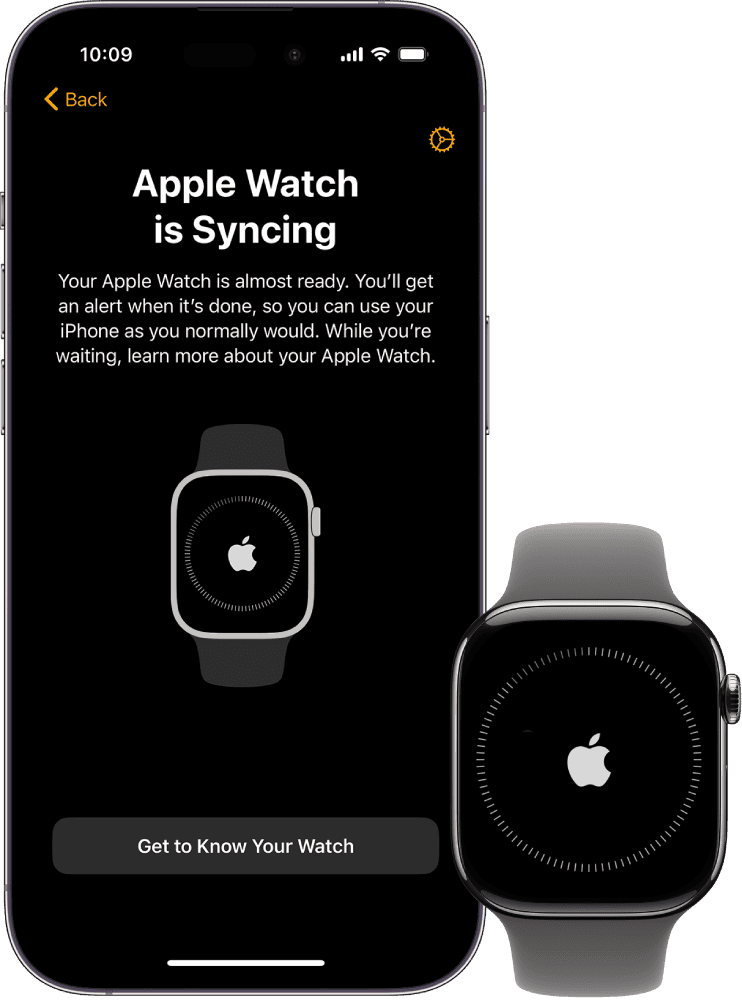
- When prompted, select Restore from Backup instead of setting up as new.
- Choose the most recent backup available.
- Wait for the sync to complete. Your health, activity, and settings will return.

Option 2: Restore iPhone Backup First, Then Pair Watch
Sometimes, the issue isn’t with the Apple Watch itself but with the iPhone backup. If you replaced your iPhone or wiped it, you’ll need to restore your iPhone first, then pair your Apple Watch to get the data back.
- Restore your iPhone from iCloud or Finder/iTunes backup.

- Pair your Apple Watch with this restored iPhone.
- Choose the Restore from Backup option during setup.
- Let the watch sync data from the recovered iPhone backup.

For more information, check out our separate guide on how to restore your iPhone from a backup.
Pros
- Ensures that Watch data is in sync with the right iPhone backup
- Useful when switching to a new iPhone
Cons
- Requires both iPhone and Apple Watch backups to be intact
- More time-consuming than a direct Watch restore
Option 3: Use Professional Data Recovery Services
If your iPhone backup is missing, corrupted, or incomplete, you may need to turn to professional recovery labs. These companies use specialized hardware and forensic tools to attempt recovery of Apple device data, including files that aren’t normally accessible.
Top examples:
- Stellar Data Recovery (known for Apple compatibility)

- DriveSavers (high-end professional lab services)
- Ontrack (enterprise-level recovery, also supports Apple devices)
For more options, take a look at our roundup of the best data recovery software for iPhone.
Option 4: Contact Apple Support or an Authorized Service Provider
Apple doesn’t provide standalone data recovery tools for the Apple Watch. However, if your device is under warranty or AppleCare+, contacting Apple Support or an Authorized Service Provider may help. They can guide you through official restore processes or, in some cases, attempt recovery during repair
FAQs
Not directly. Apple Watch does not store independent backups, data is always tied to the iPhone backup.
Apple Watch doesn’t store full photos or music libraries. It syncs them from iPhone. Only thumbnails, settings, and playlists are backed up.
Every time your iPhone and Watch pair and sync, especially when unpairing.
No. Any app that claims to recover Watch data directly is misleading. Real recovery happens through iPhone backups.
Health data is encrypted and backed up if you’ve enabled Health in iCloud or encrypted iTunes/Finder backups. Without this, it cannot be restored.
Final Verdict
When it comes to Apple Watch, recovery options are more limited than iPhone or iPad. For most people, the best approach is restoring from your iPhone backup, which is automatic and free.
If your iPhone backup is missing or corrupted, your only alternatives are professional recovery services or Apple Support, though results can vary and costs may be high.
To avoid future headaches, make sure you:
- Keep iCloud backups enabled on your iPhone
- Use encrypted backups if you want full Health data saved
- Unpair your Apple Watch properly before upgrading or repairing it
That way, you’ll always have a recent snapshot of your Apple Watch data ready to restore.


Discussion