
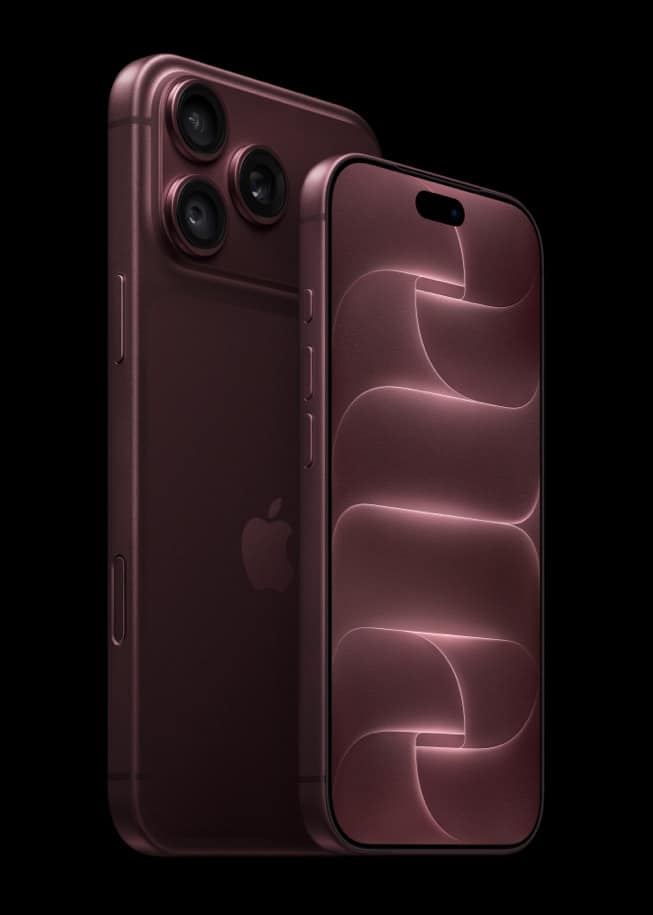
With Apple Intelligence in iOS 27, dictation uses an on-device model to improve spelling, punctuation and capitalization. Apple says it’s available in English on “iPhone 17 Pro, iPhone 17 Pro Max, iPhone Air, or later,” and its feature availability page lists nine varieties of English.
That device list is narrower than the one for Apple Intelligence itself. Here’s who gets it, how to turn dictation on, and the commands that help when it guesses wrong.
Which iPhones get the new dictation model
Apple’s iPhone User Guide names three models for the improvement, iPhone 17 Pro, iPhone 17 Pro Max and iPhone Air, followed by “or later.” Newer phones such as the iPhone 18 Pro, with its A20 Pro chip, fall under that “or later.”
Don’t miss the best of The Mac Observer
Set us as a preferred source and our Apple reporting ranks higher in your Google Search results and Discover feed — one tap, no account changes.
That leaves a gap. Apple Intelligence in iOS 27 runs on iPhone 15 Pro, iPhone 15 Pro Max and iPhone 16 models or later, but Apple’s dictation note doesn’t list iPhone 15 Pro models, iPhone 16 models or the standard iPhone 17. Those phones keep their other Apple Intelligence features.
Every iPhone that runs iOS 27 keeps the regular dictation it already had. Apple says dictation is processed on your iPhone in many languages, with no internet connection required.
Which English it supports
Apple’s iOS feature availability page lists “More advanced Dictation” under Apple Intelligence for these nine varieties of English:
- English (Australia)
- English (Canada)
- English (India)
- English (Ireland)
- English (New Zealand)
- English (Singapore)
- English (South Africa)
- English (United Kingdom)
- English (United States)
Apple Intelligence also has to be available to you. Apple says it works with your iPhone and Siri language set to one of 16 supported languages, isn’t available in all regions, and may be subject to usage limits.
How to turn on dictation and use it
- Go to the Settings app on your iPhone.
- Tap General, then tap Keyboard.
- Turn on Enable Dictation. If a prompt appears, tap Enable Dictation.
- In any text field, tap where you want the text to go, then tap the Dictate button on the onscreen keyboard.
- When the Dictate button appears near the insertion point, start speaking.
To stop, tap the Dictate button again, say “Stop dictation,” or stay silent for 30 seconds. The keyboard stays open while you dictate, so you can switch between typing and speaking in the same sentence.
Commands that fix what the model misses
Better automatic punctuation doesn’t replace voice commands. These come from Apple’s iOS 27 guide:
- Add punctuation: say the name of the mark, such as “exclamation point.”
- Start a new line: say “new line” or “new paragraph.”
- Spell a name: say something like “Let’s invite Steven S-T-E-P-H-E-N.”
- Correct spelling: say something like “Change tea to T-E-E.”
- Edit text: say “select” or “delete” followed by the phrase you want to change.
- Undo or repeat: say “undo” or “redo.”
Apple’s feature availability page lists a separate entry, Voice-Based Editing, for English (United States) only.
Turn off automatic punctuation
In supported languages, dictation inserts commas, periods and question marks automatically. If you’d rather add every comma yourself, go to Settings > General > Keyboard and turn off Auto-Punctuation. Dictation keeps working, and you can still speak punctuation marks by name.
One privacy note from Apple: when you dictate into a search field, the dictated text may be sent to the search engine to process the search. Apple also notes that cellular data charges may apply when you use dictation.



