

Losing track of essentials like keys, bags, or sometimes even a beloved pet can be incredibly stressful. That’s why AirTags are such a valuable tool for peace of mind. But it’s not ideal when a simple battery change disrupts this convenience, leaving it unresponsive and unavailable through the Find My app.
If your AirTag is not connecting after a battery change, this guide is designed to help you overcome this challenge. Let’s start.
How To Fix AirTag Not Connecting After Battery Change
1. Check Battery Placement and Type

The most common culprit behind an unresponsive AirTag is incorrect battery placement. Double-check that the battery is inserted securely, with the positive side facing upwards. The battery should make proper contact with the AirTag’s terminals for optimal performance.
Don’t miss the best of The Mac Observer
Set us as a preferred source and our Apple reporting ranks higher in your Google Search results and Discover feed — one tap, no account changes.
It’s also essential to use a CR2032 battery. Some CR2032 batteries have a protective coating to prevent ingestion, which can interfere with its functionality. If your battery has this coating, try using a different brand without this protective layer.
2. Reseat the Battery
Even if the battery is correctly inserted, a slight shift can sometimes disrupt the connection. So, to ensure proper contact, try reseating the battery.
Start by carefully removing the battery from the AirTag. Check for any dirt, debris, or corrosion on the battery or its terminals. After that, place the battery back into the AirTag. Make sure it’s securely in place and making good contact with the terminals.
3. Clean the Contacts
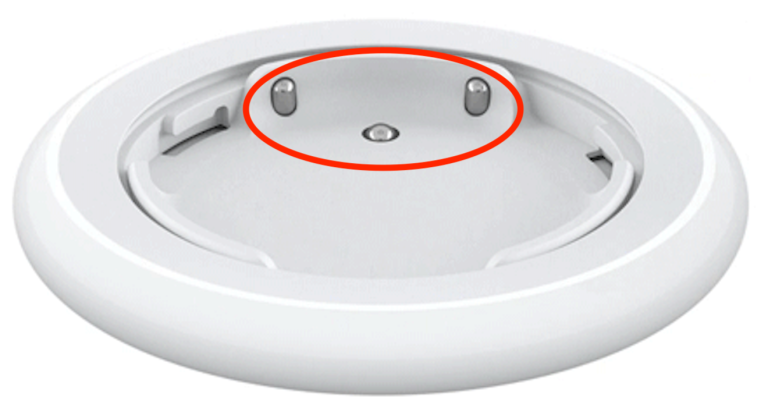
If reseating the battery doesn’t resolve the issue, dirt, debris, or corrosion on the battery contacts or AirTag terminals may be interfering with the connection. A thorough cleaning can often remedy this problem.
Here’s how to clean the contacts:
- Get a soft, lint-free cloth and a small amount of isopropyl alcohol.
- To prevent accidental activation, deactivate your AirTag by removing the battery.
- Gently wipe the battery contacts and the AirTag’s terminals with the cloth dampened with isopropyl alcohol. Be careful not to apply excessive pressure, as this could damage the contacts.
- Let the contacts dry completely before reassembling the AirTag.
After cleaning the contacts, reinsert the battery and check if the AirTag connects. If the problem persists, proceed to the next step.
4. Reset Your AirTag
- Firmly press and turn the stainless steel back of the AirTag counterclockwise to open it.
- Carefully remove the battery.
- Allow at least 30 seconds for the AirTag to reset.
- Reinsert the battery and press it firmly until you hear a click sound. This sound indicates a successful power connection.
- Securely close the AirTag by aligning the cover and turning it clockwise until it locks in place.
After resetting your AirTag, try reconnecting your AirTag to your iPhone or iPad again.
5. Re-Pair via Find My App
To get your AirTag working again, one step is to consider removing it and re-adding it to the Find My app. Here’s how you can do this.
- Launch the Find My app on your iPhone.
- Tap on the Items tab on the app screen’s bottom.
- Identify the AirTag you’re experiencing issues with and tap on it.
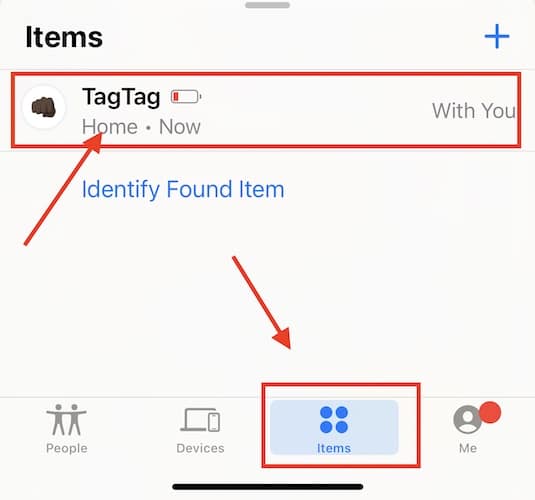
- Scroll down the AirTag’s details page and tap Remove Item.
- Confirm your decision to remove the AirTag by following the on-screen prompts.
- Hold the AirTag close to your iPhone and follow the on-screen instructions to re-pair the device.

6. Test Compatibility With Another iPhone
To determine the source of the AirTag’s connectivity issues, try to pair the device with a different iPhone. By doing this, you can find whether the problem originates from the AirTag itself or if there is a specific compatibility issue with your initial iPhone.
To do this, ask a friend or family member to borrow their iPhone. On the borrowed iPhone, log in to your iCloud account using the same Apple ID you use with your AirTag. See if you can locate your AirTag using the Find My app on the borrowed iPhone.
If you can connect to your AirTag using another iPhone, it means that there might be a compatibility issue with your original device. In this case, you should contact Apple Support for further assistance.
7. Prioritize Battery Quality

The performance of your AirTag can be significantly influenced by the quality of the battery it uses. While CR2032 batteries may seem similar, variations in brand and manufacturing can impact their fit, power output, and overall longevity. Low-quality or counterfeit batteries might not provide the necessary power or have compatibility issues. So, when replacing your AirTag’s battery, always opt for a reputable brand. Look for batteries that are specifically designed for use with Apple devices.
8. Keep Your AirTag Updated
Just like your iPhone or iPad, AirTags receive software updates that improve performance, add new features, and address potential issues.
To keep your AirTag working at its best, make sure your device’s software is always up-to-date. Regularly check for available updates and promptly install them when prompted. Here’s how you can check if your AirTag is running the latest firmware:
- On your iPhone or iPad, launch the Find My app.
- Tap on the Items tab at the bottom of the screen.
- Select your AirTag from the list.
- If an update is available, you’ll see a notification. Tap on Update to install it.
9. Update Your Device
Ensuring your iPhone or iPad is running the latest version of iOS or iPadOS is equally important. Outdated software on your device can also sometimes interfere with AirTag connectivity.
To check for and install updates:
- Tap on the Settings app on your iPhone or iPad.
- Scroll down and tap on General.
- Tap on Software Update.
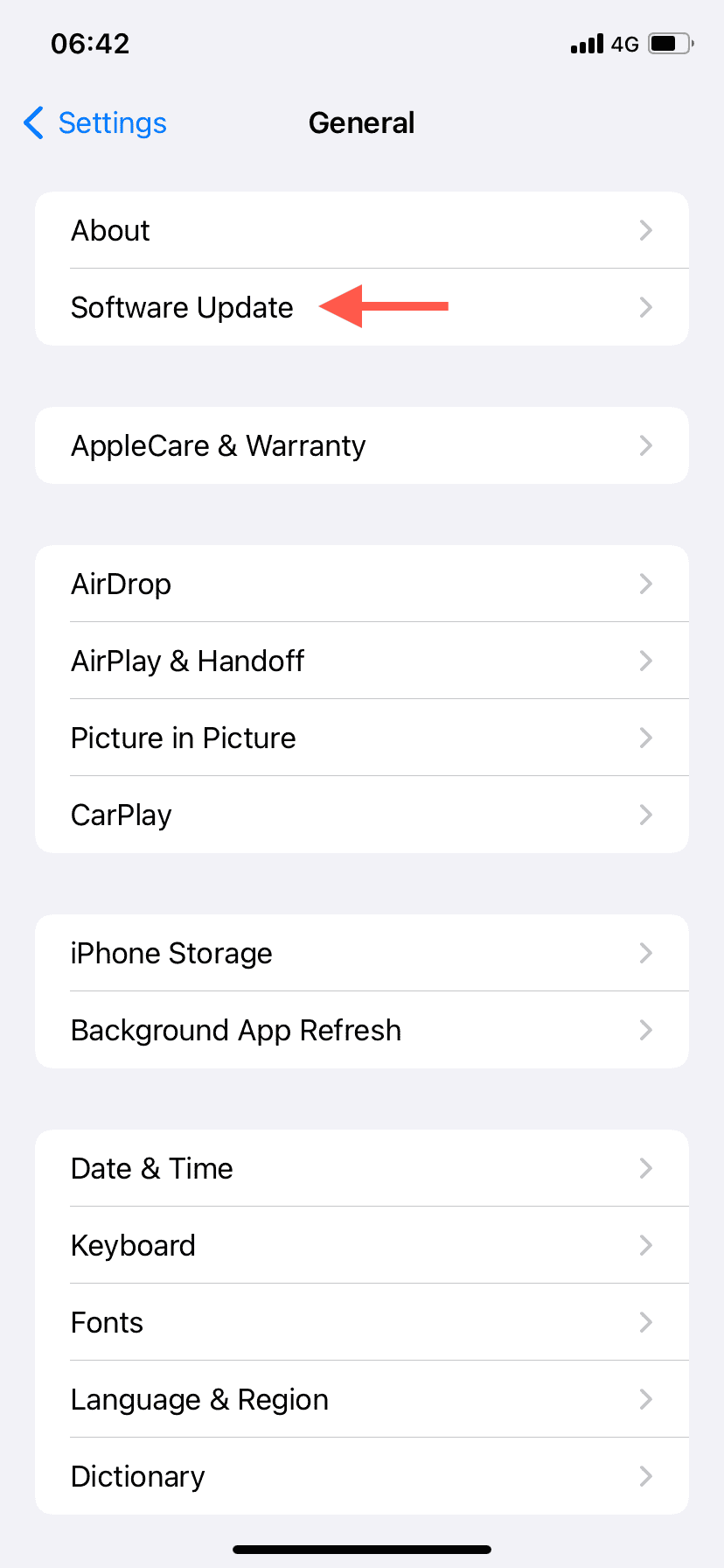
- If an update is available, follow the prompts to install it.

After updating your device, try connecting to your AirTag again.
10. Contact Apple Support
If none of the previous steps have resolved the issue, it’s time to reach out to Apple Support. They can provide further troubleshooting advice or assist with potential hardware issues.
Just remember to provide as much information about your AirTag as you can, including its serial number and when you first noticed the connection issue.


One of .my airtags said the battery was low. I changed it but it would not function. We checked the old battery and it was good! Put the original back in the airtag (it made sounds, so appears the connection was good), phone could not see it. Tried removing it from “my devices” and reloading it, and it would not reload. Got a new airtag, and it hooked up right away. Not sure what the problem is.
Hi. Thanks for the solution. I have gone through all the steps but still my AirTag is not recognized by my iPhone 13 plus. I have reset it by removing the battery. What else I have to do? Thanks.
Hello, please try the following:
1. Try another device to see if the AirTag shows up on a different iPhone signed in to your Apple ID.
2. Check Bluetooth, Location, and Find My. Make sure all are turned on in Settings.
3. Update your iOS.
4. Sign out/in of Apple ID(Apple Account): Go to Settings > Your Name > Sign Out, then sign back in.
5. Bring the AirTag very close. Hold it right next to the top of your iPhone until you see the setup animation.
6. Make sure the battery is a fresh CR2032 without a bitter coating, as that can block contact.
If none of these work, the AirTag may have a hardware fault, in which case Apple Support will need to replace it.