
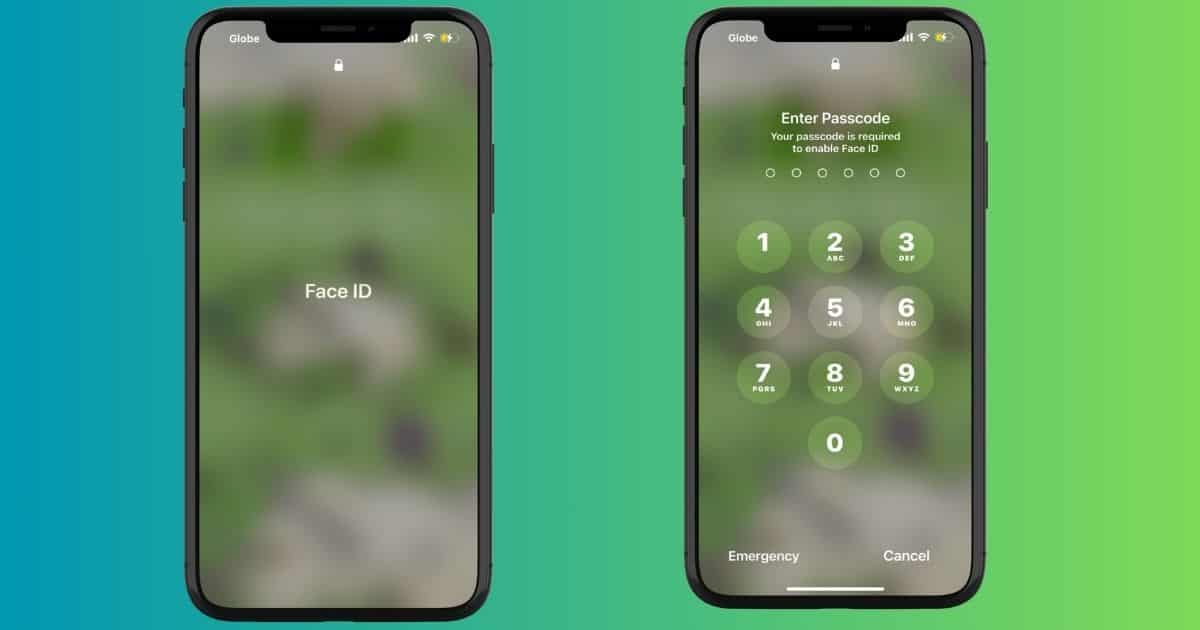
Biometric authentication systems changed the way users interact with Apple devices. You can use your face to unlock your device, make payments, and confirm actions instead of entering passcodes repeatedly. Like most people, you’ve probably gotten used to facial recognition’s speed and convenience. Face ID is generally reliable, although occasional issues like iOS 18 update bugs can cause it to stop working.
It’s easy to assume the worst and think that hardware is to blame. However, there are a few simple fixes you can try at home before heading for repairs. Let’s dive in.
How To Fix Face ID Not Working on iOS 18.5
1. Check Passcode Settings
Time needed: 2 minutes
Double-check your passcode settings before diving into more complex solutions. Your iPhone’s biometric authentication methods won’t work if they’re disabled for specific native and third-party functions. Here’s what to do:
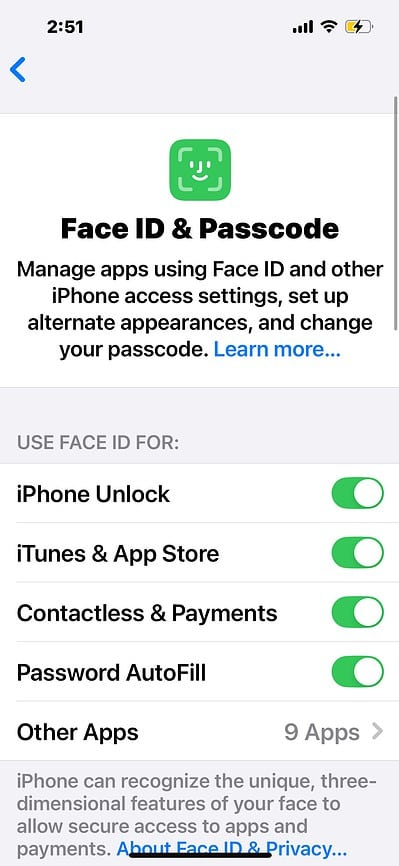
- Go to Settings > Face ID & Passcode.

- Enter your passcode.
- Toggle on all the buttons under the Use Face ID For section. You can open the Other Apps tab if you also use it for third-party processes.
 NOTE
NOTE
2. Reset Face ID Data
Recalibrate the TrueDepth camera to the latest software update. iOS 18.5 might have introduced changes in how it processes facial recognition data, e.g., image processing algorithms, light detection, or facial feature scanning. Re-enrolling in the system clears old data that might conflict with new processes.
Don’t miss the best of The Mac Observer
Set us as a preferred source and our Apple reporting ranks higher in your Google Search results and Discover feed — one tap, no account changes.
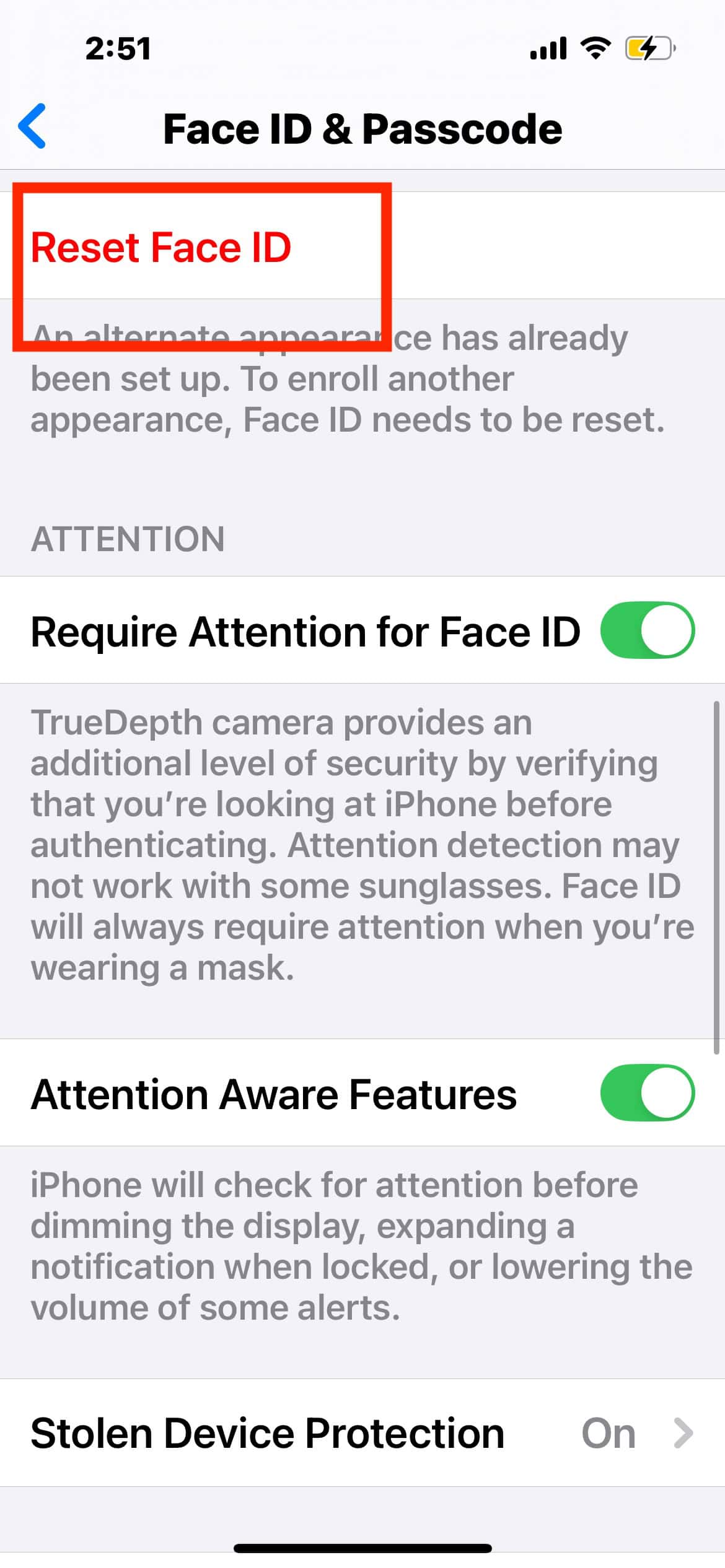
- Go to Settings > Face ID & Passcode.
- Enter your passcode.
- Tap Reset Face ID to clear the old facial data.
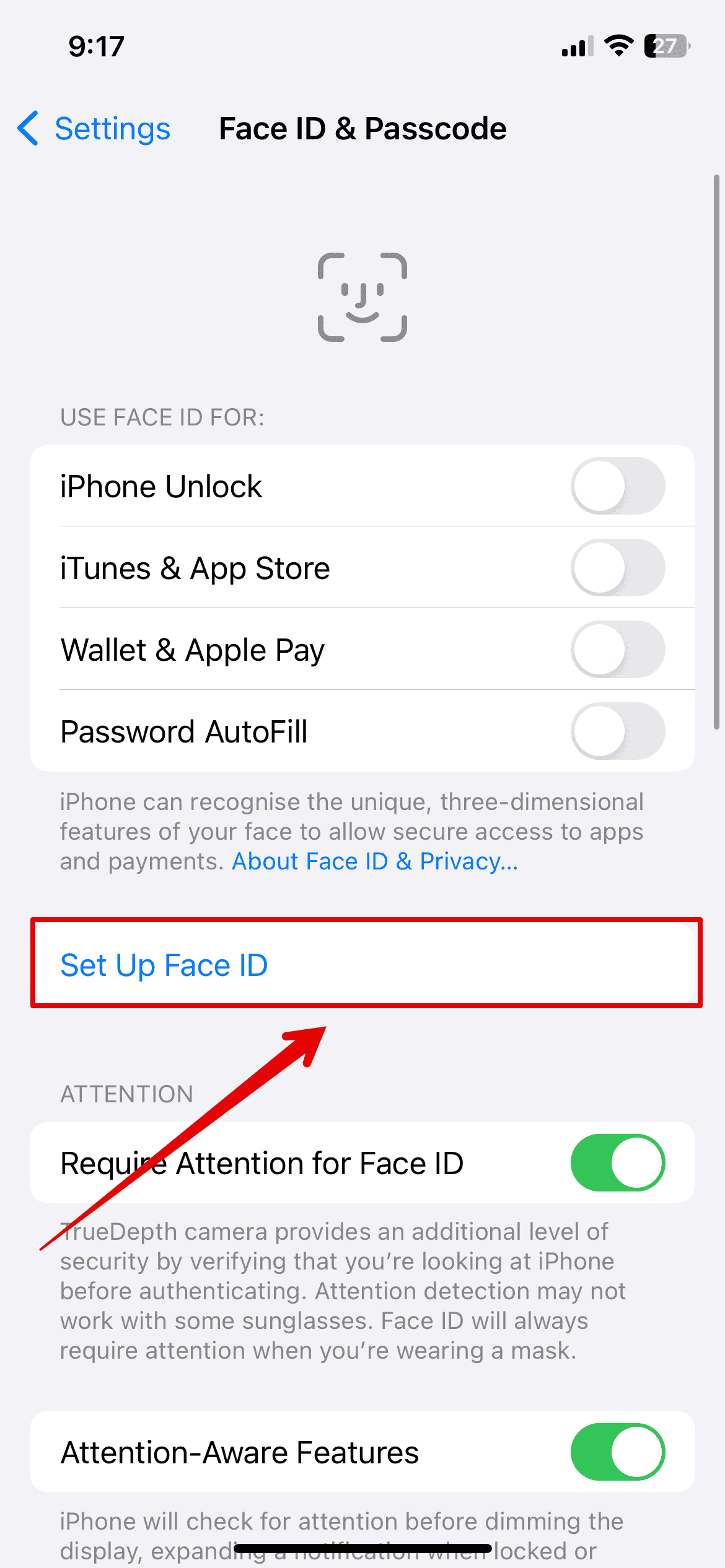
- Select Set Up Face ID and follow the on-screen instructions to re-enroll your face.
3. Restart Your iPhone
Restart your iPhone to reset temporary software glitches. It clears out minor bugs that may have surfaced during the update process. Feel free to do this after every troubleshooting step.
- Hold the side button and the volume up or down button simultaneously.
- Swipe the slide to power off slider.
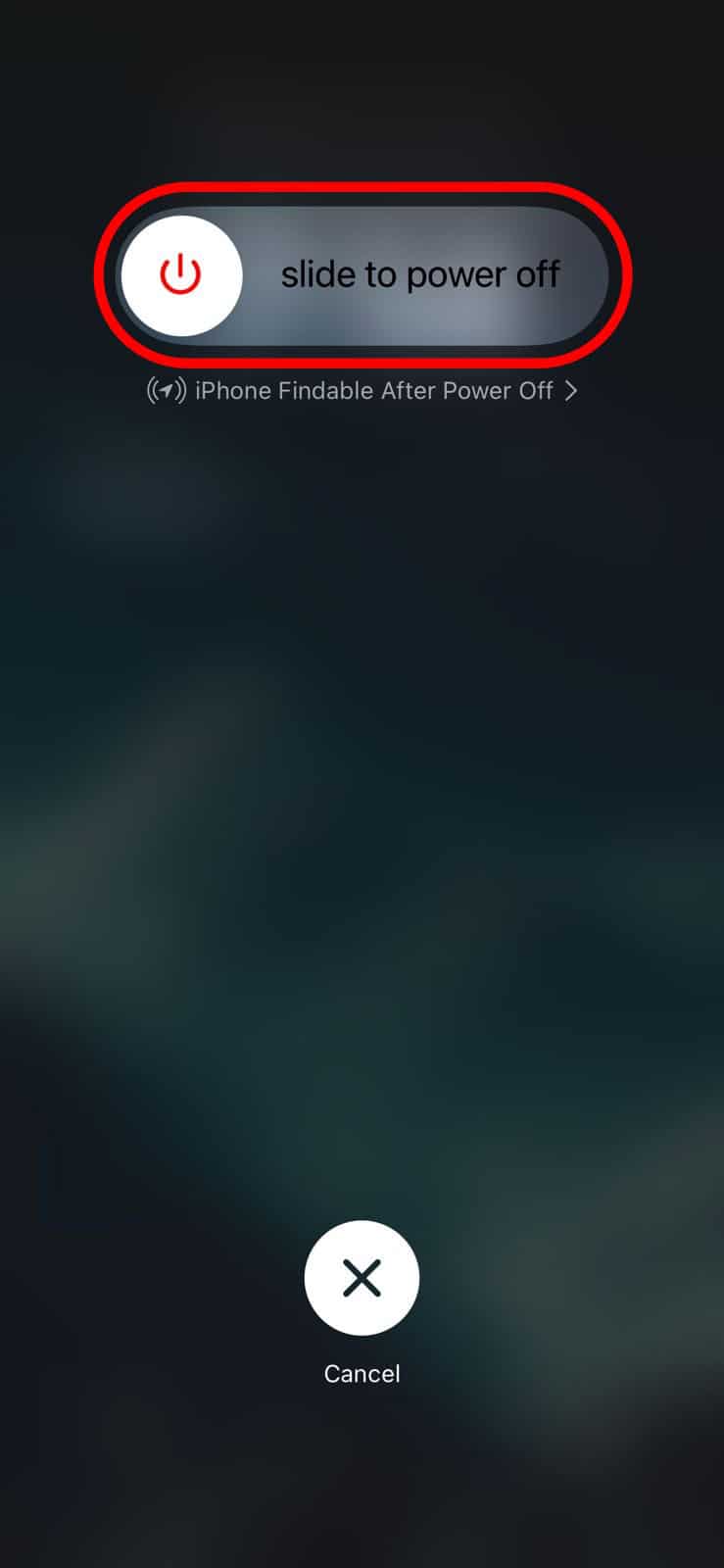
- Wait for your iPhone to turn off completely.
- Press and hold the power button again until you see the Apple logo.
4. Reset All Settings
You can factory reset your iPhone as a last resort. It’s a quick way to revert hidden misconfigurations interfering with biometric authentication functions. Just remember to back up your files. Otherwise, you won’t be able to restore them afterward.
- Go to Settings > General > Transfer or Reset iPhone.
- Tap Reset > Erase All Content and Settings.
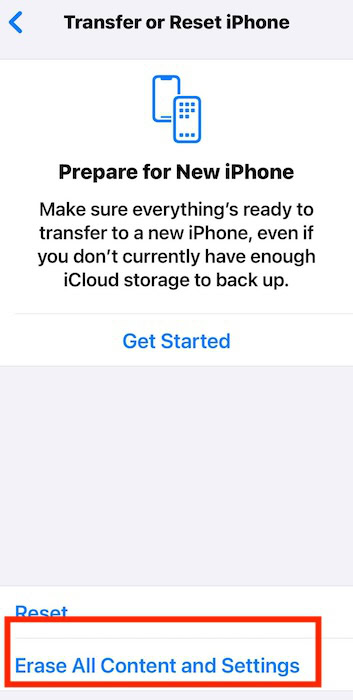
- Enter your passcode to confirm the action.
- Wait for your device to restart.
Reach out to Apple Support should issues persist. Apple-certified technicians might have to check your TrueDepth camera system for hidden hardware damage. Sadly, the standard one-year warranty won’t cover repairs. But if you renewed your AppleCare+ plan, you’re golden.




Ive tried everything to change my face recognition since being in an accident and it wont allow me to do anything. Ive tried erasing all data and it still wont let me. I need to take this stupid facial recognition off so that i can get rid of this phone.
I’m an Apple-certified tech and this update stopped mine from working too. I’ve not been able to rectify the problem.
The update broke mine too. I’m Apple certified and I can’t get it to work. Ridiculous.
Apple make ridiculous changes to these phones and needs to simplify everything. Not complicate. I have tried everything to fix face I D but it won’t even let me reset face ID
Face ID not working and literally everything is locked so I can’t open it.
I can’t even reset the the Face ID settings because it won’t unlock to access it.
Phone and all my data basically scrap now so won’t be using iPhone again
The only options are to unlock with your Apple ID if prompted, or use Recovery Mode to restore the device, which will erase all data and let you set it up again.
This update sucks. Can’t do facial if it set it back up. Camera keeps saying face out of view 🤬 why do they continue to charge shit
Total disaster. I have all kinds of security that requires face id. Now it is completely broken. So much for security. Unusable, more like.
Error message
Absolutely frustrating! Not a single thing worked. Have not tried resetting to factory yet but this is an absolute pain! Apple should test the release sufficiently before releasing! So pissed!
When I try to set Face ID back up again – I get an error messag that Face ID is not available. This is just so ridiculous. Apple sends out a fix and breaks something else. Very disappointed