

If you recently updated your Mac to macOS Sequoia, you probably noticed some unusual behavior with window tiles. They automatically switch to full screen or move to the sides of the display when you’re moving them around. This is all part of Sequoia’s new window-tiling feature.
Although supposedly convenient for display organization, some might just find it inconvenient. You don’t have to put up with it—you can easily turn it off with just a few clicks. Follow these steps.
Turn Off Automatic Window Resizing in macOS Sequoia
Time needed: 3 minutes
Disable automatic window resizing through the Settings app—there’s no need for a third-party tool. Here’s how:
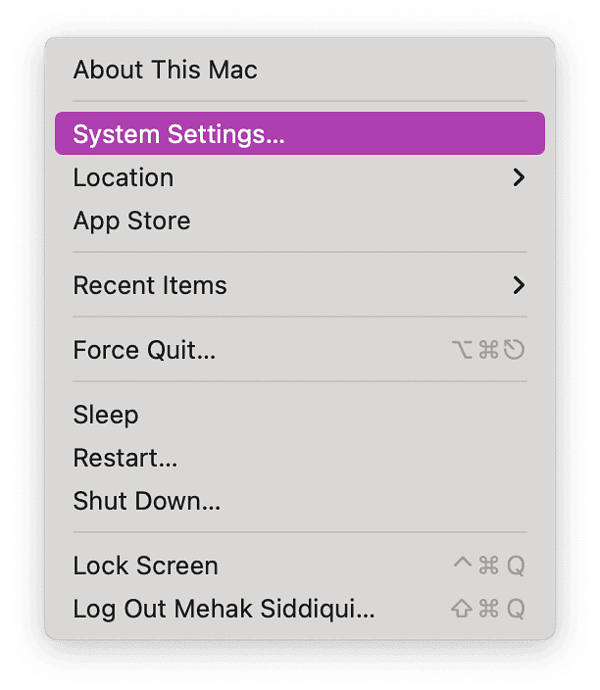
- Click the Apple menu and go to System Settings.
- Select Desktop & Dock in the side navigation pane. Then, scroll down to the Windows section. Here, you’ll see the tiling options enabled.
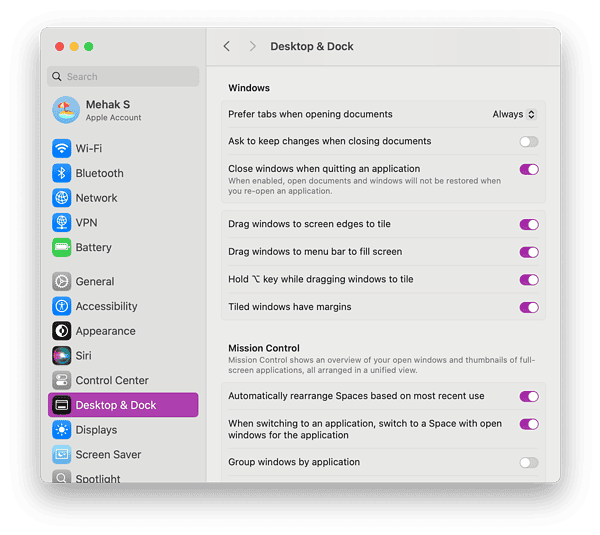
- To disable automatic window resizing, toggle off the following: Drag windows to screen edges to tile, Drag windows to menu bar to fill screen, Hold ⌥ key while dragging windows to tile, and Tiled windows have margins.

- Close System Settings and then drag some windows around to check if they have stopped automatically resizing.


It’s worth noting that window tiling in macOS Sequoia can be useful too, especially when you get used to it. It helps to easily tile windows when multitasking on your Mac, which can streamline your workflow.
Don’t miss the best of The Mac Observer
Set us as a preferred source and our Apple reporting ranks higher in your Google Search results and Discover feed — one tap, no account changes.
Moreover, as indicated in the Settings screenshot above, you have the option to enable Hold ⌥ key while dragging windows to tile. If you leave this option enabled, it can give you more control because you can hold down the ⌥ key when you want to resize a window. If you don’t hold down the key, your window won’t be automatically resized when you’re moving it.
Hope this has helped you understand this feature better. Let me know in the comments below if you’ve got any other questions about macOS Sequoia.


Thank you so much, this has been so annoying.
Thank you!
Your instructions are clear, simple, and easy to follow. And they work!