

If the camera app on your iPhone 16e is freezing unexpectedly, the issue could be related to the recent iOS 18.4 update, problems with the RAM, or another app consuming excessive resources. You can try restarting the Camera app or your iPhone, closing background apps, and updating to the latest iOS version to resolve the issue.
What Causes the Freezing Camera Issue in iPhone 16e?
There are several reasons why your iPhone 16e’s rear camera might freeze or lag. Here are the most common ones:
- iOS Software Bugs: The iOS 18.4 update may have introduced bugs that interfere with how the Camera app interacts with the system.
- Overheating: When your iPhone becomes too hot, it may disable or limit certain camera functions to prevent hardware damage, which can result in freezing or lag.
- Too Many Background Processes: Running multiple apps at once can slow down your iPhone’s performance. This impacts how smoothly the camera works.
How to Fix iPhone 16e Camera Freezing
1. Force Quit the Camera App
The first thing you should do when an app misbehaves is to restart it. In most cases, a RAM issue might be the cause of the crash, and a restart clears everything, allowing the app to start anew. To do this:
- Double-press the Home button or swipe up from the bottom of the screen to open the App Switcher.
- Swipe up on the Camera app.
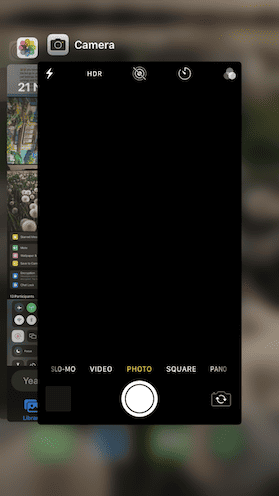

Wait a few seconds and reopen the Camera app to see if it is working normally.
Don’t miss the best of The Mac Observer
Set us as a preferred source and our Apple reporting ranks higher in your Google Search results and Discover feed — one tap, no account changes.
2. Reboot the iPhone
If restarting the app doesn’t fix the problem, try force-restarting your iPhone. It’s a simple method that often clears any glitches within iOS that may be causing the problem. Here’s how:
- Quickly press and release the Volume Up button.
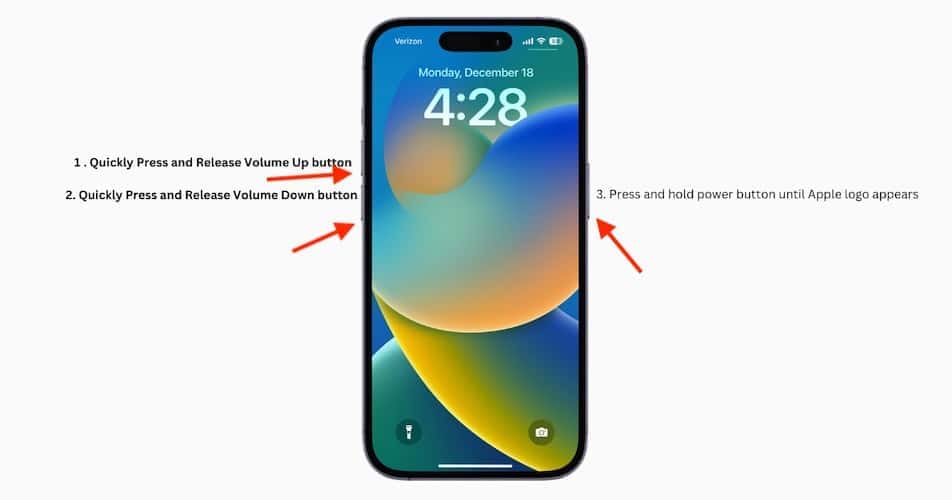
- Now quickly press and release the Volume Down button.
- Then press and hold the Power button until the Apple logo appears.

3. Clear Background Apps
If an app is hogging resources in the background, it may cause your iPhone to slow down and limit its camera functions. Closing unused background apps helps free up system resources and improve performance. To do this:
- Open the App Switcher by swiping up from the bottom of the screen.
- Swipe up all the unnecessary apps to close them.
4. Update iOS
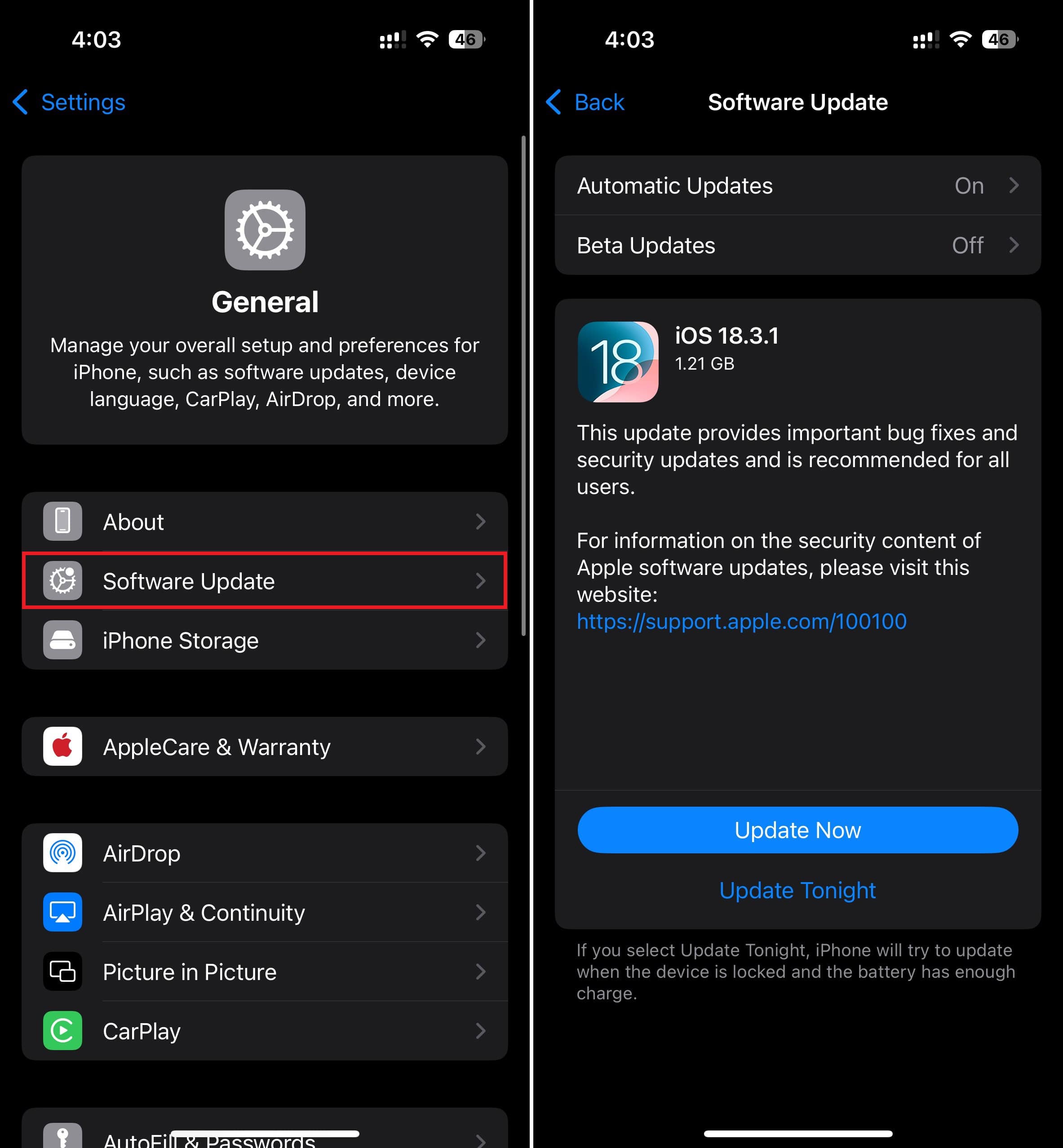
Often, a software issue is the cause of your camera problems. Update to the latest iOS version to help fix them:
- Go to Settings and then open General.
- Select Software Update.
- If an update is available, tap Download and Install.

Hopefully, one of these methods helped you solve the freezing problem. Unfortunately, if none of them worked, there could be a more serious software or hardware issue. In that case, it’s best to contact Apple Customer Support or visit an Apple Authorized Service Provider for professional help.



Discussion