

If you’re trying to find your iPhone’s MAC address, whether it’s for setting up a secure Wi-Fi network, troubleshooting a connection issue, or registering your device on a restricted system, you can do so by opening the Settings app and navigating to either the General or Wi-Fi section. Let’s take a closer look at the solution in detail.
Is a MAC Address the Same as a Wi-Fi Address?
Yes, the MAC Address and Wi-Fi Address refer to the same thing on your iPhone. MAC address, short for Media Access Control, is a unique identifier assigned to your device’s network interface. On iPhones, it is labeled as the Wi-Fi Address in Settings. This address is used to identify your device on a network.
It’s also worth noting that Apple devices may utilize Private Wi-Fi Addresses for enhanced privacy, meaning the MAC address changes with the network, unless this feature is disabled.
Don’t miss the best of The Mac Observer
Set us as a preferred source and our Apple reporting ranks higher in your Google Search results and Discover feed — one tap, no account changes.
How To Find Your iPhone’s MAC Address?
1. Using General Settings
Time needed: 5 minutes
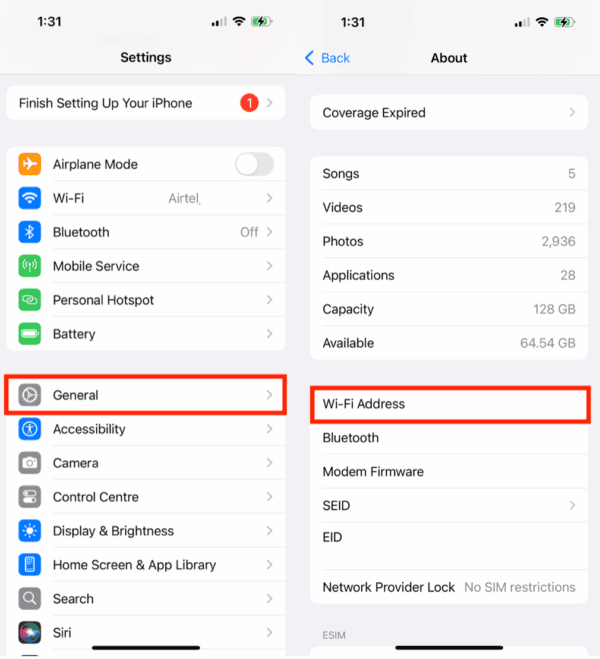
The simplest way to find your iPhone’s MAC address is through your Settings app.
- Open the Settings app, then head to General > About.
- Scroll down to find the Wi-Fi Address. That will be your iPhone’s hardware MAC address.

2. Using Wi-Fi Settings
If you’re looking for the MAC address of a specific Wi-Fi network, you can find it in the Wi-Fi section. Here’s how:
- Open Settings and tap Wi-Fi.
- Tap the (i) info icon next to the network you’re using.
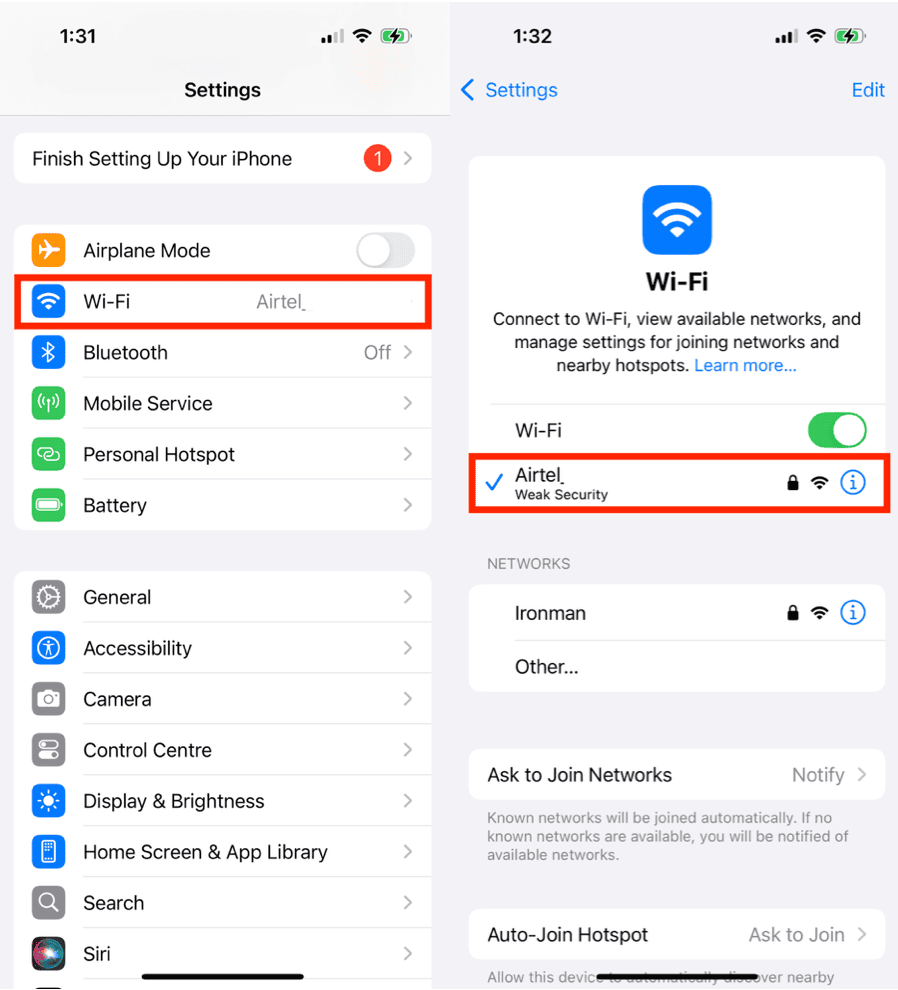
- Look for the Private Wi-Fi Address section. This is the MAC address your iPhone is currently using for that network.

That’s it! You can now copy your iPhone’s MAC address and use it to diagnose issues related to the Wi-Fi network or to change network settings for a better experience. Also, it’s important to mention that your Wi-Fi address is sensitive information, so don’t share it with anyone (except technicians or support staff).


Discussion