

Setting up Siri on your iPhone is a straightforward process that can enhance your device’s functionality. Whether you’re new to iPhones or just need a refresher, this guide will walk you through the steps to get Siri up and running in no time!
Table of contents
How to set up Siri on your iPhone?
1. Enable Siri in Settings
To begin, open the Settings app on your iPhone. Scroll down and tap on Siri. Here, you’ll find options to activate Siri:
- Listen for “Hey Siri”: Allows you to activate Siri by saying “Hey Siri.“
- Press Side Button for Siri: Enables Siri activation by pressing and holding the side button.
- Allow Siri When Locked: Lets you use Siri even when your iPhone is locked.

Toggle on the options that suit your preference.
Don’t miss the best of The Mac Observer
Set us as a preferred source and our Apple reporting ranks higher in your Google Search results and Discover feed — one tap, no account changes.
2. Set up “Hey Siri”
If you choose to use “Hey Siri,” you’ll need to train Siri to recognize your voice:
- After enabling “Hey Siri” for “Talk to Siri,” tap Continue.
- Follow the on-screen instructions to say a few phrases.
- Once completed, tap Done.
This process helps Siri understand your voice for more accurate responses.
3. Customize Siri’s voice and language
To personalize Siri’s voice and language:
- In Siri, tap on Voice.
- Choose the Variation (e.g., American, British) and Voice (e.g., Voice 1, Voice 2) that you prefer.

- Tap Language to select the language Siri will use.

These settings allow you to tailor Siri’s responses to your liking.
4. Activate Siri using the Side Button
For iPhones with Face ID, you can activate Siri by pressing and holding the side button. For models with a Home button, press and hold the Home button. Siri will respond to your command or question.
5. Use Siri without speaking
If you prefer not to use voice commands, you can type to Siri:
- Go to Settings > Accessibility > Siri.
- Toggle on Type to Siri.
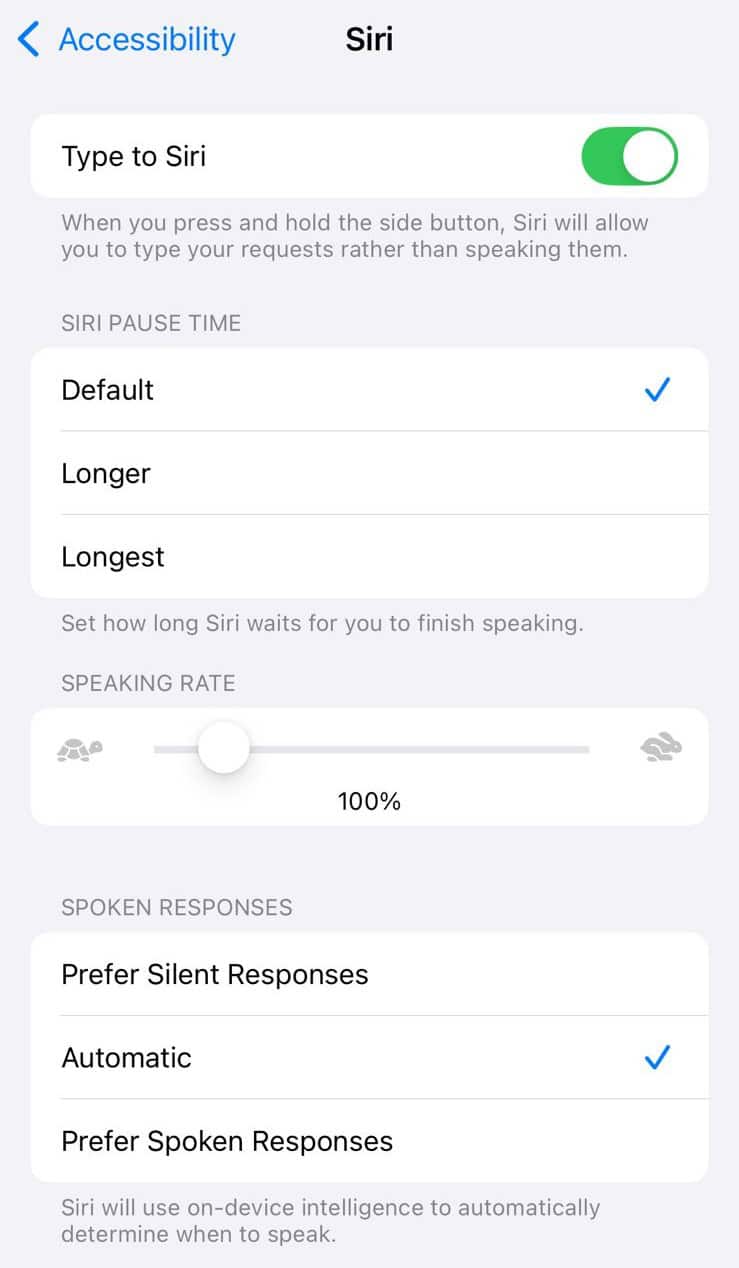

Now, when you activate Siri, you’ll have the option to type your queries instead of speaking them.
Tips for using Siri effectively
- Speak clearly: Ensure your voice is clear and at a moderate pace for better recognition.
- Use natural language: Siri understands conversational language, so ask questions as you would to a person.
- Keep your software updated: Regular updates can improve Siri’s performance and add new features.
- Explore Siri’s capabilities: Ask Siri about the weather, set reminders, send messages, or play music to discover its full range of functions.
Frequently Asked Questions
When Siri isn’t working, ensure that “Listen for ‘Hey Siri'” is enabled in Settings > Siri. Also, check that your iPhone’s microphone is not obstructed or damaged.
Yes, you can change Siri’s voice anytime by going to Settings > Siri > Voice.
To disable Siri, go to Settings > Siri, select Off for Talk to Siri, and toggle off Press Side Button for Siri.
Siri supports multiple languages, but availability may vary by region. Check the list of supported languages in Settings > Siri > Language.
Summary
- Open Settings and tap on Siri & Search.
- Enable your preferred Siri activation method.
- Set up “Hey Siri” by following the on-screen instructions.
- Customize Siri’s voice and language settings.
- Activate Siri using the side or Home button.
- Use Type to Siri for text-based interaction.
Conclusion
Setting up Siri on your iPhone is a simple process that can improve your user experience. By following these steps, you can set up and personalize Siri to suit your preferences and make the most of its features.
Whether you’re using voice commands or typing, Siri is a powerful tool that can assist you with various tasks on your iPhone.
Before you leave, find out the top 5 questions you should never ask Siri!


Discussion