

Want to schedule a text on iPhone to send it at just the right time without staying up or forgetting? You can now schedule texts to go out later using Apple’s built-in feature (iOS 18 and higher) and with workarounds for older iOS versions.
This blog will walk you through the steps to schedule a text on all iPhones, and even send it to an Android phone!
Table of contents
How to schedule a text on iPhone?
1. Via Messages (iOS 18 and later)
Here is how to schedule a message directly in the Messages app using iOS 18 or above.
Don’t miss the best of The Mac Observer
Set us as a preferred source and our Apple reporting ranks higher in your Google Search results and Discover feed — one tap, no account changes.
- Open the Messages app.
- Select a conversation or tap the compose + button.
- Press and hold the send arrow, then pick Send Later from the menu.
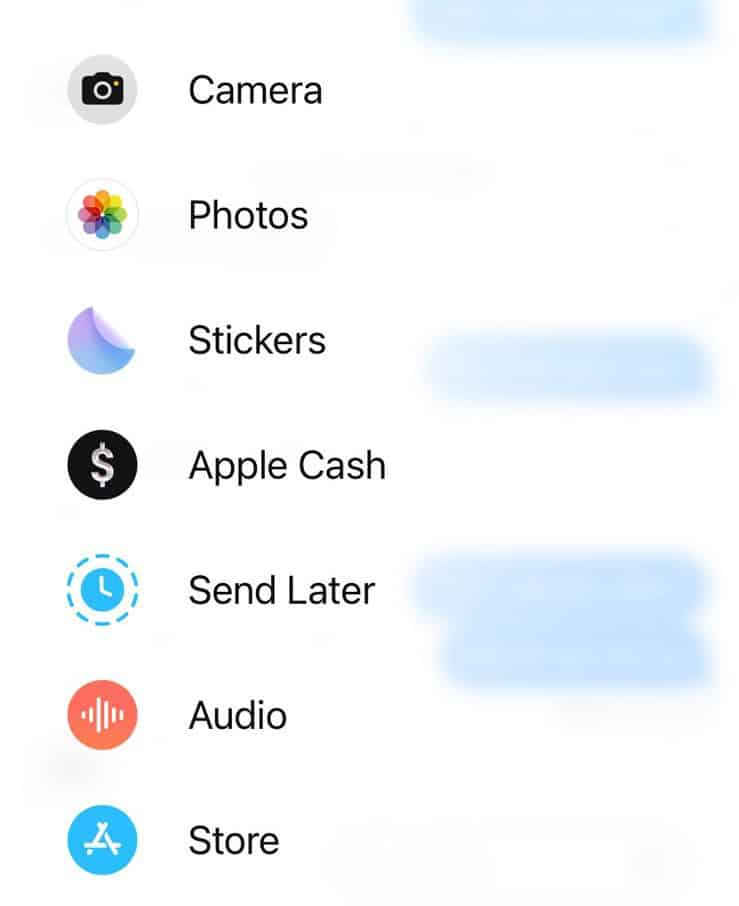
- Set the date and time (up to 14 days ahead).
- Type your message and tap Send to schedule it.
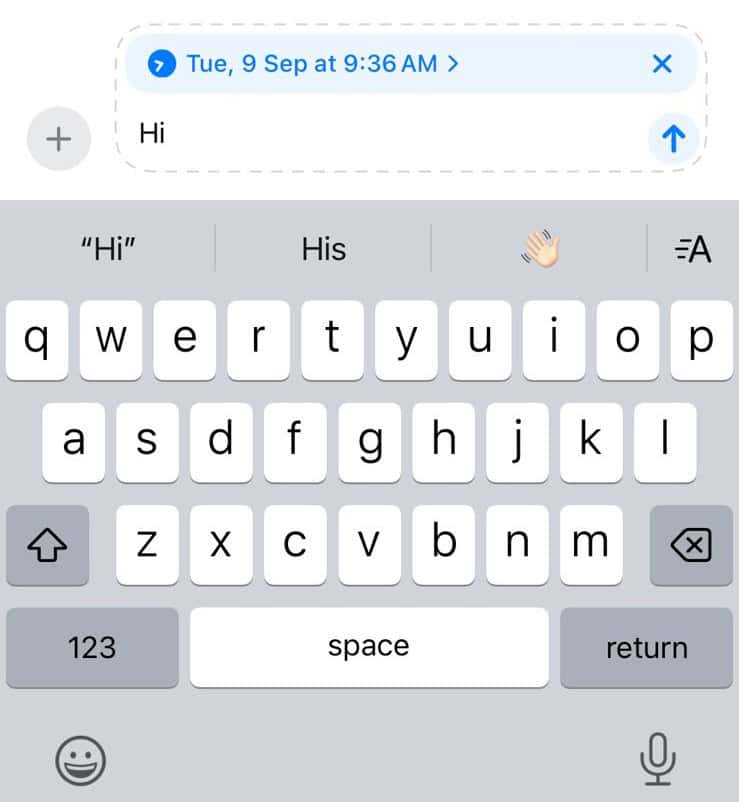


A dashed border will appear around the message until it is sent. Even if your phone is offline at that moment, the message will be delivered from Apple’s servers.
You can also:
- Reschedule: In the conversation, tap Edit above the scheduled text, select Edit Time, and then make the changes.
- Edit the message: Press and hold the scheduled message, choose Edit, make changes, then send again or cancel.
- Delete it: Press and hold, then choose Delete to cancel sending.

This only works for texts sent via iMessage. For the unversed, iMessage is different from regular SMS or text.
2. Via Shortcuts app (iOS 13 to iOS 17)
If your iPhone is not on iOS 18, you can still schedule messages using Shortcuts. It is a little time-consuming, but easy to remember. The good news is that you can use Shortcuts to schedule and send messages to Android from an iPhone.
- Open the Shortcuts app and go to Automation.
- Tap New Automation or the + icon.
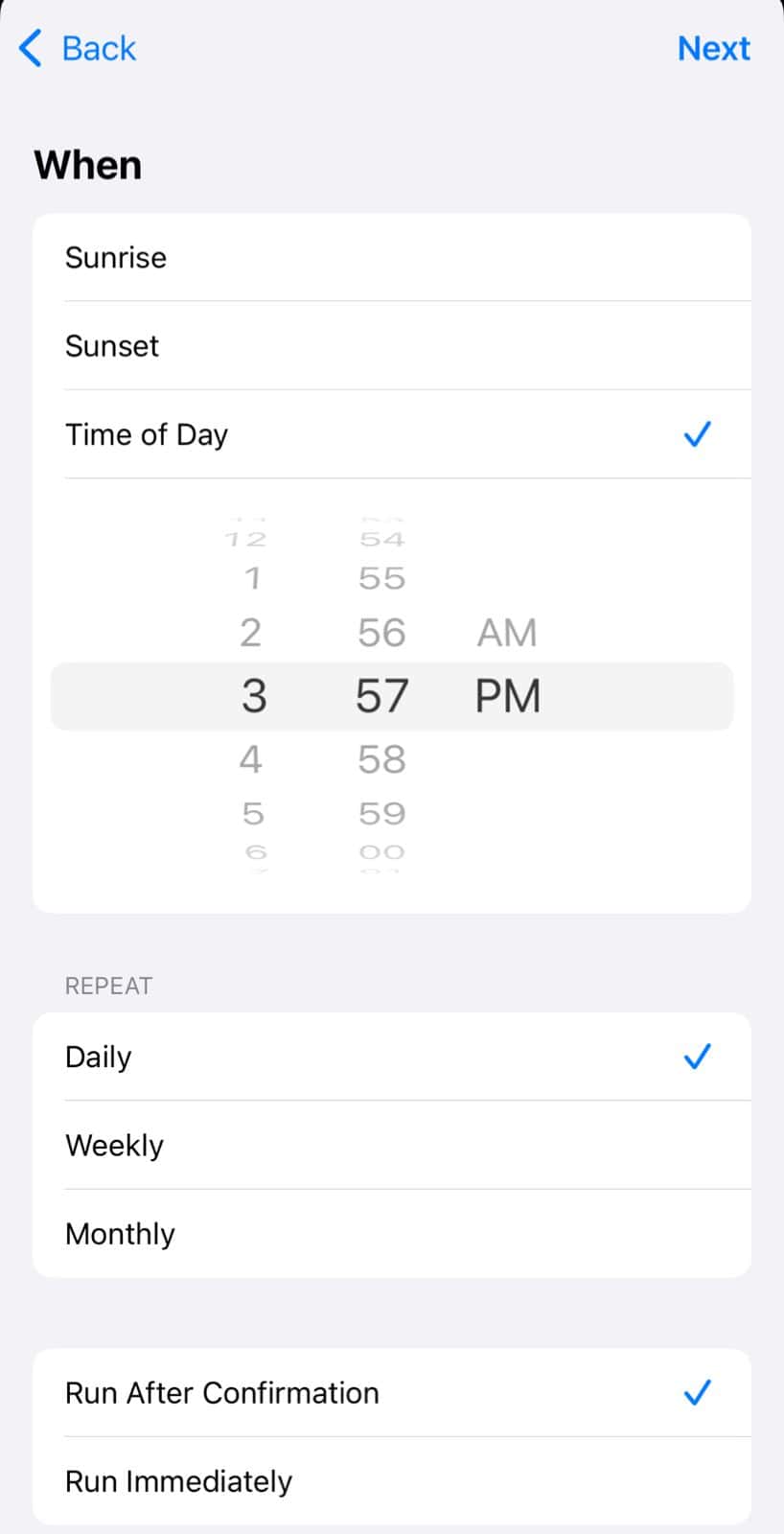
- Choose Time of Day, then set the date, time, frequency (one-time, daily, weekly), and confirm whether the action is to Run After Confirmation or Run Immediately. Then, tap Next.
- Select the Send Message option. If it doesn’t appear automatically, search for the option.
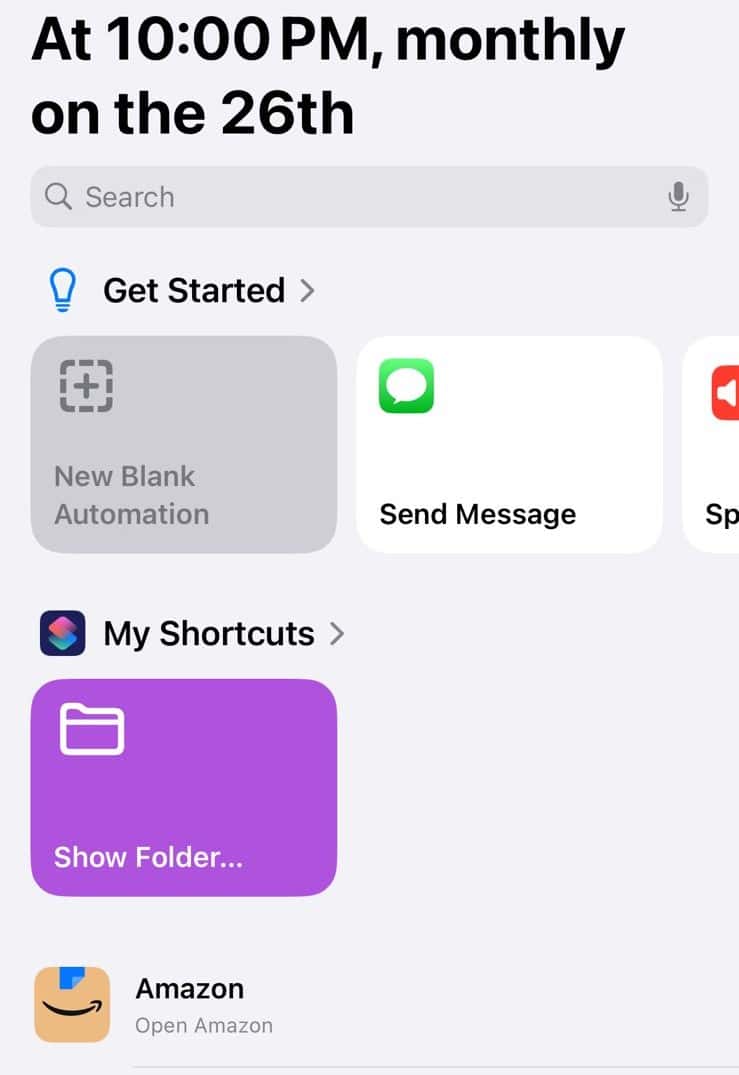
- Enter your message and recipient.
- Enable the toggle for Show When Run, if needed.
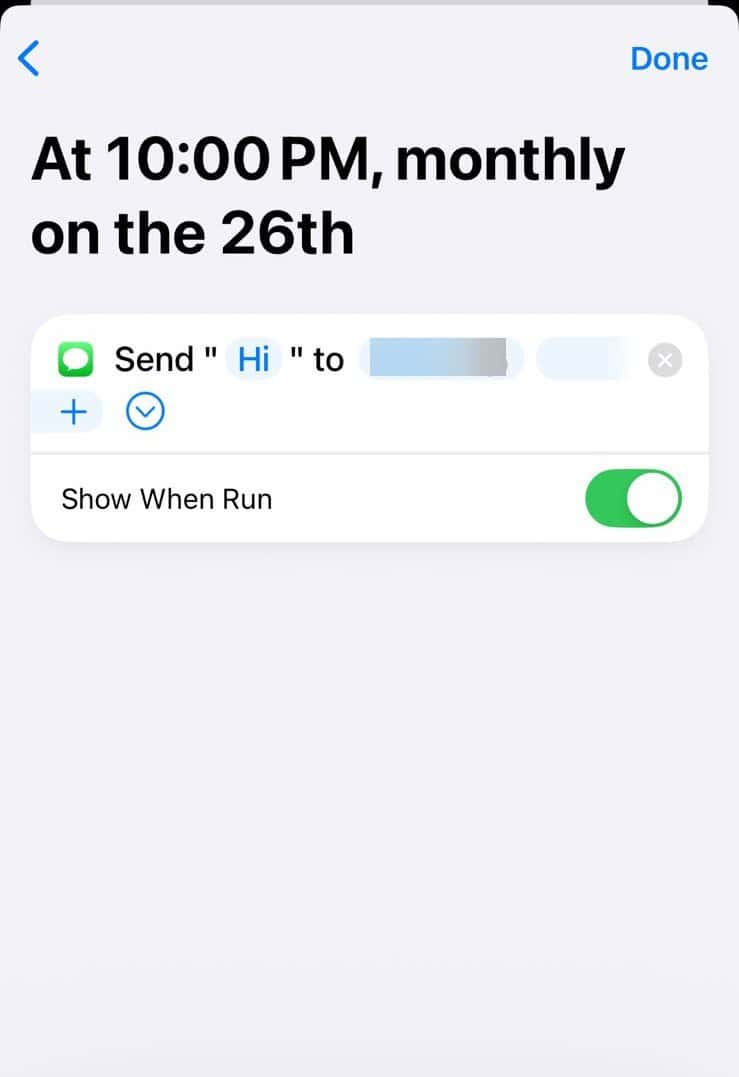
- Tap Done.


This will trigger the message at your chosen time. For a one-time message, remember to delete the automation after it runs.
Remember, with the Shortcuts app, messages are sent through the Messages app on your iPhone. So, they can go to Android devices as SMS or MMS, provided you have cellular service and the recipient is not on iMessage.
You might also like to read about the top-rated shortcuts for iPhone.
3. Use the Reminders App
If neither the built-in feature nor Shortcuts suits you, you can set a reminder with your message text inside. When it pops up, just copy and paste the message manually into Messages. It is not automatic, but it works perfectly well.
Tips
- Built-in scheduling works only on iOS 18 or newer.
- Scheduled iMessages will still send even if your iPhone is offline.
- Use Shortcuts if you need to schedule texts to Android phones.
- Turn off “Ask Before Running” in Shortcuts for automatic sending.
- Scheduled texts show a dashed border, making them easy to spot.
Frequently Asked Questions
No, with iOS 18 built-in scheduling, the limit is 14 days. For longer dates, use Shortcuts or repeat automations.
No. Scheduled messages appear normal when received. Only the sender sees the dashed outline before sending.
The message will still send. Apple servers hold onto it until delivery.
Yes. You can schedule texts in group conversations just like one-on-one.
Summary
- If you are on iOS 18 or newer, open Messages, press and hold the +, select Send Later, choose a date and time, write your message, then schedule.
- To change, edit, or delete scheduled messages, tap the scheduled text and use Edit or press and hold to delete.
- On older iOS, use Shortcuts to create an automated message at a set time.
- For manual reminders, use the Reminders app as a fallback.
- Schedule messages for practical uses like reminders, wishes, time zone courtesy, and more.
Conclusion
Now you can schedule texts on your iPhone like a pro. In iOS 18 and later, Apple’s built-in Send Later makes it smooth and easy. On older systems, Shortcuts helps with a bit more effort.
Use these tools to worry less and stay thoughtful in your communication. Try scheduling your next message and enjoy the ease, and never forget again!


Discussion