

Changing the alarm sound on an iPhone is one of the simplest ways to personalize your morning routine. By tweaking your iPhone alarm settings, you can replace the standard tone with built-in sounds, your favorite tracks, or even custom tones.
This guide walks you through step-by-step methods and useful tips to help you customize your iPhone alarm tone easily!
Table of contents
How to change your iPhone alarm sound?
- Open the Clock app and tap the Alarm tab.
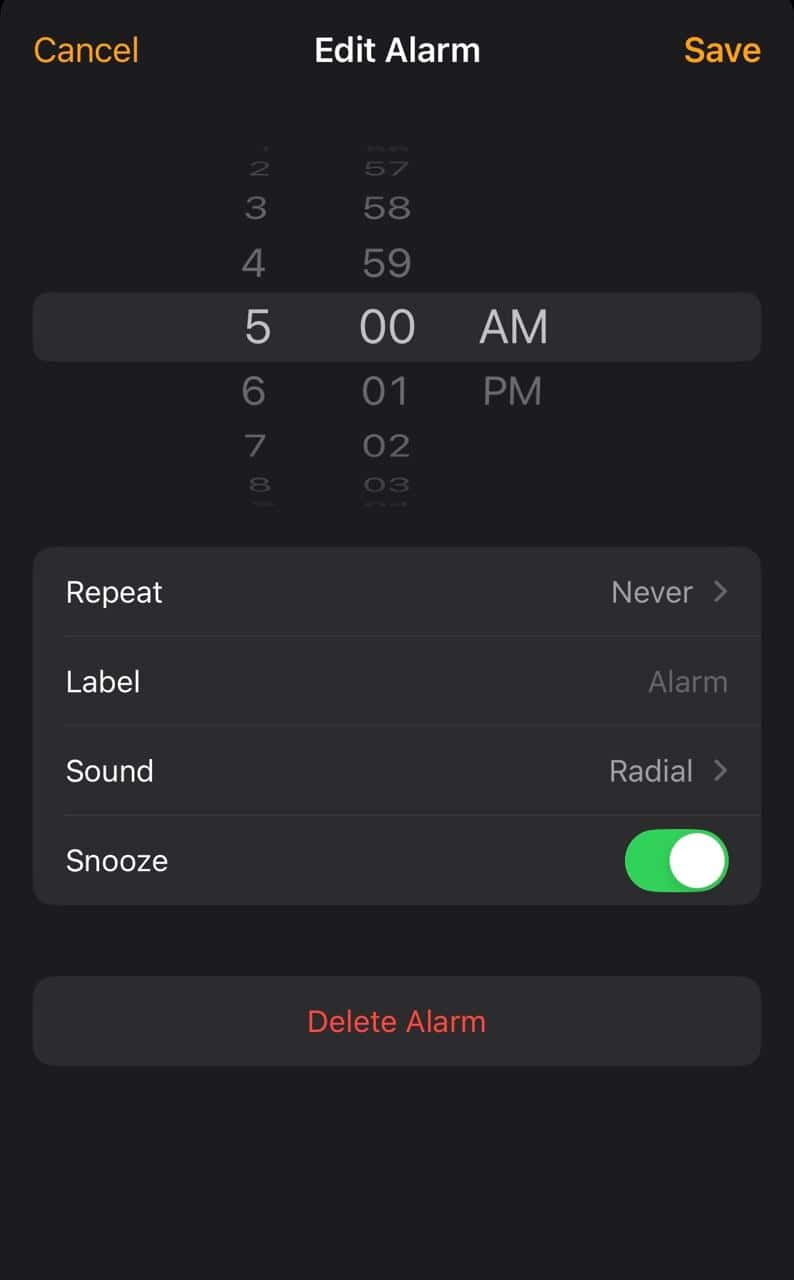
- Tap Edit at the top or simply tap the alarm you want to change.
- Select the alarm you wish to modify.
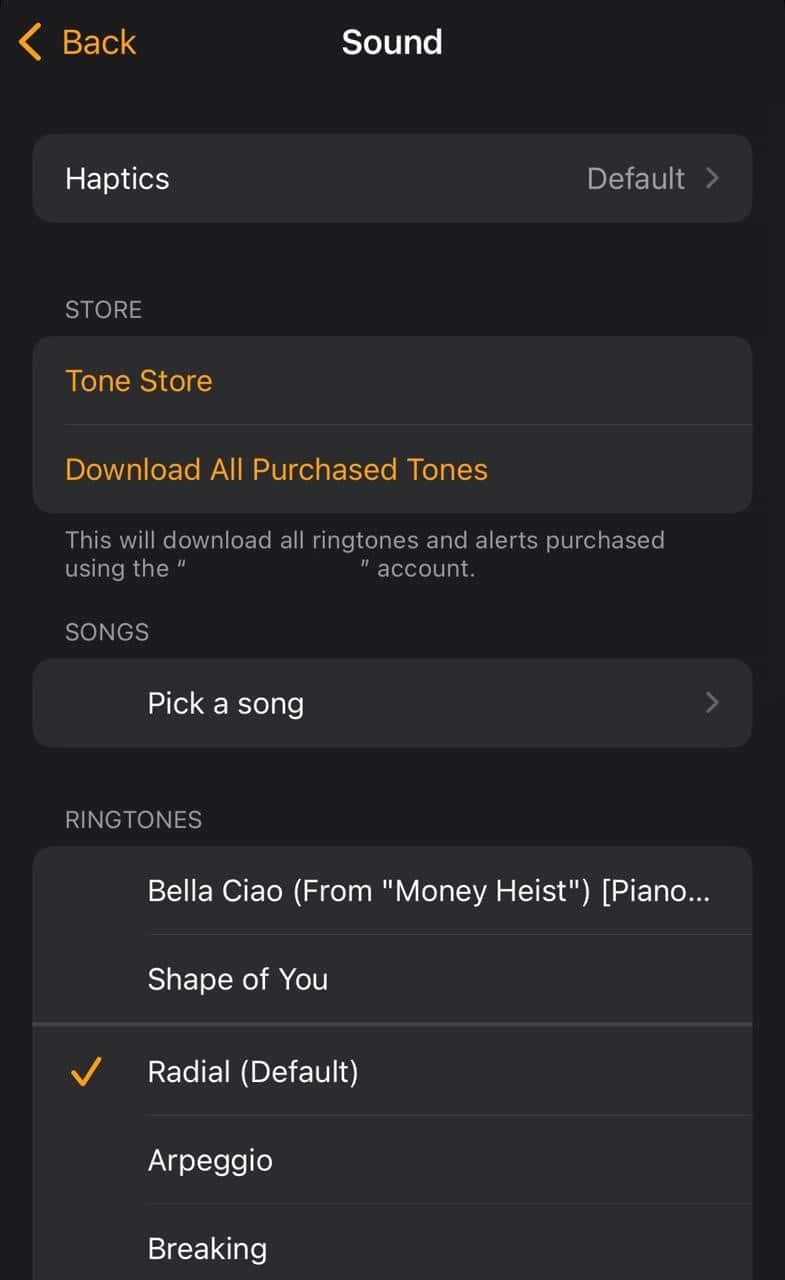
- Tap Sound.
- Choose a built-in ringtone from the Ringtones list. Scroll down to find extra tones under Classic.
- To set a song as your iPhone alarm, tap Pick a song under Songs and select one from your music library.
- To explore more tones, tap Tone Store or Download All Purchased Tones.
- Press Back, then tap Save.


Your alarm will now ring with the sound or song you selected!
Don’t miss the best of The Mac Observer
Set us as a preferred source and our Apple reporting ranks higher in your Google Search results and Discover feed — one tap, no account changes.
What about setting a default alarm tone for all alarms?
Apple does not allow a permanent default alarm tone for every new alarm. New alarms often go back to Radial or Urgent Message unless you set them manually.
A handy trick is to keep just one alarm saved and adjust its time instead of creating new ones. This way, your customized iPhone alarm tone stays consistent without resetting. You can even use Siri to edit and adjust alarms.
Also, if you have too many alarms set up, delete all alarms on your iPhone and then set just one with the custom tone!
Tips
- Use ringtones for sharper sounds and songs for a gentler wake-up.
- Extra tones are hidden under Classic, so do not miss them.
- Alarms follow your Ringer and Alerts volume in Settings, so increase it if your alarm feels too soft.
- Visit the Tone Store to find fresh alarm tones that suit your mood.
- Create a custom tone using an audio editor, save it to your library, and set it as your iPhone alarm for a unique touch.
Frequently Asked Questions
No. Siri-created alarms usually stick with Radar or Urgent Message. You will need to open iPhone alarm settings and change the sound manually.
Check your Ringer and Alerts volume, confirm the correct AM or PM, and make sure Sleep or Bedtime settings are not interfering. Also, alarms may not sound if headphones are connected.
Yes. Open your alarm, tap Sound, then Pick a Song, and choose from your music library.
Yes. In the alarm Sound settings, choose Vibration, select or create a pattern, then set Sound to None. This way, your alarm will vibrate without ringing.
Summary
- Open Clock > Alarm > Edit > select your alarm > Sound > choose ringtone, song, or Tone Store > Save.
- Adjust alarm volume in Settings.
- To keep your preferred tone, reuse a single alarm by changing its time instead of creating new ones.
- Explore vibration patterns or silent alarms by setting Sound to None and customizing vibration.
Conclusion
Knowing how to change alarm sound on iPhone gives you full control over how you wake up. Whether you prefer built-in ringtones, want to set a song as your alarm, or like experimenting with custom tones on iPhone, the iPhone alarm settings make it easy.
Since there is no single default alarm option, the best approach is to personalize each alarm or reuse one alarm with your chosen tone. With just a few taps, you can make every morning start with the sound that motivates you!
Before you leave, find out what to do if the alarm volume feels too low on iPhone.


Thank you!! So helpful