

Within the Activity app on your iPhone, there’s a way that you can see how your move goal has changed over time and compare how well you’ve mastered it. Here’s the trick: Open up that app to get started…
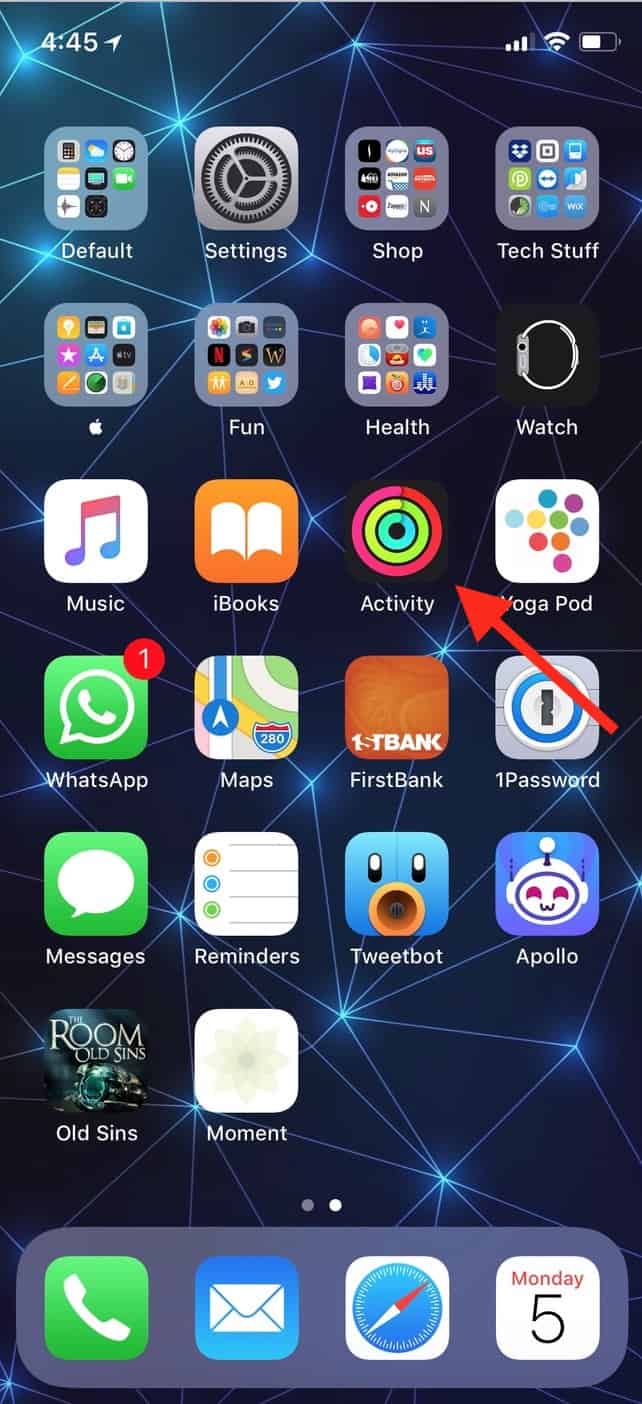
…and visit the “History” tab. Then tap the month at the top-left corner or your screen to go out to the expanded view of your stats if necessary.

Afterward, just pull across your screen from left to right and hold your finger down:

When you do that, a little sidebar will open with your move goal for that week.

If you adjusted your goal during that time frame, you’ll be able to see at a glance how much it changed (and how well you did in meeting it!).

Is now the point when I admit that I went back and found months to take screenshots of where I mostly met my goals? Nahhhh. I’d never be that petty.
Don’t miss the best of The Mac Observer
Set us as a preferred source and our Apple reporting ranks higher in your Google Search results and Discover feed — one tap, no account changes.


Nice tip, but a shame this is another one of those features that has no visual clue/cue of its existence.