

If your Apple Watch is getting full or you just want to remove music, photos, or files you no longer need, you are in the right place. Removing media from your Apple Watch is simple once you know where to look.
In this post, you will learn how to delete music, photos, and files step by step!
Table of contents
How to Remove Media and Files from Your Apple Watch?
1. Remove Music
Using Your iPhone
- Open the Apple Watch app on your iPhone.
- Tap My Watch, then tap Music.
- For music you added manually: tap Edit, then tap the delete icon next to songs, albums, or playlists you want to remove.
- For music added automatically: turn off Recent Music or any other auto-add options. That stops new music from being pushed to your watch.

Music you remove from your watch stays safe on your iPhone.
Don’t miss the best of The Mac Observer
Set us as a preferred source and our Apple reporting ranks higher in your Google Search results and Discover feed — one tap, no account changes.
Directly on Your Apple Watch
- Open the Music app on your watch.
- Tap Library, then go to Playlists or Albums.
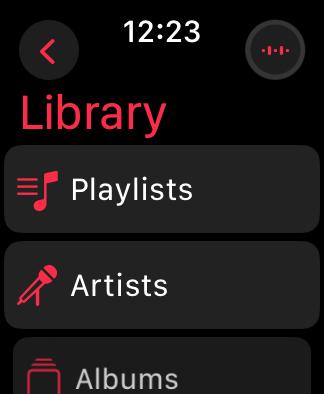
- Tap a playlist or album, choose More Options, then tap Remove and Remove Download.
- To delete a single song, swipe left on it, tap More Options, then tap Delete from Library. This removes it from your watch and all synced devices.

If you are interested, learn how to delete apps from your Apple Watch.
2. Remove Photos
via iPhone Settings
- On your iPhone’s Apple Watch app, go to My Watch and then Photos.
- Under Sync Album, choose a different album or one with no photos.
- To stop syncing fully, turn off Photo Syncing, Sync Memories, and Sync Featured Photos.
- Use Photos Limit to set how many images can be stored on your watch.

Changes to albums or photo limits will automatically update what is stored on your watch.
By Editing Source Albums
Because Apple Watch uses specific albums from your iPhone, to remove certain images from your watch:
- Open the Photos app on your iPhone.
- Remove unwanted images from the album you use for syncing.
- That makes them disappear from your watch too.
3. Remove Files, Podcasts, and Audiobooks
Apple Watch can also hold files such as podcasts, audiobooks, and other synced items. To remove them:
- Open the Watch app on your iPhone.
- Go to My Watch and scroll down to find the app storing the files, such as Podcasts or Audiobooks.
- Tap on it and turn off syncing for the episodes, books, or documents you no longer want.
- For files synced from third-party apps, open that specific app on your iPhone and adjust the sync settings.
This clears up extra storage space without deleting the files from your iPhone.
 NOTE
NOTE
Now that you know how to remove media, learn other ways to free up storage on Apple Watch.
Last Resort: Unpair or Erase Everything
If the watch still seems full or acts slow after removing media and apps:
- Unpair the Apple Watch through the Watch app on your iPhone.
- Or on the watch, go to Settings > General > Reset > Erase All Content and Settings.
Tips
- Keep Recent Music off to avoid unexpected new media.
- Use a blank album when you want no photos synced.
- Regularly check the Storage to avoid surprises.
- Remove media before adding new apps, updates, or workouts.
- Back up before erasing everything so you can restore easily.
Frequently Asked Questions
No. Deleting from the watch only removes it from the watch. The music stays on your iPhone.
Because your watch mirrors selected iPhone albums. You must remove images from the source on your iPhone to unsync them.
Yes. Storage depends on the model. Some older models only have 8 GB, while newer ones have more.
Try unpairing and pairing again. That resets hidden or corrupted data and often frees up space.
Summary
- Check storage usage on your watch or iPhone.
- Remove unwanted music via iPhone app or watch directly.
- Adjust or stop photo syncing via Photos settings on iPhone.
- Delete images from the source album to unsync them.
- Remove files, podcasts, and audiobooks through app settings.
- If storage still seems full, unpair or erase to start fresh.
Conclusion
Keeping your Apple Watch uncluttered from extra media and files is simple once you know the steps. Use your iPhone for most settings changes, choose fewer synced photos, and clean up music, podcasts, and audiobooks you do not need.
If things still feel tight, an Apple Watch reset brings everything back under control. This way your watch stays fast, light, and ready for what matters.


Discussion