

Tracking your steps with an Apple Watch is easier than you think. Whether you are aiming to walk more, stay active, or simply monitor daily movement, your Apple Watch and iPhone work together to capture your progress.
In this guide, you will learn exactly how to get started and tips to enhance accuracy to set you up for walking success!
Table of contents
How to Track Your Steps on Apple Watch?
1. Open the Activity or Fitness app on your Apple Watch
- Look for the three-ring icon on your watch face. The Activity (or Fitness) app opens your daily movement overview.
- Scroll down with the Digital Crown to view your step count, distance, and flights climbed.

2. Use the Fitness app on your iPhone for step history
- On your iPhone, open the Fitness app (previously called Activity).
- Tap Summary, and view the daily and weekly step data, walking distance, and more.

3. Enable step counting in the Health app
- Open the Health app. Go to Browse > Activity > Steps.
- Tap Data Sources & Access. Ensure your Apple Watch is enabled and set as a priority source.

4. Add a Steps complication to your watch face (using third-party apps)
Apple Watch does not include a native steps complication. The built-in Activity rings show your Move, Exercise, and Stand goals, but not the exact step count. If you want steps directly on your watch face, you will need a third-party app like Pedometer++ or StepsApp Pedometer.
Don’t miss the best of The Mac Observer
Set us as a preferred source and our Apple reporting ranks higher in your Google Search results and Discover feed — one tap, no account changes.
Here’s how you can set it up:
- Download one of the apps that support “Steps” complications.
- Open the app on your iPhone and set it up to track steps with Apple Health.
- On your Apple Watch, press and hold the watch face.
- Tap Edit and swipe to the Complications screen.
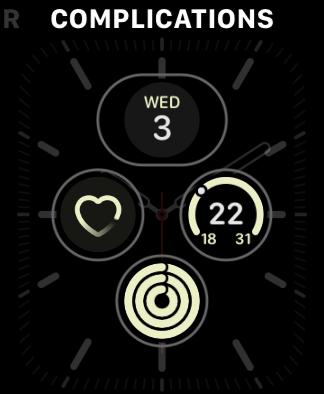
- Select the area where you want the step counter.
- Choose the complication provided by the third-party app.
- Press the Digital Crown to save changes and tap the screen to confirm.

These apps will also let you check the total weekly step count on Apple Watch.
Tips
- Wear your Apple Watch snugly on your wrist to improve sensor accuracy.
- Check your step source order in the Health app and set Apple Watch as the top priority.
- Pair steps with daily habits like morning coffee or evening podcasts to build walking into your day.
- If your watch misses steps when pushing a stroller or cart, try wearing it on your ankle with a band extender.
- Remember that the green Exercise ring counts brisk activity, not every step.
- Add short walks into daily tasks like phone calls or household chores to increase your daily step count.
Frequently Asked Questions
Apple rings track Move, Exercise, and Stand activity. Steps are recorded, but do not directly fill the rings.
Yes, the Health app can record steps from iPhone motion sensors, but pairing an Apple Watch gives more accurate results using its built-in sensors.
When your arms do not move, such as when walking on a treadmill desk, steps may be undercounted. Carrying your iPhone and setting it as the priority data source can help.
The Fitness app shows daily, weekly, and monthly history. If you have tracked at least 6 months, you will also see long-term trends.
Summary
- Open Activity or Fitness on your watch and scroll to steps.
- Use the Fitness app on iPhone for step history.
- Enable and prioritize Apple Watch in the Health app.
- Add steps complication to your watch face for quick viewing.
- Improve accuracy with snug wearing, correct settings, or ankle placement.
- Build walking into your daily routine for better consistency.
Conclusion
Tracking your steps with Apple Watch is straightforward and motivating. Open the Activity or Fitness app, check your steps, and sync with the Health app for detailed insights. With quick access to complications and smart tips like adjusting data sources or wearing the watch correctly, you can track steps more accurately.
By making walking part of your daily habits, you will stay active, reach your goals, and enjoy the progress your Apple Watch shows you.
If you have recently purchased it, learn how to effectively use an Apple Watch!



Recently I wear my watch during water aerobics class and then walk also. Lately my steps are showin 9960 steps as 12.mile but I have done a water aerobics class and walked afterward to get my 10000 steps in. My phone calculates it as 12 miles