

Apple Pay on Apple Watch gives you a secure, private, and contactless way to pay without carrying your phone or physical card. Once set up, you can pay at terminals that accept contactless payments, inside supported apps, and on certain transit systems. You add cards through the Apple Watch app on iPhone or directly in the Wallet app on the watch, with some issuers requiring verification before activation. Cards are removed automatically if you unpair the watch or turn off its passcode. Availability and supported banks vary by region, so always confirm before setting up.
Table of contents
- Methods
- 1. Set Up from iPhone (Apple Watch App)
- 2. Set Up Directly on Apple Watch (Wallet App)
- 3. Prepare the Watch for Payments (Security Prerequisites)
- 4. Pay in Stores via Side Button (Standard Flow)
- 5. Pay in Stores by Opening Wallet First (Manual Flow)
- 6. Use Express Transit/Travel (Where Available)
- 7. Pay in Compatible watchOS Apps
- 8. Manage Default Card and Card Order
- 9. Add, Re-Add, or Move Cards Efficiently
- 10. Remove Cards and Reactivate After Changes
- 11. Configure Express Transit for Speed
- 12. Use Wallet Complications for Instant Access
- 13. Adjust Side-Button Double-Click – Training and Alternatives
- 14. Troubleshoot Terminal and Transaction Issues
- 15. Maintain Security and Privacy
- 16. Use Apple Pay in Different Regions
- 17. Optimize Notifications and Receipts
- 18. Advanced: Network and Offline Behavior
- Tips
- FAQs
- Summary
- Conclusion
Methods
Here are the main ways to set up, access, and use Apple Pay on Apple Watch, including setup paths, checkout flows, Express Transit options, and quick access alternatives.
1. Set Up from iPhone (Apple Watch App)
Use the paired iPhone’s Watch app to add cards quickly, including cards you’ve used before.
Don’t miss the best of The Mac Observer
Set us as a preferred source and our Apple reporting ranks higher in your Google Search results and Discover feed — one tap, no account changes.
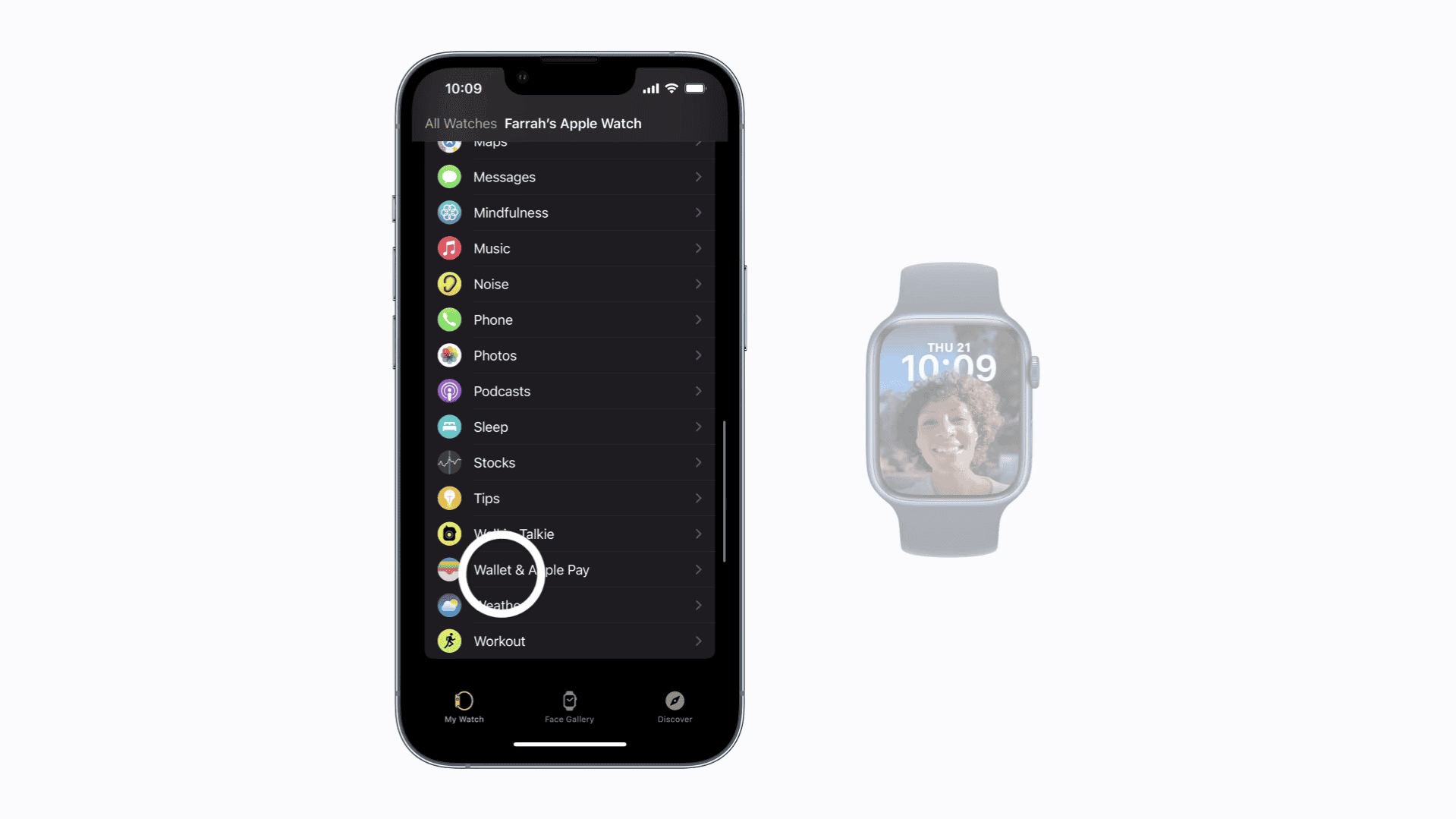
- Keep iPhone and Apple Watch together. Open the Watch app on iPhone and go to My Watch > Wallet & Apple Pay.
- Tap Add Card. Choose Debit or Credit Card (new), Previous Card (to re-add), or cards from supported banking apps.
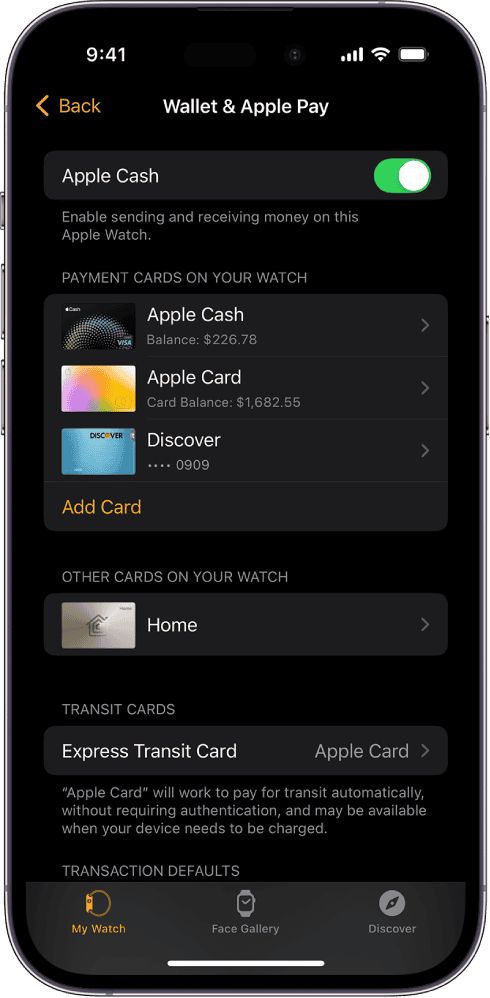
- Add cards by scanning, tapping a physical card on iPhone if supported, or entering details manually (name, number, expiry, CVV).
- Complete issuer verification via SMS, email, banking app, or phone call.
- Return to the Watch app and confirm the card status shows Ready on Apple Watch.
- Set a Default Card in Wallet & Apple Pay for faster checkout.
- Optionally enable Express Transit and transaction updates if supported by your issuer.


For detailed steps, see how to set up Apple Pay on your devices.
2. Set Up Directly on Apple Watch (Wallet App)
Add cards without using the iPhone for a full on-watch setup.
- On Apple Watch, open Wallet and tap the add (+) button, then Add Card.
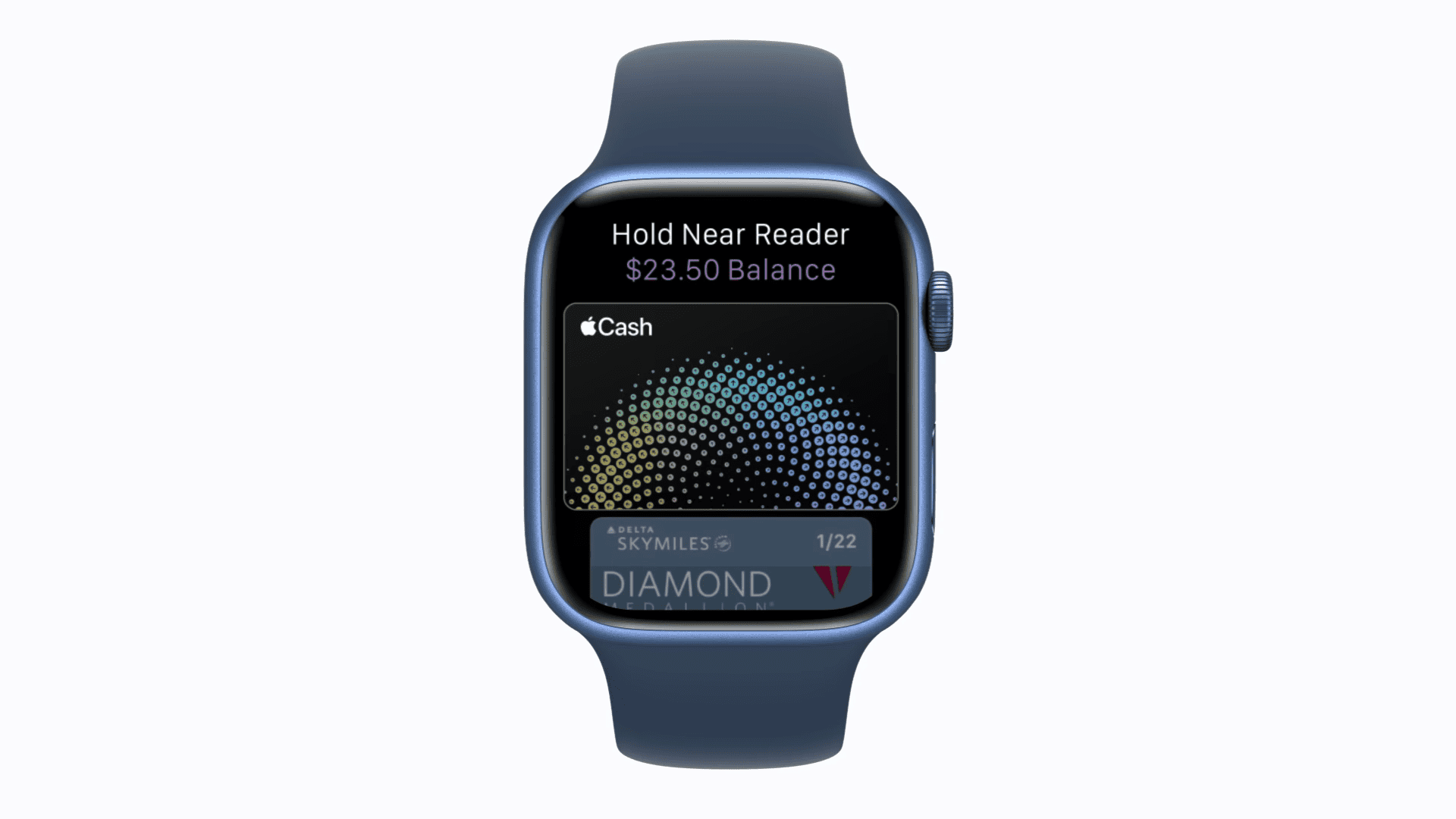
- Select Apple Account, Debit or Credit Card, or Transit Card.
- Follow the prompts to scan or enter details. Complete issuer verification.
- In Wallet, set the Default Card and drag to reorder cards for convenience.

3. Prepare the Watch for Payments (Security Prerequisites)
Apple Pay requires basic security settings before it works.
- Set a passcode on Apple Watch: Settings > Passcode > Turn Passcode On.
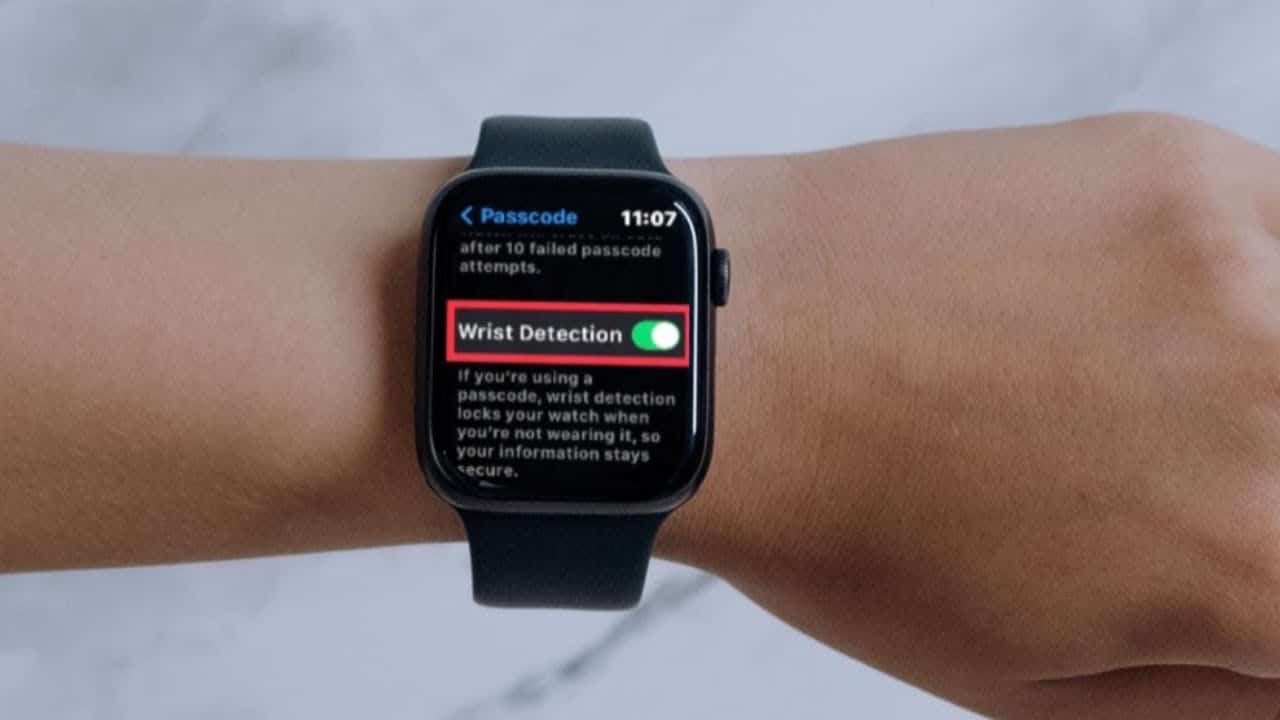
- Enable Wrist Detection so the watch locks when removed and unlocks on the wrist.
- Ensure the Region setting matches Apple Pay availability and your issuer’s support.
- Update to the latest versions of watchOS and iOS for compatibility.

4. Pay in Stores via Side Button (Standard Flow)
The side button double-click is the standard way to pay in stores.
- At checkout, double-click the side button to open Wallet.
- The default card appears first. Scroll to select another if needed.
- Hold the watch face close to the contactless reader.
- Wait for the haptic tap and “Done” on the display to confirm payment.
- If prompted, enter your passcode (for example, if Wrist Detection was off or the watch was just worn).
5. Pay in Stores by Opening Wallet First (Manual Flow)
Some users prefer to open Wallet manually or via complications.
- Open Wallet from the app grid/list or tap a Wallet complication.
- Select the card you want to use.
- Hold the watch near the reader until you feel a tap and see “Done.”
6. Use Express Transit/Travel (Where Available)
Express Transit lets you tap in without unlocking or pressing buttons.
- Add a supported transit card or choose a payment card as your Express Transit Card.
- Set this in the iPhone Watch app or directly on Apple Watch in Wallet settings.
- At gates, hold the watch near the reader. The gate opens without double-clicking or entering a passcode.
- If a gate fails, check Express Transit settings, ensure enough stored value (if applicable), and retry at a supported terminal.
Learn more about using Express Mode for faster travel payments.
7. Pay in Compatible watchOS Apps
Some apps let you check out directly on Apple Watch.
- At checkout, choose Apple Pay as the payment method.
- Review payment, shipping, and billing details on the watch.
- Confirm with the side button.
- Wait for the haptic and on-screen success indicator.
8. Manage Default Card and Card Order
Optimize card order to reduce scrolling.
- On Apple Watch, open Wallet and set the Default Card.
- Touch and hold cards to drag and reorder, placing frequently used cards at the top.
- Test by double-clicking the side button to confirm the right card appears first.
Here’s how to change the card your Apple Watch uses with Apple Pay.
9. Add, Re-Add, or Move Cards Efficiently
Save time when re-adding or moving cards from iPhone.
- In the Watch app, use Previous Card to re-add older cards. Usually, only CVV and re-verification are needed.
- To move a card from iPhone to Watch, tap Add next to “Other Cards on Your Phone.”
- For new cards, complete full setup and verification before use.
10. Remove Cards and Reactivate After Changes
Cards are automatically removed if you unpair or disable the passcode.
- On Apple Watch Wallet, open a card, scroll, and tap Remove.
- If the watch is unpaired or passcode is disabled, cards are deleted for security.
- Re-add cards after re-pairing or re-enabling the passcode, then verify with issuer.
11. Configure Express Transit for Speed

Fine-tune transit settings for tap-and-go entry.
- In Watch app > Wallet & Apple Pay, set the Express Transit Card.
- Choose a supported transit card or payment card for your region.
- Keep balance topped up for stored-value cards. Enable auto-reload if your transit provider supports it.
12. Use Wallet Complications for Instant Access
Make Wallet a one-tap option on your watch face.
- Edit a watch face that supports complications.
- Assign Wallet as a complication.
- Tap the complication at checkout for direct Wallet access.
13. Adjust Side-Button Double-Click – Training and Alternatives
Practice and adjust settings for reliability.
- Train the double-click timing until you can invoke Wallet consistently.
- If double-clicks are unreliable, rely on Wallet complications or open Wallet manually.
- Note that double-click timing differs on iPhone and Apple Watch. Train separately for each device.
14. Troubleshoot Terminal and Transaction Issues
Fix issues when payments fail at checkout.
- If “Hold Near Reader” persists, align the watch display with the reader logo and hold steady.
- If a payment is declined, scroll to choose another card and retry. Some terminals prefer debit over credit.
- Check that the card shows as Ready in Wallet, Wrist Detection is on, and passcode is set.
- Ask the merchant to confirm contactless is enabled on their terminal.
- If failures continue, open Wallet on iPhone or Watch to check issuer alerts or re-verify the card.
15. Maintain Security and Privacy
Keep Apple Pay secure without slowing down payments.
- Always keep a passcode enabled and Wrist Detection On.
- If the watch is lost, use Find Devices to mark it as lost and suspend payments. Remove cards remotely from Apple Account management.
- Do not share one-time issuer codes. Complete verifications directly within your bank’s official channels.
16. Use Apple Pay in Different Regions
Check Apple Pay coverage before traveling.
- Confirm Apple Pay support in the region and with your bank.
- While traveling, Apple Pay works where contactless payments and the card network are accepted. Some transit systems require region-specific cards.
- If you cannot add a card abroad, contact your issuer or try another supported card.
17. Optimize Notifications and Receipts
Stay informed with payment alerts and digital receipts.
- Enable transaction notifications in Watch app > Wallet & Apple Pay.
- For supported issuers, enable rich details in Wallet for clearer receipts.
- Keep your bank’s app notifications enabled for backup alerts and fraud monitoring.
18. Advanced: Network and Offline Behavior
Understand how Apple Pay behaves in edge cases.
- Apple Pay uses tokenization and works offline for most in-store transactions, even if iPhone is not nearby.
- For stored-value transit cards, ensure sufficient on-card balance. Top-ups may require connectivity and approval.
- Large or high-risk transactions may need online verification, which could take longer or require retries.
Tips
- Check Apple Pay availability and supported banks in your country before setup (Apple Support).
- Keep wrist detection on and a passcode set for security. Turning these off removes Apple Pay.
- Set a Default Card and reorder cards for faster checkout.
- Add a Wallet complication for quick card access.
- Use Express Transit for faster entry where available.
FAQs
No. Apple Pay works only in supported countries and regions. Supported banks and issuers vary. See Apple’s official list of participating banks.
Yes. Once you add cards, you can pay in stores and apps even if your iPhone is not nearby.
All cards are removed automatically. You must re-add them once pairing and passcode are restored.
In stores, double-click the side button and hold the watch near the reader. You’ll feel a tap and see “Done.” In apps, confirm using the side button prompt.
On iPhone, adjust Settings > Accessibility > Side Button to change click speed. Check Wallet & Apple Pay settings to ensure double-click is enabled.
Summary
- Set up Apple Pay on Apple Watch via iPhone or directly on the watch.
- Double-click the side button to pay at terminals.
- Use Apple Pay in compatible apps with on-watch confirmation.
- Enable Express Transit for quick entry at supported gates.
- Keep wrist detection and passcode enabled for security.
- Manage card order and default card for faster access.
Conclusion
Using Apple Pay on Apple Watch revolves around adding eligible cards to Wallet, then paying with a simple double-click and tap at contactless readers or confirming in supported apps. You can also configure Express Transit for faster travel access and add Wallet complications for convenience. Keeping features like passcode and wrist detection enabled ensures security and smooth operation, while confirming bank and regional support makes sure your cards are accepted. With these steps, Apple Pay on Apple Watch becomes a reliable and efficient way to pay.
Looking ahead, NFC on iPhone and Apple Watch may expand beyond payments. See what that means for NFC and Apple Pay’s future.


Discussion