

For years, iPhone alarms were stuck with a quirky default: a nine-minute snooze. It didn’t matter if you wanted five minutes or fifteen, you were locked into nine. With iOS 26, that changes. Apple finally lets you set your own snooze duration in the Clock app, anywhere from 1 to 15 minutes. It’s a small change, but one that iPhone users have been asking for since the beginning.
If you’ve just updated to iOS 26, here’s how to make the most of it.
Table of contents
Why Custom Snooze Matters
The nine-minute snooze has a long, almost arbitrary history, but it hasn’t aged well. Some people only need a minute or two before they’re ready to get up, while others prefer a full fifteen. Now you can choose the interval that actually works for you, without relying on third-party alarm apps.
Don’t miss the best of The Mac Observer
Set us as a preferred source and our Apple reporting ranks higher in your Google Search results and Discover feed — one tap, no account changes.
This upgrade sits alongside other thoughtful iOS 26 changes like the new lock screen customization tools and Liquid Glass icons. Apple is clearly leaning into personal control and small quality-of-life improvements.
How to Set a Custom Snooze on iPhone
Follow these steps to adjust snooze duration in iOS 26:
- Open the Clock app
Find it on your Home Screen or swipe down and search for “Clock.” - Tap the Alarm tab
It’s at the bottom of the screen. You’ll see your existing alarms.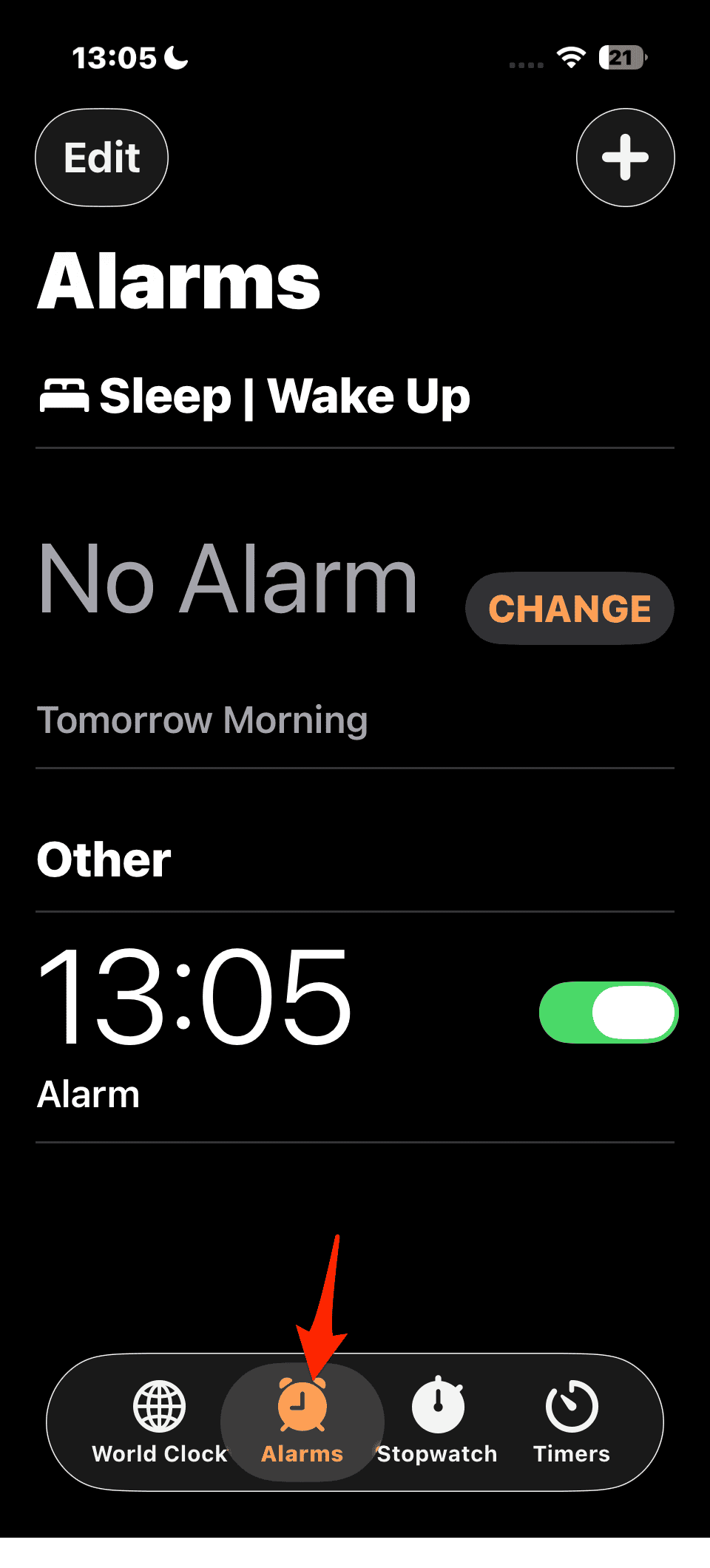
- Edit an alarm
Tap Edit in the top left, then select the alarm you want to change. - Adjust snooze duration
Under Snooze Duration, pick any interval from 1 to 15 minutes.
- Save your changes
Tap Done in the top right, and your alarm will now snooze at the custom interval.


Tips for Using Custom Snooze
- Experiment with timing: If you’re a chronic snoozer, try 3 or 5 minutes instead of 9—it forces a quicker wake-up cycle.
- Pair with Bedtime/Wind Down: Use the Health app’s sleep schedule alongside shorter snoozes for better rest.
- Check Accessibility settings: If you rely on bigger text or clearer visuals, you might also like the ability to make the iPhone clock bigger.
Troubleshooting
If you don’t see the snooze duration option:
- Make sure you’ve updated to iOS 26. You can check under Settings > General > Software Update. If it’s missing, see what to do if the iOS 26 update isn’t showing up.
- Restart your iPhone after updating.
- If you’re still on an older OS and want to go back later, you can downgrade safely from iOS 26 to iOS 18.
The Bottom Line
The ability to set a custom snooze duration may seem small, but for iPhone users who start every day with an alarm, it’s a big deal. Now you’re not stuck with Apple’s quirky nine-minute rule, you get control over how you wake up.
If you’re already exploring iOS 26’s other upgrades, like Spatial Scenes for your photos or the redesigned Camera app interface, this is another quality-of-life feature you shouldn’t overlook.


Discussion