
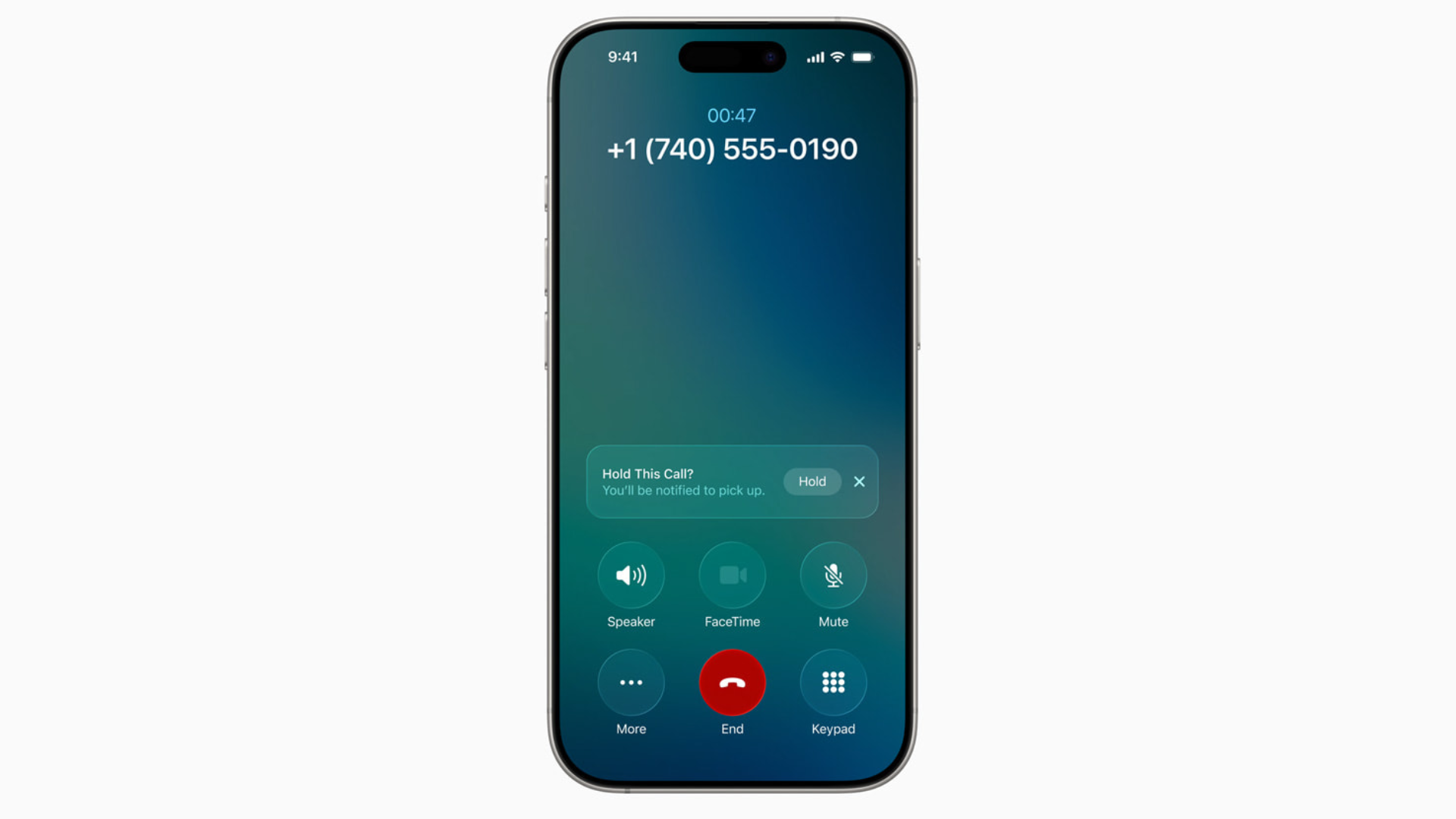
Nobody enjoys sitting through endless hold music. With iOS 26, Apple finally added a feature to make it less painful: Hold Assist. The new Phone app addition listens for you when you’re placed on hold, then alerts you when a live agent comes back on the line.
It’s simple, automatic, and available on any iPhone that can run iOS 26. Here’s how it works and what you can expect.
Table of contents
What Hold Assist does
Hold Assist is built into the Phone app. When you’re placed on hold, it offers to monitor the line so you don’t have to keep the Phone app open or listen to hold music.
- You’ll get a prompt asking if you’d like to use Hold Assist.
- Once you activate it, you can leave the call screen and use your iPhone as normal.
- When a real person picks up, your iPhone notifies you instantly so you can jump back into the call.
Unlike Call Screening, you don’t need to turn anything on in Settings. Hold Assist is ready to go as soon as you upgrade to iOS 26.
How to use Hold Assist on iPhone
- Get placed on hold
After a few seconds, you’ll see a notification pop up: “Hold this Call?” - Tap Hold
If you accept, your iPhone will monitor the line while you go back to the Home Screen or another app. A live activity (green bubble or Dynamic Island indicator) confirms the call is still active.
- Wait for the alert
When the system detects that a live agent is back, you’ll get a notification to rejoin. Tap it, and you’re instantly back on the call. - Enable it manually (if needed)
If you dismissed the first prompt, you can still activate it: tap More → Hold Assist from the in-call menu.
Extra details worth knowing
- Works on all iPhones that support iOS 26, not just the newest models.
- Notifications vary by device: older iPhones show a green call bubble, while newer models display a Dynamic Island live activity.
- You can dismiss Hold Assist anytime and return to waiting on the call yourself.
Related iOS 26 guides
- Why is iOS 26 so laggy? Causes and fixes
- Fix iMessage not working after iOS 26 update
- All reported iOS 26 bugs and issues with fixes
- Make iOS 26 less animated
The takeaway
Hold Assist in iOS 26 does the waiting for you. It listens when you’re on hold, then taps you when a real person picks up. You don’t need to configure it — just accept the prompt and let your iPhone handle the boring part.
If you’re exploring more new features, check out 10 iOS 26 hidden features you may not know about.


