
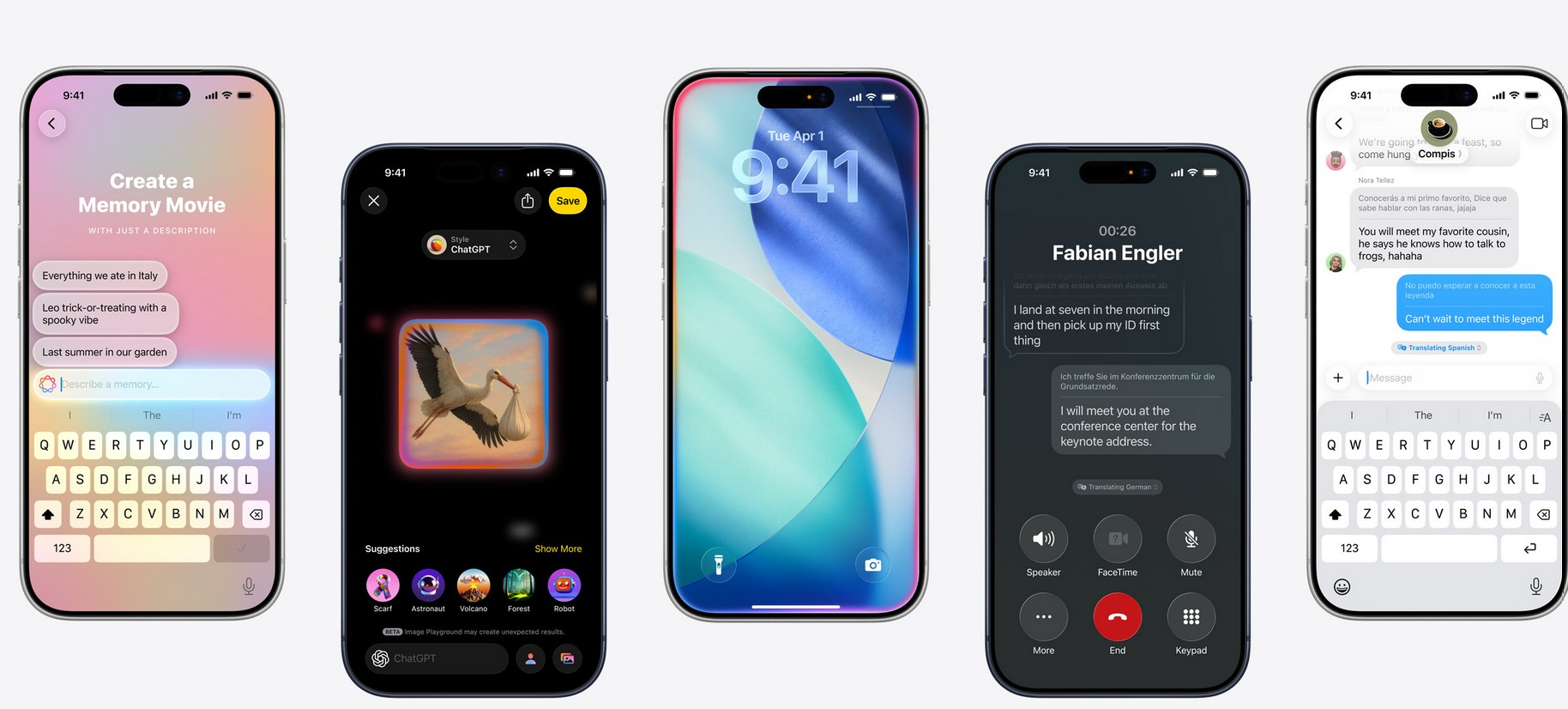
After you update a supported device and turn on Apple Intelligence, your iPhone, iPad, or Mac pulls down on-device AI models and language packs in the background. There’s no big splash screen; you’ll usually just see a status like “Preparing” or “Downloading” inside Apple Intelligence & Siri settings.
How long it takes (realistic expectations)
Apple doesn’t promise a fixed time. The download runs in the background, pauses for power/network, and can queue when Apple’s servers are busy right after a major release. In normal conditions on a solid home connection, most users complete the initial model download in well under an hour. On slower Wi-Fi or cellular, it can stretch to a few hours. If you leave it on power and Wi-Fi overnight, it typically completes by morning.
Why it varies so much
Don’t miss the best of The Mac Observer
Set us as a preferred source and our Apple reporting ranks higher in your Google Search results and Discover feed — one tap, no account changes.
- Network speed and congestion. Busy rollout days slow everything down.
- Power states. Low Power Mode and low battery can defer background tasks.
- Storage headroom. If your device is tight on space, the OS plays Tetris first.
- Language packs. Some features require extra downloads when you change Siri/device language.
- Per-device installs. Each iPhone, iPad, and Mac fetches its own model set.
How big is the download?
Apple currently requires about 7 GB of free storage for Apple Intelligence on supported devices. That footprint has grown since launch, and Apple notes it may continue to change as features evolve. Practical takeaway: aim for at least 10–12 GB of free space so the system has room to decompress and index.
Rough time estimates by Wi-Fi speed (for ~7 GB)
- 300 Mbps: ~10–15 minutes
- 100 Mbps: ~15–25 minutes
- 50 Mbps: ~25–45 minutes
- 20 Mbps: ~45–90 minutes
These are ballpark figures. Background throttling, decompression, and server load can add overhead.
Quick ways to speed it up
- Keep it on power and Wi-Fi. Plug in and leave the screen off for a while.
- Use the fastest network you have. Prefer 5 GHz Wi-Fi or wired Ethernet on Mac.
- Free up storage. Aim for ≥10 GB free to avoid constant shuffling.
- Avoid Low Power Mode during the download.
- Don’t constantly toggle features. Let the background job complete uninterrupted.
- If you changed Siri/device language, give it time to fetch the new language pack before expecting features.
When it’s “stuck” (common culprits and safe fixes)
- Stuck on “Preparing” for hours: reboot once, reconnect to Wi-Fi, and leave it on power.
- Storage errors or endless “In progress”: clear space, then try again.
- Language mismatch: ensure device language and Siri match a currently supported locale for Apple Intelligence.
- Still not moving after several hours on solid Wi-Fi and power: toggle Apple Intelligence off, restart, re-enable, and leave it plugged in. As a last resort, reset network settings—then reconnect to Wi-Fi and try again.
Supported devices (quick check)
Apple Intelligence works on iPhone 15 Pro/Pro Max and newer iPhones in the current lineup, plus iPads and Macs with Apple silicon (M1 or later). Each device downloads its own models, so expect the same process on your iPad or Mac even if your iPhone finished earlier.
Can I remove the download later?
Yes. If you turn off Apple Intelligence, the on-device models are removed and you reclaim that storage. You can re-enable later; the models will download again.
FAQs
Does it download over cellular?
It can, but it’s slower and may pause. Use Wi-Fi if possible.
Is there a visible progress bar?
Sometimes you’ll see a simple “Downloading” status; otherwise, it completes silently in the background.
Will using the device pause the download?
Heavy use and battery-saving modes can delay background tasks. Plugging in helps.
Do I need to keep the app open?
No—this is a system-level background job.



Ios