
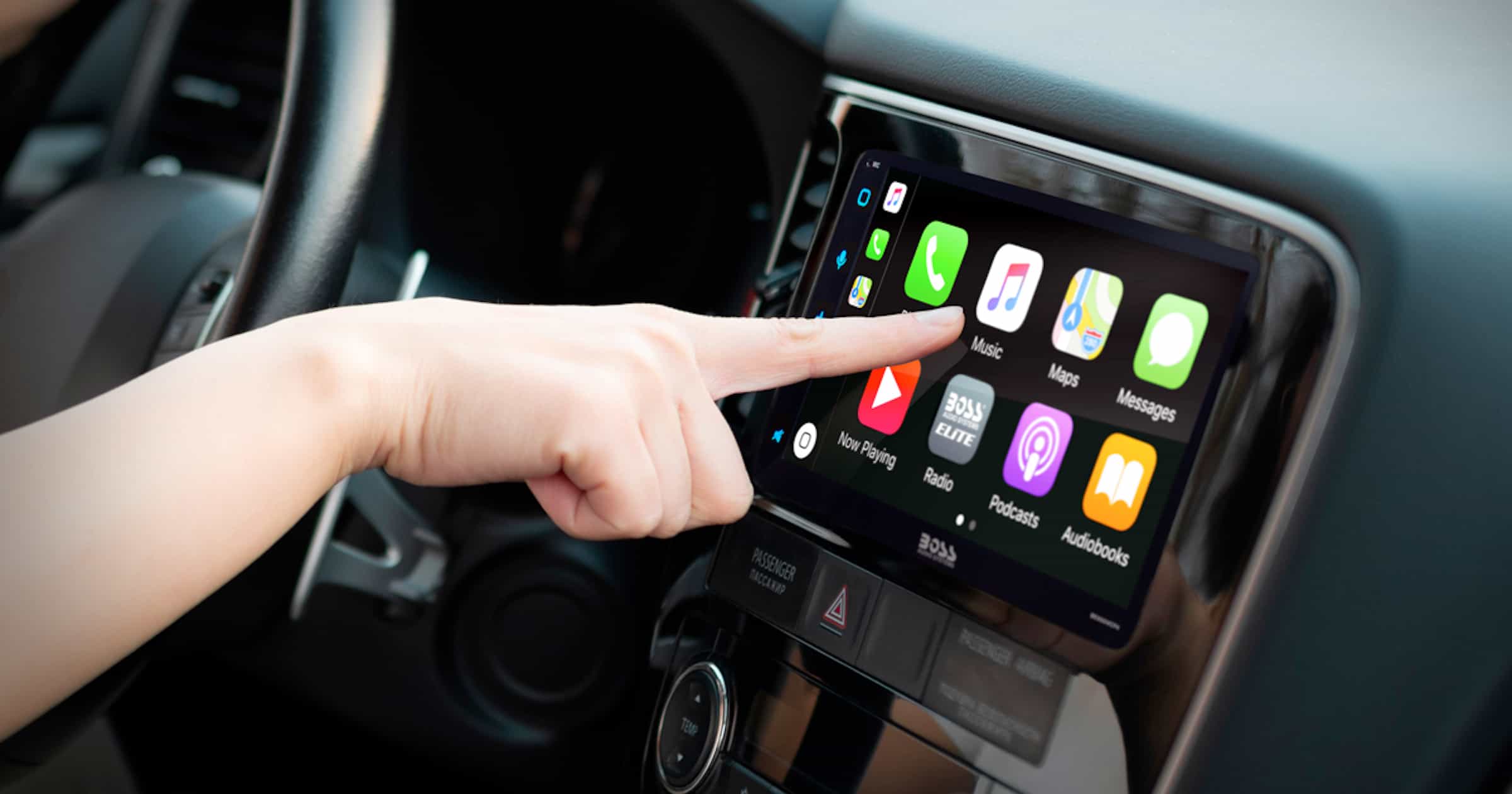
Apple’s iOS 26 update introduced a refreshed CarPlay interface, widget support, and enhanced app integration. However, many users have reported that CarPlay stopped working after updating. Common issues include CarPlay not launching, frequent disconnections, or the car not recognizing the iPhone. This guide outlines the most effective solutions to restore CarPlay functionality and prevent future disruptions.
Table of contents
Why CarPlay Fails After Updating to iOS 26
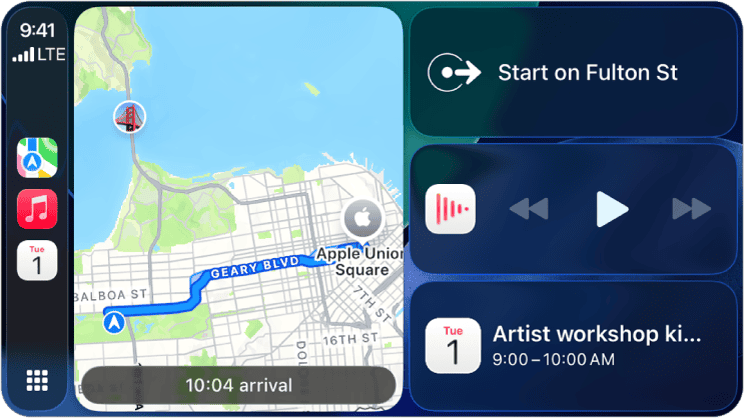
CarPlay issues after iOS 26 are often caused by software conflicts, outdated car firmware, or reset permissions. Some users mistakenly replace cables, thinking hardware is the problem, but the glitch affects both wired and wireless setups. Brands like Ford, Honda, Mercedes, and aftermarket head units such as Pioneer and Atoto have seen widespread reports of CarPlay instability. Understanding that CarPlay is different from Bluetooth helps clarify why standard wireless fixes may not apply.
Troubleshooting Steps for CarPlay Connectivity
Check Cable and Port Quality
Wired CarPlay is sensitive to cable integrity and port cleanliness. Start by inspecting your hardware.
Don’t miss the best of The Mac Observer
Set us as a preferred source and our Apple reporting ranks higher in your Google Search results and Discover feed — one tap, no account changes.
- Use an Apple-certified Lightning or USB-C cable.
- Try a different USB port in your car.
- Clean the port to remove dust or corrosion.
- Avoid third-party cables that are not MFi-certified.
Enable CarPlay Permissions
After updating to iOS 26, some settings may have been reset. Make sure CarPlay is authorized.
- Open Settings > General > CarPlay.
- Select your car and tap Forget This Car.
- Reconnect and confirm Allow CarPlay While Locked is enabled.
- Follow this guide to enable CarPlay on iPhone.
Reset Network Settings
Wireless CarPlay uses both Wi-Fi and Bluetooth. Resetting network profiles can resolve persistent issues.
- Go to Settings > General > Transfer or Reset iPhone.
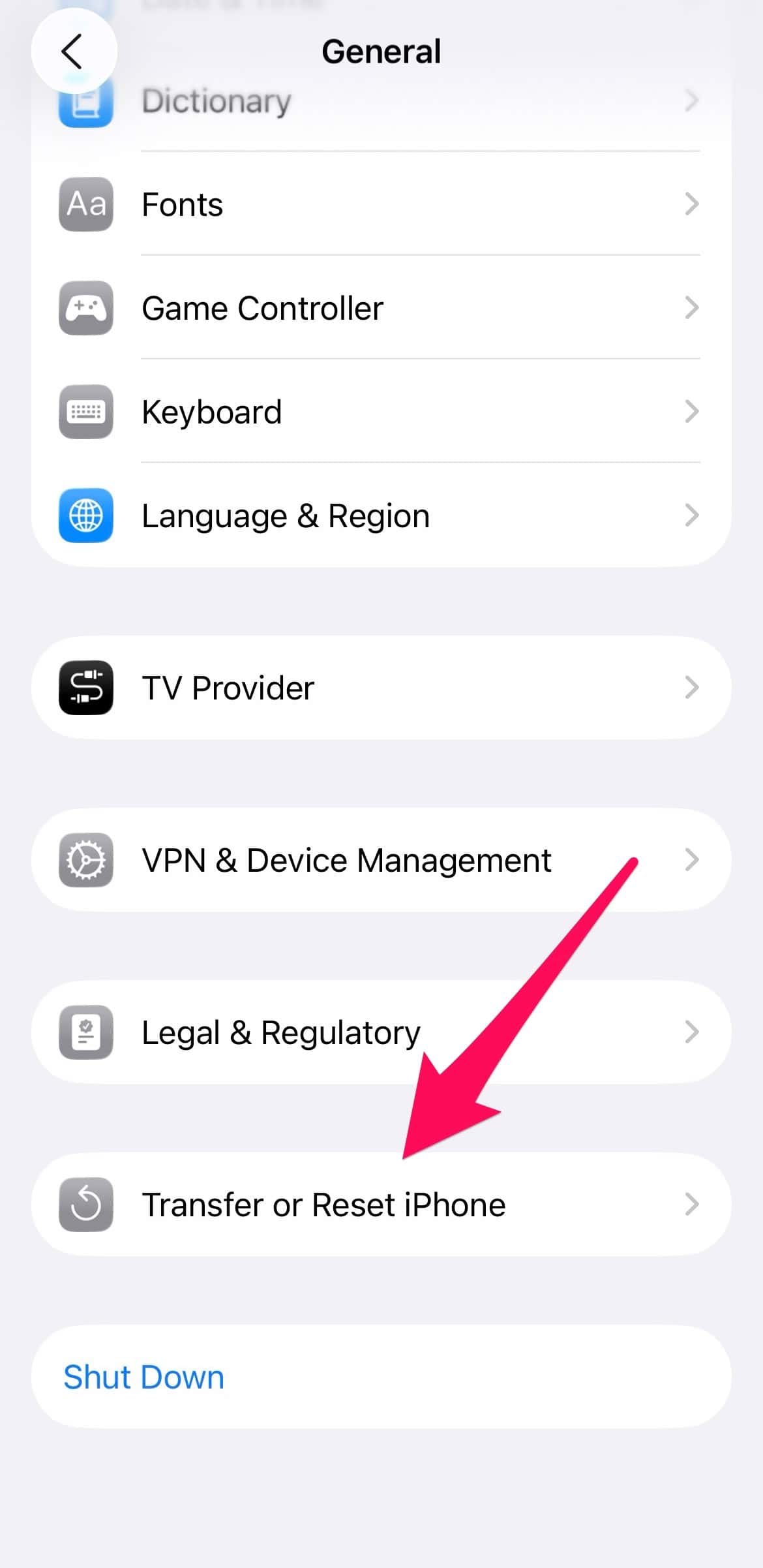
- Tap Reset > Reset Network Settings.

- Reconnect to Wi-Fi and Bluetooth afterward.
Update Car Firmware
Some infotainment systems require firmware updates to support iOS 26.
- Contact your dealership or check your car’s support site.
- Request the latest firmware update for your model.
- Install via USB or over-the-air if supported.
Disable Wi-Fi and Bluetooth to Force Wired CarPlay
If your car supports both wired and wireless CarPlay, your iPhone may default to a wireless connection—even when it’s unstable. Disabling wireless features forces the phone to use a direct wired connection, which can be more reliable after updating to iOS 26.
- Open Settings on your iPhone.
- Tap Wi-Fi and toggle the switch to Off.
- Go back and tap Bluetooth, then toggle it to Off as well.
- Use an Apple-certified Lightning or USB-C cable to connect your iPhone to the car’s USB port.
- Wait a few seconds for the CarPlay interface to appear on your infotainment screen.
- If prompted, tap Allow CarPlay While Locked to enable access when your phone screen is off.
- Once CarPlay launches successfully, you can optionally re-enable Wi-Fi and Bluetooth if needed for other functions.
Respond to “Complete Setting Up CarPlay” Prompt
After updating to iOS 26, some users report that CarPlay does not activate until they respond to a system prompt. This prompt may appear only once and can be easy to miss, especially if your phone is locked or notifications are silenced.
- Connect your iPhone to the car using a certified Lightning or USB-C cable.
- Unlock your iPhone and wait for the Complete Setting Up CarPlay message to appear.
- If you don’t see the prompt immediately, swipe down from the top to open Notification Center and check for pending alerts.
- Tap the Complete Setting Up CarPlay notification.
- Follow the on-screen instructions, which may include confirming your car’s name and enabling Allow CarPlay While Locked.
- Once setup is complete, the CarPlay interface should launch on your car’s display.
FAQ
This may be due to outdated car firmware, signal interference, or reset permissions.
No. Wireless CarPlay requires specific hardware and support from the car manufacturer.
Some apps support limited video playback. Learn more about CarPlay video streaming.
Explore how CarPlay compares to Android Auto for a detailed breakdown.
Restoring Stable CarPlay Performance After iOS 26
If CarPlay stopped working after updating to iOS 26, the issue likely stems from software conflicts or outdated firmware. By following the steps above, most users can restore reliable connectivity. Apple has not released a universal fix, but ongoing updates may improve compatibility. For now, understanding the differences in connection protocols and system requirements is key to maintaining a seamless CarPlay experience. Learn more about how CarPlay compares to Android Auto to evaluate alternatives if issues persist.




Discussion