

If you use Safari a lot, you’ve probably opened more tabs than you meant to. One link leads to another, and before you know it, you’ve got a digital traffic jam slowing everything down. Whether you just want to tidy up or close every tab at once, iOS 26 makes it quick and easy. Here’s how to do it.
Table of contents
Close Individual Tabs
- Open Safari on your iPhone.
- Tap the Tabs button—it’s the overlapping squares icon at the bottom or top of the screen, depending on your layout.
- You’ll see all your open tabs. Tap the X in the upper-right corner of any tab you want to close.
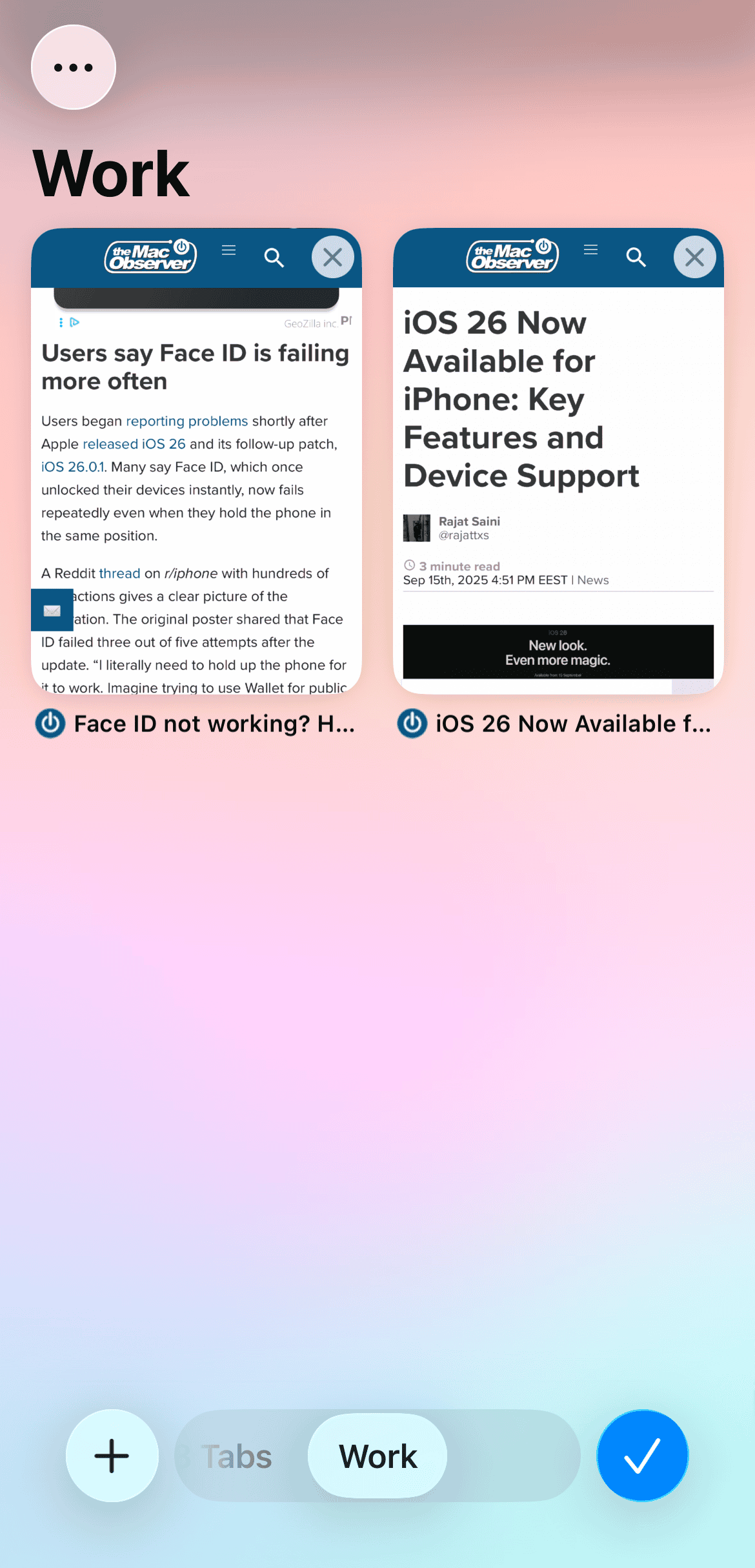

If you’re only closing a few, this is the simplest way. But if you’ve got dozens open, there’s a faster method.
Close All Tabs at Once
Here’s the thing: Safari lets you close everything in one go.
Don’t miss the best of The Mac Observer
Set us as a preferred source and our Apple reporting ranks higher in your Google Search results and Discover feed — one tap, no account changes.
- With your tabs open, touch and hold the Done button.
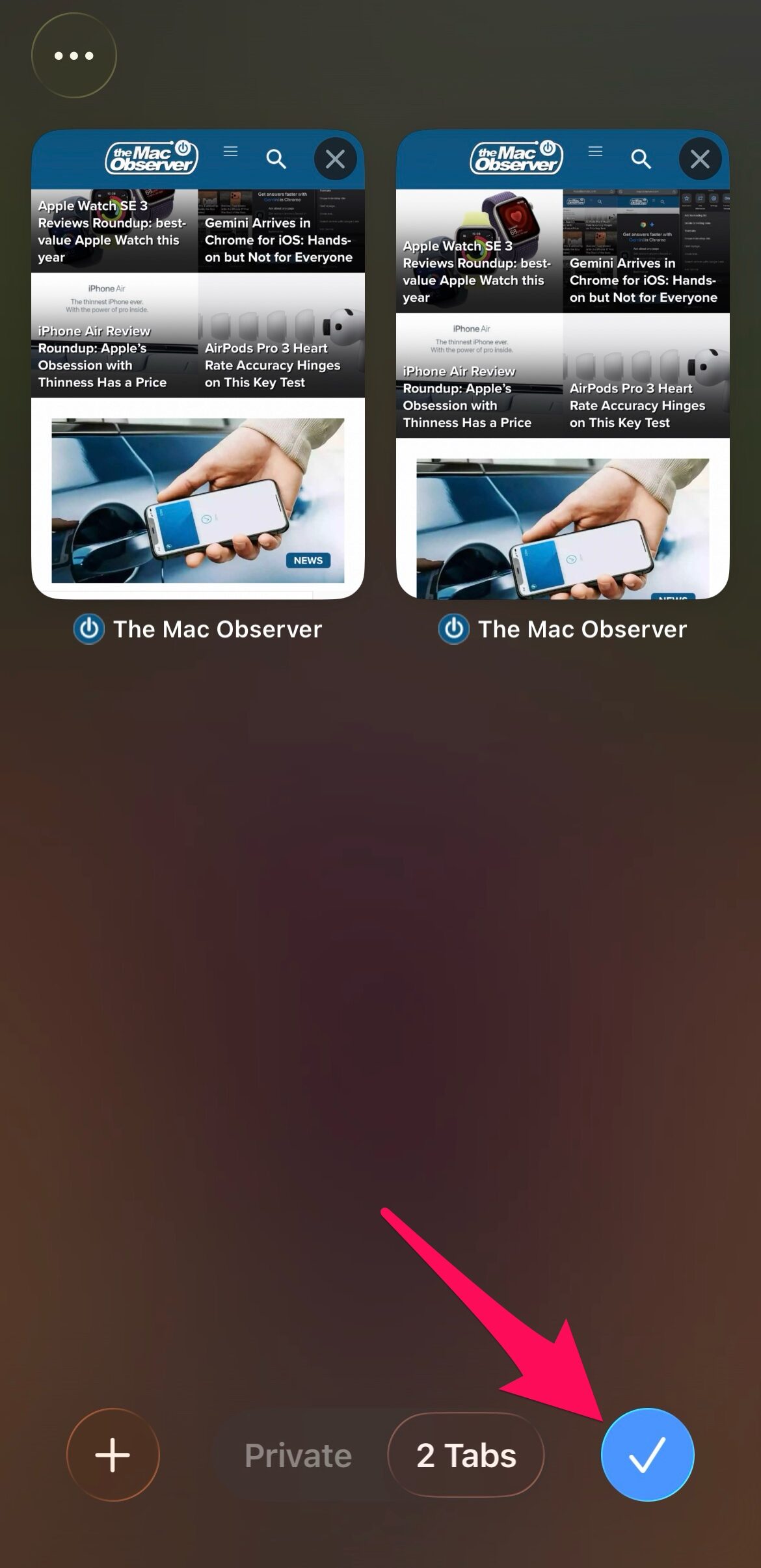
- You’ll see an option that says Close All [number] Tabs.
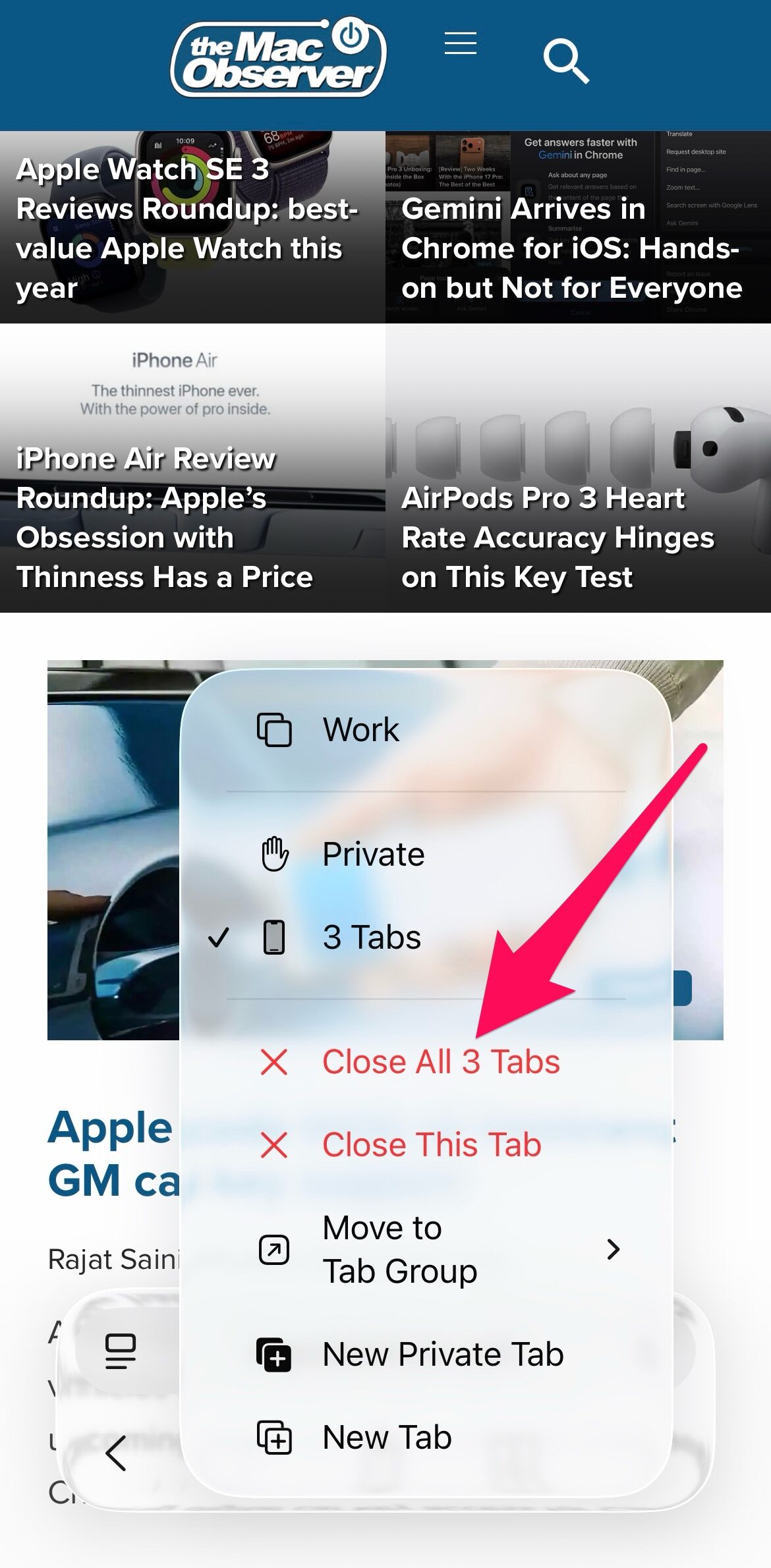
- Tap it, confirm, and Safari clears the slate.
It’s an instant way to start fresh, perfect for those “how did I get here?” moments after falling down an internet rabbit hole.
Reopen a Closed Tab
If you closed something by mistake (we’ve all been there), you can get it back easily.
- Tap the Tabs button again.
- Touch and hold the New Tab (+) icon.
- A list of recently closed tabs will appear—just tap the one you want to reopen.
It’s like Safari’s built-in undo button for your browsing habits.
Bonus Tip: Control How Links Open
You can also decide whether new links open in the background or take over your current page.
- Go to Settings > Apps > Safari > Open Links.
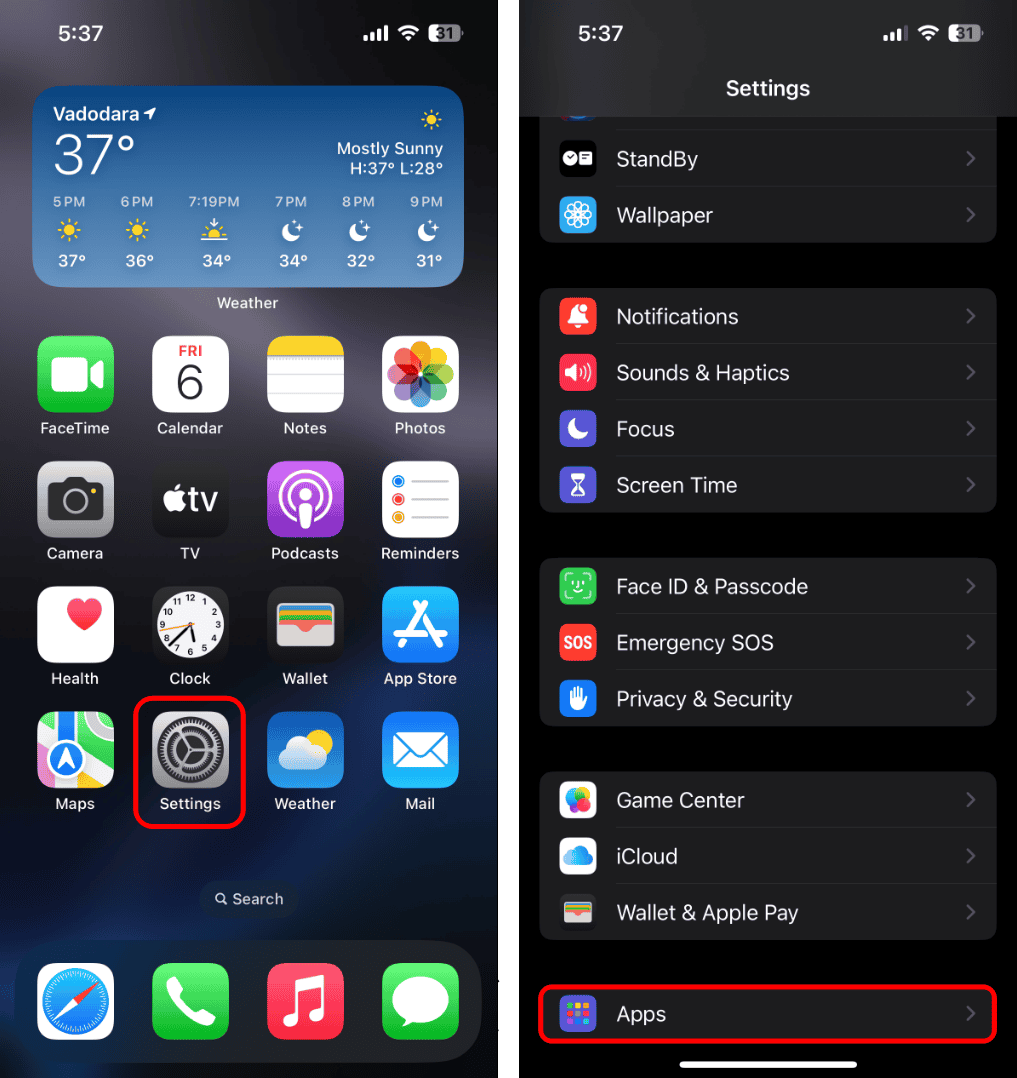
- Choose In Background if you’d rather keep your current tab open while new ones load quietly in the background.

It’s a small tweak that makes multitasking in Safari smoother.
Wrapping Up
Keeping Safari organized isn’t just about neatness, it keeps your iPhone running faster and your browsing easier to manage. Whether you close tabs one by one, clear them all at once, or reopen one you regret closing, these quick actions in iOS 26 give you control without slowing you down.



Discussion