

Apple’s Announce Notification is meant to keep you connected while you are working hands-free, but sometimes this feature oversteps its boundaries. Picture this scenario: you’re sitting in your favorite rocking chair, eyes closed, lost in your music, and Siri suddenly announces a text from your group chat. It can be a jarring experience that you likely won’t forget. Thankfully, you can easily turn off or temporarily pause these intrusive announcements. We will show you how below.
Table of contents
Why do AirPods announce your notifications
Siri’s Announce Notifications feature was designed for convenience, allowing you to hear texts and alerts when wearing your AirPods or compatible Beats headphones. It’s great when you’re expecting an important call, but not so great when your neighbor sends you another mindless cat meme.
If you’re rocking an older pair of AirPods, you might notice Siri’s interruptions can be quite jarring. Apple’s newer models handle this transition a bit more gracefully, so you may want to consider upgrading if this feature ranks high on your annoyance scale. Our AirPods 4 vs. AirPods 3 comparison is a good place to start if you’re considering making the jump to a new pair of headphones.
Don’t miss the best of The Mac Observer
Set us as a preferred source and our Apple reporting ranks higher in your Google Search results and Discover feed — one tap, no account changes.
How to turn off or limit Announce Notifications
1. Disable all Announce Notifications
- Open the Settings app on your iPhone.
- Tap Notifications.
- Select Announce Notifications.

- Toggle Announce Notifications off.

One toggle and Siri will stop reading notifications aloud entirely. This simple solution is perfect if you prefer peace and quiet.
2. Disable Announce Notifications only when using headphones
Maybe you still want Siri announcements through CarPlay or your Apple Watch, but not in your headphones. Here’s how:
- Go to Settings > Notifications > Announce Notifications.
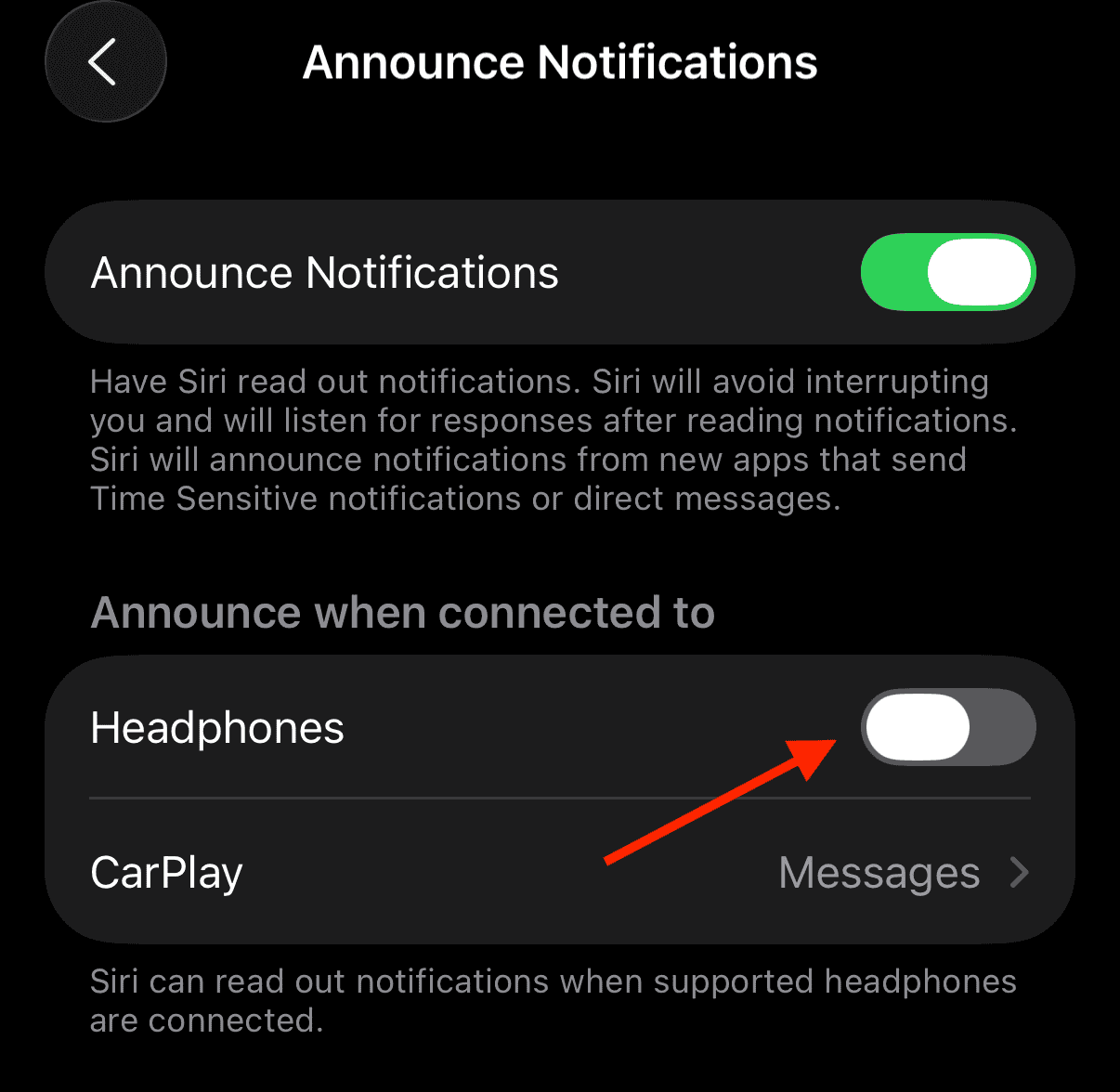
- Find Headphones and toggle it off.

This method silences Siri while you’re wearing AirPods, but you will still hear notifications when you’re driving in your car or exercising with your Apple Watch.
3. Add Announce Notifications to Control Center
If you prefer to control your Announce Notifications on the fly, then this solution using Control Center is for you.
- Open Control Center by swiping down from the top-right corner of the screen on an iPhone with Face ID. Swipe up from the bottom with a Touch ID phone.
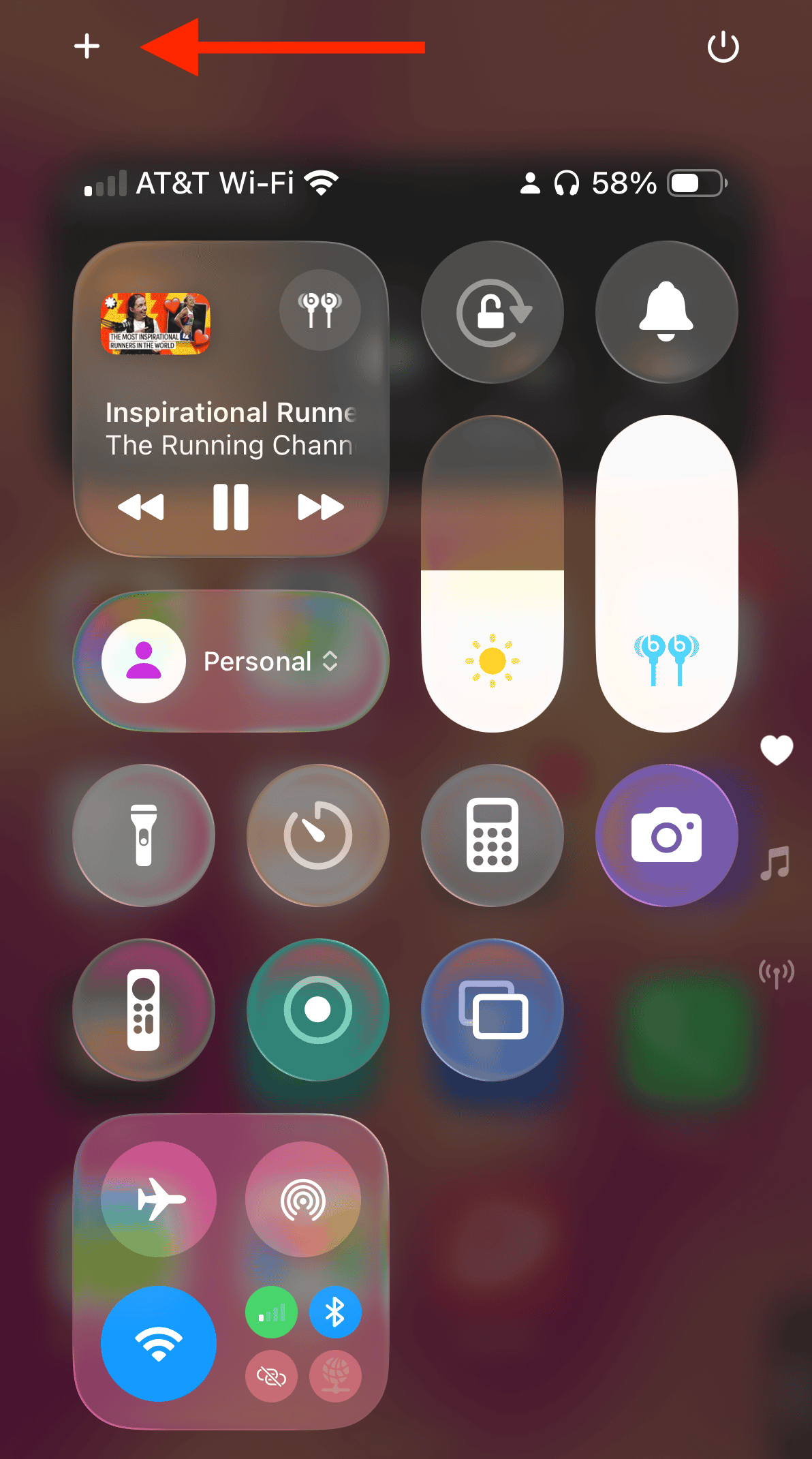
- Tap the Add (+) button at the top left of Control Center to begin editing the controls.
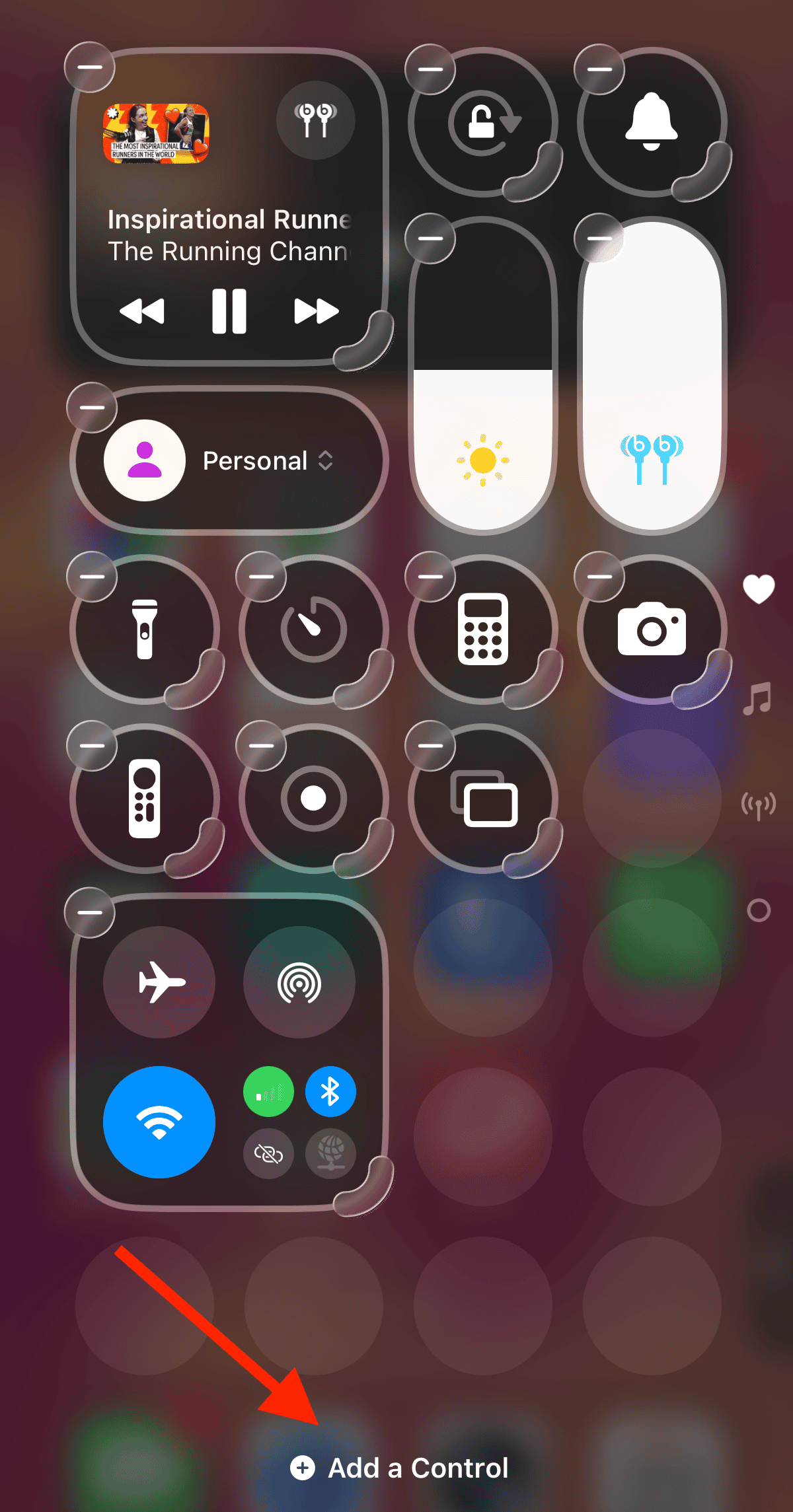
- Tap Add a Control at the bottom of the screen to open the controls gallery.
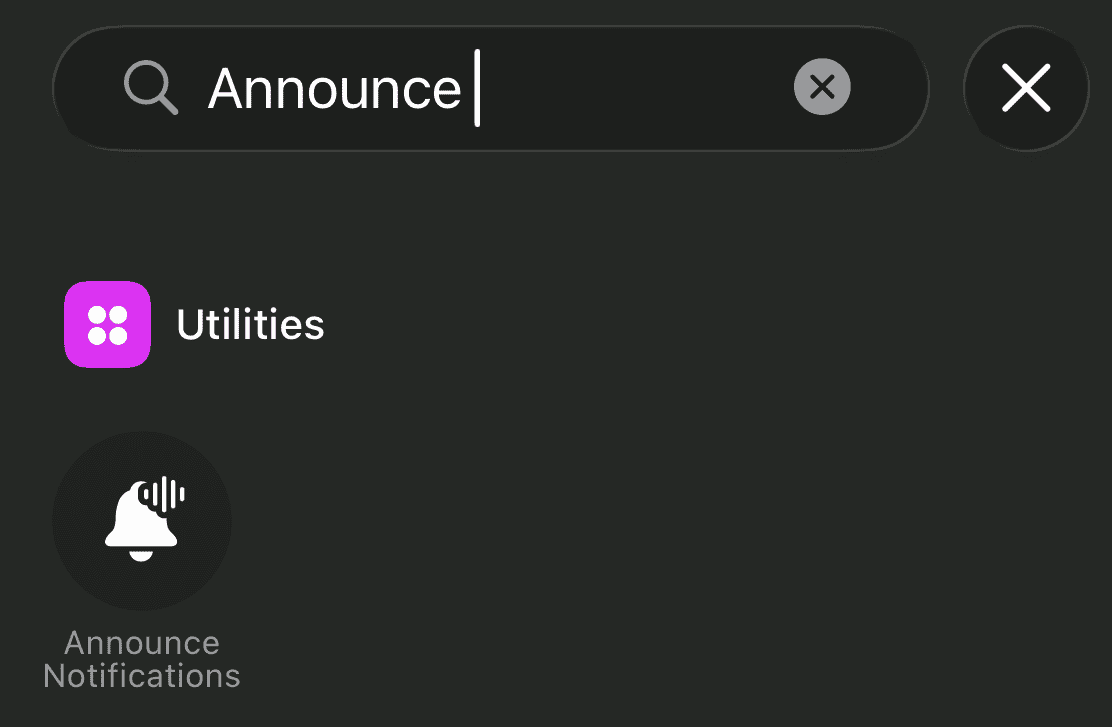
- Search for Announce Notification and then tap the control to add it to Control Center.
- When you finish customizing, close Control Center by swiping up from the bottom center of the screen.
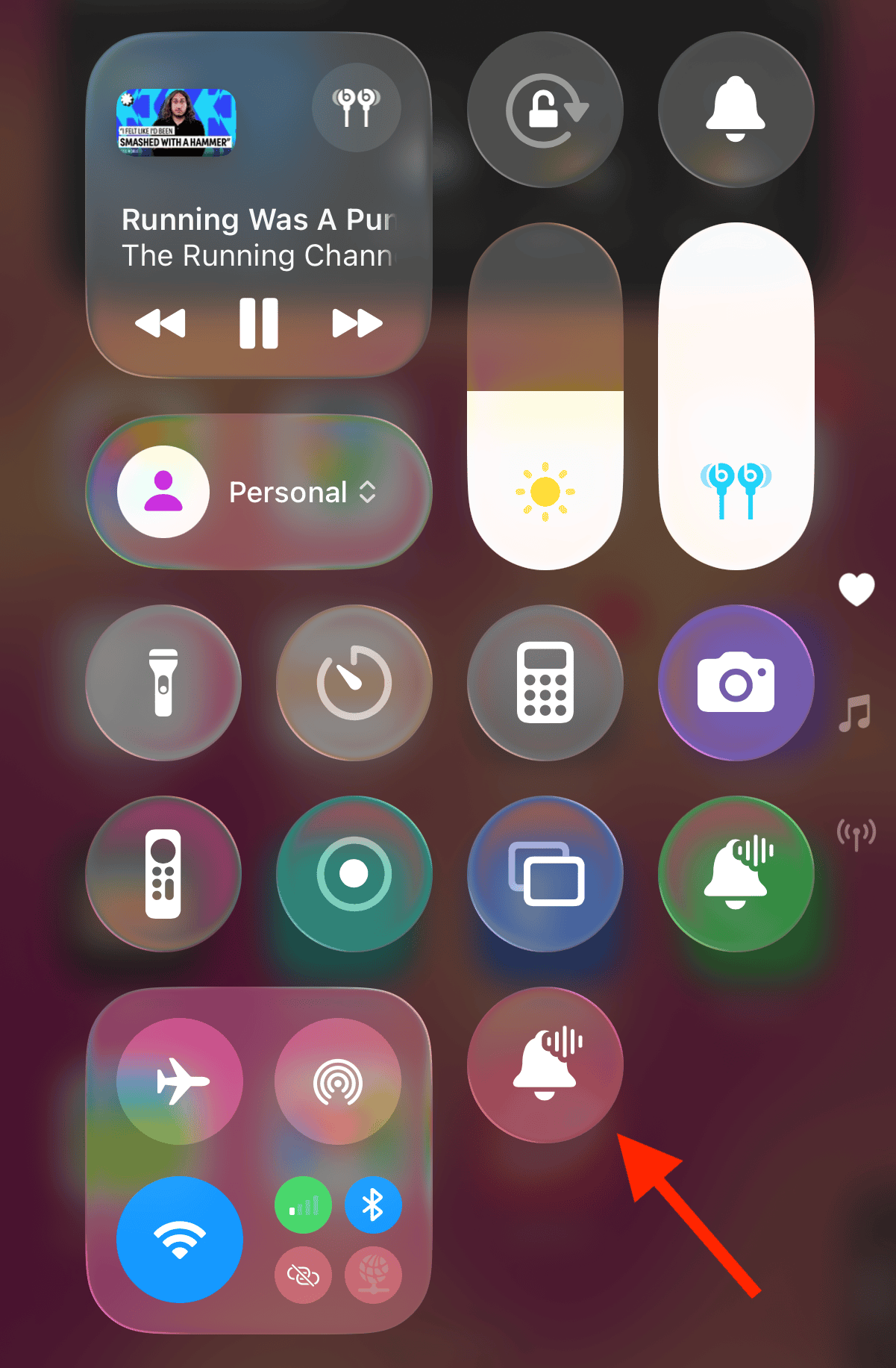
- Tap the Announce Notifications icon to toggle it on or off anytime.


Accessing notifications in the Control Center is quick and easy. It is great for switching modes so you keep it silent during a meeting and turn on the voice alerts during a run.
Tips for managing your notifications
- Use Focus modes to limit when notifications reach you.
- Keep Siri active for key apps only, like Messages or Reminders, and disable the rest.
- Use Hide Alerts in Messages selectively if you only want to hear from certain contacts.
- Keep your iPhone and AirPods updated. Firmware and software updates often improve Siri’s integration with AirPods.
Frequently Asked Questions
Some third-party apps override system settings. Double-check app permissions under Announce Notifications.
Yes. Inside Announce Notifications, scroll down to the list of apps and switch off any you don’t want read aloud.
No. Announce Notifications is compatible with AirPods (2nd generation and later), AirPods Pro (all generations), AirPods Max, Beats Powerbeats, Beats Powerbeats Pro and Beats Solo Pro.
Yes. Use the Control Center toggle or switch to a Focus mode like Do Not Disturb for short breaks from notifications.
Summary
- Toggle Announce Notifications off to disable it entirely.
- Get Announce Notifications through CarPlay or your Apple Watch and not your AirPods by turning off Headphones only.
- Add Announce Notifications to Control Center to quickly toggle the feature off anytime.
Constant voice notifications can get overwhelming and, more often than not, they are annoying. Catch a break from Siri’s constant chatter by diving into the settings and customizing the Announce Notifications. With a few quick changes, you can restore the calm and enjoy some music-inspired state of mind.



Discussion