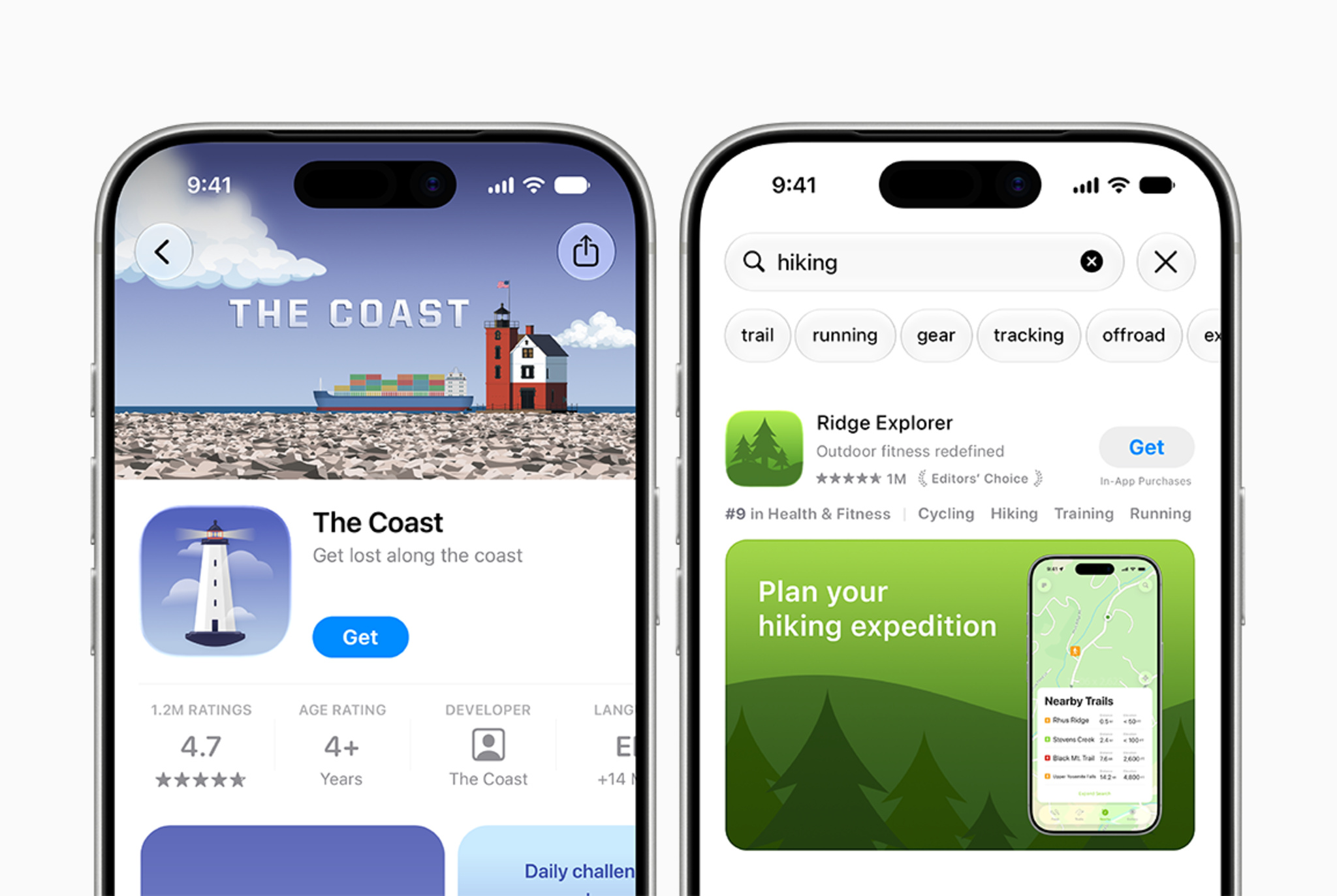
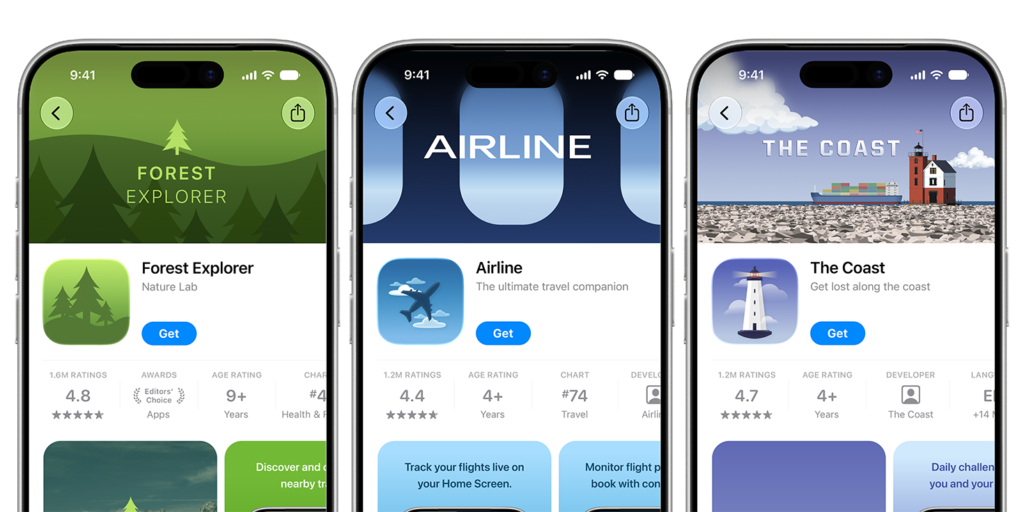
Apple has opened new App Store creative assets to developers, letting them place images or videos of 5 to 30 seconds in the product page header and in search results. Apple launched the assets on October 5, together with a preview tool and a new Asset Library in App Store Connect, and added a matching App Review guideline, 2.3.14, on October 16.
The assets work with iOS and iPadOS apps and games, and Apple says they are available “running iOS 27 or iPadOS 27 or later.” When we covered the plan in September, Apple had only promised a fall launch and had not dated the preview tool. Both are now live.
What the new assets are for
Until now, a product page leaned on screenshots and app previews, which have to show the app in use. Apple describes creative assets as “distinct from the in-use functionality requirement in app previews and screenshots.” Developers can use them to “highlight your brand, promote seasonal offerings, showcase new content, and more.”
Don’t miss the best of The Mac Observer
Set us as a preferred source and our Apple reporting ranks higher in your Google Search results and Discover feed — one tap, no account changes.
They appear in three places: the product page header, search results, and in-app event cards. Apple’s best practices page adds that creative assets also show up “when your app is featured.”
Creative assets are optional. Apple says they are “separate from your app’s screenshots, app previews, In-App Purchase and Subscription images, and any promotional artwork requested by editorial teams.” A developer can upload one universal asset for both the header and search results, or pick a separate asset for each.
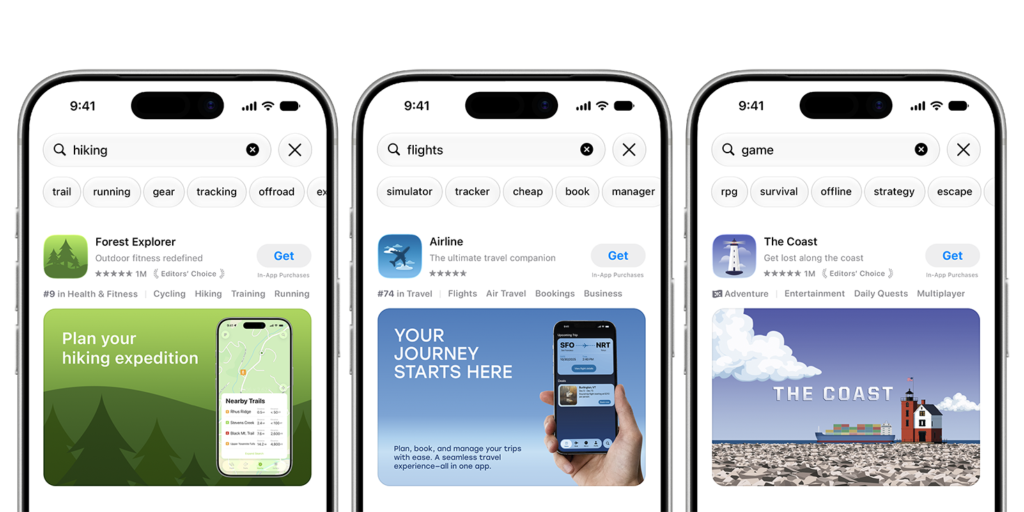
Image and video specifications
Apple’s creative assets specifications set these sizes for the header and search results:
| Placement | Aspect ratio | Resolution | Formats |
|---|---|---|---|
| Product page header (image) | 21:9 or 16:9 | 3840 x 1646 pixels (21:9), 5244 x 2950 pixels (16:9) | .jpeg, .jpg or .png (16:9 is .png only) |
| Search results (image) | 3:2 or 16:9 | Min: 1920 x 1280 pixels, Max: 3840 x 2560 pixels (3:2), 5244 x 2950 pixels (16:9) | .jpeg, .jpg or .png (16:9 is .png only) |
| Product page header (video) | 21:9 | 3840 x 1646 pixels | .mov, .m4v or .mp4 |
| Search results (video) | 3:2 | Min: 1920 x 1280 pixels, Max: 3840 x 2560 pixels | .mov, .m4v or .mp4 |
Videos run at 30 fps or 60 fps, with a minimum length of 5 seconds and a maximum of 30 seconds. Images can’t include alpha channels or transparencies.
Sound is limited. Apple says videos “are muted by default in search results and can’t currently be unmuted.” On the product page they are also muted by default, but people can unmute them. Videos loop continuously in both places.
Preview tool and Asset Library
The preview tool in App Store Connect shows how creative assets, screenshots and other metadata will look on the product page and in search results before submission. Apple says it supports Dark Mode, “as well as different devices and orientations.” The App Store Connect help page says previews cover iPhone and iPad, “across different orientations and languages.”
The Asset Library is the bigger workflow change. It holds app previews, screenshots and creative assets in one place, and developers can upload and submit creative assets “independent of an app version, without specifying where you plan to use them.” Apple’s example: “you can submit creative assets for approval today to use in a future seasonal campaign, then immediately use them once you’re ready.”
A few rules apply:
- Standalone assets “are reviewed against your app’s latest version.”
- If an app’s current version is live, approved creative assets can be swapped in “without submitting a new version.”
- Assets can only be deleted while their status is Prepared for Submission. Archived assets can’t be used in new placements.
- Managing assets needs the Account Holder, Admin, App Manager or Marketing role.
Apple also notes that developers can use product page optimization “to test alternative header visuals and see which performs best.”
What guideline 2.3.14 allows
The October 16 App Review update added guideline 2.3.14 for creative assets. It says they “must pertain to your app’s content and functionality or overarching brand, follow standard metadata guidelines, and be appropriate for all audiences.”
The guideline rules out “inappropriate content, references to other apps with an intent to mislead, unverifiable product claims, or specific or discounted pricing information.”
Apple’s asset best practices go further:
- Assets “must meet a 4+ age rating, even if your app’s rating is higher.”
- No “specific pricing, discounts, website URLs, copyright symbols.”
- No Apple recognitions such as “Editor’s Choice, App of the Day, Game of the Day, or Apple Design Award winner.”
- No “logos or references to other platforms or marketplaces.”
For games, Apple says action imagery is fine, but assets “must avoid depictions of gore, graphic imagery, or weapons that are pointed directly at a person or the audience.”
Templates
Apple has posted header templates for Figma, Photoshop, Pixelmator and Sketch, with safe areas marked so key art is not clipped across devices and orientations. Its advice for headers is to “focus on a single, clear idea,” and for search results to make an app’s purpose “obvious at a glance.”
Apple’s full announcement, with links to the specifications and templates, is on its developer news page.