

Your iPhone is already packed with productivity tools, but few are as useful as Voice Control. Whether you’re cooking dinner, driving, or just want a break from typing, Voice Control lets you use spoken commands to navigate your device completely hands-free. You can open apps, dictate messages, scroll web pages, and more, all without touching the screen. Once you’ve tried it, it’s hard to imagine going back. Here’s how to turn it on, customize it, and start using Voice Control like a pro.
Table of contents
What’s the Difference Between Siri and Voice Control?
It’s easy to confuse the two because they are very similar, but Siri and Voice Control serve slightly different purposes. Siri is Apple’s intelligent assistant, it connects to the internet to answer questions, send texts, or control smart home devices. Voice Control, on the other hand, is an accessibility tool. It runs entirely on your device and is designed for hands-free control of your iPhone. It’s ideal for users who want full control of their iPhone without relying on touch interaction or an internet connection.
Many people turn to Voice Control if Siri isn’t responding the way they expect. Before you abandon the voice assistant, check out what to do if Siri isn’t working on your iPhone before turning to Voice Control it may save you a few troubleshooting steps.
Don’t miss the best of The Mac Observer
Set us as a preferred source and our Apple reporting ranks higher in your Google Search results and Discover feed — one tap, no account changes.
How to use Voice Control on your iPhone
Activating Voice Control is simple, but mastering it takes some practice. Below are the most effective ways to set up Voice Control and use it to your advantage.
1. Turn on Voice Control in the settings
- Open the Settings app.
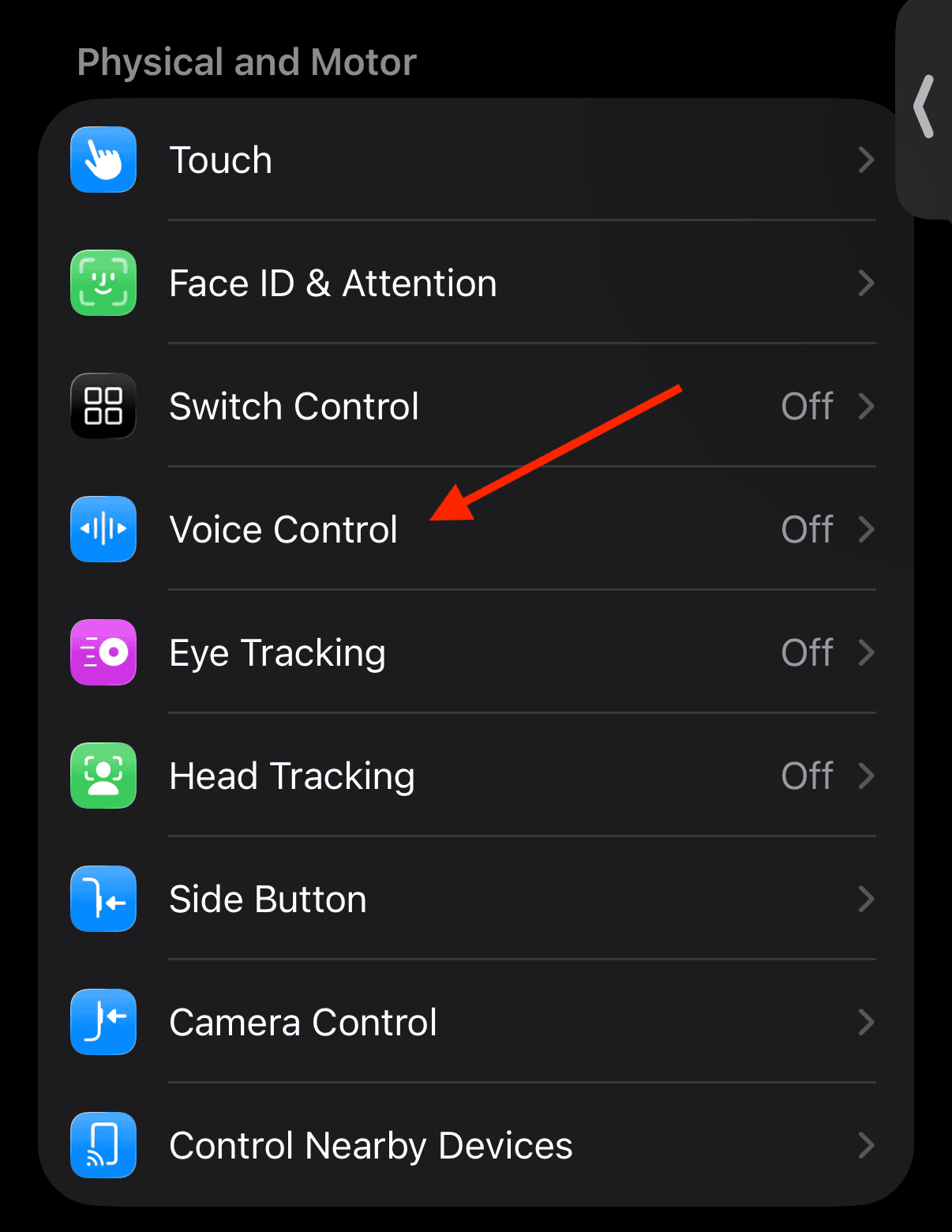
- Tap Accessibility.
- Select Voice Control.
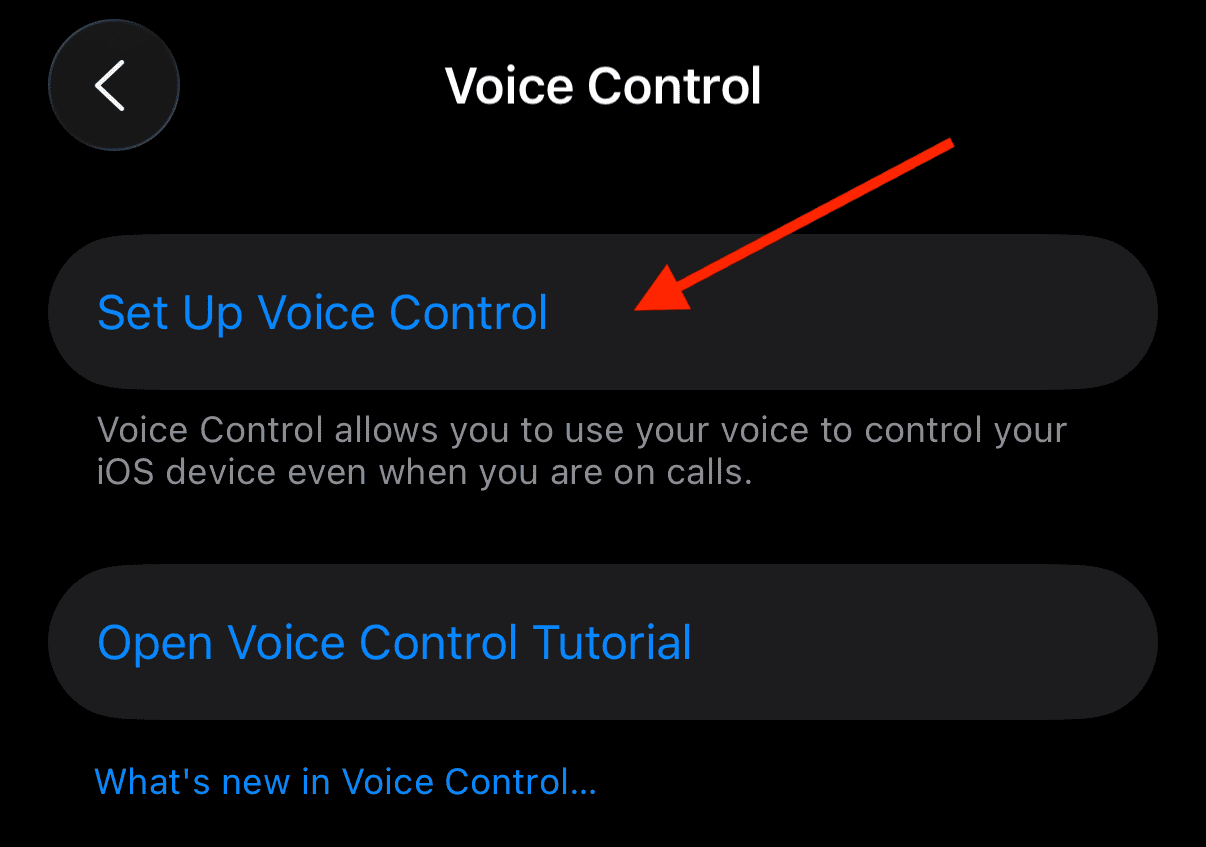
- Tap Set Up Voice Control and follow the onscreen instructions.
- Once it’s on, you’ll see a blue microphone icon in the top status bar—your iPhone is now listening.


Voice Control will start recognizing commands immediately, allowing you to say things like “Open Messages” or “Go Home.” You can even scroll or zoom without touching the display.
2. Activate Voice Control with Siri
Already talking to Siri regularly? You can turn on Voice Control just by asking.
- Say, “Hey Siri, turn on Voice Control.”
- You’ll see the same blue microphone icon appear.
- To stop Voice Control, simply say, “Hey Siri, turn off Voice Control.”
This method is great when your hands are occupied—like when you’re driving or cooking—and it pairs perfectly with AirPods or CarPlay. For more hands-free help, see how you can control your headphones using Voice Control.
3. Customize Voice Control commands
Voice Control isn’t one-size-fits-all.
- Go to Settings > Accessibility > Voice Control.
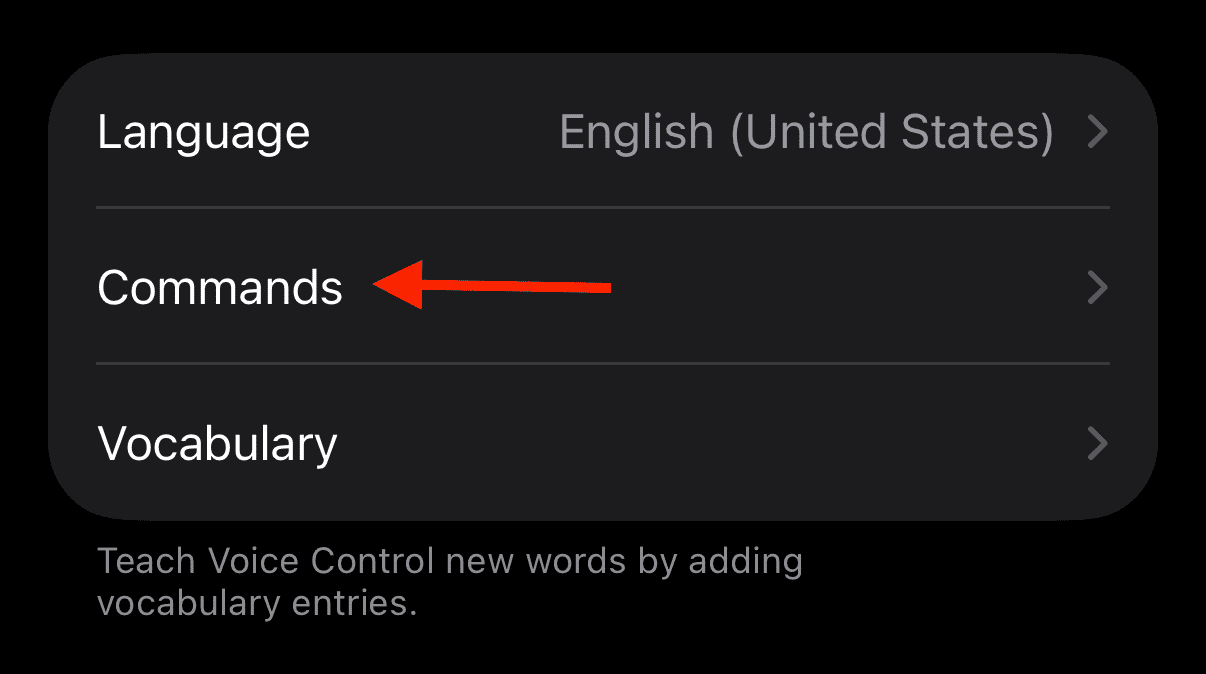
- Tap Commands.
- Choose from preset actions or create new ones.
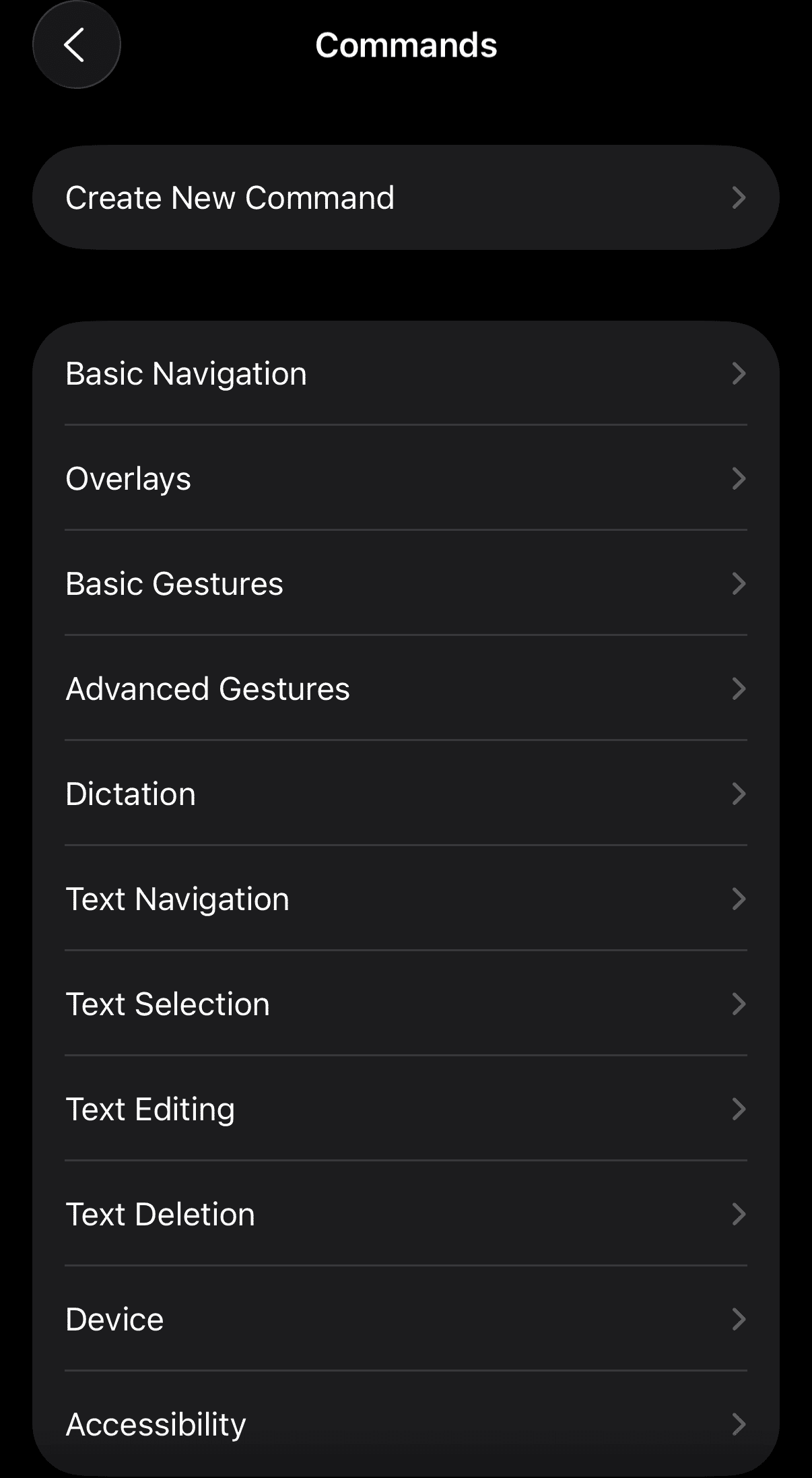
- Assign phrases that make sense to you, like “Snap it” for taking screenshots or “Send it” for texts.
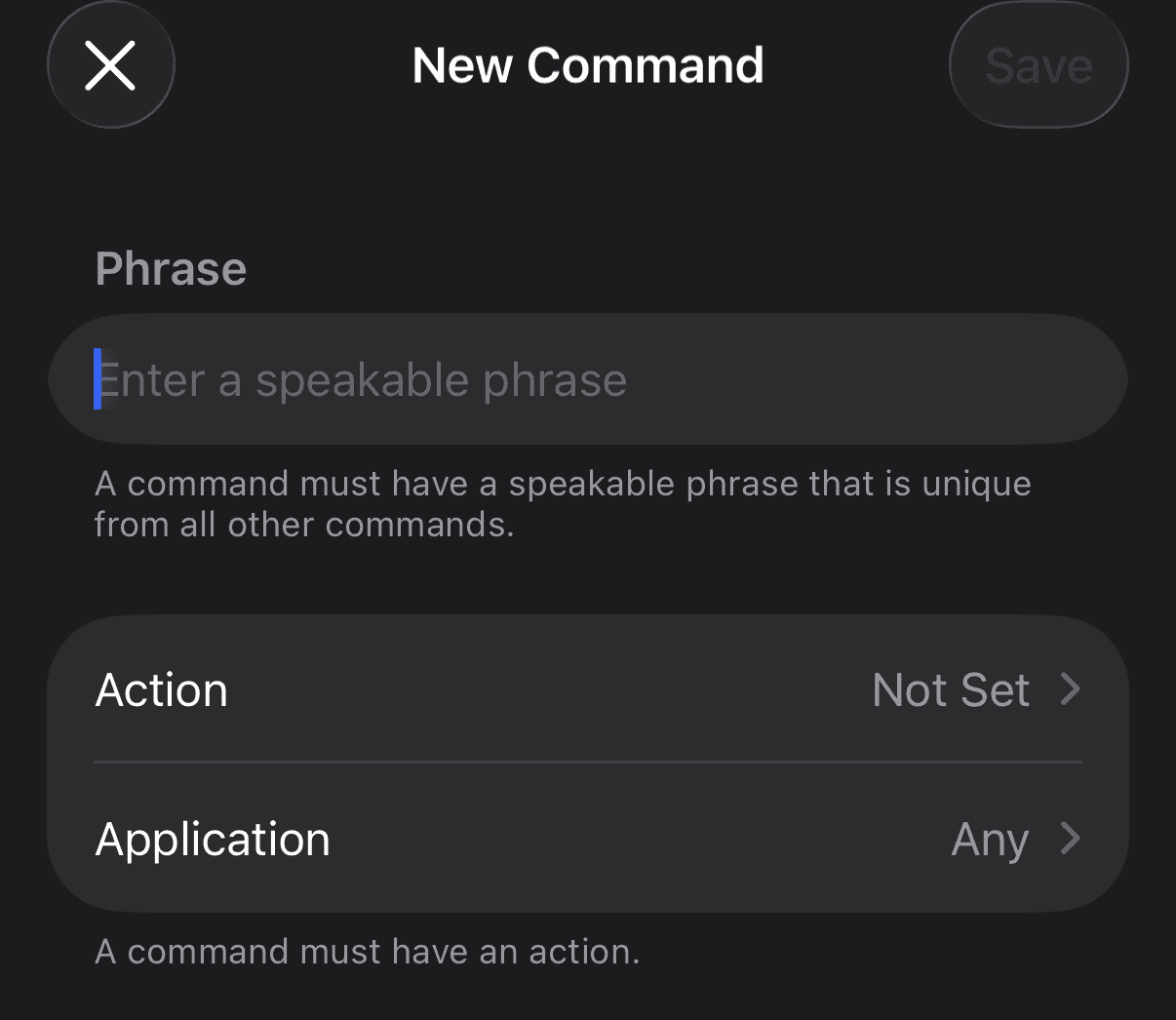


When you personalize your commands, you make your iPhone suited to your workflow and easier to use.
4. Use overlays and number labels
When Voice Control is on, you can enable numbered labels or grid overlays to navigate complex screens.
- Go to Settings > Accessibility > Voice Control.
- Tap Overlay.

- Select the type of overlay. In this example, the selected overlay is Item Names but you choose to use Item Numbers or Numbered Grid instead.
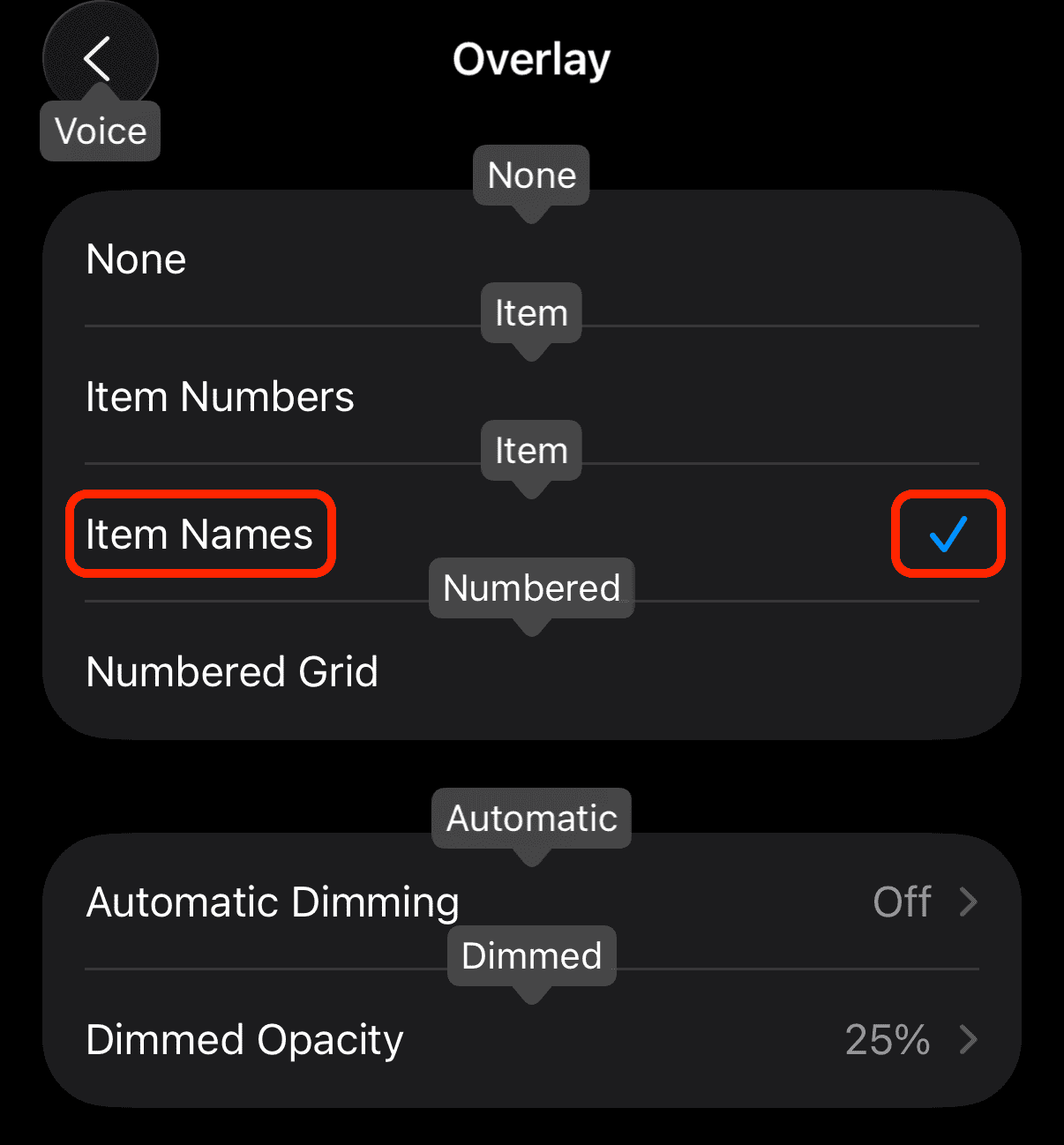
- Say “Show Numbers” , “Show Names”, or “Show Grid.”
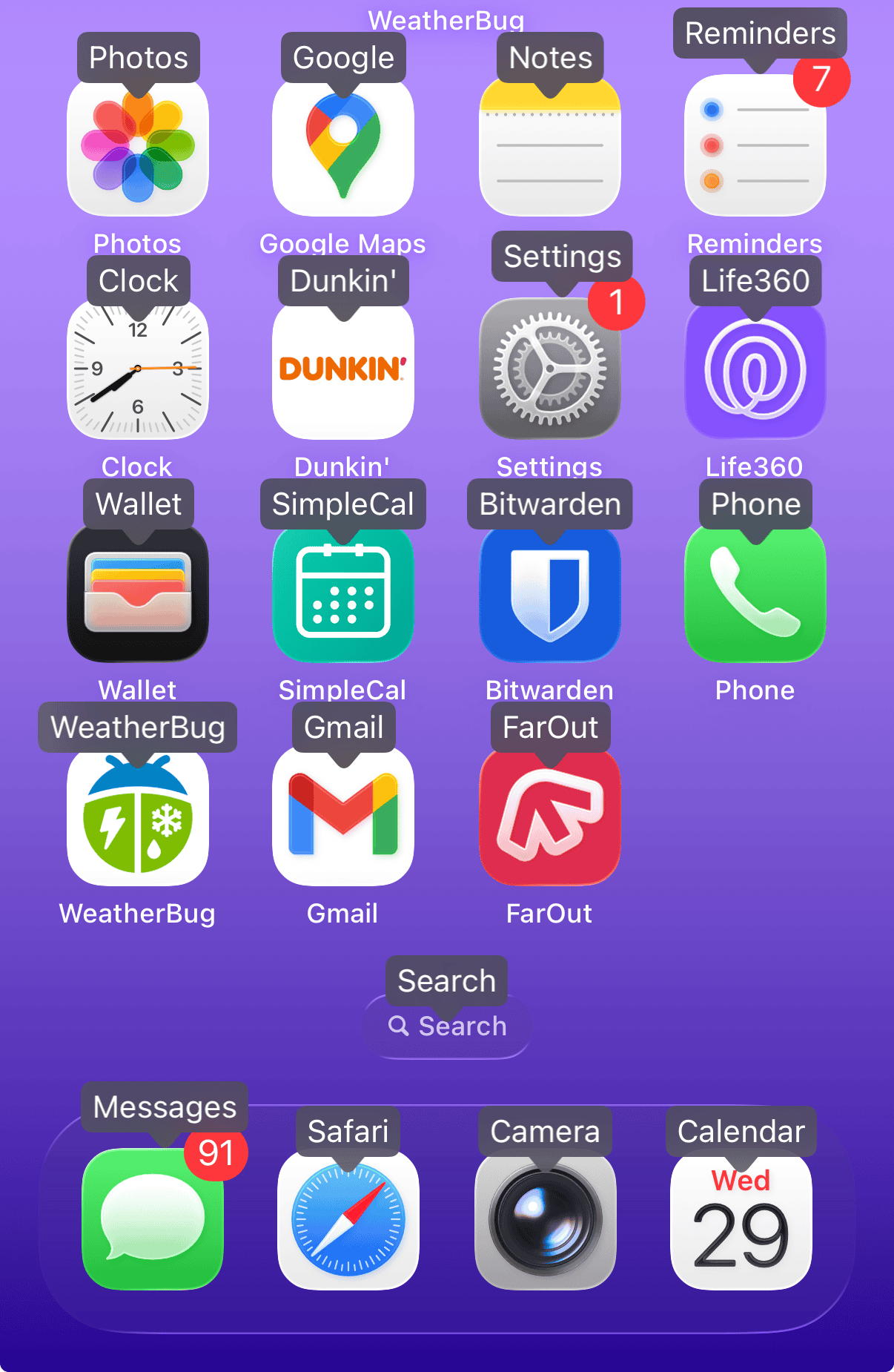
- Speak the number or name that matches the button or area you want to select.
- To close overlays, say “Hide Numbers” , “Hide Names”, or “Hide Grid.”


Overlays are especially handy for scrolling through long pages or apps that don’t have clear navigation buttons.
5. Control dictation and text editing
Voice Control is also fantastic for writing or editing messages hands-free.
- Say “Dictation Mode” to start speaking text into any field.
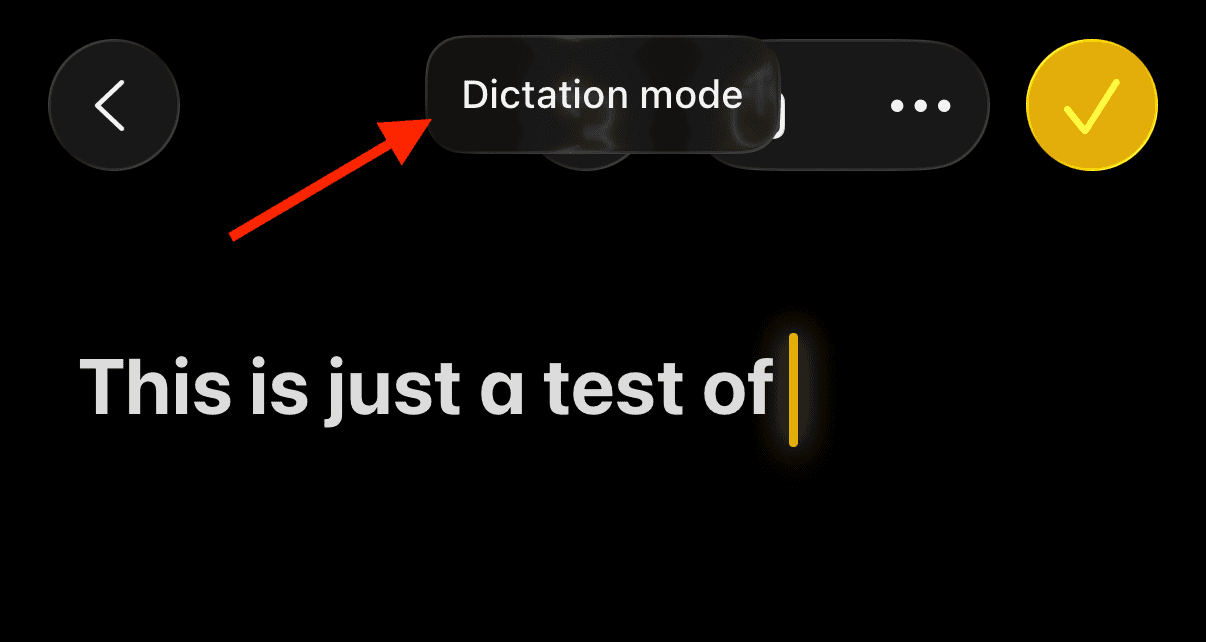
- Use editing commands like “Select sentence,” “Bold that,” or “Insert Date.”
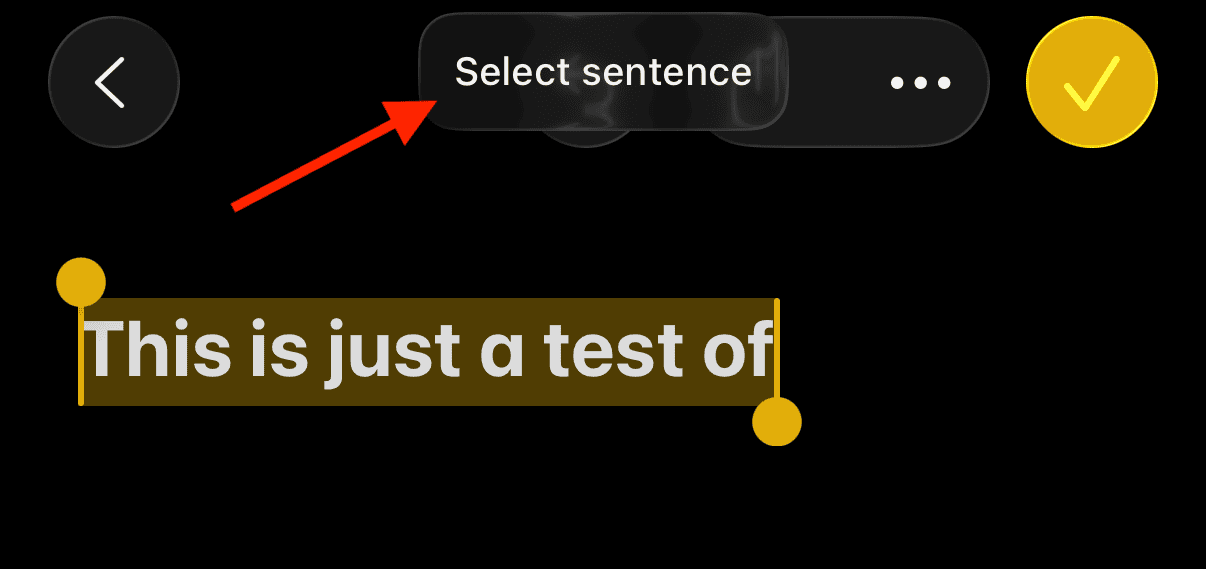
- When finished, say “Go Home” or “Open Safari” to move on.


This feature is particularly valuable for accessibility users and it’s about to get even more useful thanks to new improvements in iOS 26. Apple introduced a game-changing accessibility feature for iPhone that expands what Voice Control can do.
Tips
- Speak clearly but naturally. Like Siri, Voice Control is trained to recognize conversational tone.
- Use Headphone Voice Control with AirPods for easier, more discreet commands.
- Add shortcuts for repetitive tasks in Shortcuts > Accessibility Actions.
- Keep your iPhone updated as newer iOS versions often improve voice recognition accuracy.
- Disable Voice Control when not needed to save battery and reduce accidental triggers.
Frequently Asked Questions
Yes. Unlike Siri, Voice Control runs directly on your iPhone, so it works even without Wi-Fi or cellular data connection.
Absolutely. With AirPods or Beats, you can enable Voice Control for headphones and command your device completely hands-free.
Voice Control is supported on any iPhone running iOS 13 or later.
Go to Settings > Accessibility > Side Button and choose whether you want Voice Control to respond to long presses.
Yes, because they perform different tasks. Siri handles online tasks, like finding information or sending texts, while Voice Control, while Voice Control lets you use your iPhone like opening apps or scrolling just by talking.
Summary
- Turn on Voice Control via Settings > Accessibility.
- Activate with Siri using the command “Turn on Voice Control.”
- Customize commands for more natural, personalized control.
- Use overlays and labels for precise on-screen navigation.
- Edit text using dictation and voice editing commands.
Conclusion
Voice Control turns your iPhone into a legitimate hands-free experience. Think Siri on steroids. With customizable commands, offline operation, and seamless integration with AirPods and Siri, Voice Control is a powerful tool that can change how you use your device. Once you master Voice Control, you’ll wonder how you ever managed without it.


Discussion