

Apple’s Spatial Audio feature turns ordinary listening into a surround-sound experience. But after updating to iOS 17, 18, or even 26, some users have found that Spatial Audio suddenly stops working, even with the latest AirPods. If you’re stuck wondering why Spatial Audio is unavailable, here’s how to fix it and get back that immersive sound.
Table of contents
Why Spatial Audio Stops Working on AirPods
Several issues can cause Spatial Audio to disappear after an update. Before jumping into fixes, it helps to understand what might be behind it:
- Unsupported devices: Spatial Audio only works on iPhone 7 or later. If you’re using an older model, it won’t appear in settings.
- Incompatible AirPods: The feature is exclusive to AirPods Pro, AirPods Max, and certain newer models — not regular AirPods.
- Outdated firmware: Sometimes the AirPods’ internal firmware doesn’t update correctly after an iOS update.
- Software bugs: iOS updates occasionally introduce temporary glitches that affect Bluetooth and audio features.
Once you know what’s likely causing the problem, move through the following steps to fix it.
Don’t miss the best of The Mac Observer
Set us as a preferred source and our Apple reporting ranks higher in your Google Search results and Discover feed — one tap, no account changes.
1. Disconnect and Re-Pair Your AirPods
Re-pairing your AirPods often resolves pairing or firmware-related issues.
- Place your AirPods in their case and close the lid for about 30 seconds.
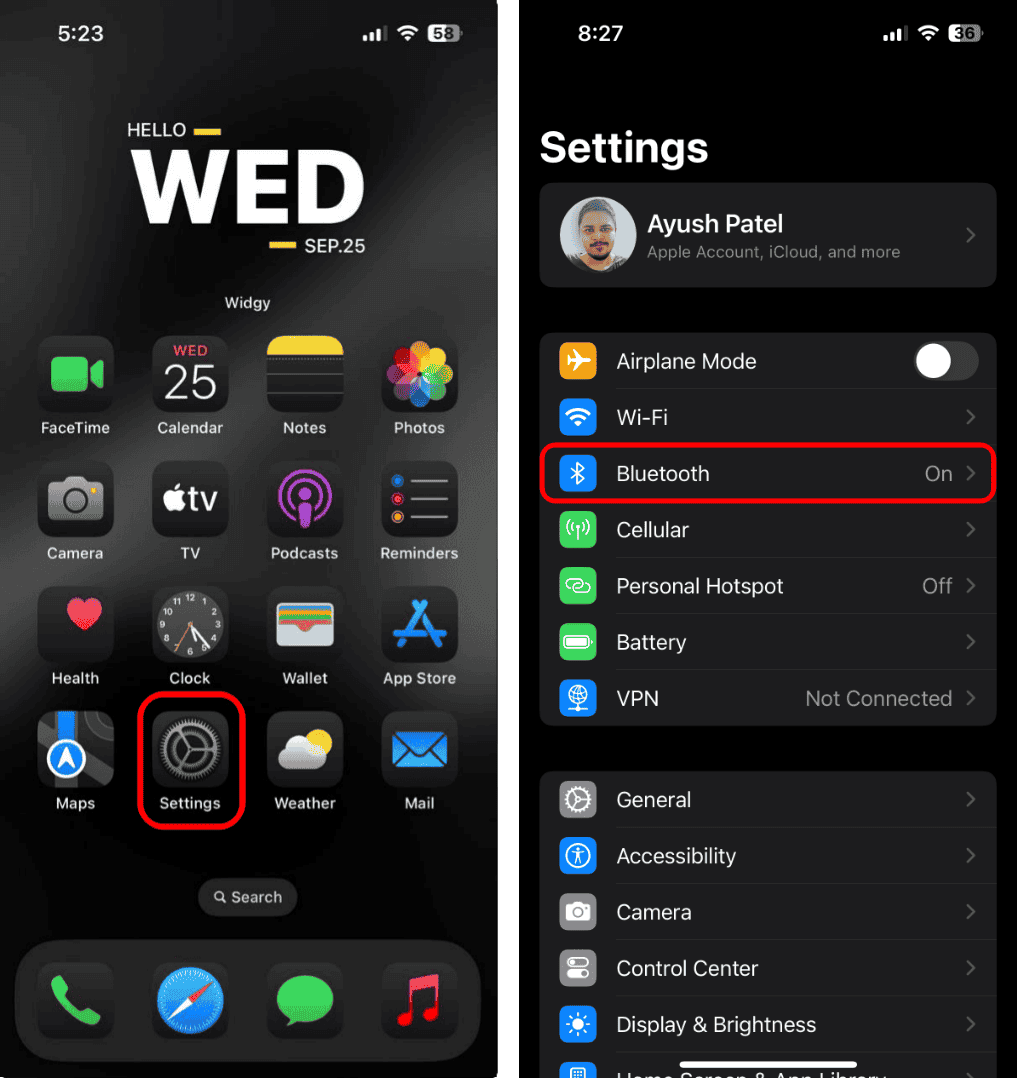
- On your iPhone, go to Settings > Bluetooth.
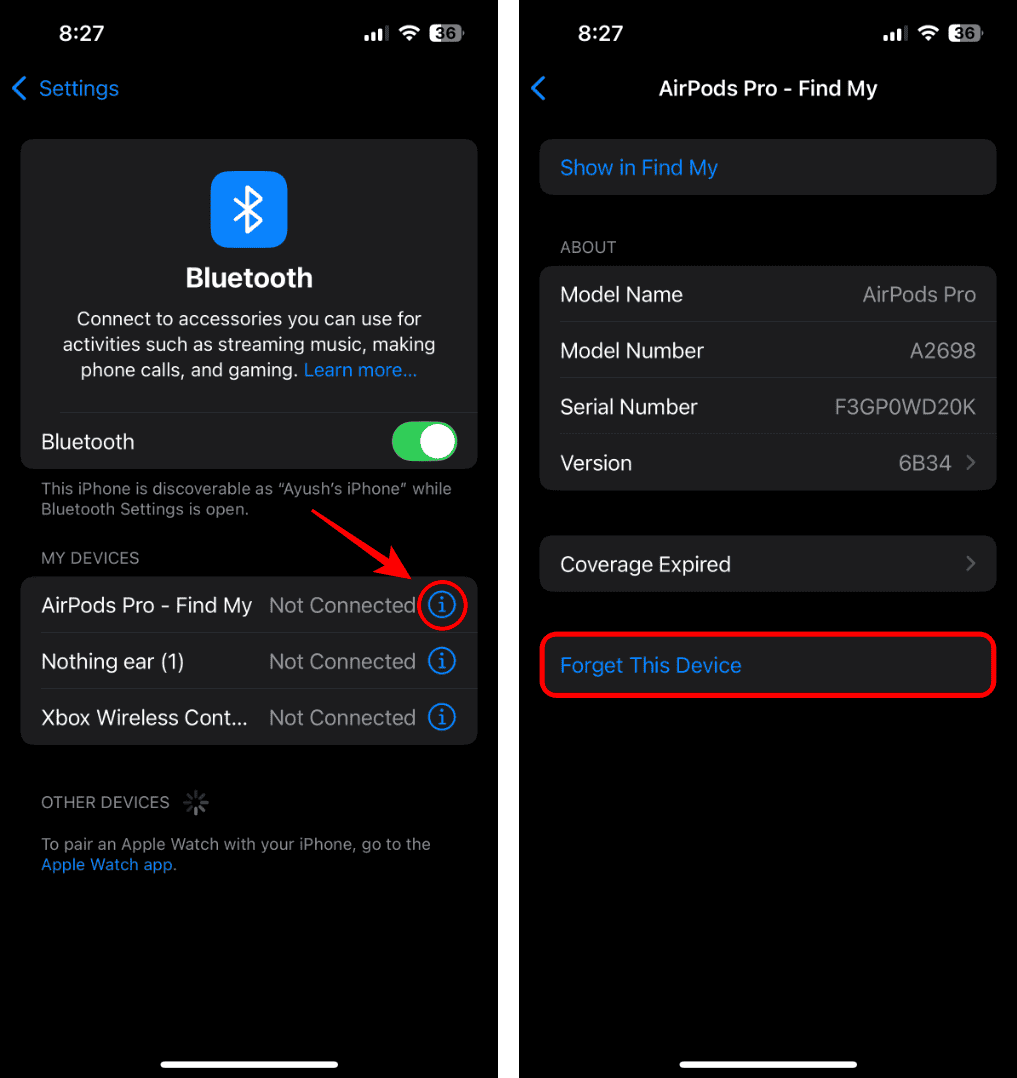
- Tap the i next to your AirPods, then select Forget This Device.
- Open the case lid and press the setup button on the back until the light flashes white.
- Follow the on-screen steps to reconnect.


2. Restart Your iPhone
A simple restart can clear temporary Bluetooth or audio bugs. Turn your iPhone off, wait a few seconds, then power it back on. After restarting, reconnect your AirPods and test Spatial Audio again.
3. Turn Off Automatic Ear Detection
Automatic Ear Detection can sometimes interfere with Spatial Audio.
- Open Settings > Bluetooth.
- Tap the i next to your AirPods.
- Toggle Automatic Ear Detection off.
Reconnect your AirPods and check if Spatial Audio becomes available again.
4. Reset Your AirPods
If re-pairing doesn’t help, perform a full reset:
- Place AirPods in their case and close the lid for 30 seconds.
- Open the lid, then press and hold the setup button on the back of the case until the light flashes amber, then white.
- Reconnect them through Bluetooth.
5. Update AirPods Firmware
Spatial Audio won’t work properly if your AirPods are running outdated firmware.
- Keep your AirPods in their charging case near your iPhone.
- Make sure both devices are connected to Wi-Fi and charging.
- Leave them together for at least 30 minutes — the update will install automatically.
- To check your firmware version, go to Settings > Bluetooth, tap the i icon next to your AirPods, and view the version number.
If it’s not the latest version (for example, 3A283 or newer), keep them near your iPhone until the update completes.
6. Update Your iPhone Software
Spatial Audio requires iOS 14.6 or later, but if you’re running iOS 17, 18, or 26, a minor software glitch could still cause issues. Make sure your system is up to date.
- Go to Settings > General > Software Update.
- Tap Download and Install if an update is available.
After updating, reconnect your AirPods and test Spatial Audio.
Restoring Immersive Sound on iPhone
In most cases, Spatial Audio becomes unavailable due to outdated firmware, misconfigured Bluetooth settings, or a minor iOS bug. Start with simple fixes like re-pairing your AirPods or restarting your iPhone before trying system tools. Once everything’s up to date, your immersive listening experience should return in full force.


Discussion