

Sometimes you just want a clean slate. Maybe you want to replay your favorite game from the start, or maybe you’re done with the old save and want to see how the game feels fresh again. Either way, clearing game data on an iPhone or iPad isn’t always straightforward. You can delete the app, sure, but that doesn’t always reset your progress.
Here’s the thing: your game data can live in several places: on your device, in iCloud, in Game Center, or even on a developer’s own server. So if you’re stuck seeing your old progress reappear every time you reinstall, you’ll need to dig a little deeper. Let’s break down the best ways to clear it for good.
Table of contents
Why Deleting the App Doesn’t Always Work
It used to be that deleting a game also wiped your progress. Not anymore. Today, most games sync your data across devices through iCloud, Game Center, or an in-game account. That’s great when you’re upgrading to a new phone, but not when you’re trying to start over.
Don’t miss the best of The Mac Observer
Set us as a preferred source and our Apple reporting ranks higher in your Google Search results and Discover feed — one tap, no account changes.
If your saved data keeps coming back after reinstalling the app, it means the game is pulling information from one of these sources. The fix depends on where that data lives.
1. Reset Game Progress Inside the App
The simplest fix is often hiding in plain sight. Many games have a built-in option to restart or reset progress.
Open the game, head to its Settings, Menu, or Options screen, and look for something like Reset, Restart, or Erase Data. If you don’t see it, try checking the game’s support page or search online for “reset [game name] progress iPhone.”
This method is the safest and quickest since you won’t lose app settings or have to reinstall anything.
2. Disconnect the Game from Social Media
If you’ve ever linked your game to Facebook, Snapchat, or another social platform, that account might be storing your progress. When you reinstall the app, it reconnects and reloads your save automatically.
Go into the game’s settings and find the option to sign out or unlink your social account. Then, visit your social media settings (on Facebook, for example, go to Settings > Apps and Websites) and remove the game’s access entirely.
Once you’ve disconnected it on both ends, reinstalling the app should start you from scratch.
3. Delete the App and Its Data
If the game doesn’t have an in-app reset, deleting it might still work, if you remove all stored data.
Option A:
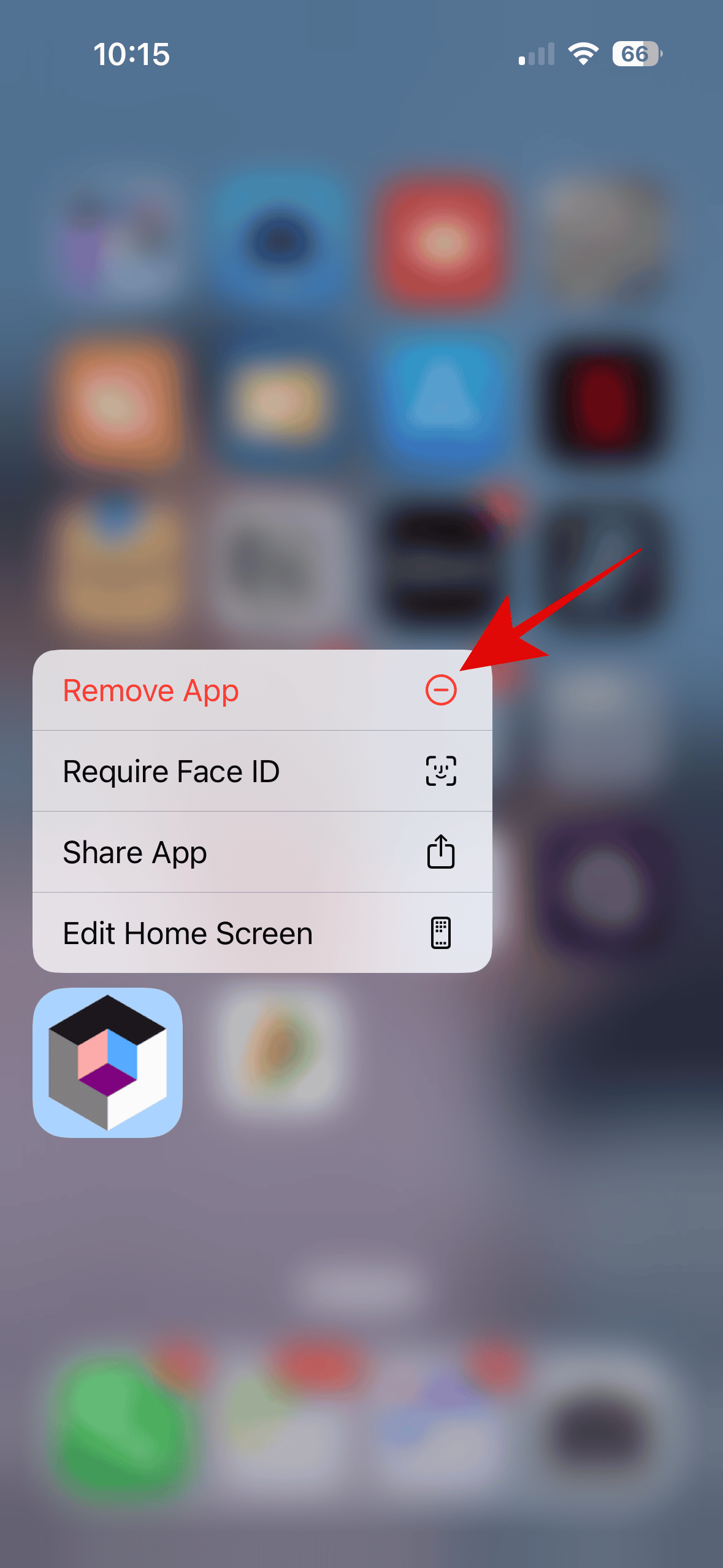
- Tap and hold the game icon on your home screen, then choose Remove App > Delete App.

Option B:
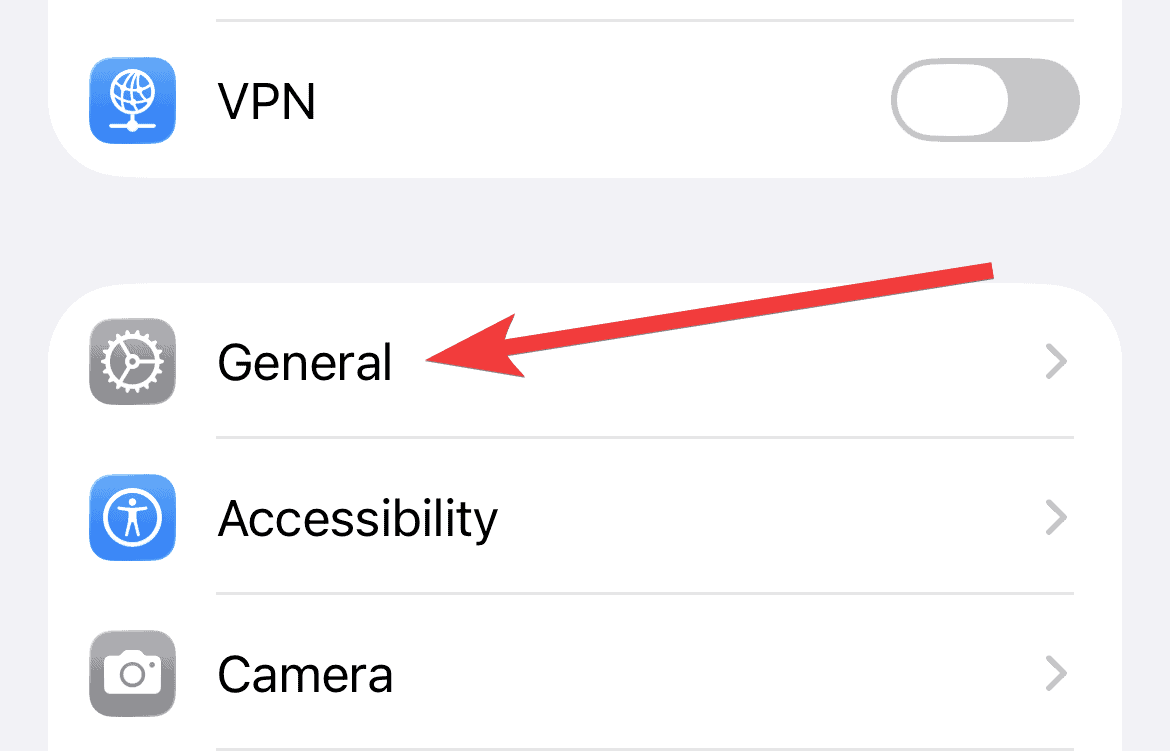
- Go to Settings > General > iPhone Storage (or iPad Storage), find the game in the list, and tap Delete App.

This deletes both the app and its local data. Avoid “Offload App,” since that keeps your data in place.
Once deleted, reinstall the game from the App Store and check if your progress resets.
4. Clear Game Data from iCloud
Some games back up progress to iCloud automatically. If that’s the case, deleting the app alone won’t touch the cloud data.
To remove it:
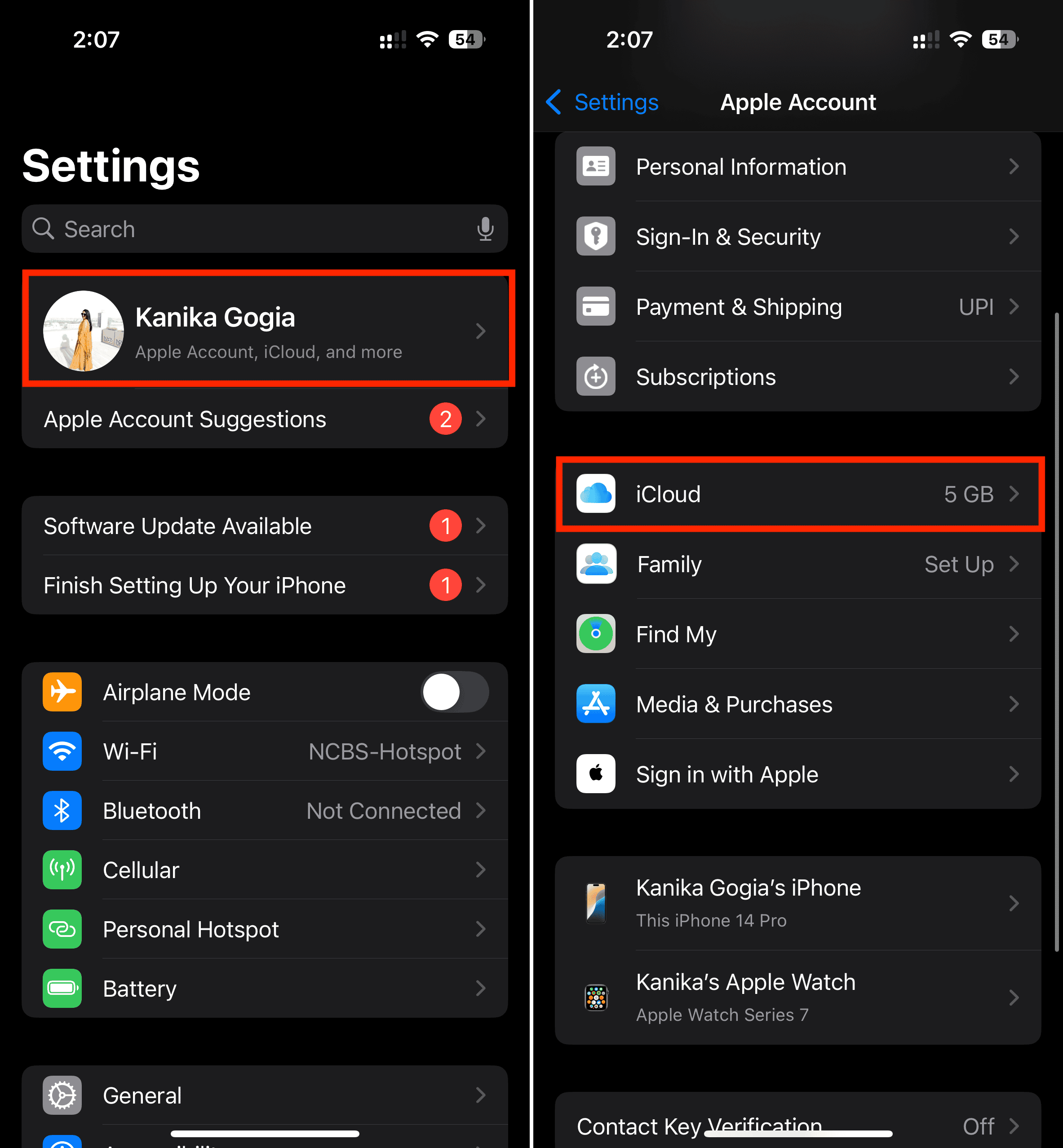
- Go to Settings > [Your Name] > iCloud > Manage Account Storage.
- Scroll through the list and find the game.
- Tap it, then select Delete Data from iCloud.

This wipes the cloud save completely. When you reinstall the game, it’ll behave like a brand-new install.
5. Reset or Replace Your In-Game Account
If your game requires an account through the developer (like Supercell, EA, or Epic Games), your progress is stored there, not on your phone.
Sign into that account in-game or on the developer’s website, and look for options to delete or reset your data. If that’s not possible, create a new account instead and log in with that one.
Some developers may let you contact support to reset your account manually if there’s no self-service option.
6. Turn Off Game Center
Game Center doesn’t store game saves directly, but it can still trigger syncs when you reinstall. If you want to eliminate that link entirely:
- Go to Settings > Game Center.
- Tap your profile name.
- Select Sign Out.
This keeps Game Center from syncing high scores or achievements that might reload your old progress.
Wrapping Up
Clearing game data on an iPhone or iPad takes a little detective work. The data might live in your app, your iCloud, Game Center, or somewhere in between. Once you know where it’s stored, it’s usually just a few taps away from a full reset.
Start simple: check the in-game settings, delete from iCloud, or sign out of Game Center. If that fails, unlink accounts or reinstall the app. One of those steps will get you back to square one, ready to play from the very beginning.


Discussion