

It’s a common and frustrating experience: you know you downloaded an app, but it seems to have vanished from your Home Screen. Whether you accidentally moved it, removed it from the visible pages, or it’s hidden deep within the App Library, your missing application is still on your device. I will show you the most effective ways to quickly locate and restore those hidden apps on your iPhone or iPad, ensuring you regain access to all your tools and games.
Table of contents
Comprehensive Solutions for Locating Lost Apps
When an application disappears, it is usually just a few taps away from being found. The key is knowing where the iOS and iPadOS operating systems like to store things, intentionally or accidentally, out of sight.
1. Search with Spotlight to Find Any App Instantly
Spotlight Search is the most powerful and fastest tool for locating anything on your device, including apps hidden away in folders or the App Library. Using it will reveal the app’s location, even if it’s been obscured from view.
Don’t miss the best of The Mac Observer
Set us as a preferred source and our Apple reporting ranks higher in your Google Search results and Discover feed — one tap, no account changes.
To use Spotlight effectively:
- Swipe down from the center of any Home Screen to open the search bar
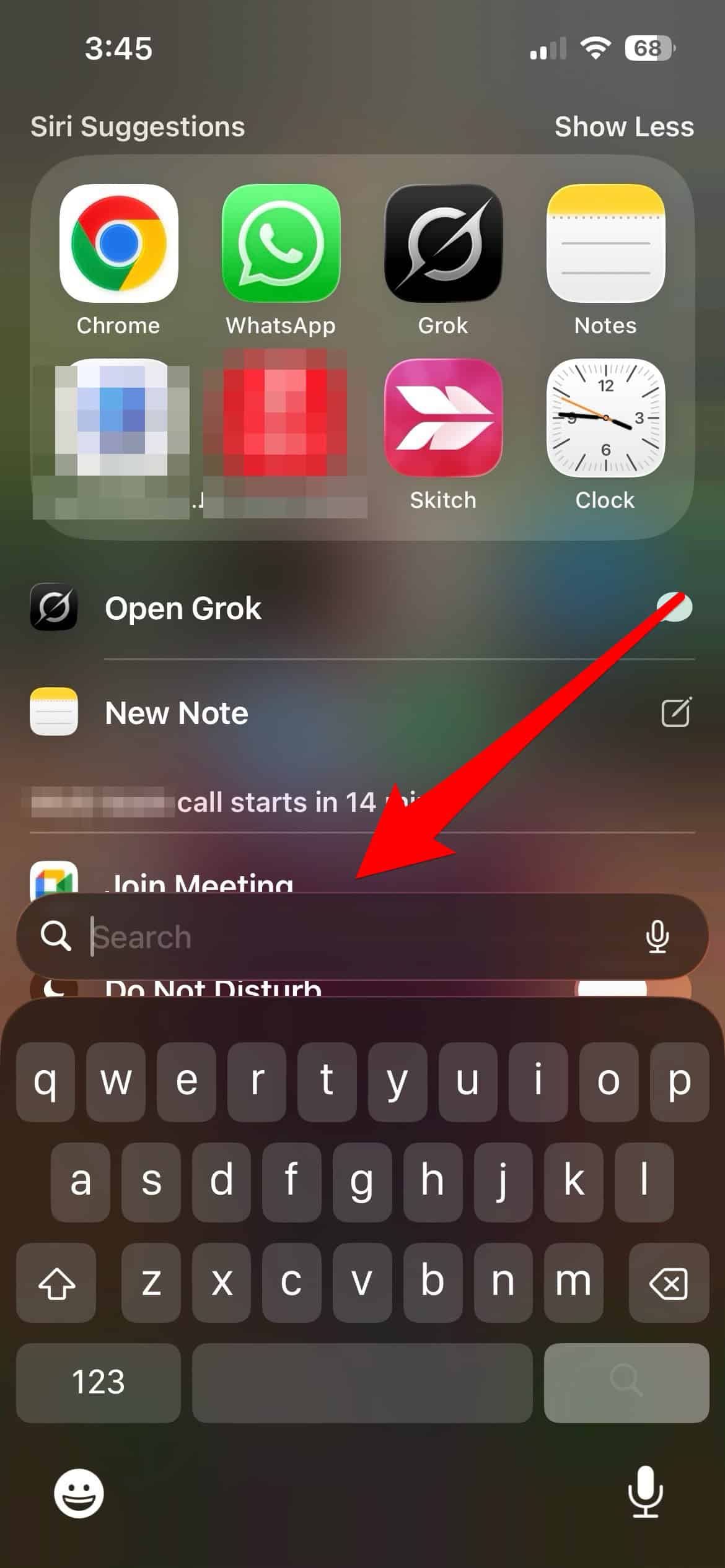
- Type the exact name of the missing application.
- The app icon will appear in the results.
- If you find the app, note the folder name or App Library category displayed to its right, or simply tap it to open.

2. Check the App Library for Recently Downloaded or Misplaced Apps
The App Library is the final organizational screen on your device, automatically sorting all your installed apps into categories. If an app is missing from your Home Screens, it almost certainly lives here.
This feature organizes your applications into folders like Social, Productivity, and Utilities, making it the definitive place to check for any app you can’t see on your main pages. If you’re looking for more details on how to use the iPhone App Library: tips and tricks, you can find more information here.
- Swipe left past your last Home Screen page to access the App Library.
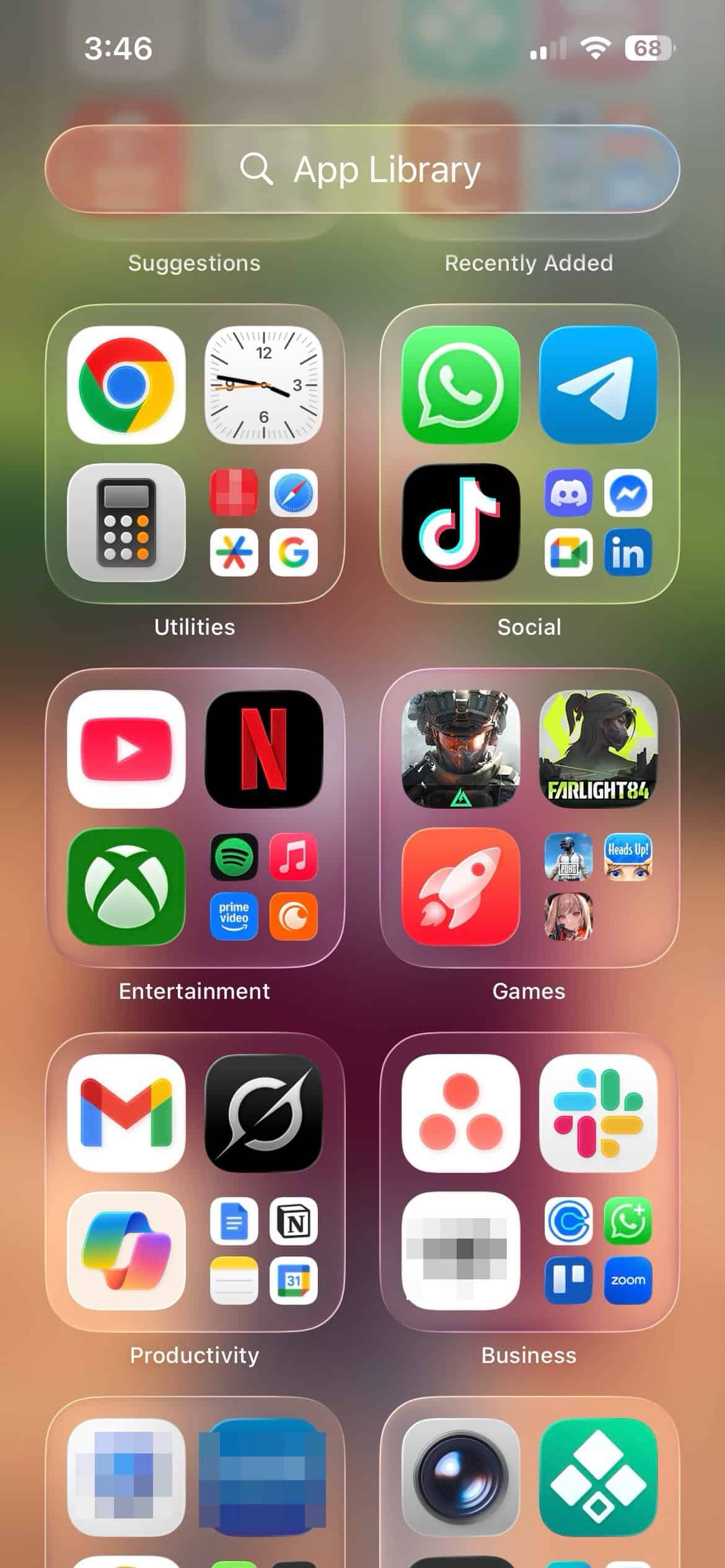
- Browse the categorized folders to visually locate the missing app.
- Alternatively, tap the search bar at the top of the App Library and type the app name.
- Once located, press and hold the app icon and select Add to Home Screen to restore it.

3. Unhide App Pages to Reveal Missing Icons
It’s possible you’ve inadvertently hidden an entire Home Screen page, which would make all the apps on it seem to vanish. This is a common solution when multiple apps seem to have disappeared at once.
To unhide an entire page:
- Press and hold an empty space on your Home Screen until the apps begin to jiggle.
- Tap the small dots above the Dock, which represent your Home Screen pages.

- A grid of your pages will appear. Check the pages that have a checkmark below them.

- Tap to check any page that is currently unchecked to make it visible again. If you’ve also been experimenting with visual changes and want to know how to make apps clear on iPhone, check out our guide.


4. Check Folders and Reset the Home Screen Layout
If you’ve dragged an app into a folder by mistake, it will be hidden from the main view. Be sure to systematically check every folder on your Home Screens. If this seems too tedious, you can revert the entire layout to its factory state.
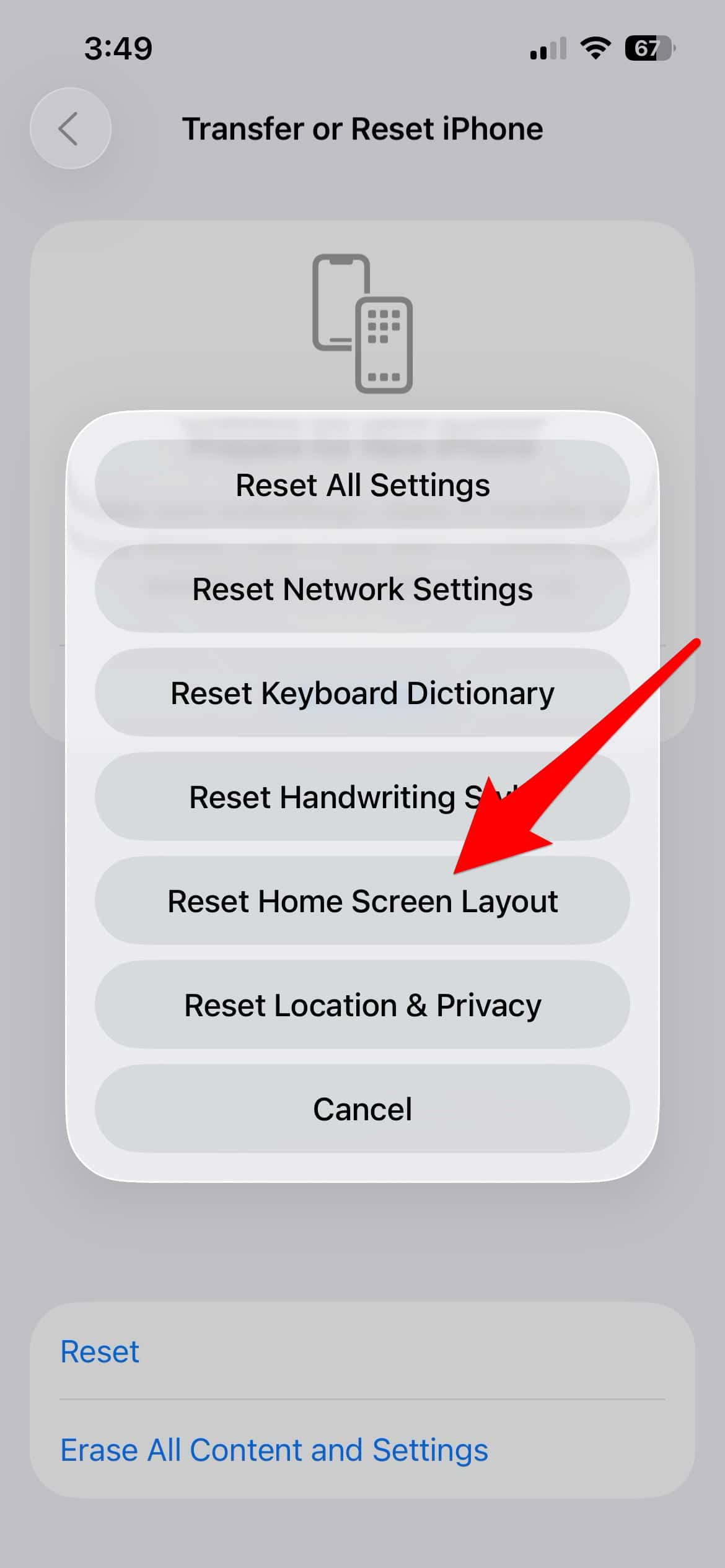
To reset the layout, which will restore all native Apple apps and place all third-party apps alphabetically into the App Library:
- Go to Settings.
- Tap General, then Transfer or Reset iPhone/iPad.
- Select Reset and choose Reset Home Screen Layout.

5. Check Purchase History to Verify the App Is Installed
If the app isn’t found using any of the above methods, it’s possible it was deleted and needs to be re-downloaded. Checking your App Store purchase history can quickly confirm its installation status.
To check the history:
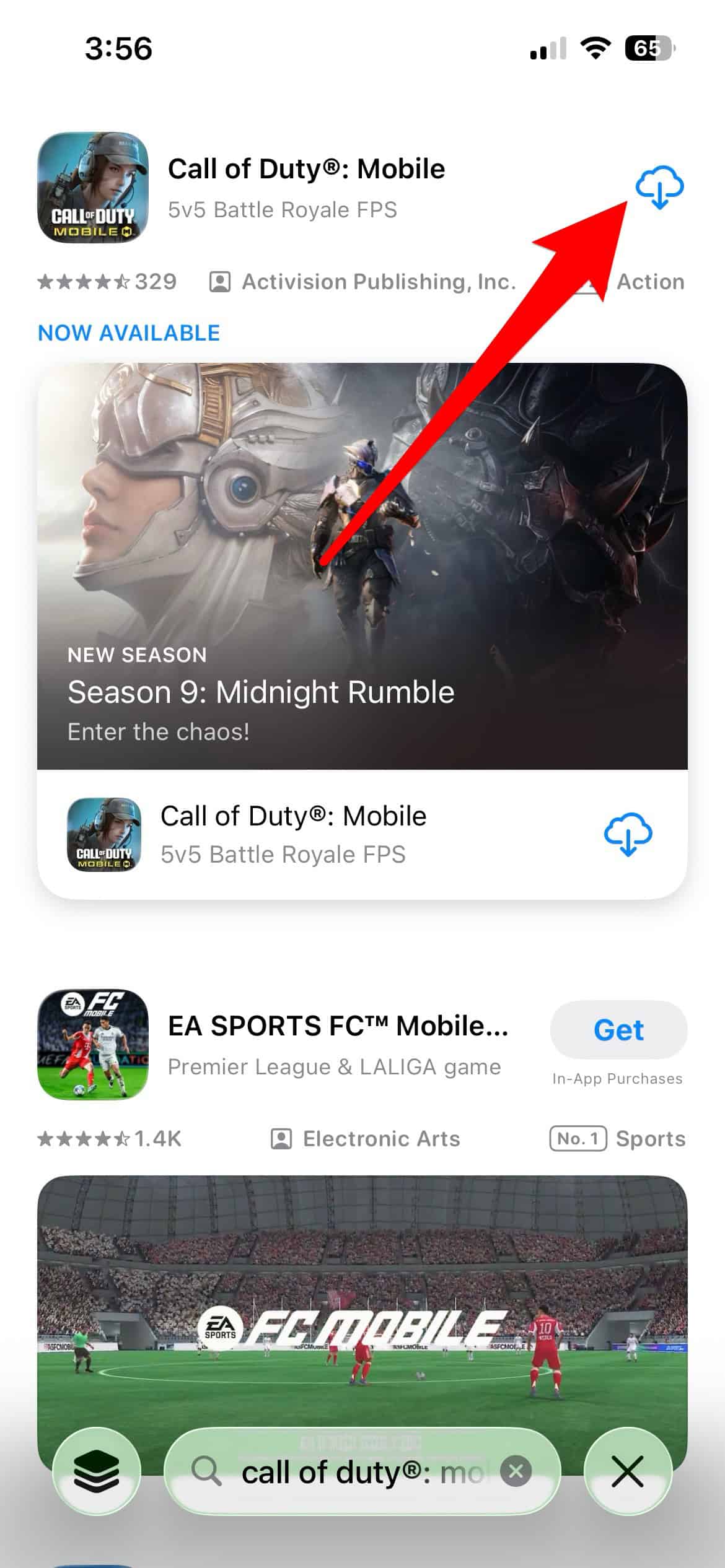
- Open the App Store.
- Tap the search icon in the bottom-right corner of the screen.
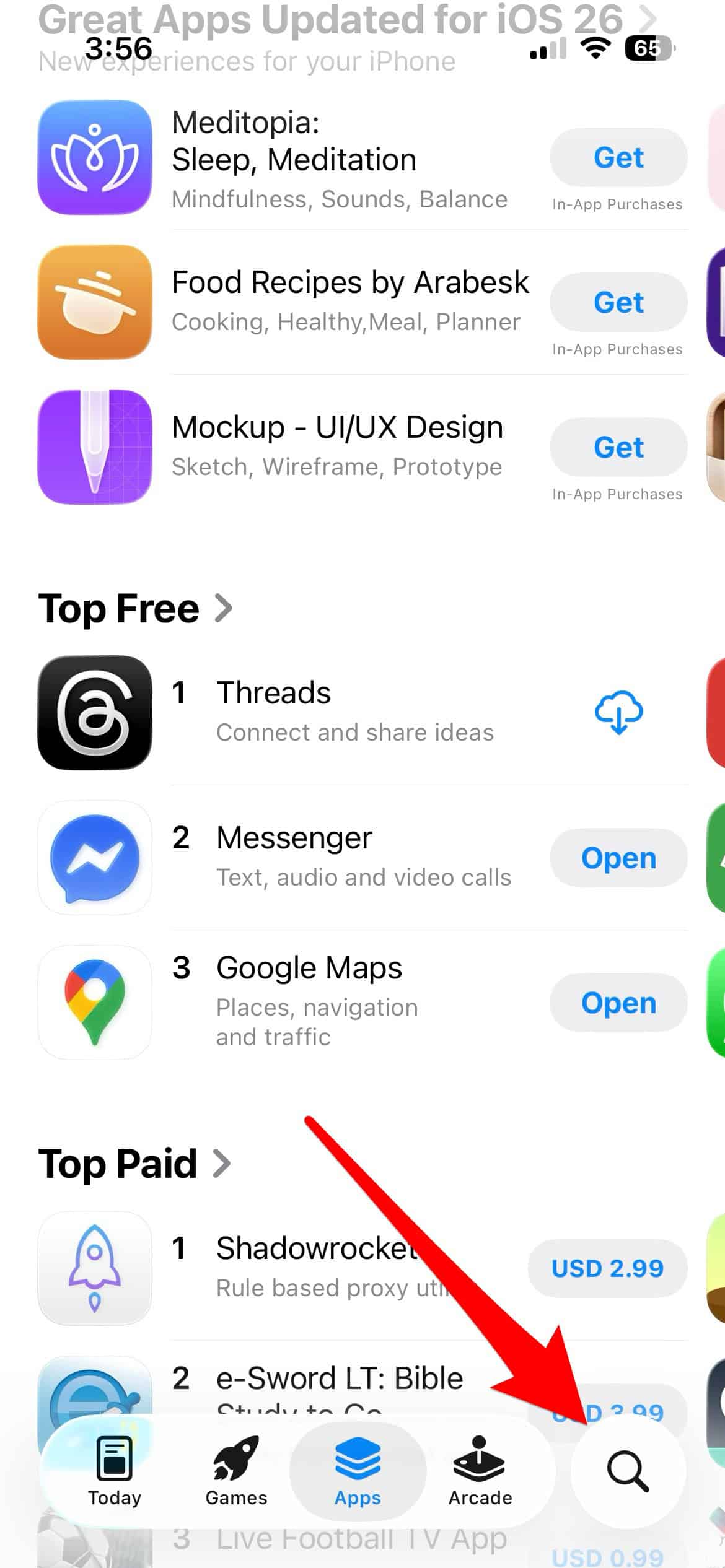
- Use the search bar to look for the app. If you see a cloud icon next to it, the app is not currently on your device and needs to be downloaded.


FAQ
Apps usually disappear because they were accidentally dragged into a folder, manually removed from the Home Screen while remaining in the App Library, or an entire Home Screen page was hidden.
Yes. Go to Settings > Home Screen & App Library and change the Newly Downloaded Apps setting from App Library Only to Add to Home Screen.
The cloud icon means you have previously downloaded and purchased the app, but you uninstalled it. Tapping the cloud will download it again.
Regaining Control Over Your App Visibility
Mastering these simple troubleshooting steps is essential for maintaining a clean and functional digital space on your device. Knowing how to efficiently locate and manage all your applications—whether you’re looking for apps iPhone users can’t live without or just your favorite game—saves you time and frustration. By using Spotlight and the App Library, you ensure that no app remains truly hidden on your iPhone or iPad, giving you the control you need, perhaps even over the best wallpaper apps for iPhone.



Discussion