

Apple News does not offer a single switch that fully disables auto-refresh. You can, however, curb most background updates, downloads, and alerts with a few iOS settings.
Apple Support explains how Apple News handles downloads and updates. Background App Refresh controls whether News fetches new content while you are not using the app, and Automatic Downloads affects News+ issues and story packs. Turning these off limits behind-the-scenes refresh.
What you can limit
Background updates. Disabling Background App Refresh for News stops the app from updating feeds in the background. You can do this per app.
Don’t miss the best of The Mac Observer
Set us as a preferred source and our Apple reporting ranks higher in your Google Search results and Discover feed — one tap, no account changes.
Automatic downloads. If you subscribe to News+, switch off Automatic Downloads to prevent new magazine issues and story bundles from arriving on their own.

Notifications. You can reduce the constant pull of alerts by turning off Apple News notifications or moving them into a scheduled summary.
Low Power and Low Data Modes. Both modes throttle background activity system-wide, which further cuts refresh behavior for News.
Some readers report the feed “jumping” back to the top while browsing. There is no official toggle for this behavior; it appears to be how the feed reloads.
Steps: reduce Apple News auto-refresh
- Turn off Background App Refresh for News
Settings > General > Background App Refresh > Background App Refresh > choose Off, or keep it On but toggle News off in the list. This stops News from pulling updates when you are not using it. - Disable Automatic Downloads for News+
Settings > Apps > News > Automatic Downloads > turn off Allow Automatic Downloads, or turn off specific items like Recent Stories and magazines. This prevents prefetches and issue downloads. - Tame notifications
In the News app, open Following > scroll to Notifications & Email. Turn off Apple News alerts and channel notifications you do not want. You can also use Settings > Notifications > Scheduled Summary to bundle News alerts at set times. - Use Low Power Mode when you want minimal background activity
Settings > Battery > Low Power Mode. This mode reduces background tasks, which helps keep News from updating in the background. - Use Low Data Mode on metered networks
Settings > Wi-Fi > tap the “i” next to your network > Low Data Mode. For cellular: Settings > Cellular > Cellular Data Options > Data Mode > Low Data Mode. iOS turns off Background App Refresh under this mode.
What you cannot do
You cannot stop Apple News from refreshing the feed while you are actively using it. There is no in-app “disable refresh” switch. If the feed jumps during reading, save articles to your Following tab and read from Saved to avoid losing your place. User reports describe the jump behavior, but Apple has not published an official fix.
Using Apple News+ offline instead
If you subscribe to News+, you can predownload content for flights or commutes.
- Go to Settings > News.
- Ensure Background App Refresh is on.
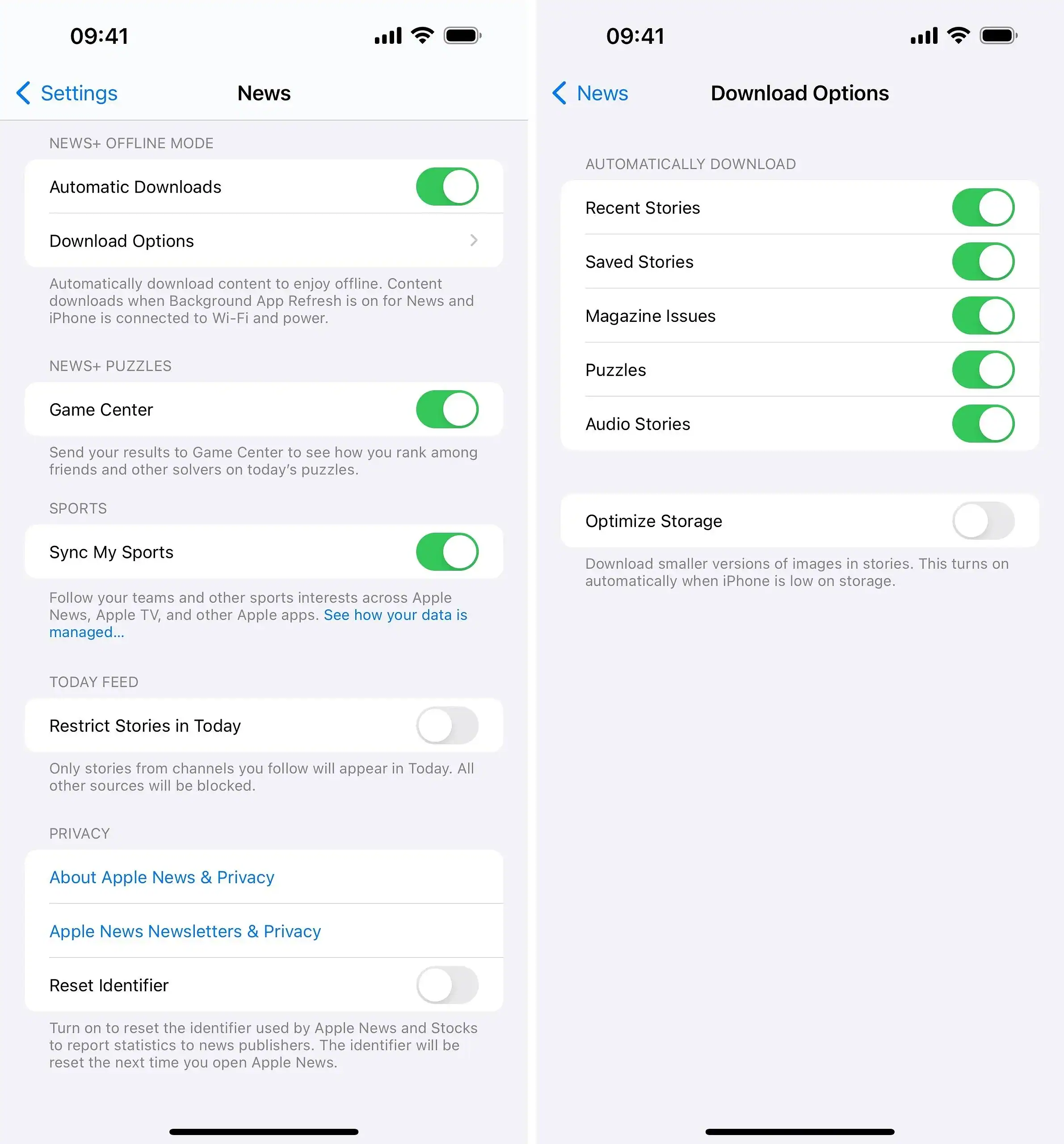
- Tap Automatic Downloads (or Download Options) and enable items such as Recent Stories, Saved Stories, Magazine Issues, Audio Stories, or Puzzles.
- In the News app, save stories you want available offline.
Bottom line
You cannot fully disable auto-refresh in Apple News, but you can reduce it. Turn off Background App Refresh and Automatic Downloads, rein in notifications or schedule them, and use Low Power or Low Data Modes when you want fewer background updates. The feed will still reload while you browse, but these steps keep the app from constantly updating in the background.


Thanks for disabusing me of the hope that Apple might make news “just work” by updating ONLY when requested, rather than every time we switch to the News App.