

The Apple Watch can streamline your digital life by giving you access to your email notifications and inboxes directly on your wrist is a key part of that convenience. While Google hasn’t released a standalone Gmail app for watchOS, accessing your Google mail account is seamless through the native Apple Mail app. This efficiency is one of the key reasons why users have switched to Apple Watch and never looked back. By properly configuring your iPhone and Watch settings, you can triage your most important messages and respond instantly without ever reaching for your phone.
Table of contents
Integrating Google Mail with watchOS
1. Add Your Gmail Account to the iPhone Mail App
Your Apple Watch relies on the configurations within your paired iPhone. To get started, you must first ensure that you properly integrate your Gmail account into the phone’s native email client. This is the foundation to build your watch notifications on so you can view and interact with new messages instantly.
- Open the Settings app on your iPhone.
- Scroll down and tap Apps.
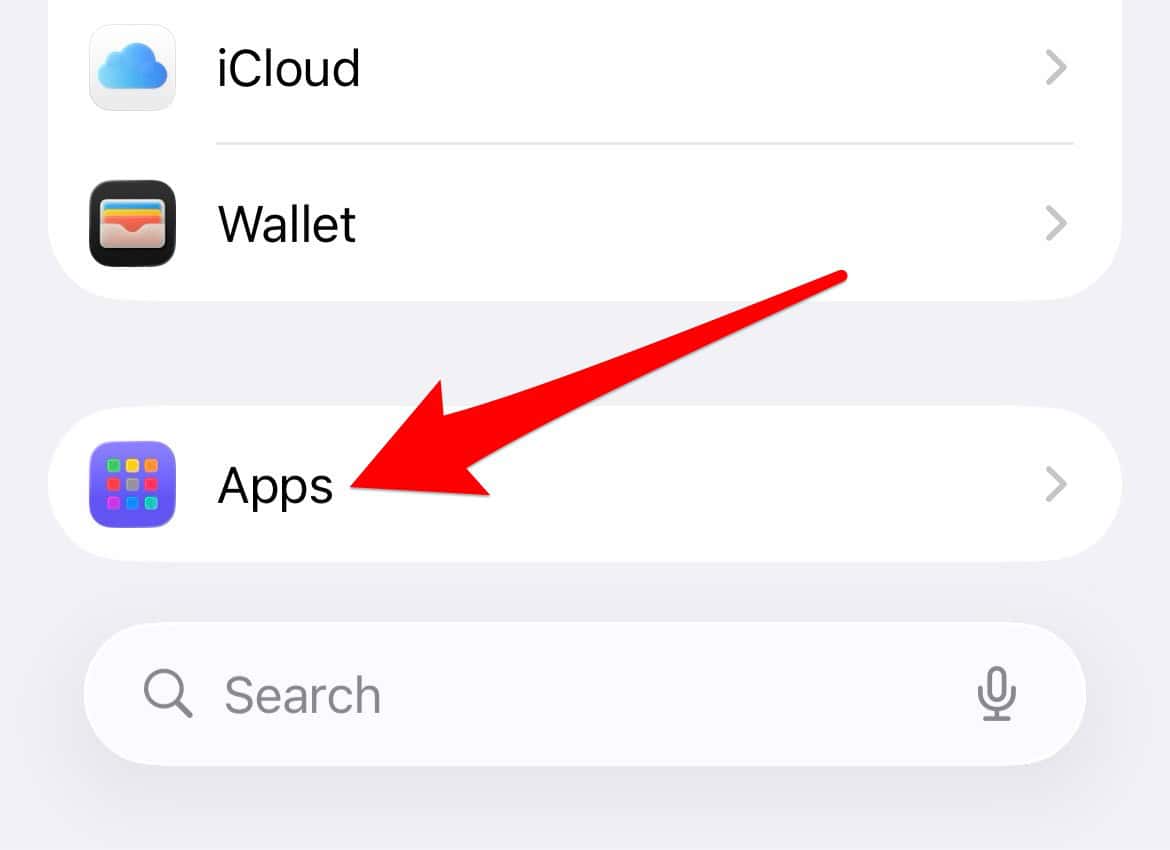
- Scroll down again and tap Mail, then select Accounts.
- Tap Add Account and choose Google from the list of providers.
- Enter your Gmail address and password, then follow the on-screen prompts to grant access to your iPhone’s Mail app.
- Ensure the Mail toggle switch is turned ON for your newly added account.

2. Enable Mail App Notifications for Your Watch

Once the account is active on your iPhone, the next step is to configure the Apple Watch to receive timely alerts from the Mail app. This process works universally across the full list of compatible Apple Watch models in order, ensuring consistent performance regardless of your device generation.
Don’t miss the best of The Mac Observer
Set us as a preferred source and our Apple reporting ranks higher in your Google Search results and Discover feed — one tap, no account changes.
- Open the Watch app on your iPhone.
- Tap on Notifications.
- Scroll down to the Mail app and tap it.
- Ensure Mirror my iPhone is selected.
- In the Mail settings, you can choose which specific accounts (like your Gmail account) are set to send notifications to your watch.
3. Customize Gmail Display and Triage on Your Wrist

After receiving a notification, you can use the Mail app on your watch to triage your inbox. The native integration allows for quick actions, letting you decide how to handle a message without unlocking your phone. By following these simple steps, you are well on your way to getting the most out of your Apple Watch, transforming it into a powerful communication hub.
- When a Gmail notification appears, raise your wrist to view it.
- Scroll down on the notification to see available actions, which typically include Reply, Flag, and Archive (or Delete).
- Use the Reply option to send quick responses via dictation, scribble, or Smart Replies.
- Use Archive or Delete to clear your inbox and focus only on priority emails.
FAQ
Yes, while the native Mail app is the most reliable option, some third-party email clients available on the App Store offer dedicated watchOS apps. If you prefer a Gmail-specific interface, check the App Store to see if your preferred email client supports a companion app for the Apple Watch.
The most common reason for missing alerts is the Silence Notifications or Do Not Disturb feature being active on either your iPhone or Apple Watch. Check the Control Center on both devices to ensure these settings are disabled. Also, confirm that your Mail notifications are set to “Mirror my iPhone” in the Watch app settings. If your iPhone is unlocked and active, the watch often defers notifications to the phone, as the system assumes you are already viewing the message.
Optimizing Productivity with Gmail on Your Apple Watch
Setting up your Gmail on the Apple Watch provides instant access to your professional and personal correspondence, ensuring you never miss a critical update. The combination of immediate notifications and quick triage actions directly from your wrist drastically improves efficiency. This efficient setup ensures you spend less time scrolling and more time acting on important messages. For tips on how to manage app performance and keep your watch running smoothly, explore further resources.


Discussion