

Multiple users have recently reported that their AirPods Pro 3 leak low-frequency sounds even when Active Noise Cancellation (ANC) is turned on. This issue can make background sounds, such as engines, hums, or bass-heavy noises, slightly audible despite the ANC feature being active.
The problem doesn’t necessarily mean the earbuds are faulty. It often results from software settings, fit issues, or how the noise cancellation algorithm handles specific frequencies.
Table of contents
Common Causes for Sound Leakage in Noise Cancellation Mode
The AirPods Pro 3 use microphones and advanced algorithms to block unwanted sound. However, low-frequency noises such as bus engines, air conditioners, or subway rumbles can sometimes pass through. This is because noise cancellation works best for constant, predictable sounds but may struggle with variable bass tones.
Don’t miss the best of The Mac Observer
Set us as a preferred source and our Apple reporting ranks higher in your Google Search results and Discover feed — one tap, no account changes.
Other factors can also contribute:
- Poor ear tip seal: If the silicone tips don’t fit tightly, ANC cannot isolate sound properly.
- Dirt or earwax buildup: Blocked microphones or speaker meshes reduce the effectiveness of ANC.
- Outdated firmware: Software versions can affect the performance of the noise cancellation algorithm.
- Improper pairing setup: If the AirPods aren’t connected correctly, some ANC settings may not sync with the device.
Understanding these causes helps identify the right fix rather than assuming the product is defective.
Solutions to Fix AirPods Pro 3 Sound Leak Issues
1. Refit the Ear Tips Properly
A secure fit makes the biggest difference in noise isolation. Apple provides multiple ear tip sizes for this reason.
- Go to Settings > Bluetooth on your iPhone.
- Tap the (i) next to your AirPods Pro 3.
- Select the Ear Tip Fit Test to check the seal quality.
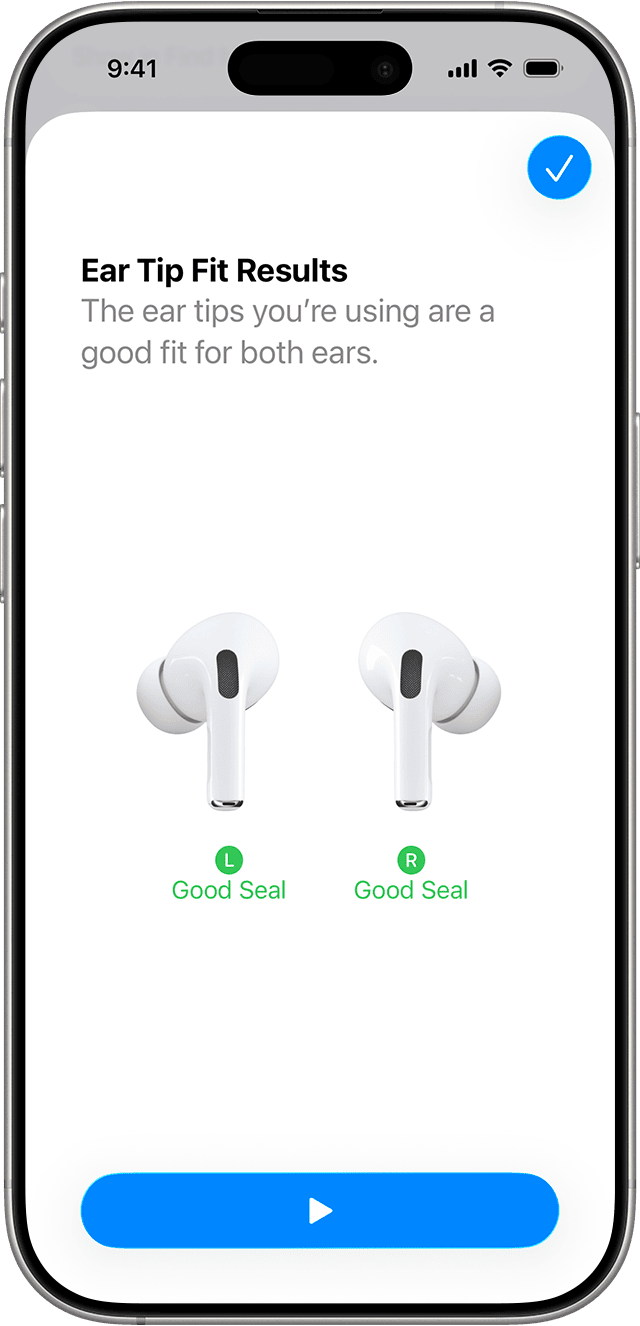
- Try different sizes until you find the one that provides a snug fit.

A proper seal enhances ANC performance and prevents sound leakage. For a complete overview of AirPods Pro 3 setup and features, see the AirPods Pro complete guide for beginners.
2. Clean the AirPods and Mesh Grilles
Dirt, debris, or earwax on the mesh or microphone openings can interfere with ANC sensors. Cleaning them carefully can help restore normal function.
- Use a dry, soft-bristled brush to remove any buildup around the mesh.
- Wipe the outer surface gently with a slightly damp microfiber cloth.
- Avoid inserting anything sharp into the mesh or speaker holes.
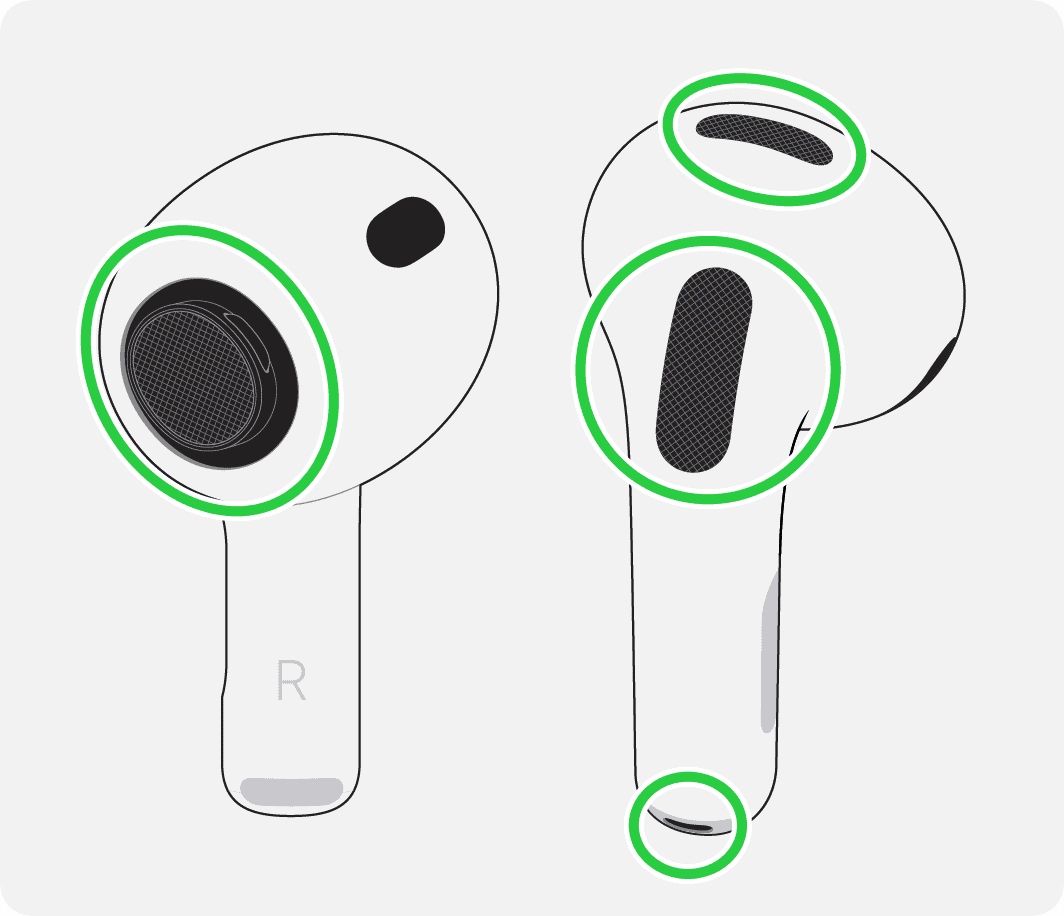

Even a small obstruction can reduce the microphones’ ability to analyze and cancel out low frequencies.
3. Update AirPods Firmware
Software plays a major role in ANC performance. Firmware updates often include fine-tuning for sound quality and cancellation accuracy. Some users have posted on Apple forums that upgrading to the version “8A358” of their AirPods Pro 3 firmware has fixed the sound leak problem.
- Keep the AirPods connected to your iPhone.
- Place them in the charging case and plug it into power.
- Leave them near the iPhone with Wi-Fi turned on for 30 minutes.
Firmware updates install automatically when the conditions are right. Once updated, test ANC again to check for improvements.
4. Reset and Reconnect AirPods Pro 3
If the sound leak persists, resetting the AirPods may resolve software conflicts or calibration issues.
- Place both AirPods in the charging case.
- Open the lid and press the setup button on the back until the LED flashes amber, then white.
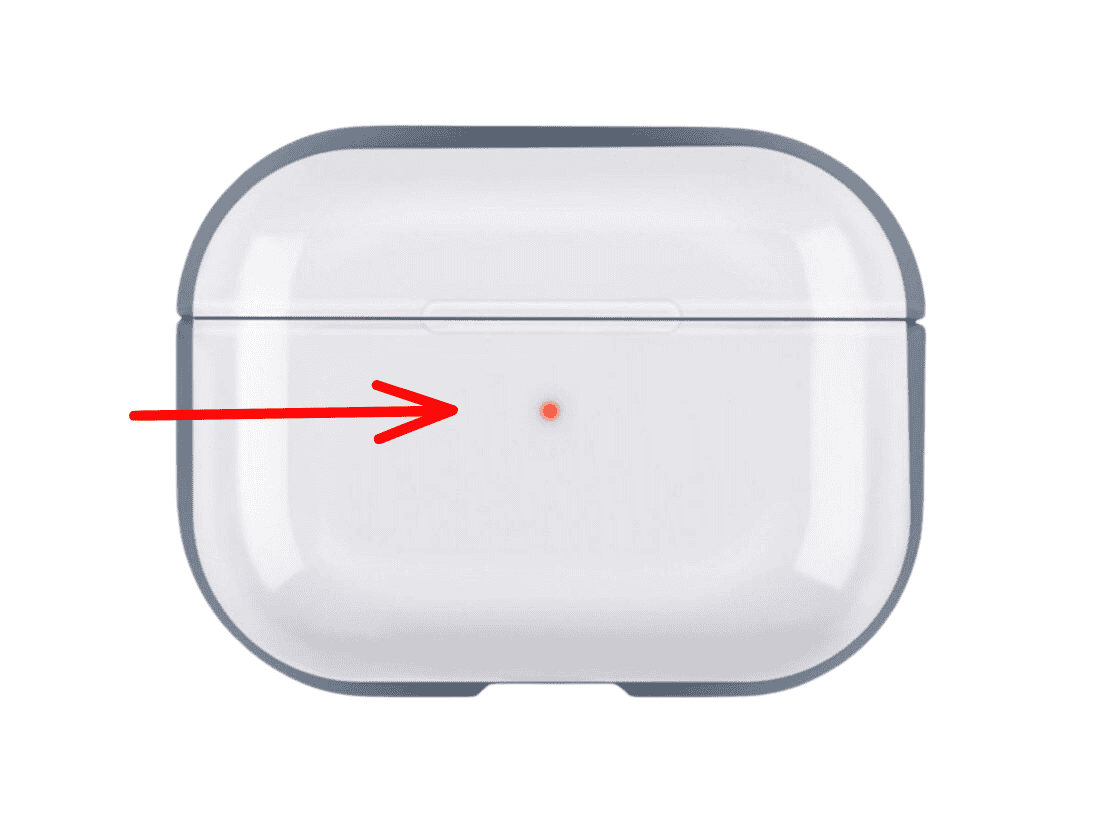
- Reconnect the AirPods by holding them near your iPhone.

This process clears previous connections and gives the ANC system a fresh start.
For pairing help, check this guide on activating AirPods pairing mode.
5. Test with Different Devices and Modes
Sometimes the issue isn’t with the AirPods themselves but with the device’s audio processing. Try connecting the AirPods Pro 3 to another iPhone, iPad, or Mac to see if the sound leak remains.
You can also test them with Transparency Mode and then switch back to Noise Cancellation Mode to recalibrate the ANC balance.
If using AirPods on a computer, this guide on connecting AirPods Pro 3 to a laptop may be useful for verifying connection quality.
Tips
- Always use the right-sized ear tips for your ears.
- Keep firmware up to date for optimal noise cancellation.
- Avoid using ANC in extremely windy environments, as external mics may misread airflow noise.
- Store AirPods in their case when not in use to prevent dust buildup.
- Re-run the Ear Tip Fit Test after cleaning or changing tips.
- Review how to use and customize ANC settings in this AirPods Pro 3 usage guide.
Conclusion
Low-frequency sound leaks in AirPods Pro 3 usually come from small issues like a loose fit, outdated firmware, or dirt blocking the microphones. Once these are corrected, the noise cancellation system typically returns to its full potential. Keeping the earbuds clean, properly fitted, and updated ensures a balanced audio experience with effective isolation in any environment.
FAQs
This usually happens when the ear tips don’t seal well or the microphones are blocked, reducing ANC effectiveness.
Yes. A reset can fix software glitches and restore proper ANC calibration.
Apple occasionally refines ANC through firmware updates, so keeping the AirPods updated is recommended.
It’s best to use official Apple tips, as third-party ones may affect sensor accuracy and ANC response.
Yes, users can switch between Noise Cancellation, Transparency, and Off modes depending on their environment.


Discussion