

So you updated your iPhone to iOS 26.1 and now wish you hadn’t. Maybe it’s draining your battery faster, maybe some apps keep crashing, or maybe you just prefer how things worked before. The good news is you might be able to go back — specifically, from iOS 26.1 to iOS 26 — as long as Apple is still signing the older version. Here’s how to do it safely and correctly.
Before You Start
Downgrading iOS isn’t complicated, but it does carry some risk. Things can go wrong mid-process, so the first rule is simple: back up your iPhone.
Use iCloud, Finder, or iTunes — whatever’s easiest. Once that’s done, make sure of the following before you move forward:
- Your iPhone is connected to your computer with a good cable.
- You’ve turned off Find My iPhone.
- Your internet connection is stable.
- iTunes (on Windows) or Finder (on macOS) is up to date.
- You’ve downloaded the right IPSW file for your iPhone model from a trusted source like ipsw.me.
One catch: Apple usually stops signing old firmware about two weeks after releasing a new one. If the iOS 26 file is no longer signed, you won’t be able to install it, no matter what tool you use.
Don’t miss the best of The Mac Observer
Set us as a preferred source and our Apple reporting ranks higher in your Google Search results and Discover feed — one tap, no account changes.
Method 1: Downgrade Using Finder or iTunes
This is Apple’s official route. Finder (on Mac) and iTunes (on Windows) can both install an older iOS version — as long as Apple still signs it.
Here’s how:
- Connect your iPhone to your computer.
- Open Finder or iTunes.
- If you haven’t already, make a backup.
- On Finder, hold the Option key and click Restore iPhone. On iTunes, hold Shift and click Restore iPhone.

- Select the iOS 26 IPSW file you downloaded.
- Confirm you want to restore.
- Wait for the process to finish, then set up your iPhone as new or restore your backup.
That’s it — Finder or iTunes will verify the file and handle the rest.
Method 2: Downgrade Using DFU Mode
If the regular restore doesn’t work, you can try a deeper reset using DFU mode. DFU (Device Firmware Update) bypasses more of iOS’s safety checks and does a cleaner reinstall.
Here’s what to do:
- Plug your iPhone into your Mac or PC.
- Open Finder or iTunes.
- Put your iPhone into DFU mode. (If done right, the screen stays black and Finder/iTunes will say it’s detected a device in DFU mode.)
- Hold Option (Mac) or Shift (Windows) and click Restore iPhone.
- Choose the iOS 26 IPSW file you downloaded.
- Click Restore and wait.
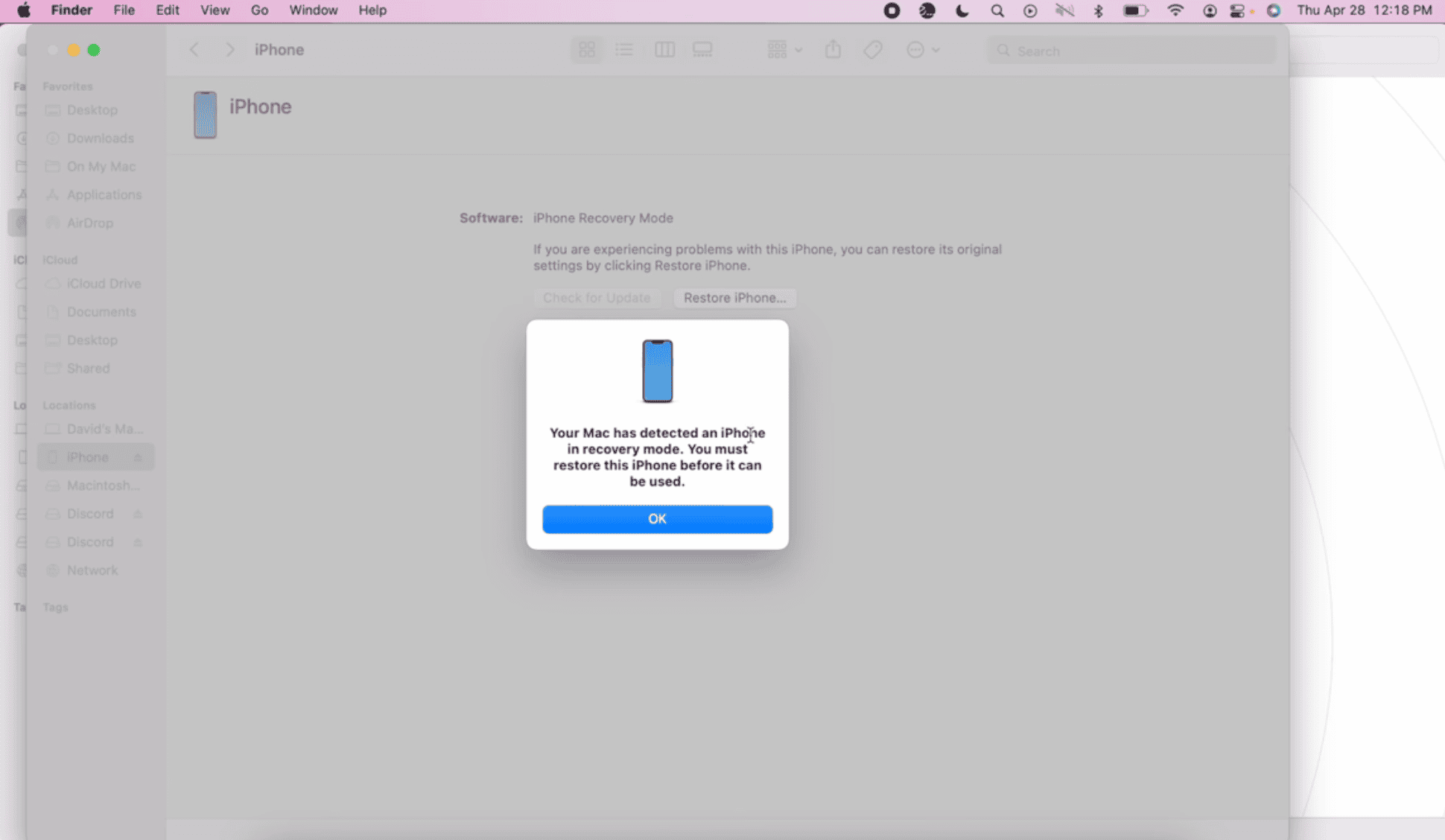
Once it’s done, your iPhone will reboot into iOS 26, clean and ready to set up.
A Few Final Notes
Whichever method you choose, downgrading always carries some risk. Apps or backups made on iOS 26.1 might not fully work once you’re back on iOS 26, and there’s always a small chance of data loss. That’s why backups are non-negotiable.
Still, if iOS 26.1 isn’t treating you right, rolling back can buy you some breathing room while Apple sorts out the bugs. Just act fast — once they stop signing iOS 26, that window closes for good.




Discussion