

Some macOS Tahoe users have noticed the Apple Music app behaving oddly, with missing interface elements, overlapping text, or slow animations. These issues usually appear after system updates or sync errors with Apple services. Most of the time, they’re caused by cache corruption, display scaling problems, or outdated app components.
If you are facing the same issues, then here’s how to fix Apple Music UI glitches and restore its normal appearance on macOS Tahoe.
Table of contents
Why is the Apple Music app UI acting crazy in macOS Tahoe?
UI issues in Apple Music after updating to macOS Tahoe are usually linked to temporary bugs in the Music framework or changes in Apple’s SwiftUI rendering engine. Apple Music relies heavily on graphical layers within the MusicKit framework, and any system-level instability can distort how menus, album art, or playback controls appear.
Don’t miss the best of The Mac Observer
Set us as a preferred source and our Apple reporting ranks higher in your Google Search results and Discover feed — one tap, no account changes.
Some users running macOS Tahoe have also reported interface lag and window resizing issues after upgrading from Ventura or Sonoma. These are similar to broader system glitches observed in early releases of Tahoe, as discussed in this macOS Tahoe review roundup.
Multiple Ways to Fix Apple Music App UI Issues in macOS Tahoe
If Apple Music’s interface looks broken or sluggish, try the steps below in order.
1. Restart the Music App
- Quit the Music app completely using Command + Q.
- Open Activity Monitor and ensure no background “Music” processes remain.
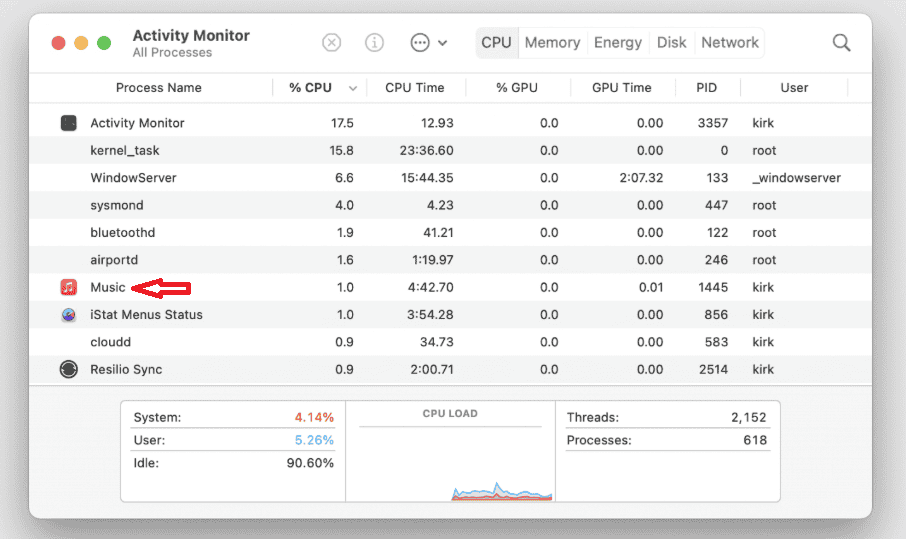
- Relaunch Apple Music from the Dock or Spotlight.

Restarting clears temporary caches that may cause UI misalignment.
2. Refresh System Display Settings
- Go to System Settings > Displays.
- Temporarily change the resolution or display scaling.
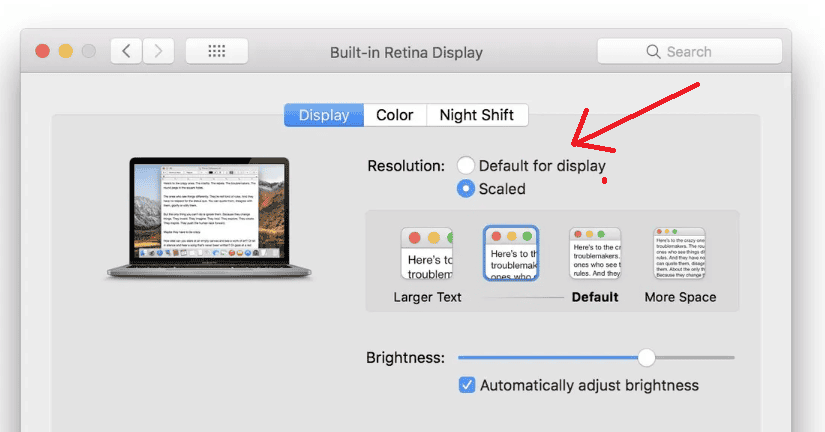
- Revert to your original setting.

This forces macOS to redraw interface elements. Display scaling adjustments often fix window rendering bugs.
If the display continues to stutter or lag, check this guide on freezes and lag on macOS Tahoe.
3. Wipe the Apple Music cache
- Close the Apple Music app by force-quitting.
- Either right-click the application in the Dock and select Quit, or while in Music, select Music then Quit Music in the Menu Bar.
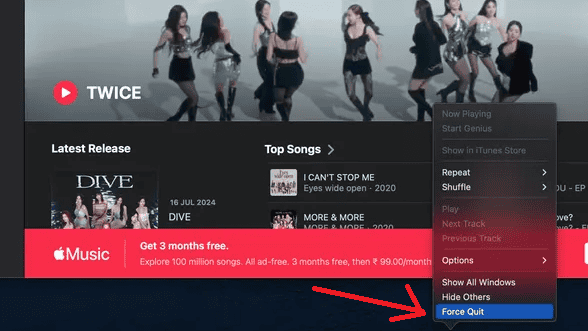
- Open Finder, select Go, then Go to Folder in the Menu Bar.
- Enter the cache path ~/Library/Caches/ into the text box, then click Go.
- Find the Music Cache by opening the folder starting with com.apple.music.
- Select the contents of the folder and move them to the Mac’s Trash.
- Empty the Trash by right-clicking the Trash icon in the dock, followed by Empty Trash.
- Restart your Mac

This resets Apple Music’s settings to default without affecting your library.
If the macOS installation itself failed to apply properly, review this guide on macOS Tahoe not installing on Mac Studio M3 Ultra.
4. Sign Out and Back Into Apple Music
- Open the Music app on the Mac.
- From the menu bar, select Music > Settings (or Preferences).
- Choose General, then click the Sign Out button next to the Apple ID.
- Quit the Music app and restart the Mac.
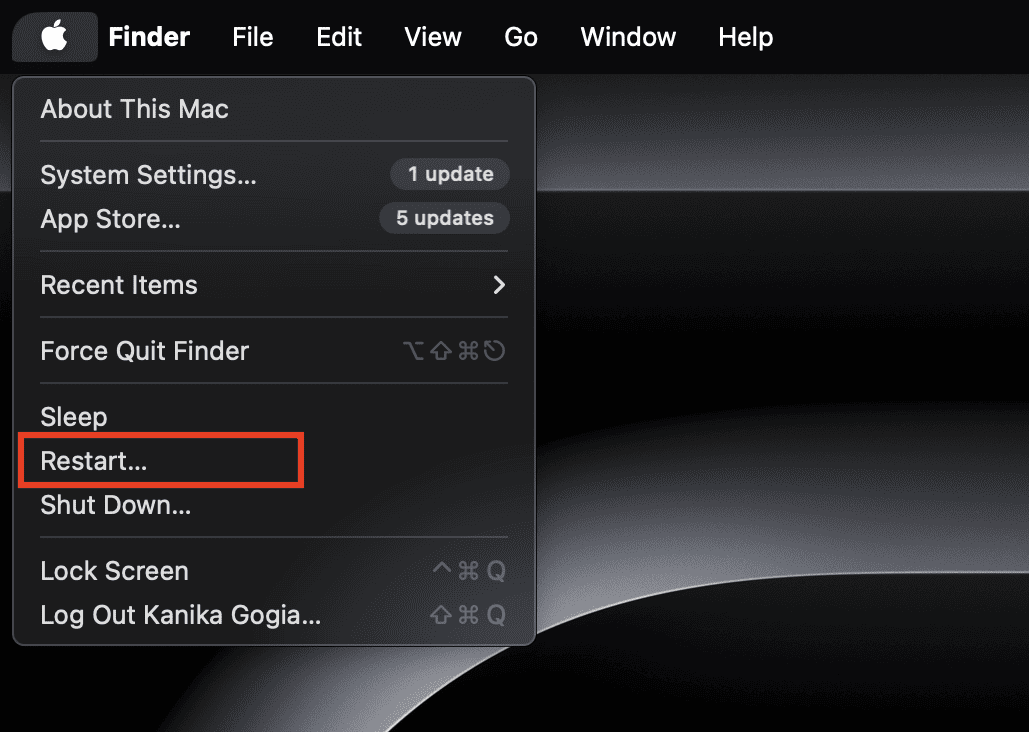
- Relaunch Music and sign back in with the Apple ID.

This refreshes authentication and resets how the app interacts with iCloud, which can eliminate UI or library-related glitches.
5. Reset macOS Display Scaling
- Go to System Settings > Accessibility > Display.
- Enable Reduce motion and Increase contrast temporarily.
- Restart the Mac and revert the changes.
This reinitializes the macOS display compositor and can eliminate persistent UI glitches within apps like Music.
For users facing functional issues like shuffling not working properly, Apple Music playback errors can also be fixed through app resets. See how to fix Apple Music not shuffling songs.
6. Update macOS and Apple Music
- On the Mac, go to System Settings > General > Software Update.
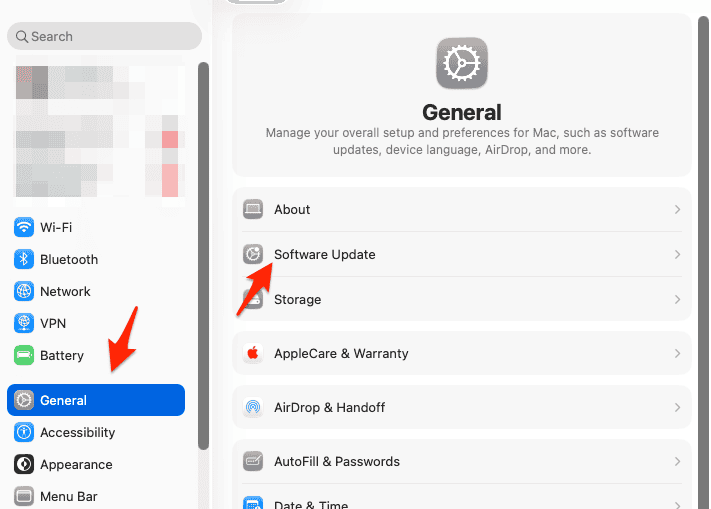
- Install any available updates for macOS Tahoe.
- After the update, restart the Mac.
- Open the App Store, search for Apple Music, and install any updates if available.

Ensuring the system and the Music app are fully up to date removes known bugs and compatibility issues.
Additional Tips
- Always keep macOS and the Music app updated.
- Avoid running too many graphic-heavy apps simultaneously.
- Reset NVRAM and SMC if UI problems persist.
- Disconnect and reconnect external displays when using Stage Manager.
- Use Safe Mode to isolate third-party interference.
Conclusion
Apple Music UI issues on macOS Tahoe often come down to display or cache inconsistencies. By resetting preferences, refreshing display settings, and reinstalling the app if needed, users can quickly restore the clean interface Apple intended. As Tahoe continues to mature through updates, these visual glitches should gradually disappear with future patches.
FAQs
It’s usually due to system-level rendering bugs or outdated display drivers.
No. Your playlists and songs are tied to your Apple ID, not local preference files.
Yes. Disable any visualizers or third-party extensions to prevent display issues.
Yes. Many macOS Tahoe builds have known UI performance issues that are being addressed through system updates.


Discussion