

AirDrop quickly shares files, photos, and documents wirelessly. It works between nearby Apple devices. AirDrop uses both Bluetooth and Wi-Fi. This creates a fast, secure, peer-to-peer connection for data transfer. Leaving AirDrop set to ‘Everyone’ risks your privacy. It might allow unsolicited file reception. This guide shows how to disable AirDrop. We cover iPhone, iPad, and Mac. Your hardware will only be discoverable when you choose.
Table of contents
Controlling AirDrop Discoverability and File Sharing
Turning off AirDrop is a simple process. It varies slightly by device. We cover iPhone, iPad, and Mac settings. Implementing these changes enhances your digital security immediately.
1. Disable AirDrop on iPhone and iPad via Control Center
The Control Center offers the fastest temporary method. Use it to quickly adjust AirDrop on iOS or iPadOS devices. This is the best solution. It immediately stops receiving files. You avoid navigating the Settings app. This instantly changes your discoverability to ‘Receiving Off.’ It prevents unexpected file transfers completely.
Don’t miss the best of The Mac Observer
Set us as a preferred source and our Apple reporting ranks higher in your Google Search results and Discover feed — one tap, no account changes.
- Swipe down from the top-right screen corner. (Use this on devices without a Home button.)
- Swipe up from the bottom. (Use this on devices with a Home button.) This opens Control Center.
- Tap and hold the network settings group. (This module contains Airplane Mode, Wi-Fi, and Bluetooth icons.)
- Tap the dedicated AirDrop icon.
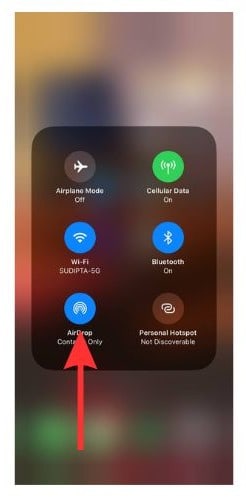
- Select Receiving Off.
2. Disabling AirDrop Through iPhone and iPad Settings
Use the Settings app for a more permanent setting. This controls who can send you files. Access the dedicated AirDrop menu directly. You can select ‘Receiving Off’ here. Furthermore, you can limit access to only your saved contacts. This is an enhanced security measure. If you need the feature later, you can learn how to Use AirDrop on iPhone, iPad, Mac quickly.
- Open the Settings app.
- Tap General.
- Tap AirDrop.
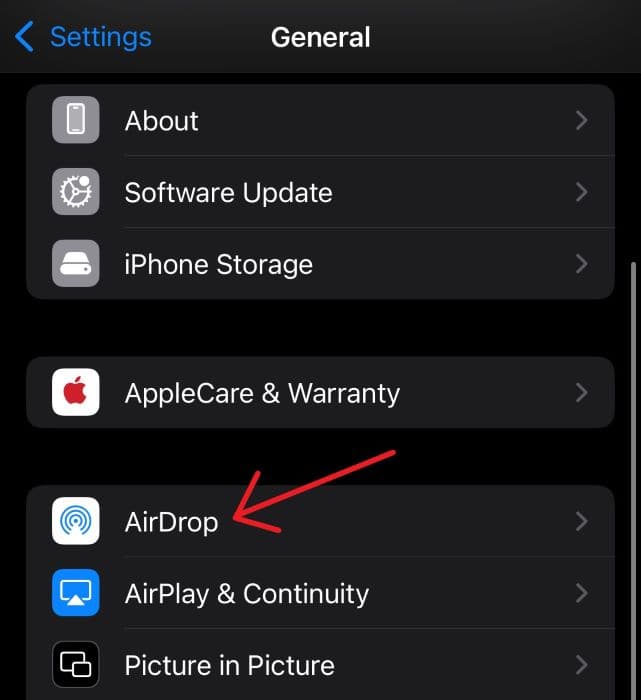
- Select Receiving Off. (Alternatively, select Contacts Only for improved security.)
3. Turning Off AirDrop on a Mac Using the Finder
The Finder application on macOS manages your AirDrop settings easily. This covers your desktop or laptop computer. Changing the setting here controls Mac visibility. It stops incoming file requests from unknown sources. This even blocks requests from friends effectively.
- Click the Finder icon in your Dock. This brings Finder to the forefront.
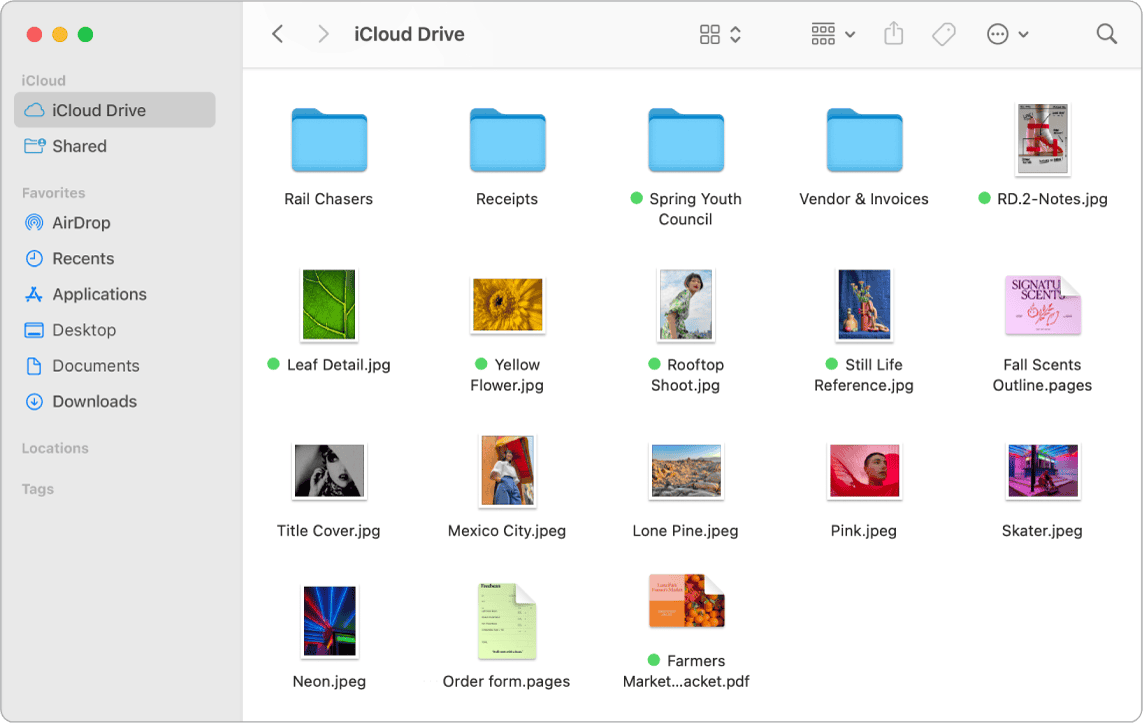
- Click AirDrop in the Finder sidebar on the left.
- Click the dropdown menu at the AirDrop window bottom. It says “Allow me to be discovered by:”.
- Select No One. (Alternatively, select Contacts Only to restrict access.)
4. Deactivating Bluetooth and Wi-Fi on All Devices
AirDrop depends on both Bluetooth and Wi-Fi. It needs them to locate devices and transfer data. Therefore, completely disabling these two is effective. It is a drastic way to turn AirDrop off. However, this method turns off other important connectivity. Still, it guarantees AirDrop cannot work.
This helps when troubleshooting issues. For instance, you might fix AirDrop disappearing from Finder sidebar in macOS Sequoia. It is also useful when exploring alternatives. One example is to AirDrop from iPhone to Windows PC.
- On iPhone/iPad: Go to Settings. Toggle Wi-Fi off. Then go to Settings. Toggle Bluetooth off.

- On Mac: Click the Wi-Fi icon in the menu bar. Select Turn Wi-Fi Off. Click the Bluetooth icon. Select Turn Bluetooth Off.
5. Changing Mac AirDrop Settings Through the Menu Bar
Mac users have another easy method. Use the Control Center accessible from the macOS menu bar. This option mirrors the Finder’s functionality. It is conveniently accessible from any screen on your Mac. This allows swift adjustments to your device’s discoverability. You avoid opening a new Finder window.
- Click the Control Center icon. (It looks like two stacked toggles in the top-right menu bar.)
- Click the AirDrop module within Control Center.
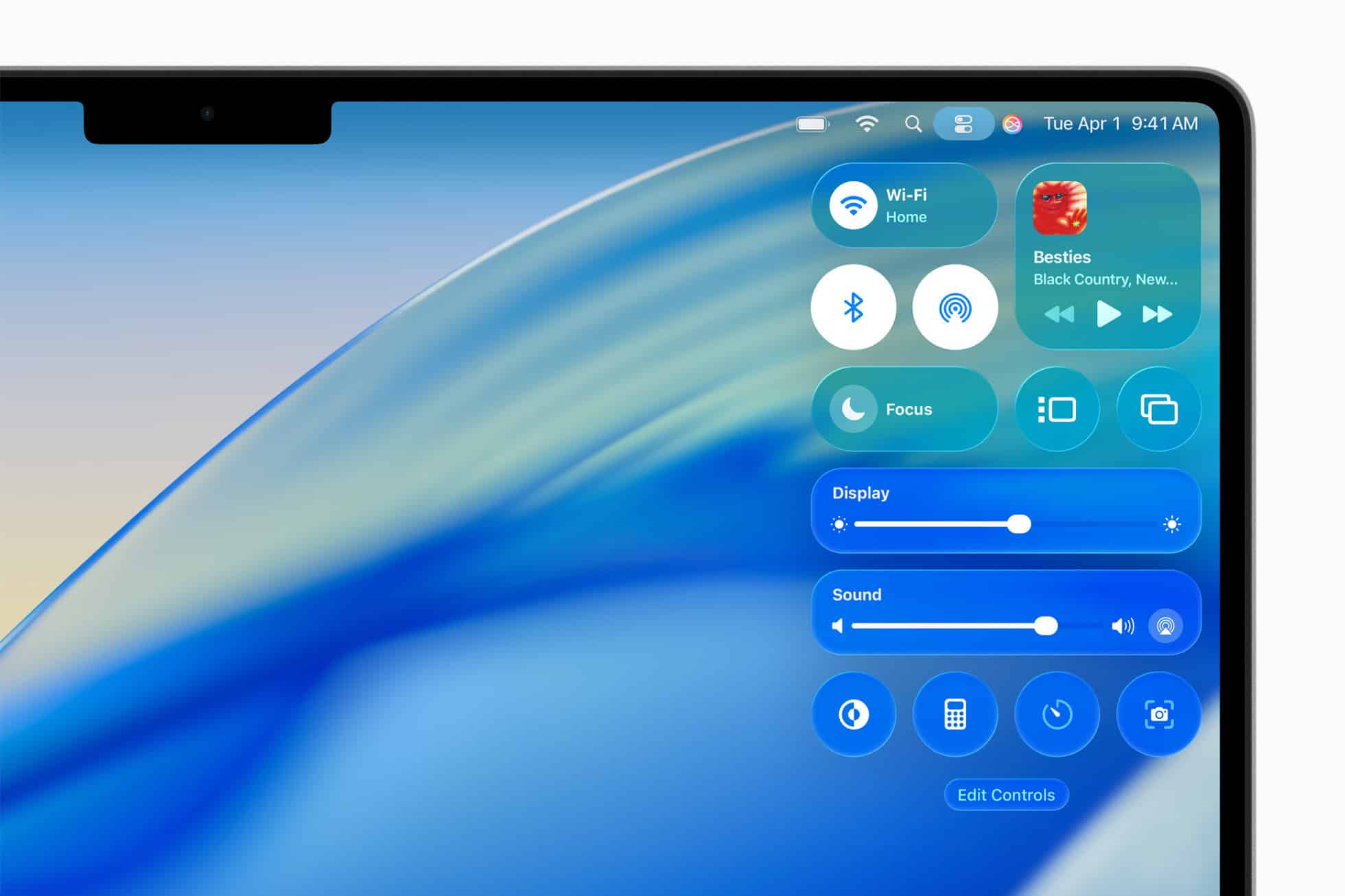
- Select Receiving Off or Contacts Only.
FAQ
You can set your AirDrop preference to ‘Contacts Only.’ Find this option in the AirDrop settings menu. Do this on any device. This restricts file sharing attempts. Only people logged into iCloud and in your contacts can share. This greatly enhances your security.
No, turning off AirDrop disables only the peer-to-peer function. It does not affect standard methods. These include sending files through email, messages, or cloud storage.
Ensuring Device Protection with Managed AirDrop Settings
Controlling AirDrop discoverability is a vital step. It helps manage your device’s security and privacy. This holds true for iPhone, iPad, or Mac. Choose to turn off receiving completely. Or, limit it only to your contacts. These steps protect your Apple hardware. They prevent any unwanted file transfers. Implement these simple, direct changes. Then, you can enjoy device convenience confidently. You also keep your digital environment secure. Knowing these settings helps you troubleshoot quickly. It helps you verify a transfer. For example, you can find out how to Find AirDrop files iPhone Mac after a successful exchange.




Discussion