

Your iPhone or iPad has a vastly superior camera compared to most built-in laptop webcams. Harnessing this quality for your video conferencing, streaming, or virtual meetings on a Windows PC is a smart, economical upgrade. While Apple offers Continuity Camera for Mac, Windows users need specific, easy-to-implement workarounds. By installing a dedicated third-party application on your iOS device and a corresponding client on your PC, you can easily transform your smartphone or tablet into a premium wireless or wired webcam for crystal clear video.
Table of contents
Leveraging iOS and iPadOS Devices for Superior PC Video Quality
1. Choose a Dedicated Third-Party Webcam Application
The foundational step is selecting the right software, as this enables the necessary communication protocol between the Apple device and Windows. Popular options like Camo, EpocCam, or iVCam offer reliable connections and various features, including resolution settings and effects, turning your mobile device into a professional-grade camera instantly.
- Download the chosen webcam app from the App Store onto your iPhone or iPad.
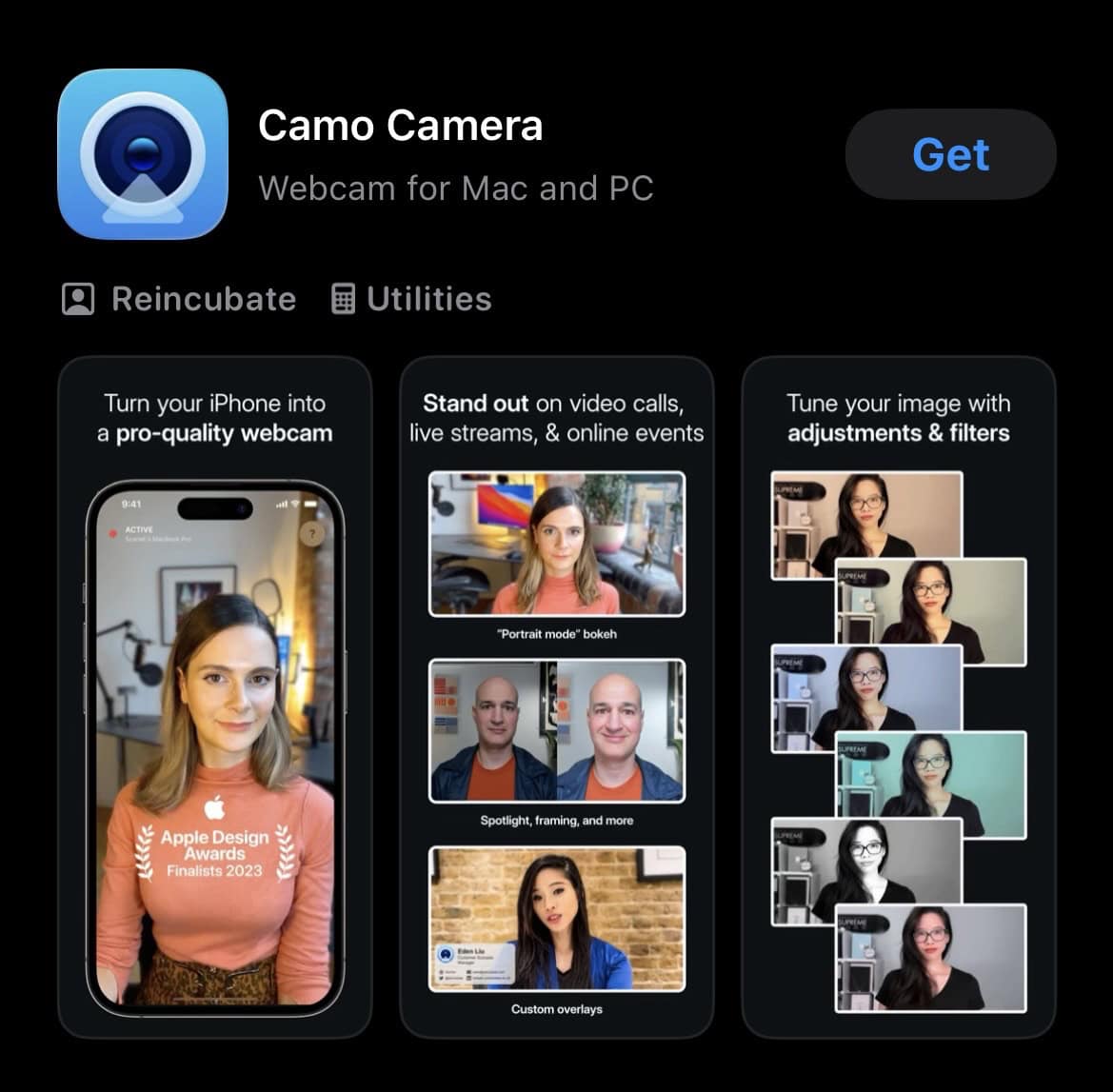
- Install the corresponding desktop client software on your Windows PC.
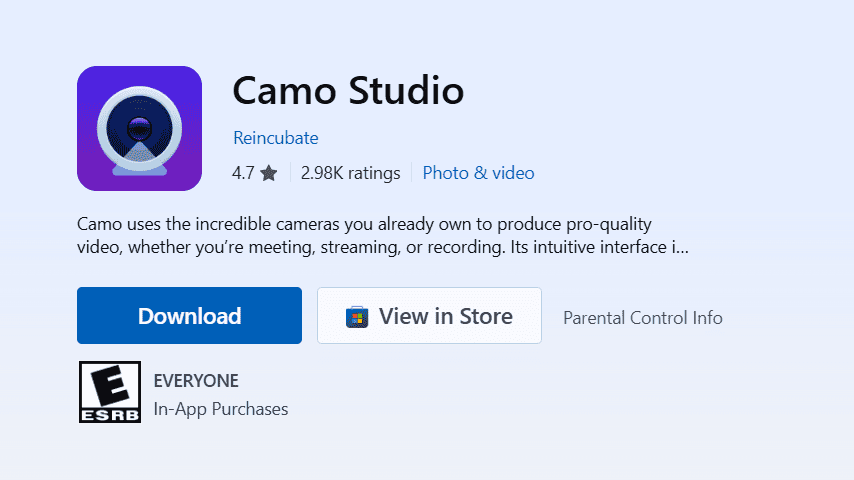
- Ensure both devices are on the same Wi-Fi network for a wireless connection.
- Launch the app on both the mobile device and the PC client simultaneously.
- Select the mobile camera in your PC’s video conferencing software (e.g., Zoom, Microsoft Teams, Skype).


2. Establishing a Stable USB Wired Connection
For the most consistent and low-latency video feed, a direct USB connection is highly recommended. This method bypasses potential Wi-Fi interference and often provides better performance, especially when using higher resolutions and frame rates, guaranteeing a smooth and uninterrupted video experience.
Don’t miss the best of The Mac Observer
Set us as a preferred source and our Apple reporting ranks higher in your Google Search results and Discover feed — one tap, no account changes.
- Connect your iPhone or iPad to the Windows PC using a Lightning or USB-C cable.
- Open the desktop client software on your PC. It should automatically detect the wired connection.
- Wait for the desktop client to establish the connection and display your camera feed.
- Confirm the input source in your video application to utilize the stable USB feed.
- You might need to check under Devices or a similar menu, panel, or window.
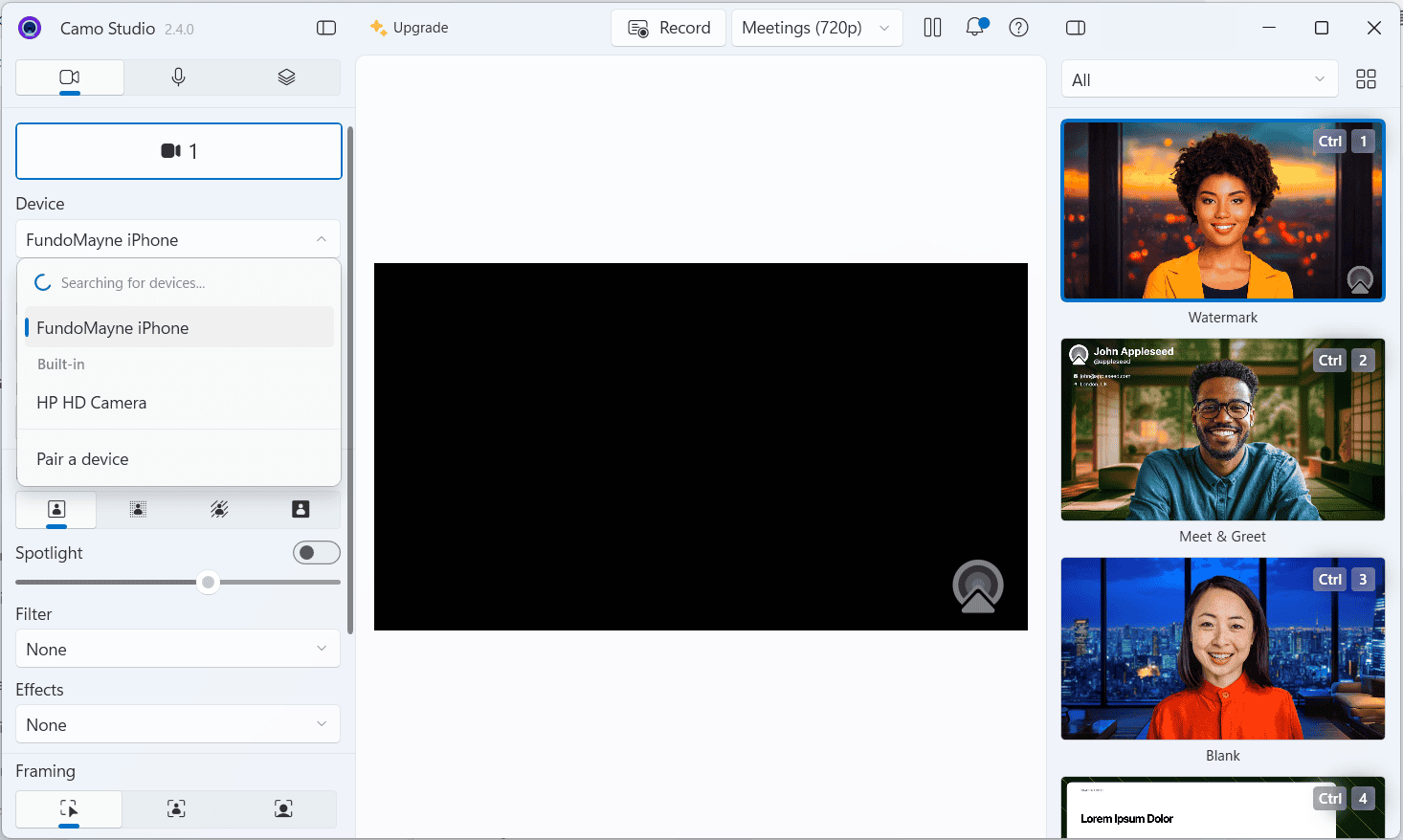
- You might need to check under Devices or a similar menu, panel, or window.

3. Optimizing for Wireless Freedom and Convenience
While a wired setup offers stability, a wireless connection provides flexibility, allowing you to move your device around freely.4 Using Wi-Fi is ideal for situations where your device needs to be placed far from your computer or when quick setup and untethered mobility are paramount for your streaming setup.
- Verify that your mobile device and Windows PC are connected to a strong, shared 5GHz Wi-Fi network.
- Launch the mobile webcam application and ensure the wireless option is selected.
- Ensure the desktop client is running and configured for the wireless mode.
- Adjust your iPhone’s camera position on a small tripod for an optimal, steady view.

4. Securing the Best Physical Setup and Lighting
The physical setup is critical for a professional appearance. Using a small tripod or an adjustable arm ensures a steady, level shot. Proper front lighting, positioned directly in front of you, minimizes shadows and enhances video clarity. A key factor in elevating your video quality is the physical camera setup. Mounting the device at eye level and ensuring adequate, non-harsh illumination are essential for a professional look.
For instance, the news that the iPhone 18 lineup to feature a sharper 24MP front camera will make future video quality even more impressive. You can further enhance your video by learning what’s new and why it matters about the iPhone 17 camera.
FAQ
Yes, generally the phone must be unlocked and the webcam app must be running in the foreground to maintain a continuous video feed.5 Some apps offer background modes, but foreground use is the most reliable.
Absolutely. Most third-party applications allow you to switch easily between the front and rear cameras, giving you access to the device’s highest quality lens for superior video.
Yes, continuously running the camera and video transmission will consume power.6 It is highly recommended to keep the device plugged into a charger or the PC’s USB port while in use.
Achieving Professional Video Quality with Your Mobile Device
The process of converting your iPhone or iPad into a Windows PC webcam is a straightforward and highly effective way to significantly boost your video presence. With simple software installation and minor adjustments to your physical setup, you unlock the full potential of your device’s advanced optics. This effortless upgrade provides an immediate professional advantage for all your virtual communication needs. To ensure maximum compatibility and smooth operation with web-based conferencing tools, you may also want to know how to enable webcam in Safari on iOS.


Discussion