

Apple Notes is a powerful app. It captures thoughts, lists, and documents across all Apple devices. Simple design is a major appeal. However, accidental changes happen to everyone. Knowing how to efficiently undo a mistake saves frustration and time. Fortunately, Apple offers several intuitive methods. These methods quickly reverse your last action on iPhone, iPad, or Mac.
Table of contents
Diverse Methods to Quickly Reverse Changes in Apple Notes
1. Using the Shake to Undo Feature
This classic iOS and iPadOS gesture is quite quick. It corrects recent input errors easily. You might delete a sentence or misspell a word. It uses your device’s motion sensors. Therefore, a simple physical movement prompts an undo action.
- Make a change in your note. This means typing or deleting text.
- Gently shake your iPhone or iPad from side to side.
- A pop-up window then appears asking, “Undo Typing?”
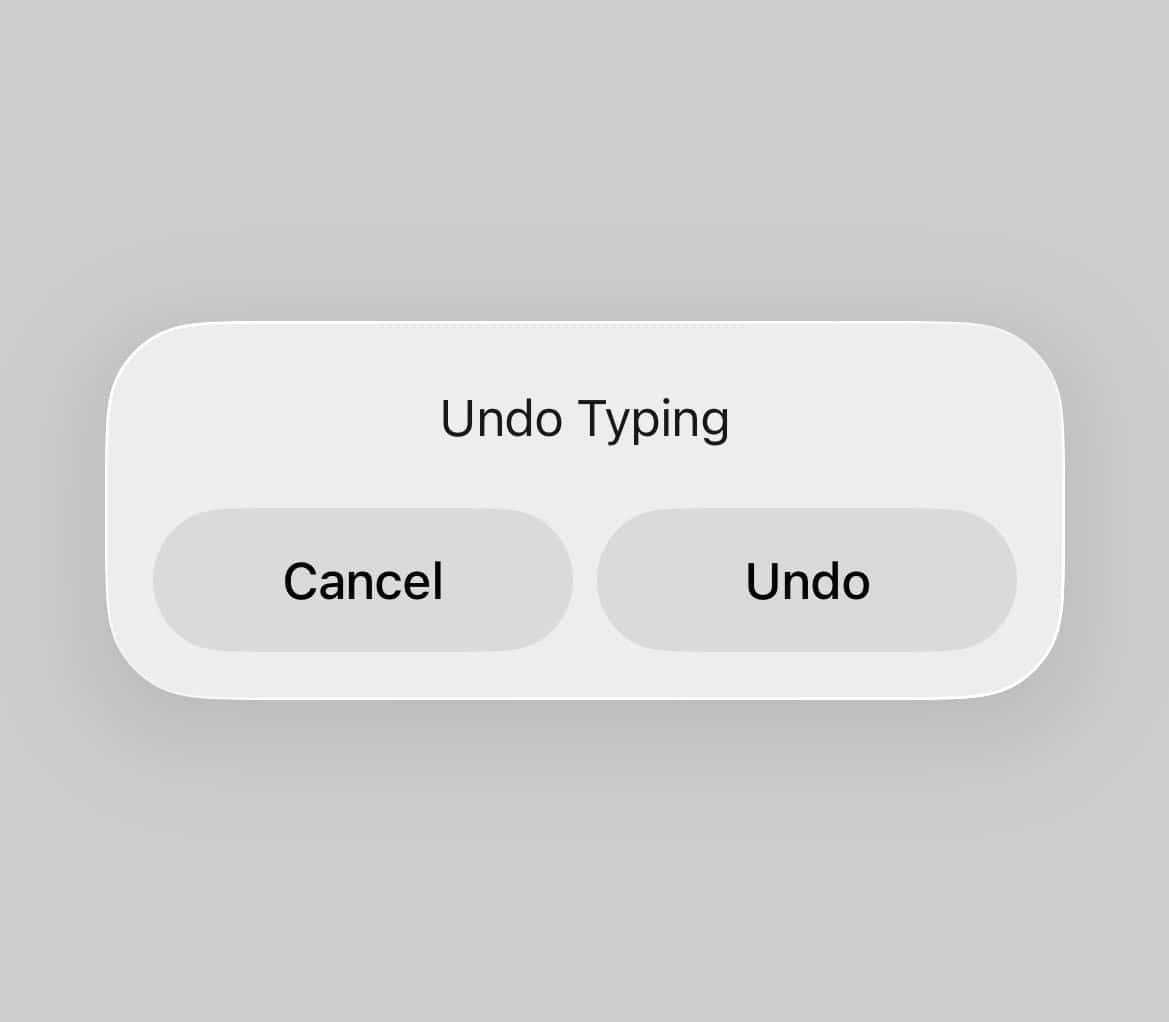
- Tap Undo to instantly reverse that last action.

2. Employing Keyboard Shortcuts on Mac and iPad
Users on a Mac can use this method. It also works on an iPad with an external keyboard. The familiar keyboard shortcut is the most efficient choice. This method works across nearly all applications. Thus, it is a reliable tool for quickly reverting changes. For a comprehensive guide on using the core features of Apple Notes, mastering this shortcut is essential.
Don’t miss the best of The Mac Observer
Set us as a preferred source and our Apple reporting ranks higher in your Google Search results and Discover feed — one tap, no account changes.
- On a Mac, press the Command + Z keys together.
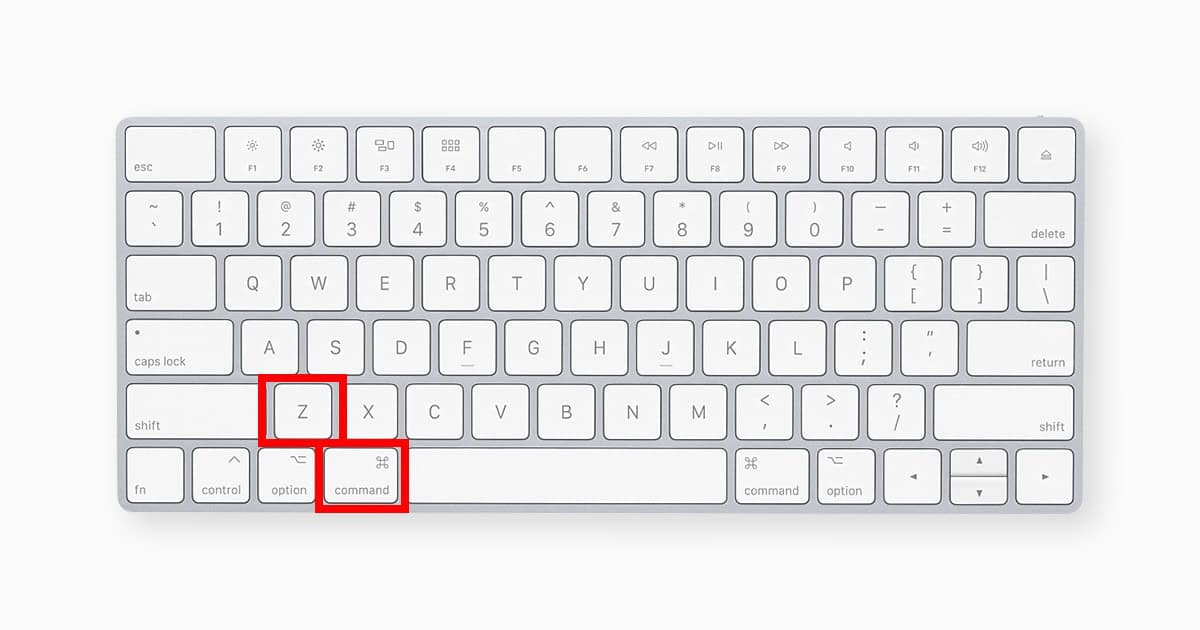
- Similarly, press Command + Z on an iPad with a connected keyboard.
- The last action is undone instantly. No confirmation dialog appears at all.

3. Utilizing the Two-Finger Tap Gesture
Some users prefer on-screen gestures. Apple introduced a simple two-finger tap for them. This tap triggers the undo command. This feature keeps your hands on the screen. Consequently, it is useful for precise edits or drawings. You might accidentally delete a crucial connection while trying to link notes in the Apple Notes app and accidentally delete a crucial connection.
- Place two fingers on the screen inside your editing note.
- Quickly tap the screen with the two fingers once.
- The last action is reversed immediately. No confirmation prompt appears.
- Conversely, tap the screen with three fingers to Redo.
4. Accessing the Edit Menu on Mac and iPad
The menu bar offers a universal undo location. It ensures consistency across all Apple devices. This is the most visible and reliable option. Therefore, use it when shortcuts are unknown. The ability to quickly undo makes editing smoother. Furthermore, many users find Apple Notes may be better than Evernote for day-to-day work.
- Look at the menu bar at the top of your screen.
- Click or tap the Edit option in the menu.
- Then select the Undo option from the dropdown menu.
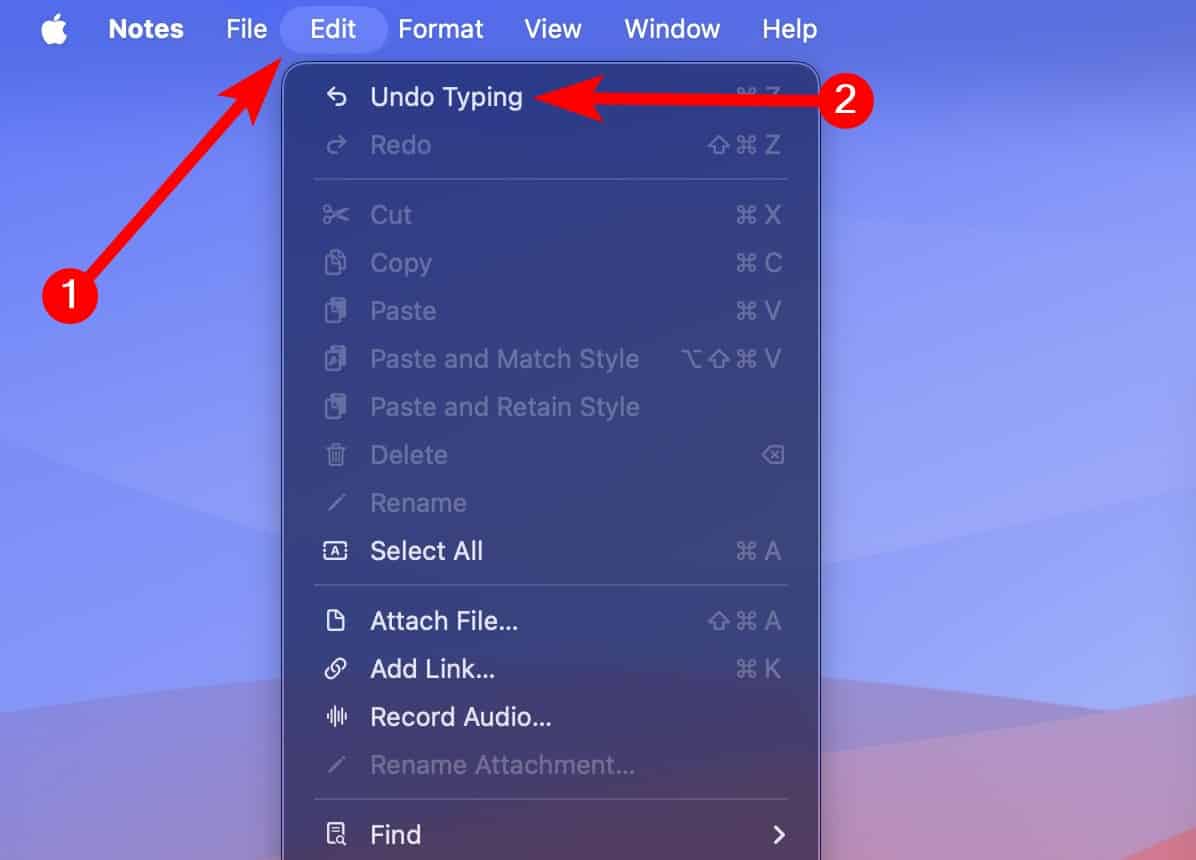
- The menu specifies the action it will undo.

5. Reversing the Undo Action with Redo
Sometimes, you undo too many steps. The essential Redo feature helps you. It restores the actions you just reversed. Think of it as an “undo for the undo” command. Moreover, it provides an important safeguard against over-correcting your work.
- After performing an Undo, find the Redo arrow icon.
- This icon is a curved arrow pointing right. It appears at the top of the notes screen.
- Tap this arrow to instantly restore the last undid action.
- Alternatively, use Command + Shift + Z on Mac or iPad.


FAQ
The number of actions you can undo is substantial. It is not infinite, though. Apple Notes stores a history of recent edits. This history lasts within a single session. Hence, you can backtrack through many changes.
You must manually turn on Shake to Undo if it is disabled. Go to Settings, tap Accessibility, then Touch. Ensure the Shake to Undo toggle is enabled. If it is already on, try restarting your device.
Yes, the undo feature works in shared notes. However, it only undoes your personal changes. It does not affect edits made by other collaborators.
Enhancing Productivity with Efficient Note Editing
The Undo feature is more than just a corrective tool. It is a critical part of productive note-taking. It enables users to edit without fear. Master the multiple methods offered. These include the physical shake or the keyboard shortcut. They also include the simple two-finger tap. Thus, you gain total control over your writing process. This efficient approach confirms Apple Notes as a premier choice. It is the best note taking app experience for mobile devices.


Discussion