

The iOS 26 update is usually smooth. however, users sometimes find annoying glitches afterward. A common complaint is the iPhone not ringing for incoming calls. Users miss important communications because of this issue. This problem isn’t a software bug. Instead, a setting changed unintentionally, or a temporary conflict exists. Here are key steps to restore your ringer. These steps ensure you won’t miss any calls.
Table of contents
Essential Troubleshooting Steps for Incoming Calls
1. Confirm the Ring/Silent Switch and Ringer Volume
The hardware Silent/Ring switch is a common cause for a silent iPhone. It’s often overlooked. This physical switch controls all device alerts. Therefore, always check this switch first. It is your first troubleshooting point.
- Find the Ring/Silent switch on the left side of your iPhone.
- Check the switch position: If you see an orange indicator, Silent Mode is active. Push the switch toward the front of the phone. The orange should not be visible. This sets the phone to Ring Mode.
- Raise the ringer volume: Press the Volume Up button. Look for the “Ringer” label on the screen. Make sure the ringer volume slider is not set to zero.
- If the label shows “Volume” instead of “Ringer”, you are changing media volume. In that case, go to Settings > Sounds & Haptics. Adjust the Ringer and Alerts slider there.
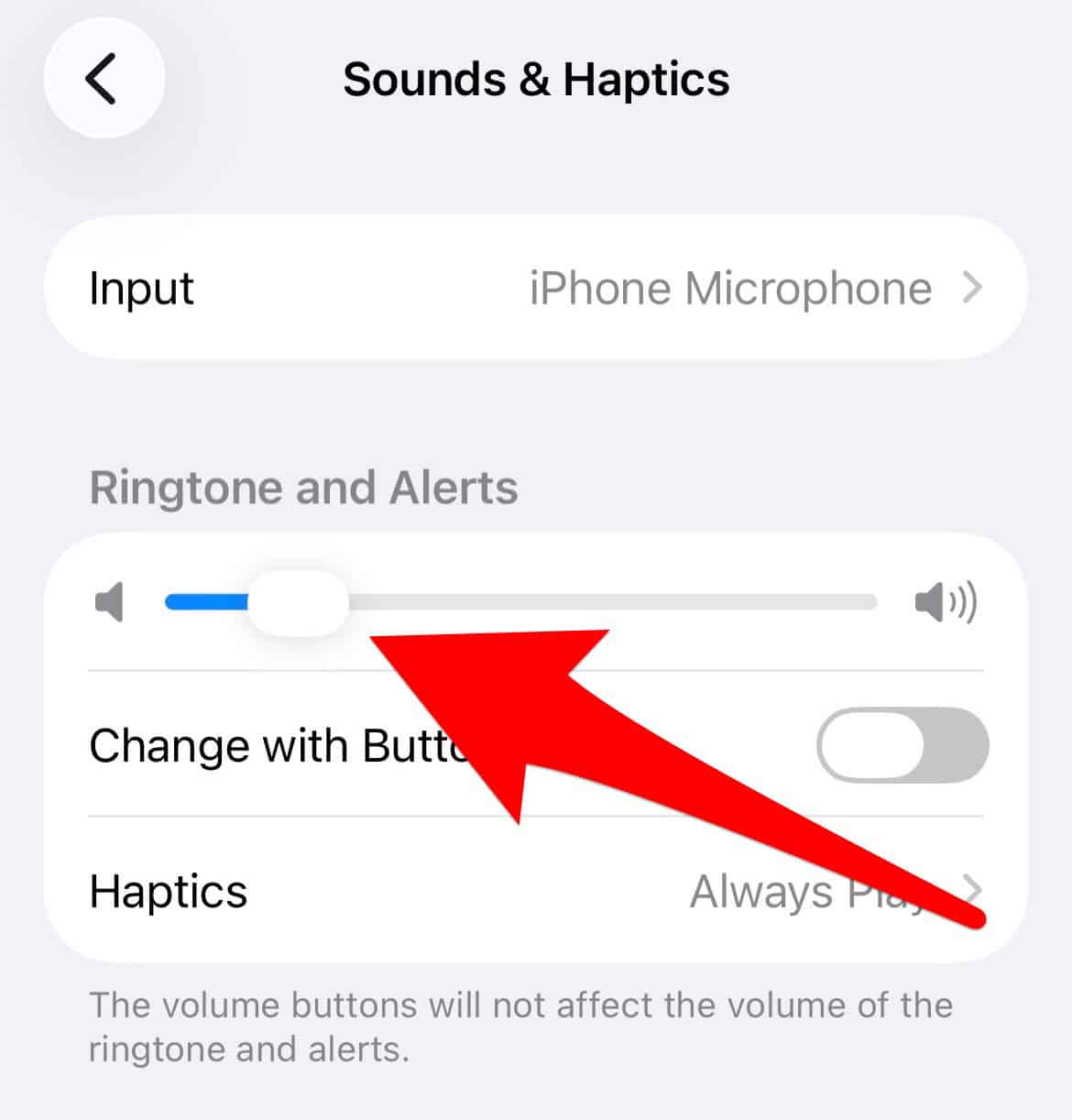
- Tick Change with Buttons if you want the volume button to change the volume of the ringtones and alerts.
- If the label shows “Volume” instead of “Ringer”, you are changing media volume. In that case, go to Settings > Sounds & Haptics. Adjust the Ringer and Alerts slider there.

2. Disable Active Focus Modes, Especially Do Not Disturb
Focus Modes—such as Do Not Disturb, Sleep, and Work—limit interruptions. If a Focus mode is enabled, your iPhone silences calls. This happens even if your ringer is on. Update schedules or allowed-contact settings may change after an iOS update. Thus, checking Focus is an important troubleshooting step.
Don’t miss the best of The Mac Observer
Set us as a preferred source and our Apple reporting ranks higher in your Google Search results and Discover feed — one tap, no account changes.
- Open Control Center. Swipe down from the top-right corner of the screen.
- Check the Focus control. It displays the name of the active mode.
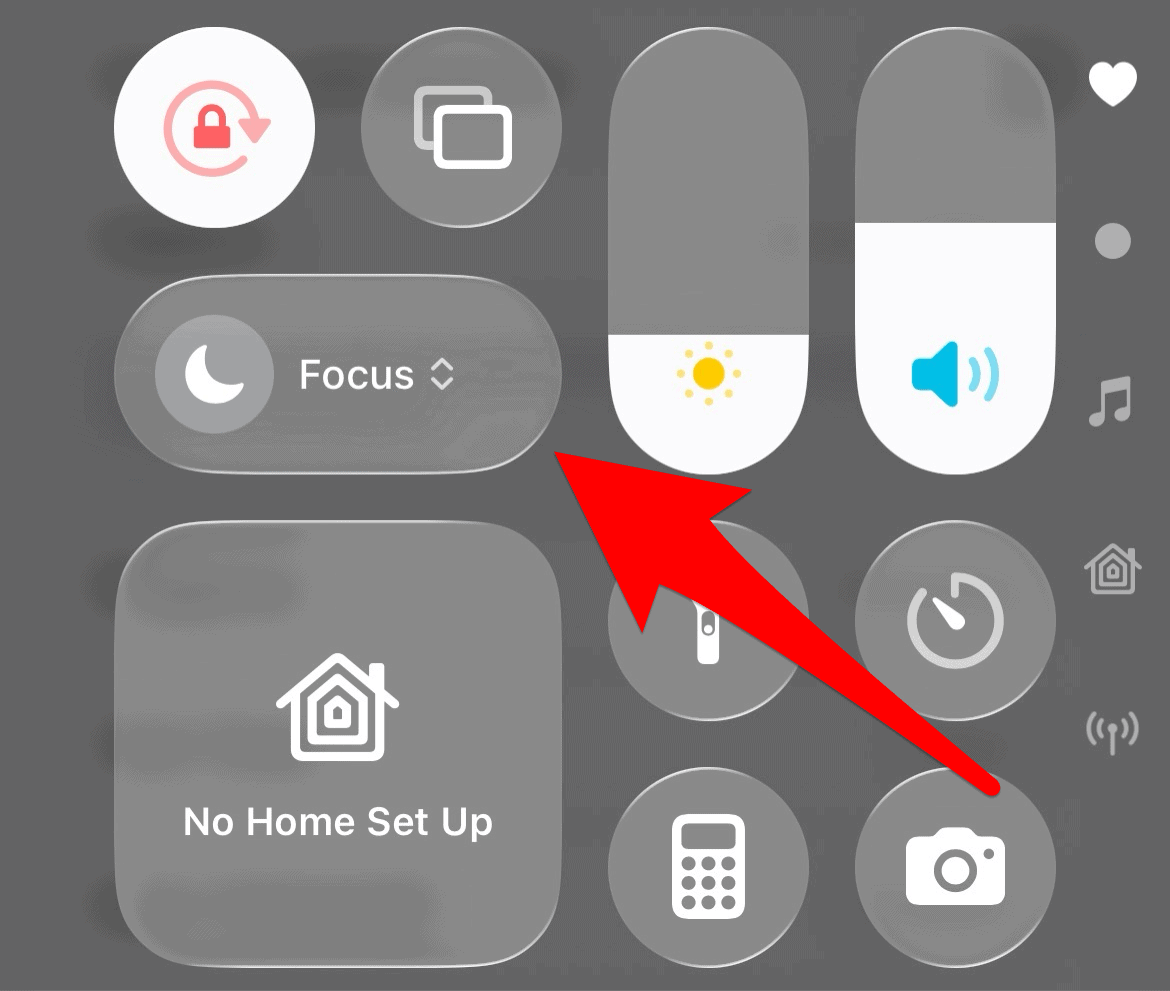
- If a Focus is active, tap it to turn it off.
- To review detailed settings, tap and hold the Focus tile. Alternatively, go to Settings > Focus. Then, ensure that Phone Calls are allowed from Everyone or your chosen contacts.

3. Review the Silence Unknown Callers Feature
Apple offers a strong privacy feature. It automatically silences calls from unknown numbers. These numbers are not in your contacts list. If your iPhone receives calls but makes no sound, check this setting. This is crucial if you take calls from new contacts or businesses. To learn more, check guides on how to enable and use call screening.
- Go to Settings. Scroll down to the Phone section.
- Tap on Silence Unknown Callers.
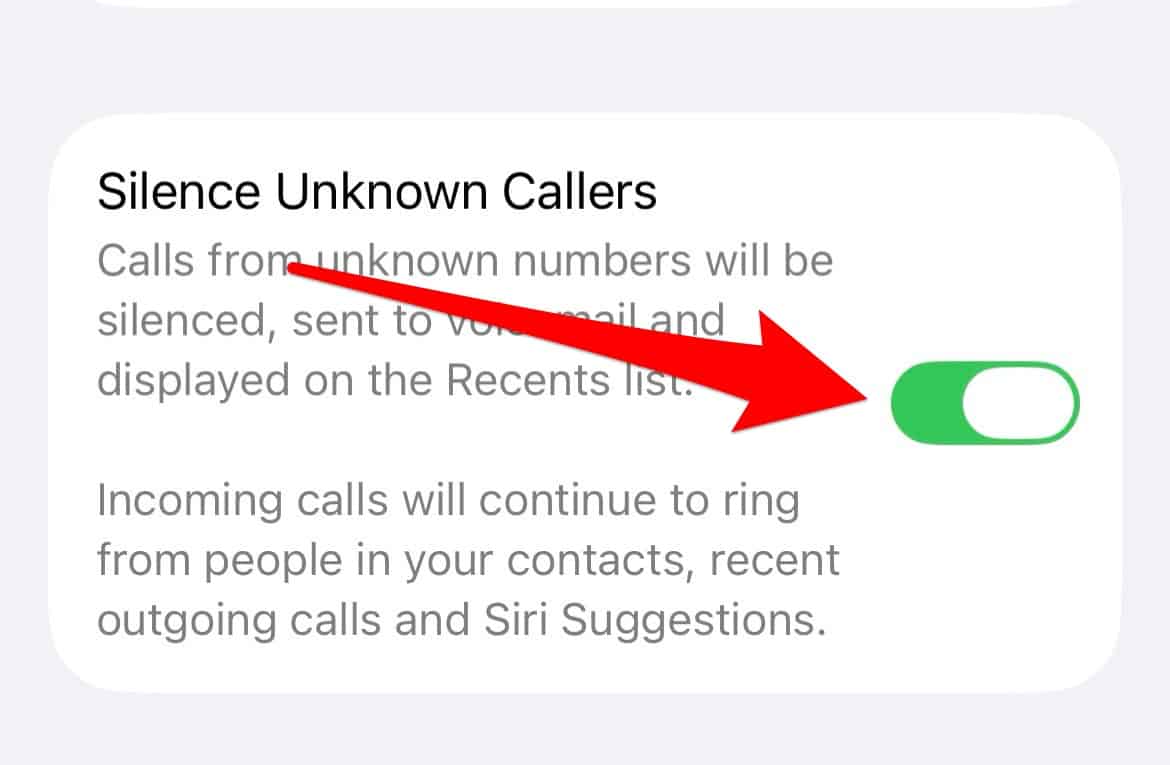
- Toggle the switch Off. This ensures all incoming calls produce sound. This works regardless of the number’s status in your contacts.

4. Check Your Ringtones and Vibrate on Ring Setting
A corrupted ringtone or wrong Ringtones setting sometimes silences the phone. This is less common. You must verify a standard, working ringtone selection. Also, check the Vibrate setting if you use haptic feedback. Consequently, the phone triggers the correct sound file when a call arrives.
- Go to Settings > Sounds & Haptics.

- Tap Ringtone. Choose a default sound. Avoid custom or purchased tones for testing.
- Ensure Vibrate on Ring is toggled On. This gives you haptics when the phone rings.

5. Perform a Quick iPhone Restart
A simple restart is often the best solution. It quickly clears minor software conflicts. These conflicts stop core functions, like the ringer, from working. This process restarts all system processes. It potentially fixes the silent issue easily. If your iPhone not ringing on incoming calls persists, a quick guide can also show you how to fix your iPhone not ringing for calls.
- Press and hold the Side button and either Volume button. Wait until the power-off slider appears.
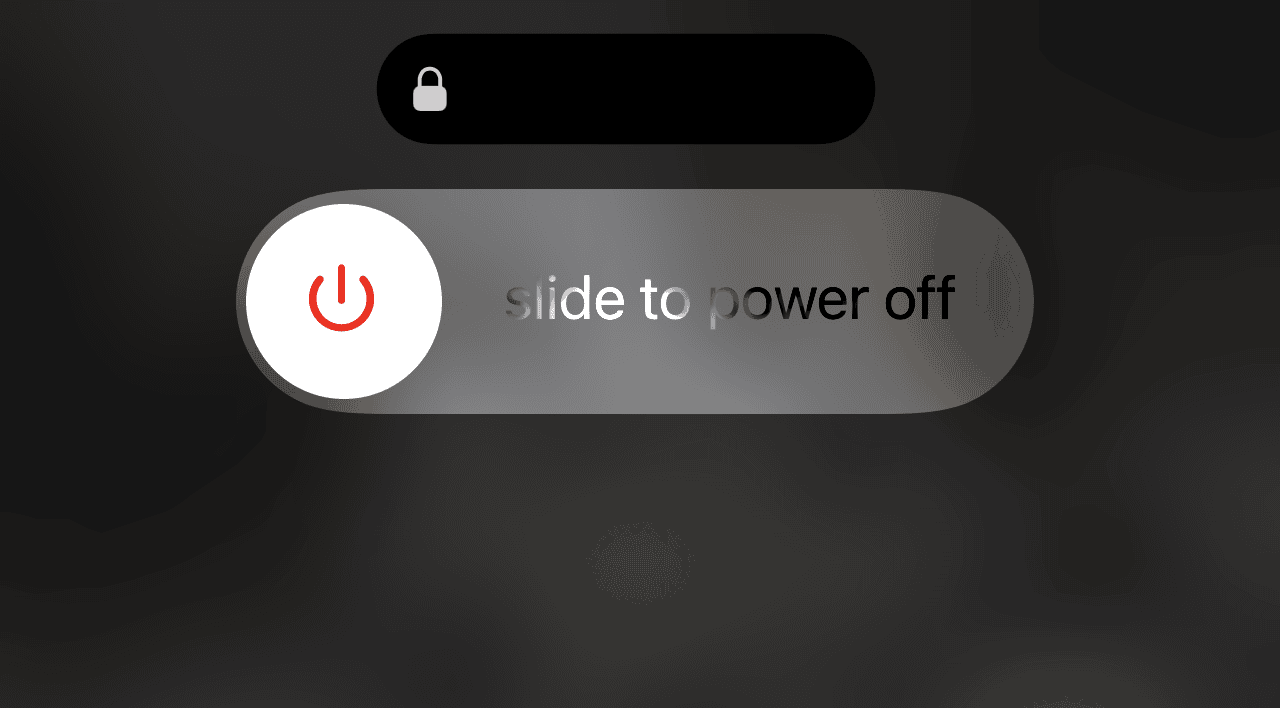
- Drag the slider. Power down your device completely.
- Wait 30 seconds. Then, press and hold the Side button again. Wait until the Apple logo appears to turn it back on.

FAQ
Major updates sometimes reset settings. This includes Focus Modes or Silence Unknown Callers. Check those settings first after any big OS upgrade.
No, Low Power Mode should not disable your ringer or call sounds. It mainly affects background app refresh and mail fetching. It conserves battery life.
Ensuring Your iPhone Receives and Rings for Calls
Troubleshooting a silent phone after an upgrade needs careful checking. Start with the simplest solutions first. Check the physical switch and volume settings. These steps usually fix most silent ringer issues. However, if the problem continues and your iPhone cannot receive calls at all, you might face a carrier issue. In that case, contact your service provider. By following these steps, you ensure your iPhone on iOS 26 provides reliable audible alerts.



Thank you, this worked!