

Apple Photos’ People album uses machine learning. It scans your library to find individual faces. When this process stalls, it creates a lack of organization. Automatic recognition helps you search and organize your memories. The most common cause is the system’s need to run background processes. The solution is simply allowing the device to run idle while charging. Here are effective steps to get Photos indexing faces correctly.
Table of contents
Essential Troubleshooting for Photo People Recognition
1. Keep Your Mac or iOS Device Plugged In and Idle
Face detection uses many resources. Therefore, Apple Photos runs this task only while your device is charging. It also runs when the device is not actively in use. If you rarely charge your device overnight, the scanning may not finish.
So, connect your device to power. Keep the Photos app open or running in the background. Do this for several hours. This strategy lets the crucial background analysis run without interruption.
Don’t miss the best of The Mac Observer
Set us as a preferred source and our Apple reporting ranks higher in your Google Search results and Discover feed — one tap, no account changes.
2. Manually Identify and Name More Faces on iPhone
Sometimes the recognition engine needs a helpful nudge. You can manually name a few unidentified faces. This provides the algorithm with critical training data. Consequently, the more faces you name, the smarter the feature gets.
- Open the Photos app.
- Tap Collections in the bottom menu.
- Tap People.
- In the People section, tap a Photo without a name.
- Tap Name This Person.

- Enter the name of the person and tap the check mark in the top-right corner.



Tip: Remember that the ability to select all photos helps manage a large library.
3. Check for Cloud Library Status and Downloads
Your library may be stored in iCloud Photos. The application then analyzes faces only in fully downloaded images. You might use the Optimize Mac Storage or Optimize iPhone Storage setting. If so, your original images might only be in the cloud.
On Mac:
- Open the Photos application.
- Choose Photos > Settings from the menu bar.
- Click the iCloud tab.
- Select Download Originals to this Mac.
On iPhone or iPad (iOS/iPadOS):
- Go to the Settings app.
- Tap your name, then tap iCloud, then tap Photos.
- Select Download and Keep Originals.
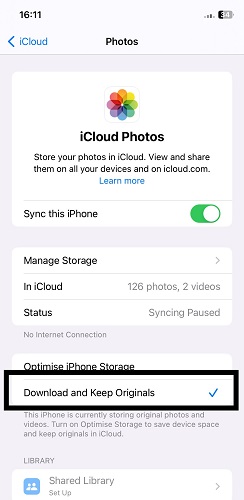

Allow time for the full-resolution files to download from iCloud. Then, the face scanning process can analyze the complete library.
4. Update macOS or iOS Software
Operating system bugs sometimes interfere with background processes. This includes face recognition. Therefore, ensuring your software is current is a critical first step. New updates usually fix these specific library issues. They also offer improved recognition algorithms. Furthermore, if you notice your Photos not syncing correctly across devices, an update may help. This often resolves connectivity problems related to processing.
On Mac:
- Click the Apple menu in the corner of your screen.
- Choose System Settings (or System Preferences).
- Click General in the sidebar.
- Click Software Update and install any available update.
On iPhone or iPad:
- Go to the Settings app.
- Tap General, then tap Software Update.
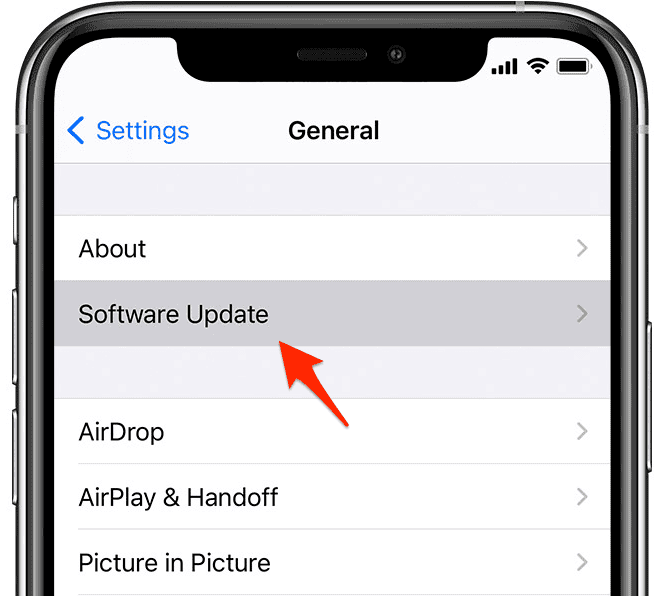
- If an update is available, tap Download and Install.

5. Repair Your Photos Library (Mac Only)
If other steps fail, your Photos library database might be damaged. This damage stops the People feature from working. The Photos app on macOS offers a built-in repair tool. This fixes such database inconsistencies.
To repair your library on a Mac:
- First, quit the Photos application completely.
- Hold down the Option and Command keys.
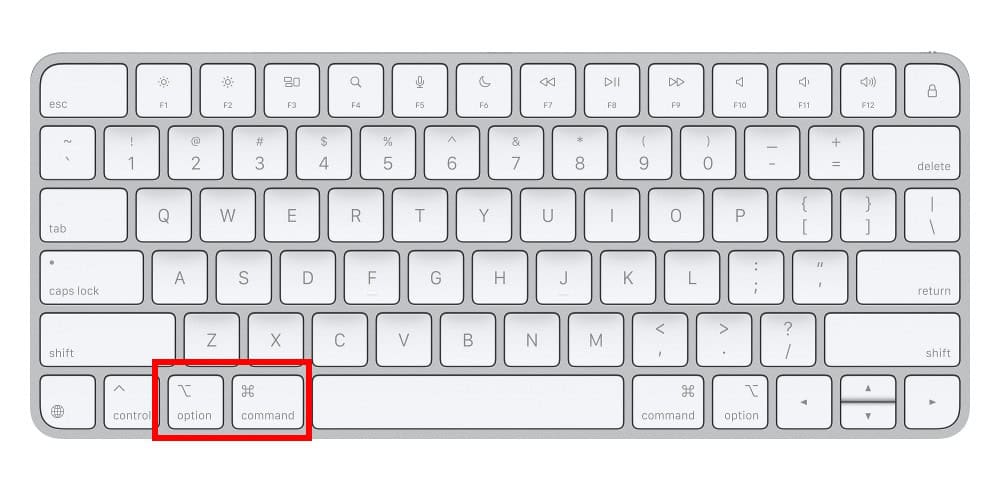
- Reopen Photos while holding these keys.
- A Repair Library dialog box will appear shortly.
- Click Repair to begin the fix. This may take time based on your library size.

This repair function addresses inconsistencies that halt the scanning analysis. This step is crucial before considering workarounds like accessing your Photos library on a Windows PC.
FAQ
Yes, Apple’s People album feature is available globally. It performs all analysis entirely on your device. This ensures user privacy. It also meets various regional requirements.
Photos might not group faces for several reasons. The person’s appearance may have changed significantly. The lighting, angle, or distance may be different. You can manually merge these groups. Just drag one identified group onto another in the People album.
Maximizing Your Photo Organization
Troubleshooting Apple Photos’ face recognition is generally straightforward. Solutions involve power, local data, and software health. Apply these fixes systematically. You should see the People album populate quickly. You can then search, view memories, and share albums easily. This great functionality is central to organizing your entire photo collection for long-term use.




Whatever you do, don’t repair your photos library. Doing that completely messed up the People & Pets recognition and, no matter how long I leave it connected (weeks already), reboot, start with a new computer etc, the indexing never continues. Repairig the library is a disastrous ‘solution’