

If you’ve ever tried to clean up your photo library on an iPhone, iPad, or Mac, you already know the truth: selecting everything at once isn’t as simple as it should be. Apple gives you a Select button, but not a Select All button in the main Photos view. So you end up dragging, swiping, and scrolling like you’re trying to win an arcade game. The good news is there are reliable ways to select all photos, depending on the device you’re using. Let’s break down the fastest methods so you can delete, move, or organize your photos without fighting the interface.
Table of contents
How to Select All Photos on iPhone or iPad

Here’s the reality. iOS doesn’t offer a Select All option in the Recents or Library views. But you can select all items inside any album. And there’s also a gesture trick that lets you select huge batches incredibly fast.
Select All in an Album
If your goal is to grab every photo in a specific album:
Don’t miss the best of The Mac Observer
Set us as a preferred source and our Apple reporting ranks higher in your Google Search results and Discover feed — one tap, no account changes.
- Open Photos
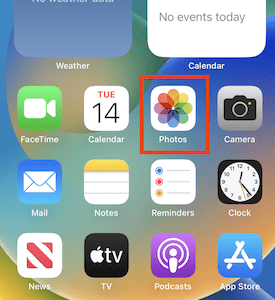
- Go to the album
- Tap Select
- Tap Select All in the top-left corner

Done. Every photo in that album is now selected and ready for deletion, sharing, or moving.
Select Everything in Recents (Gesture Trick)
No Select All here, but this trick is the next best thing.
- Open Photos → Library → All Photos
- Tap Select
- Tap the first photo you want
- Drag your finger across the photos without lifting
- When you hit the edge of a row, slide straight down
- Keep sliding down to auto-scroll while selecting
You can highlight hundreds of photos in seconds. If you need to go all the way back to the top, use this move:
While holding your main selection finger down, tap near the battery icon with another finger.
Photos jumps to the top and keeps everything selected.
It feels like cheating, but it works flawlessly once you get the hang of it.
How to Select All Photos on Mac

On a Mac, life is easier. Apple actually lets you select everything in one keystroke.
Use the Photos App
If your iPhone uses iCloud Photos, your full library is already synced to your Mac.
- Open Photos
- Go to Library → All Photos
- Press Command + A
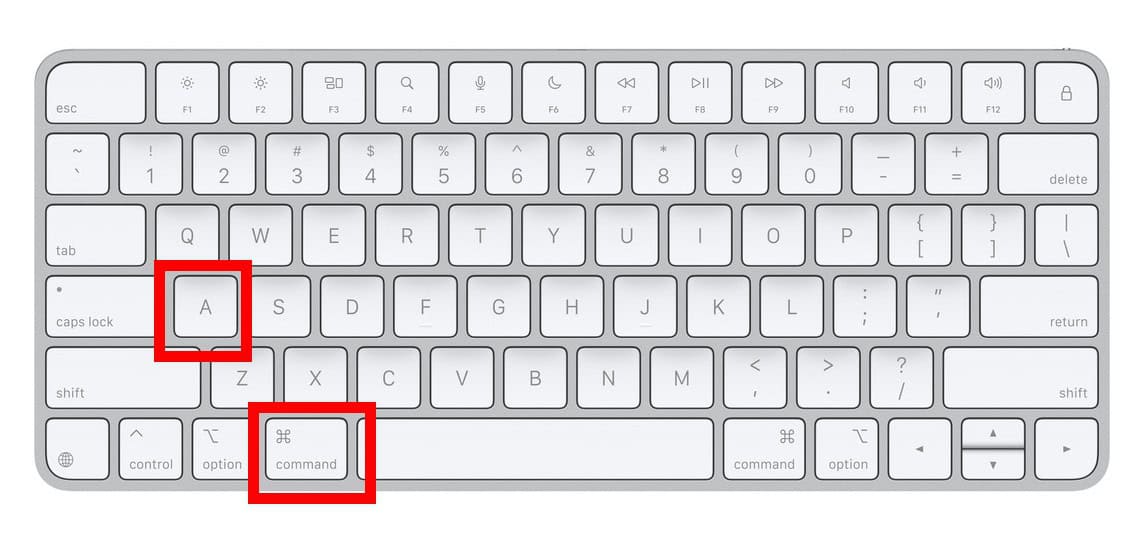

Everything gets selected immediately.
You can now export, delete, drag into albums, or organize however you want.
Use Image Capture (Best for Mass Deletion on iPhone)
Image Capture is a hidden gem for clearing your iPhone photo library fast.
- Connect your iPhone to your Mac
- Open Image Capture
- Select your iPhone
- Press Command + A to select everything
- Hit the delete icon
This is the fastest way to wipe your entire photo library on iPhone without tapping through the Photos app.
How to Select All Photos Using Finder (If iCloud Photos Is Off)
If you don’t use iCloud Photos:
- Plug your iPhone into your Mac
- Open Finder
- Select your iPhone in the sidebar
- Choose Photos
- Press Command + A
This gives you full control over the entire library from your Mac.
Should You Really Select All?
If your goal is to free up space, deleting everything might be overkill. A smarter approach is to target space hogs first. Even Apple doesn’t make this easy in the Photos app, but tools like Clever Cleaner (free) can do the job by automatically finding:
- Similar photos
- Old screenshots
- Large videos
- Heavy Live Photos
- Duplicate-looking bursts
You clear a ton of space without nuking your entire library.
Final Thoughts
Selecting all photos in Apple Photos isn’t always intuitive, but once you know the right gestures and shortcuts, the process becomes quick and surprisingly satisfying. On iPhone, the drag-and-scroll trick is your best friend. On Mac, Command + A feels like magic compared to tapping your way through thousands of images.


Discussion