

Location sharing on Apple devices is quite common. Find My and iMessage manage this important feature. It offers both safety and high convenience. Users must understand turning this feature off. Does revoking access notify your shared contacts? This question concerns many iPhone users. The answer depends on the specific method you use.
Will Others Be Notified When You Stop Location Sharing in iMessage?
Stopping location sharing varies the recipient’s experience. This variance depends on how you initiate the stop. You might stop sharing in an iMessage thread. Alternatively, you can use the Find My app. If you use either method, the recipient often sees a notification. On newer iOS versions, a text alert appears. This alert could simply say “Location expired.” It clearly informs the other party of the change.

However, Apple offers several workarounds for discretion. You can turn off the “Share My Location” setting. Your device stops sharing its location. Furthermore, you can disable Location Services completely. Do this for Find My in Settings. These methods generally do not trigger an explicit notification. Instead, the person sees “Location Not Available.”
Don’t miss the best of The Mac Observer
Set us as a preferred source and our Apple reporting ranks higher in your Google Search results and Discover feed — one tap, no account changes.
For troubleshooting, you can review common reasons why Share Location is Unavailable on iPhone.
Should You Stop Location Sharing in iMessage?
You alone choose to stop sharing your location. This choice involves privacy, security, and necessity. Therefore, temporarily stopping location sharing is sensible. Use this when traveling or planning a surprise. You might simply seek enhanced digital privacy. Conversely, strong reasons exist to continue sharing. This holds true for family or trusted friends.
Sharing your location facilitates easy coordination. Furthermore, it offers a key layer of safety. Someone can easily check on you. Knowing how to manage and Share Location on iOS ensures this safety net remains active. If you suspect your iPhone broadcasts improperly, check your settings. For example, an iPhone 15 not sharing location needs an immediate check.
Tips for Stopping Location Sharing in iMessage
Stop sharing your location successfully and discreetly. Focus on the device-wide settings. Avoid contact specific controls.
- Use Airplane Mode: Enabling Airplane Mode briefly disconnects all networks. This immediately stops your location updates. It does not send a formal notification.
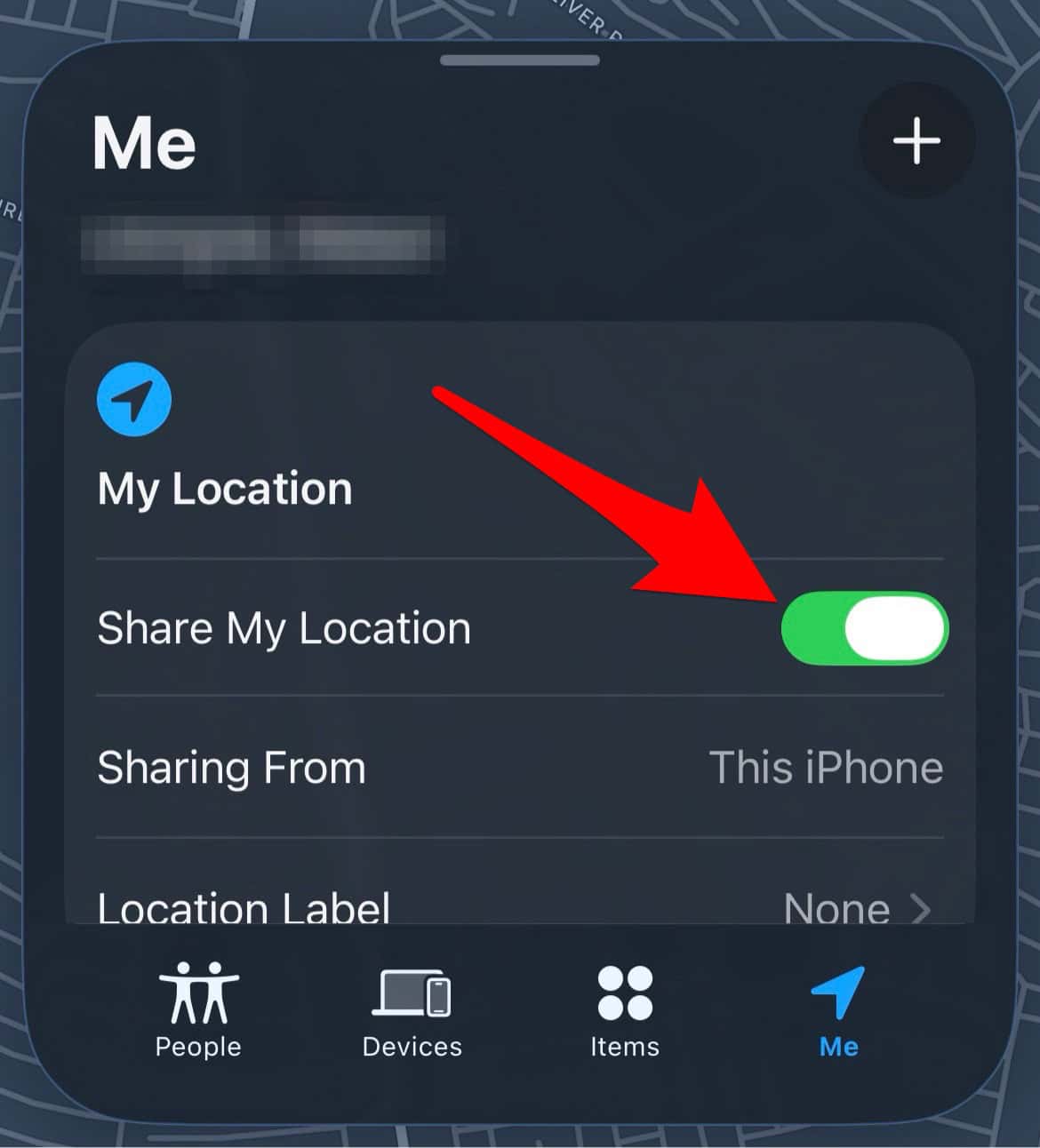
- Toggle “Share My Location” Off: Open the Find My app, select the Me tab, and toggle off Share My Location. This universally stops sharing. No individual contacts receive an alert. However, your location shows as unavailable.
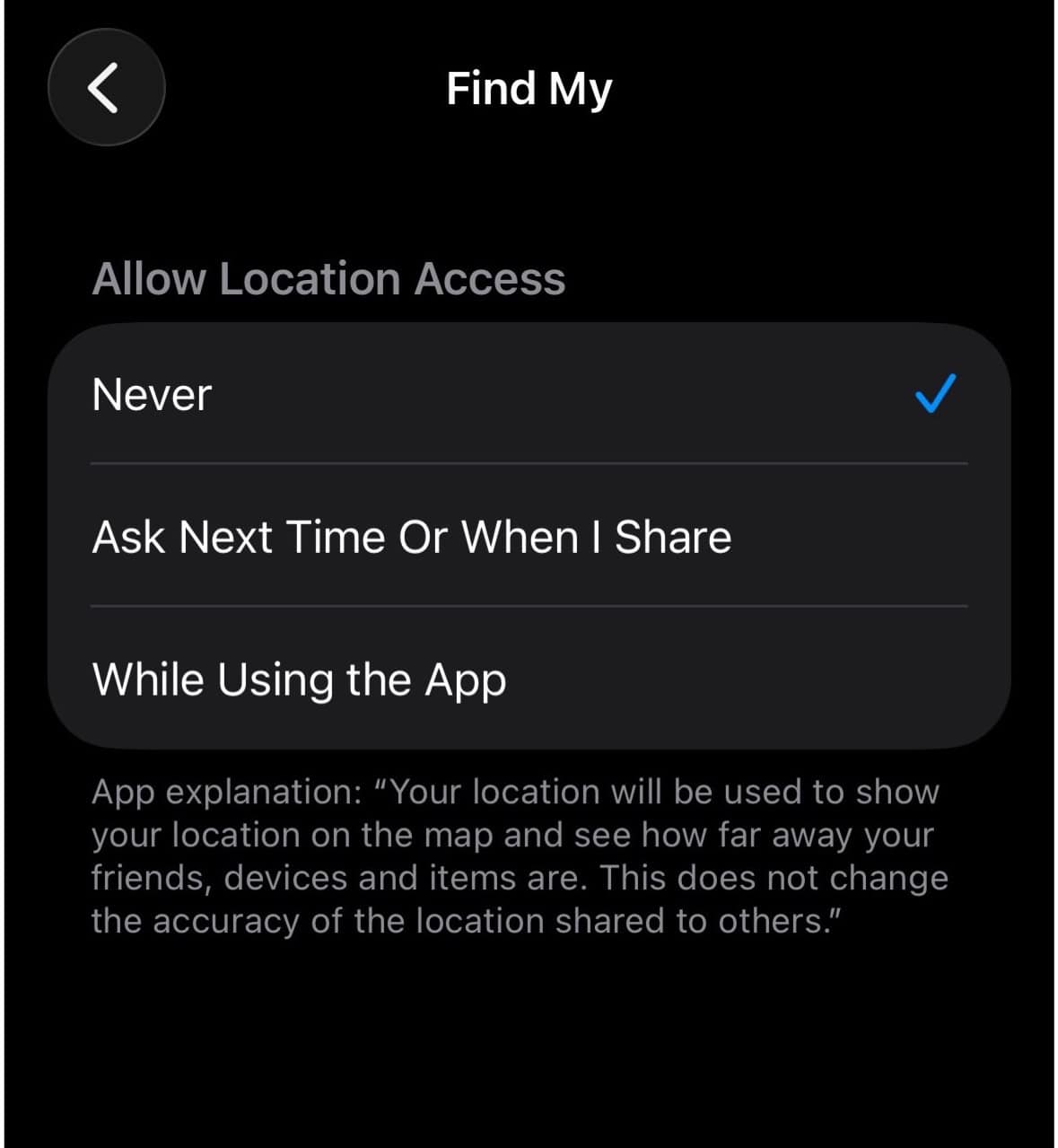
- Disable Location Services for Find My: You may want Location Services active for other apps. Still, prevent Find My from broadcasting your data. Therefore, go to Settings > Privacy & Security > Location Services. Tap on Find My, and then select Never. This method reliably halts sharing. It also avoids sending an explicit alert.


FAQ
Yes. Blocking a contact typically revokes their access. This ends location sharing immediately.
Location sharing automatically resumes. This happens if you only paused it. It must be enabled in your primary settings.
You choose a time limit when sharing initially. You can select one hour or until day’s end. Sharing stops automatically without manual input.
“No Location Found” means the device is off. It might also lack an internet connection. This status shows unavailability. It does not confirm a user manually stopped sharing.
Managing Location Privacy on iOS
You retain complete control over your location data. Methods like disabling Location Services offer discretion. They help you halt location updates. Directly using “Stop Sharing My Location” triggers a visible alert. This is especially true on modern iOS versions. Know how to manage and share Find My item locations with third parties. Always align your settings with your personal privacy requirements.


Discussion