

The iMessage application offers a variety of creative ways to send texts beyond plain static words. One of the most popular and fun features is the “Invisible Ink” effect, which conceals your message or photo until the recipient swipes across the screen. This feature adds an element of surprise and privacy to your conversations. Understanding how to use this effect is simple and can quickly enhance your messaging experience across all your Apple devices.
Table of contents
Unlocking Hidden Message Effects on Your iPhone or iPad
The process for applying the Invisible Ink feature is identical whether you are using an iPhone, iPad, or iPod touch. It relies on the intuitive touch-and-hold gesture designed to reveal the full spectrum of unique effects available within Apple’s native messaging client. By following a simple sequence of actions, you can transform any standard text or image into a mysterious, blurred bubble ready for a special reveal.
1. Launch the Messages App and Start a Conversation
Using these specialized features requires an understanding of the overall how to use iMessage application. Before you can apply the Invisible Ink effect, you must first navigate to the correct messaging interface. Open the native Messages app on your Apple device and select an existing chat or start a new message thread with your intended recipient who uses iMessage.
Don’t miss the best of The Mac Observer
Set us as a preferred source and our Apple reporting ranks higher in your Google Search results and Discover feed — one tap, no account changes.
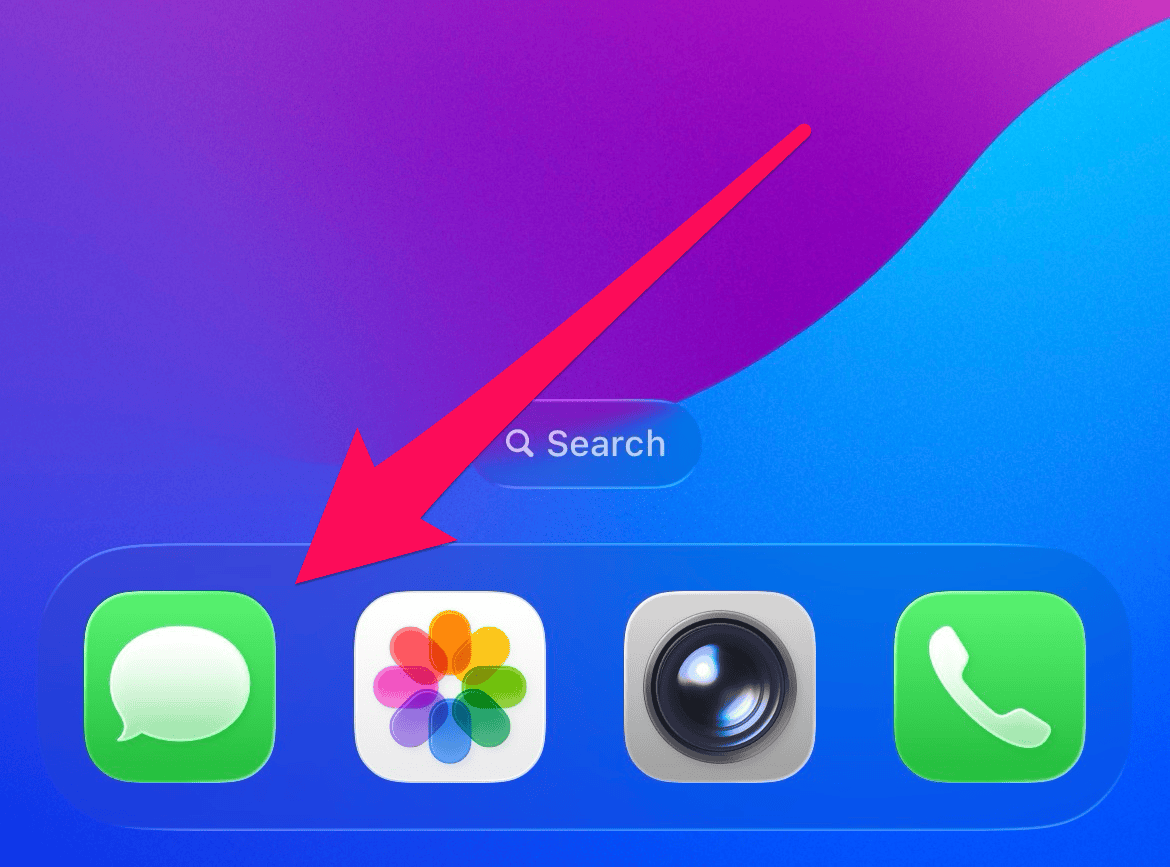
- Open the Messages app on your iPhone or iPad.
- Search for the person you want to send the message to.
- Tap their name when it appears in the search results to start a conversation.
- Tap the text field to activate your keyboard and input the full content of the message you wish to obscure.

2. Access the Effects Menu and Make the Text Invisible
This is the critical step for revealing the special effects options available for the message. Instead of simply tapping the standard blue send arrow, you need to engage the hidden menu. This required action brings up both Bubble and Screen effects available for use in iMessage.
- Press and hold the blue send arrow until the Send with effect screen appears.
- Ensure the Bubble tab is selected at the top of the screen.
- Tap Invisible Ink.
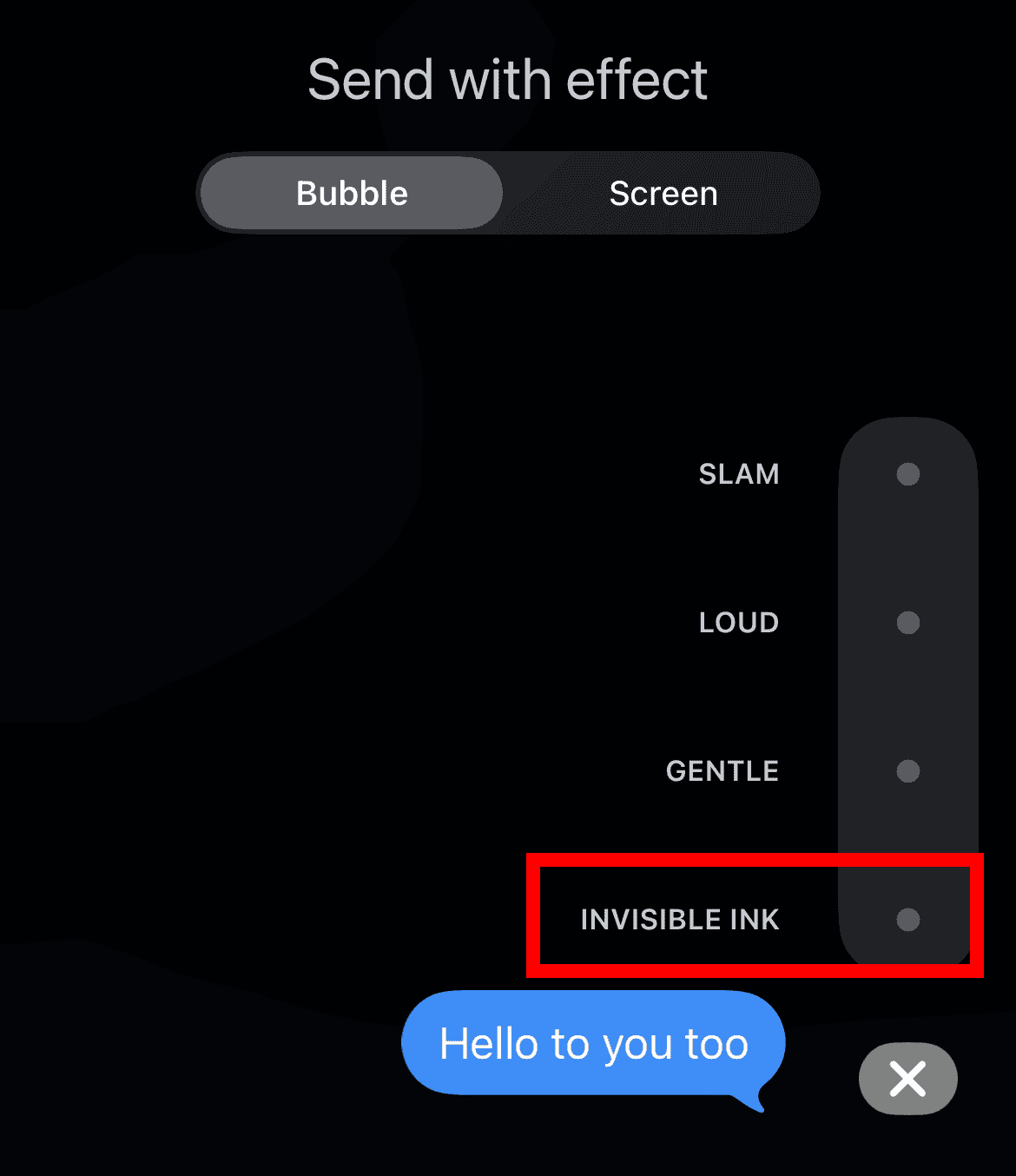
- You will see a preview of the effect.

For those wondering how these features compare to competitors, you might consider iMessage versus Telegram.
3. Send the Concealed Message
After selecting Invisible Ink, you will see a preview of the effect in your text field, confirming the concealment is active. The final action is to dispatch the message to your contact, which will arrive as a shimmering, blurred bubble on their device. For users who cannot access iMessage features, there are many best iMessage alternatives that offer similar privacy and fun effects.
- Tap the blue send arrow located to the right of the message bubble preview.
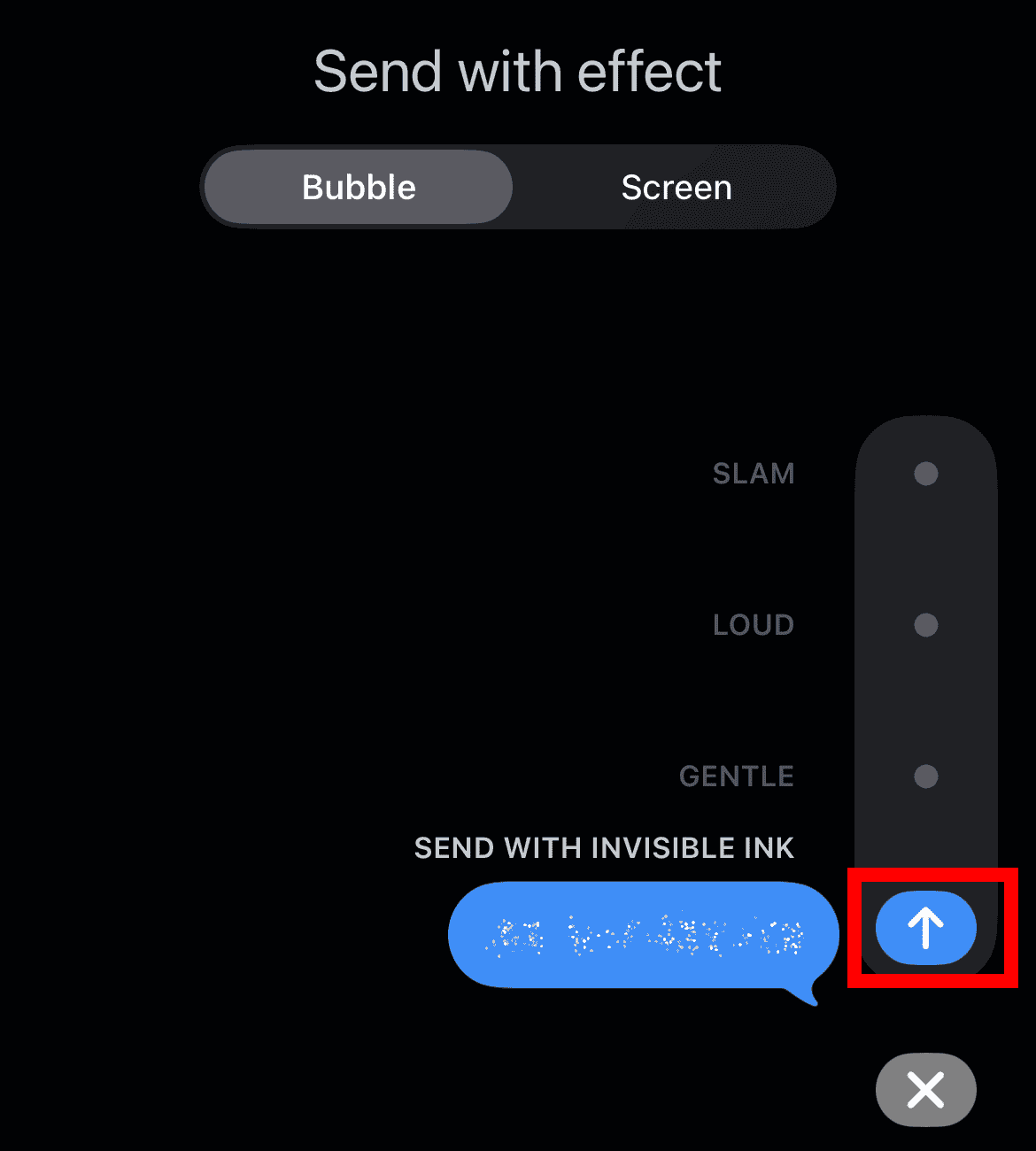
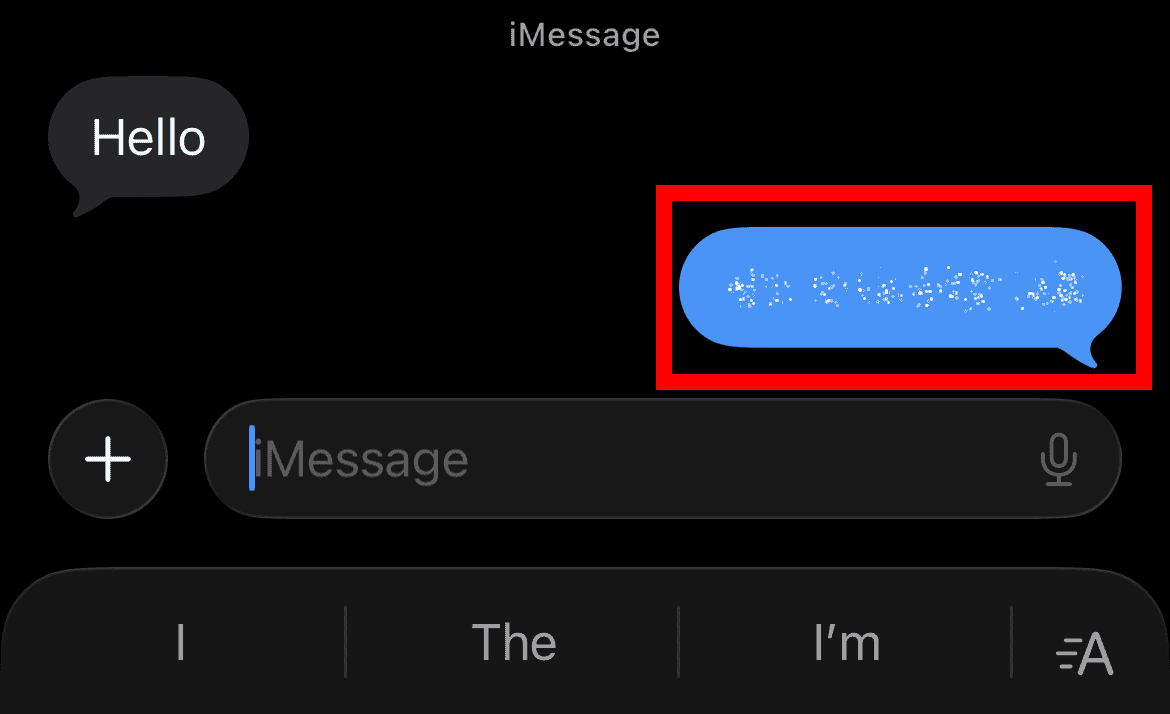
- The message will be sent and will display as a blurred effect on the recipient’s device until opened.


FAQ
Yes, the Invisible Ink effect can be applied to both text messages and photos or videos sent via iMessage. The recipient will need to swipe over the image or media to reveal it.
No, as long as the recipient is using an Apple device with iMessage enabled (indicated by blue text bubbles), the effect will work automatically. If they receive it as a standard SMS (green bubble), they will simply see the plain text.
The effect is revealed only when the recipient physically interacts with the bubble by swiping across it. It does not disappear or re-conceal itself automatically once the message has been viewed.
Enhancing Your Private Digital Communication
Mastering the Invisible Ink effect is a straightforward way to elevate the quality of your messages, adding a layer of mystery and fun to everyday communication. It showcases the advanced capabilities built into the Apple ecosystem for secure and engaging interactions. This feature is just one of many reasons why many prefer iMessage, even seeking ways to get Apple’s iMessage on Windows for full platform access and continuity.


Discussion