

You can fix the “Insecure Network” warning on iPhone by adjusting router or network settings. It appears when iOS detects weak Wi-Fi security, like networks without password protection or that use older security protocols.
Table of Contents
How To Fix the Insecure Network Warning on iPhone
Check the Wi-Fi Security Type
iOS shows the insecure network message when a Wi-Fi network uses outdated encryption or no password protection.
Time needed: 3 minutes
- Open Settings on your iPhone.
- Tap WLAN.
- Tap the information (circled “i”) icon next to the network.
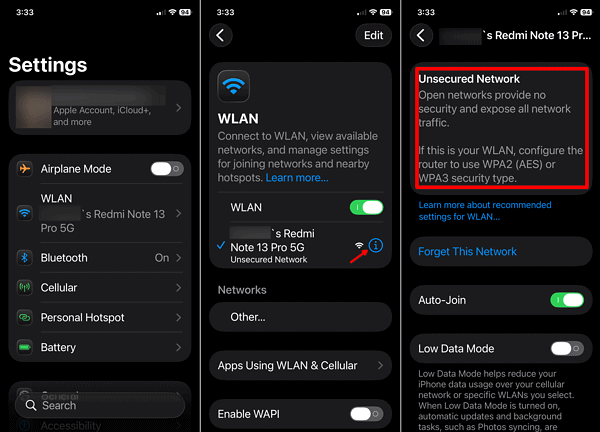
- Check the Unsecure Network warning for details.
Networks using WEP, WPA, or open security can trigger the warning.
Don’t miss the best of The Mac Observer
Set us as a preferred source and our Apple reporting ranks higher in your Google Search results and Discover feed — one tap, no account changes.
Switch the Router to WPA2 or WPA3
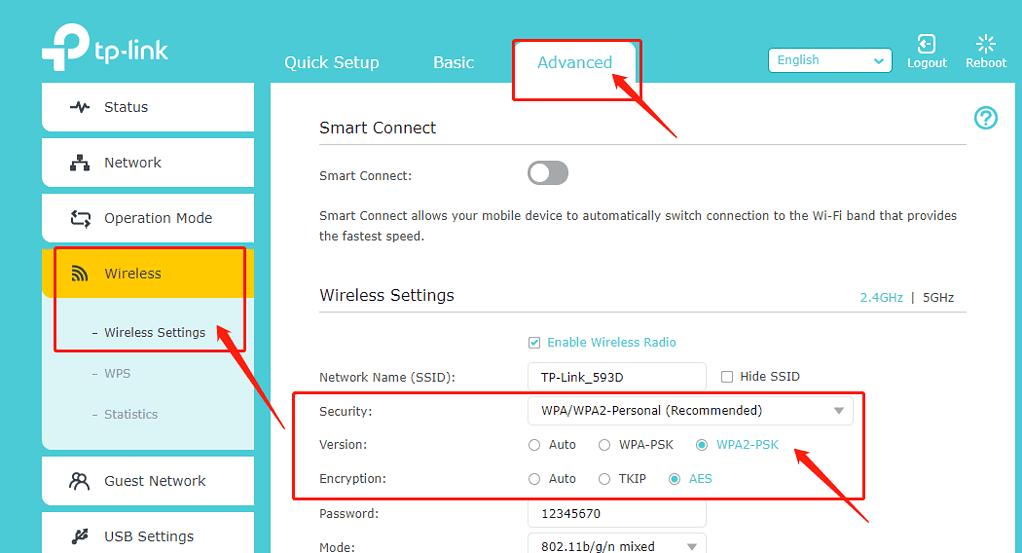
Modern routers support stronger encryption standards. Using WPA2 or WPA3 removes the insecure network alert.
Sign in to your router settings and change the wireless security mode to WPA2-Personal or WPA3-Personal.
If both options exist, WPA3 offers the strongest protection. WPA2 offers broader compatibility with older devices.
Enable a Wi-Fi Password
Open networks without passwords always show security warnings on iOS.
Add a strong Wi-Fi password in your router settings and reconnect your iPhone.
Forget and Reconnect to the Network
Cached network settings can sometimes cause incorrect warnings.
Go to Settings > Wi-Fi, tap the network, choose Forget This Network, then reconnect.
Disable Private Relay or VPN Temporarily
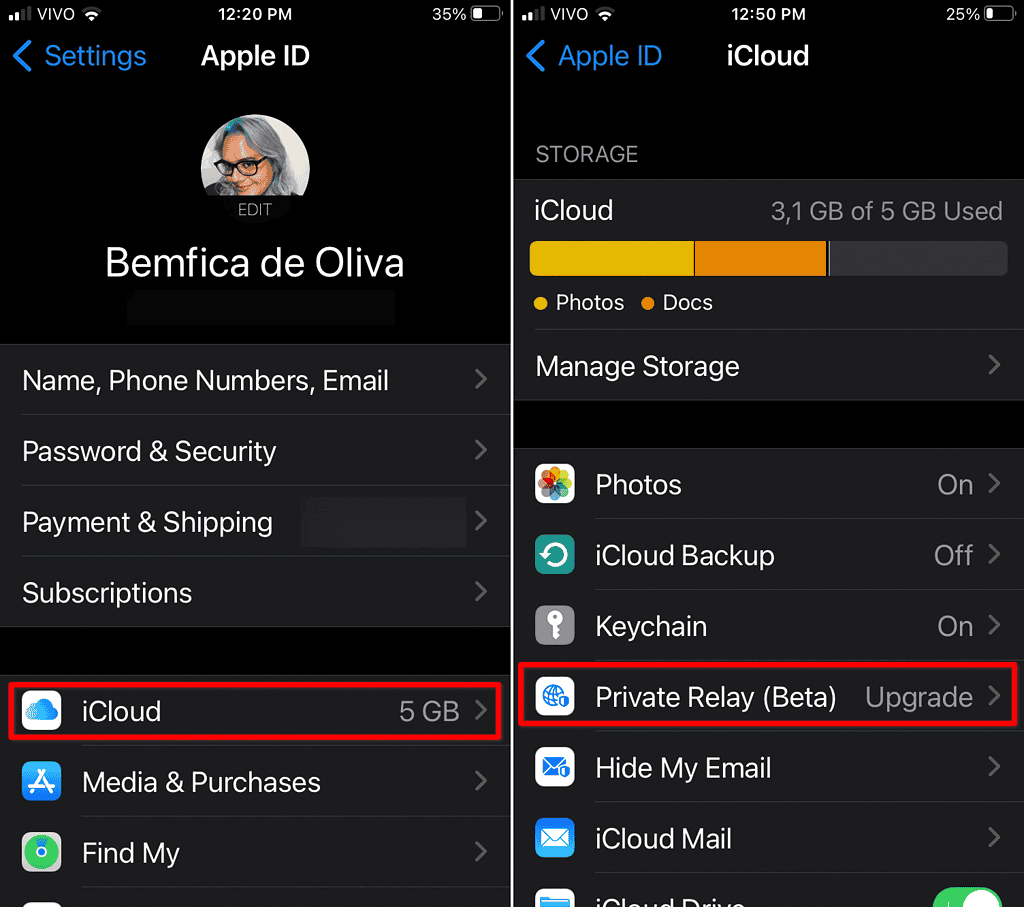
Some VPNs and network filters interfere with Wi-Fi security detection.
Turn off VPN or iCloud Private Relay briefly to see if the warning disappears.
Update Router Firmware
Outdated router firmware may lack modern encryption support.
Install the latest firmware from the router manufacturer and restart the router.
“Insecure Network” Warning on iPhone: Tips
- Avoid open public Wi-Fi networks.
- Use WPA2 or WPA3 whenever possible.
- Restart the router after security changes.
- Update iOS to keep network checks accurate.
FAQ
It works, but data can be exposed to interception.
No. It only applies to Wi-Fi networks.
Only if the provider upgrades their security settings.
“Insecure Network” iPhone Message: Summary
- The warning appears due to weak Wi-Fi security.
- WPA2 or WPA3 encryption fixes it.
- Passwords are required for secure networks.
- Router updates often help.
When you fix the “Insecure Network” warning on iPhone, you improve privacy and connection safety. Strong Wi-Fi security prevents data exposure.




Discussion