

Apple CarPlay lets you use your iPhone while driving without touching the phone. It shows apps for navigation, calls, messages, music, and more on your car’s display. To use CarPlay with voice control, Siri must be enabled on your iPhone. Siri lets you give voice commands for directions, calls, messages, and audio playback. CarPlay checks that Siri is enabled in the Settings app before it works.
This article walks through all methods to set up Siri for CarPlay. You will learn how to activate Siri in iPhone settings, how to connect to CarPlay, and how to trigger Siri once CarPlay is active. Follow the steps carefully so voice control works smoothly.
Table of contents
Methods
This section explains how to ensure Siri is enabled for CarPlay on your iPhone. It covers iOS settings and how to use Siri once CarPlay is connected.
Don’t miss the best of The Mac Observer
Set us as a preferred source and our Apple reporting ranks higher in your Google Search results and Discover feed — one tap, no account changes.
Enable Siri in iPhone Settings
Siri must be enabled in the Settings app before CarPlay will use it. This ensures the phone listens for voice commands and lets CarPlay trigger Siri.
- Open the Settings app on your iPhone.
- Scroll down and tap Siri & Search.
- Turn on the following toggles:
- Listen for “Hey Siri”
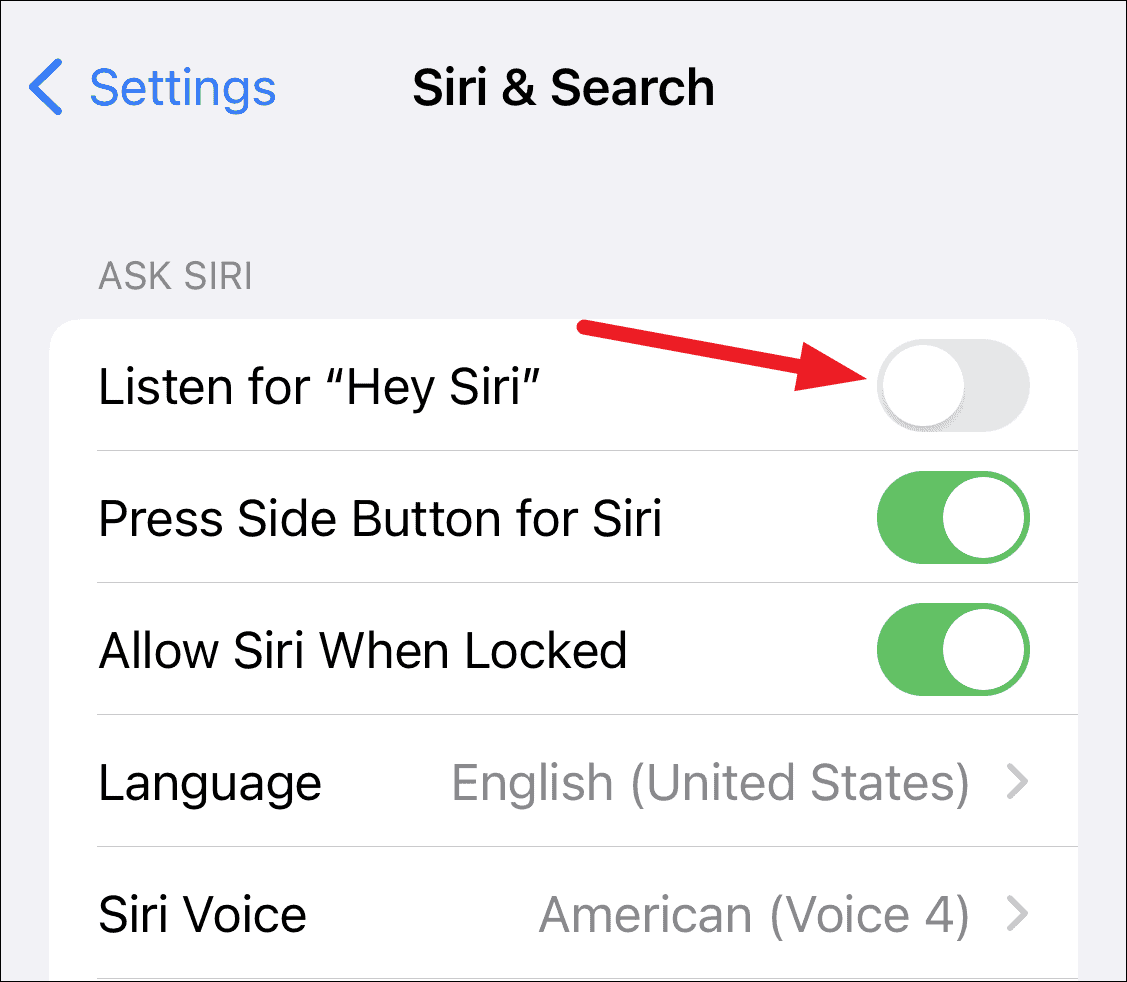
- Press the Side Button for Siri or Press Home for Siri on older phones
- Allow Siri When Locked
- Listen for “Hey Siri”
- A prompt may appear asking you to confirm. Tap Enable Siri.
- Follow on screen setup if needed for voice training.

These settings allow voice activation and button activation of Siri, whether you are in the car or not.
Check CarPlay Compatibility and iOS Version
You need an iPhone that supports CarPlay and a compatible iOS version. Most iPhones from iPhone 5s onward support CarPlay, and your device should run an up-to-date iOS release.
- Open Settings.
- Tap General.
- Tap Software Update.
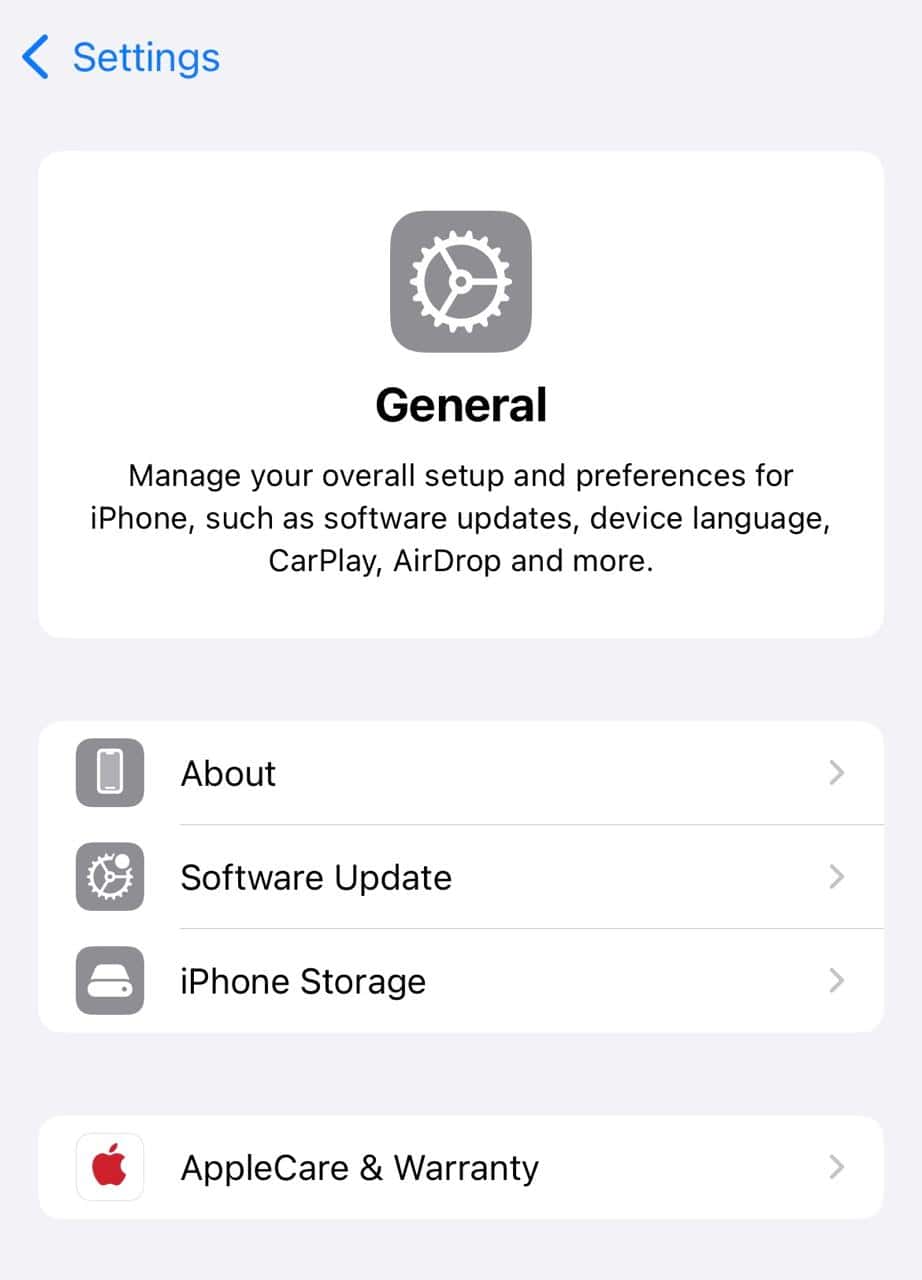
- If an update is available, install it.
- After updating, go back to General and then CarPlay to confirm your car is listed.

If your phone does not show CarPlay under General, check your iOS version and update.
Connect Your iPhone to CarPlay
After Siri is enabled and your iPhone is updated, you need to connect to your car’s CarPlay system.
- Turn on your car’s infotainment system.
- Connect your iPhone using one of these:
- USB Cable by plugging into the car’s CarPlay enabled USB port.
- Wireless Pairing by turning on Bluetooth and Wi Fi on your iPhone and pairing with the car.
- On the iPhone, open Settings, then General and then CarPlay.
- Tap your car’s name from the list.
- Accept any prompts on your car’s screen.
Once connected, CarPlay should launch automatically on the car display.
Activate Siri in CarPlay
Siri can be triggered from the steering wheel button, the CarPlay home button, or by voice.
- Press and hold the voice command button on the steering wheel until you hear Siri.
- Alternatively, touch and hold the Home button on the CarPlay screen.
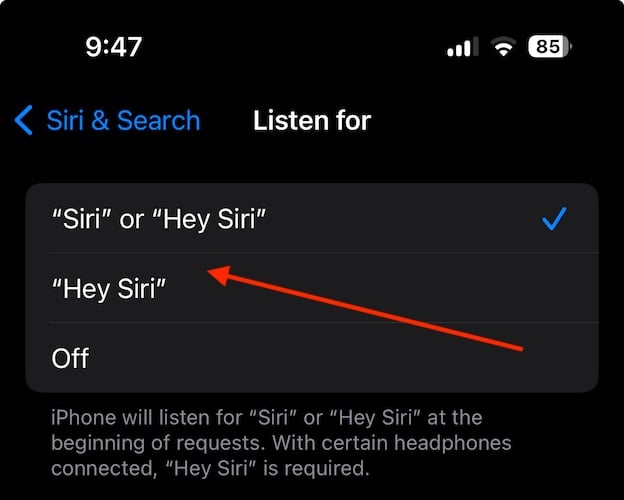
- If voice activation is active, say Hey Siri followed by your command.

Siri will listen and respond through the car’s speakers for navigation, calls, messages, and music.
Tips
- Make sure Siri and Search settings are always enabled on your iPhone.
- Keep your iPhone connected and unlocked when first pairing to CarPlay.
- Check your car’s manual for CarPlay-specific USB ports or Bluetooth procedure.
- If Siri does not respond, toggle the Siri settings off and on again.
- Restart your iPhone and car system if CarPlay still fails.
- Update both your iPhone and your car’s infotainment system firmware regularly.
FAQs
Why does CarPlay say Siri is not enabled?
CarPlay requires Siri settings on the iPhone like voice activation and button access to be on. If any of those toggles are off, CarPlay may reject Siri.
Can Siri work without Hey Siri?
Yes. You can use the button on the steering wheel or CarPlay screen without voice activation.
Does every car support wireless CarPlay?
No. Some older models only support CarPlay through a USB cable.
What if Siri and Search is greyed out?
This may happen if Screen Time restrictions are active. Go to Settings and allow Siri under content and privacy restrictions.
Summary
- Enable Siri in the iPhone Settings app so CarPlay can use it.
- Confirm your iPhone is updated and supports CarPlay.
- Connect your iPhone to your car through USB or wireless.
- Launch CarPlay and activate Siri using buttons or voice.
- Troubleshoot by toggling settings or restarting devices.
Conclusion
Setting up Siri for Apple CarPlay improves your driving experience. It lets you control navigation, communication, and entertainment without lifting a finger. Start by enabling Siri in your iPhone settings and keeping CarPlay compatible with current iOS. Then connect your phone and use simple steps to trigger Siri from your car. With this setup complete, voice control becomes reliable and safe for hands free use while driving.


Discussion