

Apple Business Manager is a web portal that helps you manage Apple devices and content across your organization. You use it to register, enrol, and organise iPhone, iPad, Mac, and Apple TV devices. It also lets you control Apple IDs and buy apps or books in bulk.
This system acts as the central hub for device deployment. When you link Apple Business Manager with your mobile device management solution, new devices can enrol automatically and receive settings, apps, and access rules.
You get several tools within the portal. These include inventory and role management, automated device configuration, and licence purchasing. This article walks you through what Apple Business Manager does, how to sign up, and how to use its main features.
Don’t miss the best of The Mac Observer
Set us as a preferred source and our Apple reporting ranks higher in your Google Search results and Discover feed — one tap, no account changes.
What Apple Business Manager Does
Apple Business Manager simplifies how you set up, manage, and assign Apple devices. It supports devices across iOS, iPadOS, macOS, and tvOS. The portal also helps you manage accounts and content your business uses.
You can:
- Enrol devices automatically in your device management system
- Buy and assign app or book licences
- Manage Managed Apple Accounts for employees
- Keep an inventory of devices and their status
- Search devices, users, and content quickly within the portal
Key Requirements to Use Apple Business Manager
Before you start, make sure you have:
- A modern web browser supported by Apple
- A legal business entity and verification contact details
- A primary admin account that isn’t linked to another Apple ID service
- Optional but helpful: your organization’s D-U-N-S Number for faster verification
Apple reviews your business’s details before giving full access, and this verification can take a few business days.
Signing Up for Apple Business Manager
You need an administrator to set up Apple Business Manager for your organization. The steps are straightforward.
Sign Up
- Go to the Apple Business Manager website.
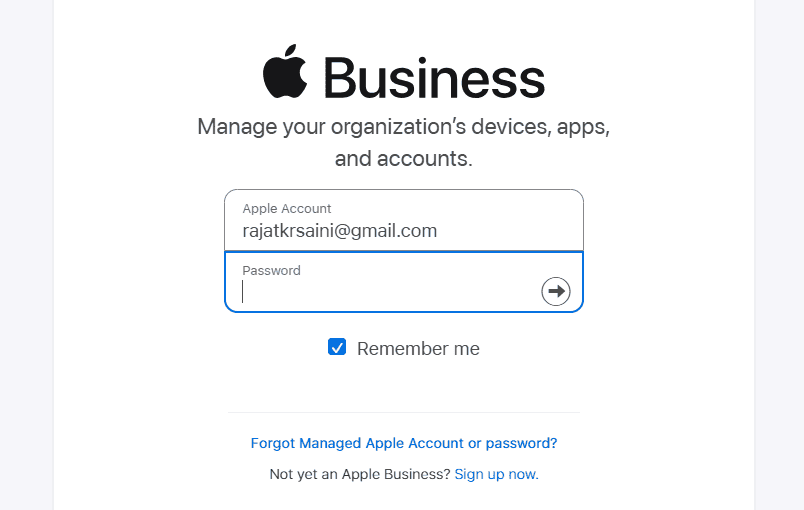
- Choose “Sign up now.”
- Enter your details, including admin name and business info.
- Confirm your email and phone number with one-time codes.
- Choose your region and complete the form.
- Submit to start verification.

Once Apple reviews and approves your application, you get full access. After approval, you should create additional admin users to help manage settings.
Automated Device Enrollment
Apple Business Manager works most powerfully with automated device enrolment. This is how it works and how to set it up.
What It Does
Automated device enrolment lets devices join your management system as soon as someone turns them on. It works for devices bought from Apple or authorised resellers, and for manually added devices.
Steps to Configure
- Sign in to Apple Business Manager as an Administrator.
- Connect your mobile device management service in settings.
- Assign device licences and policies for each group or type.
- Purchase or allocate apps and books.
- Enable your enrolment profile for new devices.
With device enrolment enabled, new devices can join your MDM automatically. This speeds up deployment and saves IT teams time.
Buying and Assigning Apps
Apple Business Manager lets your organization buy apps or books once and assign them to users or devices.
How It Works
- Purchase licences in bulk from the Store inside Apple Business Manager.
- Choose whether a licence goes to a device or a user.
- Redistribute or revoke licences when needs change.
You can buy apps from the App Store and custom apps made for your business. This gives your teams the software they need without individual Apple accounts.
Managed Apple Accounts
Instead of personal Apple IDs, your organization uses Managed Apple Accounts for employees. These accounts belong to your business and give people access to Apple services and devices under your rules.
Managed Apple Accounts let you:
- Create accounts for users
- Control access to Apple services
- Integrate with your identity systems when needed
These accounts help separate work and personal data and make it easier to support users.
How to Add Devices Not Purchased From Apple
If you buy devices from other vendors, you can still add them.
Manual Add Using Apple Configurator
- Open Apple Configurator on a Mac or iPhone.
- Connect the device and prepare it for enrolment.
- Upload the device details to Apple Business Manager.
- Assign to your MDM or management profile.
This method works for iPhones, iPads, Macs, Apple TV, and Vision Pro when supported.
Search and Reporting
You can search across users, devices, locations, and activity logs in Apple Business Manager. This helps you find information quickly when troubleshooting or auditing inventory.
FAQs
What is Apple Business Manager?
It is a free Apple portal to manage your business’s Apple devices, accounts, and content.
Do I need MDM to use it?
No, but Apple Business Manager works best with MDM. It is not an MDM itself.
Can I enrol personal devices?
No, personal devices cannot be enrolled through Apple Business Manager. They need other MDM onboarding methods.
Is it free?
Yes, there is no cost to use Apple Business Manager.
Do I need a D-U-N-S Number?
You do not need it upfront, but verifying with it helps speed the process.
Summary
- Apple Business Manager centralises how you register and deploy Apple devices.
- You enrol devices in your management system automatically for ready-to-use setup.
- You buy and assign apps or books in bulk without personal Apple IDs.
- Managed Apple Accounts help you control user access and services.
- You can add devices manually if not purchased directly from Apple.
Conclusion
Apple Business Manager gives you clear control over Apple devices and content in your organisation. You get a single portal to manage key tasks, reduce setup time, and keep inventory organised. Pair it with a mobile device management solution and you improve how teams get devices ready to work. Use the steps above to get started and streamline your Apple deployments.


Discussion