
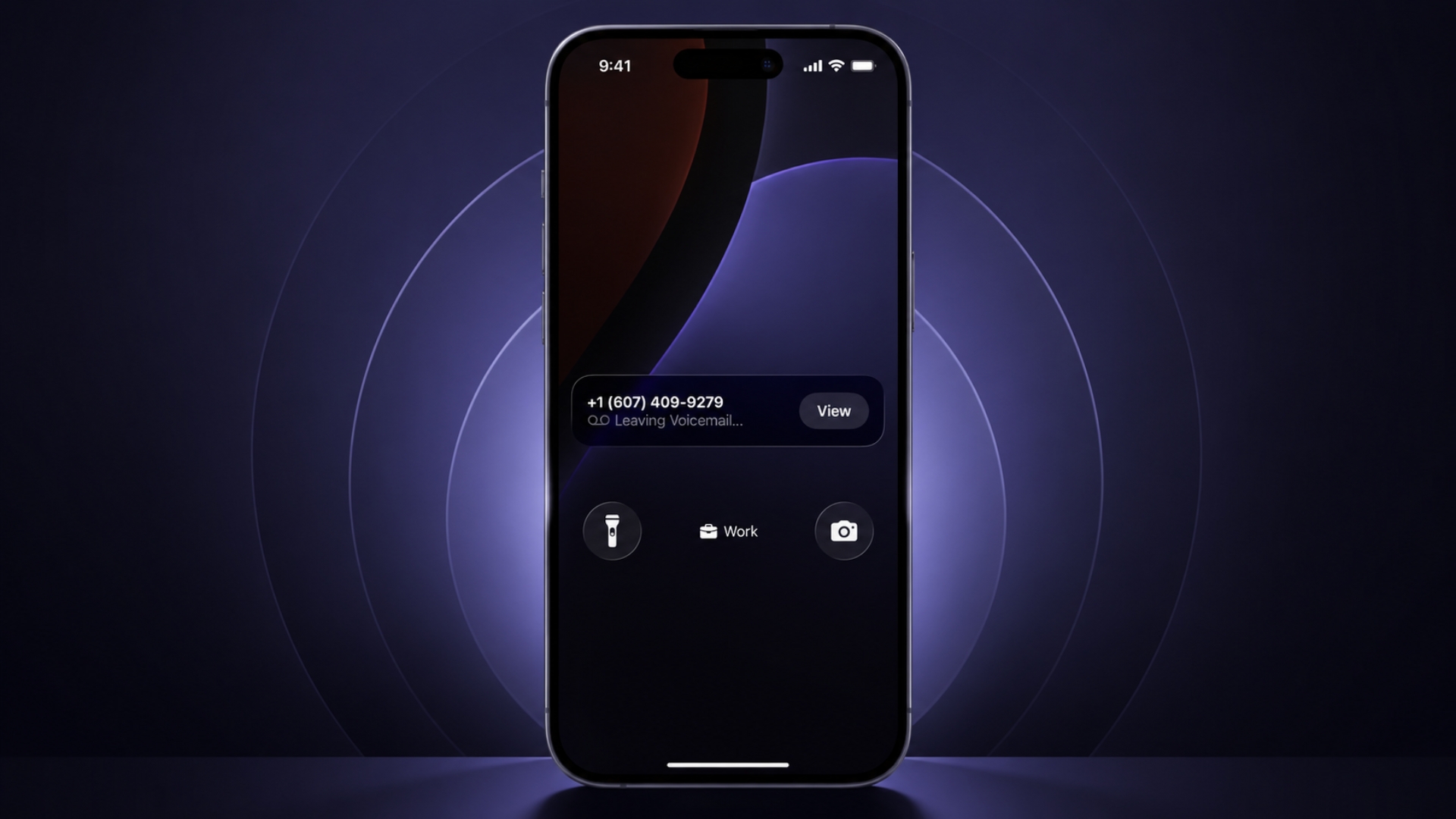
If your iPhone running iOS 26 suddenly sends calls straight to voicemail without ringing, you are not alone. Many iPhone users have reported missed calls after updating iOS, changing carriers, enabling Focus modes, or accidentally turning on features like Silence Unknown Callers. In some cases, the phone never rings, and the missed call does not even appear in the call history.
The good news is that this issue is usually caused by settings conflicts, network glitches, or iOS call handling features that can be fixed in a few minutes. In this guide, we will walk through 12 proven fixes that help restore incoming calls on iPhone models running iOS 26.
Apple users across forums and community discussions have linked the issue to Focus modes, call forwarding, network settings, and newer iOS phone features. Some users also noticed problems after enabling Live Voicemail or switching carriers.
Don’t miss the best of The Mac Observer
Set us as a preferred source and our Apple reporting ranks higher in your Google Search results and Discover feed — one tap, no account changes.
Why iPhone Calls Go Straight to Voicemail in iOS 26
Before jumping into the fixes, here are the most common reasons behind the problem:
- Focus Mode or Do Not Disturb is active
- Silence Unknown Callers is enabled
- Call Forwarding is turned on
- Poor carrier signal or SIM issues
- Airplane Mode is active
- Blocked contacts
- Software bugs after an iOS 26 update
- Carrier switching or number porting delays
- Live Voicemail conflicts
- Network settings corruption
Now let’s go through each fix step by step.
1. Check If You Recently Switched Carriers
If you recently moved your number to another carrier, incoming calls may still route incorrectly during the number porting process. Some carriers say this process can take up to 72 hours.
Steps to check:
- Wait at least 24 to 72 hours after switching carriers.
- Restart your iPhone once during the waiting period.
- Test incoming calls from another number.
- Contact your carrier if the issue continues.
Several users report calls being redirected to old voicemail systems during this transition period.
2. Disable Call Forwarding
Call Forwarding can silently redirect calls away from your iPhone.
Steps to disable Call Forwarding:
- Open Settings
- Tap Apps
- Select Phone
- Tap Call Forwarding
- Turn the toggle OFF
Apple confirms that call forwarding redirects calls whenever the feature is enabled.
You can also disable all forwarding rules manually by dialing:
*#21#
This command checks and clears forwarding settings on many carriers.
3. Turn Off Silent Mode
On iPhone 15 and newer, the Action Button can accidentally enable Silent Mode. Older iPhones use the Ring/Silent switch.
Steps:
- Check the Action Button or Ring switch.
- If you see orange near the switch, Silent Mode is enabled.
- Press the Volume Up button several times.
- Test your ringtone from Settings.
Many users think calls are going to voicemail when the ringtone volume is simply too low.
4. Disable Silence Unknown Callers
This feature automatically silences numbers not saved in your contacts.
Steps:
- Open Settings
- Tap Phone
- Select Silence Unknown Callers
- Turn the toggle OFF
This is one of the most common causes of missing calls on iPhone.
If you frequently receive calls from delivery agents, doctors, banks, or work contacts, disabling this feature is important.
5. Remove Contacts From the Blocked List
Blocked numbers go directly to voicemail automatically.
Steps:
- Open Settings
- Tap Phone
- Select Blocked Contacts
- Tap Edit
- Remove the blocked number
- Tap Done
Some users forget they blocked a contact months earlier.
6. Disable Airplane Mode
Airplane Mode disables cellular connections completely.
Steps:
- Swipe down from the top-right corner to open Control Center
- Look for the airplane icon
- If it is orange, tap it to disable Airplane Mode
- Wait for cellular signal bars to return
Once disabled, incoming calls should start working again.
7. Turn Off Focus Mode or Do Not Disturb
iOS 26 Focus modes can automatically silence incoming calls.
Some users on iOS 26 also reported hidden Focus profiles like “Reduce Interruptions” blocking calls unexpectedly.
Steps:
- Open Control Center
- Tap Focus
- Turn OFF all active Focus modes
You can also check manually:
- Open Settings
- Tap Focus
- Review every Focus profile
- Disable scheduled or automatic activation
8. Allow Calls While Focus Mode Is Enabled
If you need Focus mode active, you can still allow important callers.
Steps:
- Open Settings
- Tap Focus
- Choose your active Focus profile
- Tap People
- Select Allow Notifications From
- Add contacts you want to allow
- Under Calls, select Allowed People Only
This prevents emergency or work calls from getting silenced.
9. Check Announce Calls Settings
Announce Calls can help you notice incoming calls when using headphones or driving.
Steps:
- Open Settings
- Tap Phone
- Select Announce Calls
- Choose Always
This is especially useful if you often miss calls while wearing AirPods.
10. Update Cellular and Mobile Data Settings
Weak network configuration can affect incoming calls.
Steps:
- Open Settings
- Tap Cellular
- Turn Cellular Data ON
- Open Cellular Data Options
- Enable Data Roaming
- Turn ON Wi-Fi Calling
Wi-Fi Calling is particularly helpful in areas with weak signal coverage.
11. Update iOS 26 to the Latest Version
Some iOS 26 builds reportedly introduced voicemail and incoming call bugs. Apple usually fixes these through follow-up updates.
Steps:
- Open Settings
- Tap General
- Select Software Update
- Install any available update
Keeping iOS updated also improves carrier compatibility and call reliability.
12. Reset Network Settings
If nothing else works, resetting network settings often fixes voicemail-related call bugs.
Steps:
- Open Settings
- Tap General
- Select Transfer or Reset iPhone
- Tap Reset
- Choose Reset Network Settings
- Enter your passcode
Important:
- This removes saved Wi-Fi passwords
- Bluetooth pairings will reset
- VPN settings may be deleted
Still, this remains one of the most effective fixes for persistent calling problems.
Extra Tips That Helped Real Users
Many users shared additional fixes that solved the issue:
- Replace the SIM card through your carrier
- Remove and reinsert the SIM card
- Delete old voicemails completely
- Disable Live Voicemail temporarily
- Restart the iPhone after changing settings
- Use Wi-Fi Calling indoors
Some users also noticed that carrier-side voicemail systems caused the issue rather than the iPhone itself.
FAQs
Why does my iPhone go straight to voicemail without ringing?
Usually because Focus Mode, Silence Unknown Callers, Call Forwarding, or network issues are active.
Does Focus Mode block calls in iOS 26?
Yes. Some Focus profiles can silence incoming calls automatically.
Can a bad SIM card cause calls to go to voicemail?
Yes. Damaged or outdated SIM cards can cause incoming call failures.
Will updating iOS fix voicemail issues?
In many cases, yes. Apple often patches call bugs in later updates.
Does Airplane Mode send calls to voicemail?
Yes. When Airplane Mode is enabled, your carrier redirects calls to voicemail.
Why do only some calls go to voicemail?
Usually because unknown callers are silenced or Focus filters allow only selected contacts.
Summary
- Wait if you recently switched carriers.
- Turn off Call Forwarding.
- Disable Silent Mode.
- Turn off Silence Unknown Callers.
- Remove blocked contacts.
- Disable Airplane Mode.
- Turn off Focus or Do Not Disturb.
- Allow calls inside Focus settings.
- Enable Announce Calls.
- Update mobile data settings.
- Install the latest iOS 26 update.
- Reset network settings if needed.
Conclusion
The iOS 26 voicemail issue can be frustrating, especially when important calls never ring on your iPhone. In most cases, the problem is linked to Focus settings, network issues, call forwarding, or iOS software glitches rather than hardware failure.
Start with the simple fixes first, including disabling Focus modes and checking Call Forwarding. If the issue continues, updating iOS and resetting network settings usually solves it. And if calls still go straight to voicemail after trying everything here, your carrier or SIM card may be the real cause.




Discussion