
Forgetting your iPhone passcode can quickly turn into a stressful situation, especially if you use your device every day for work, banking, messages, and photos. The good news is that Apple provides several official ways to regain access to your iPhone.
However, there is one important thing you should know before getting started: if you forget your iPhone passcode, the only way to unlock the device is to erase it and set it up again. Apple does not offer a way to bypass or recover a forgotten passcode without resetting the device.
In this guide, we’ll explain what happens when you forget your passcode, how to unlock your iPhone using four different methods, and what to do after the reset is complete.
Don’t miss the best of The Mac Observer
Set us as a preferred source and our Apple reporting ranks higher in your Google Search results and Discover feed — one tap, no account changes.
Table of contents
When you enter the wrong passcode multiple times, your iPhone temporarily locks itself to protect your data. Each failed attempt increases the waiting period before you can try again.
Eventually, you may see messages such as:
- iPhone Unavailable
- Security Lockout
- Try Again Later
If you’re using iOS 17 or later and recently changed your passcode, Apple also allows you to use your previous passcode for up to 72 hours after the change. This can help you regain access without erasing the device.
If that option is unavailable, you’ll need to erase the iPhone and create a new passcode.
Method 1: Unlock iPhone From the Security Lockout Screen
This is the easiest method if your iPhone shows the Forgot Passcode? option on the lock screen.
Requirements
- iPhone running iOS 17 or later
- Find My enabled
- Internet connection (Wi-Fi or cellular)
- Apple Account (Apple ID) password
Steps
- Wake your iPhone and continue entering passcodes until the Forgot Passcode? option appears.
- Tap Forgot Passcode?
- Select Start iPhone Reset.
- Enter your Apple Account password.
- If you use eSIM, choose whether to keep or remove the eSIM.
- Tap Erase iPhone.
- Wait for the reset process to finish.
- Follow the setup instructions on the Hello screen.
Why Use This Method?
- No computer required
- Fastest official solution
- Works directly from the lock screen
Method 2: Reset iPhone Passcode Using a Mac
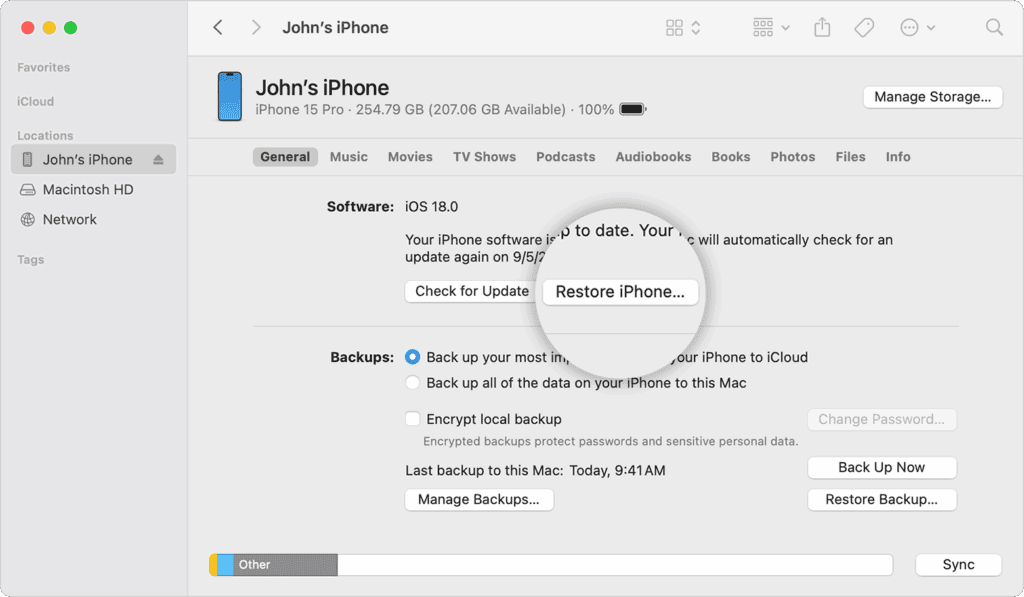
If you have access to a Mac, you can use Finder and Recovery Mode to erase the device.
Steps
- Connect your iPhone to your Mac using a compatible cable.
- Turn off the iPhone.
- Put the device into Recovery Mode.
- Open Finder on your Mac.
- Select your iPhone from the sidebar.
- Click Restore when prompted.
- Wait for Finder to download and install the software.
- After restoration is complete, disconnect the iPhone and begin setup.
Why Use This Method?
- Useful when the lock screen reset option isn’t available
- Works even if the device is disabled
Method 3: Reset iPhone Passcode Using a Windows PC
Windows users can reset a locked iPhone using the Apple Devices app or iTunes.
Steps
- Connect your iPhone to the computer using a USB cable.
- Turn off the iPhone.
- Enter Recovery Mode.
- Open Apple Devices or iTunes on Windows.
- Locate your iPhone.
- Click Restore.
- Follow the on-screen instructions.
- Wait for the restore process to complete.
- Set up the iPhone as new or restore from a backup.
Why Use This Method?
- Ideal for Windows users
- Official Apple-supported solution
- Works without accessing the lock screen
Method 4: Reset iPhone Using Find My
If Find My is enabled and your iPhone is connected to the internet, you can erase it remotely.
Requirements
- Find My enabled
- Device online
- Apple Account credentials
Steps
- Open iCloud Find My in a web browser.
- Sign in with your Apple Account.
- Select your iPhone from the device list.
- Click Erase This Device.
- Confirm the action.
- Wait for the erase process to finish.
- Turn on the iPhone and complete setup.
Why Use This Method?
- No physical access to a computer required
- Useful if the iPhone is locked and away from you
- Can be completed from any browser
What to Do After Resetting Your iPhone Passcode
Once the reset is complete, your iPhone will behave like a brand-new device.
1. Set Up the iPhone
Follow Apple’s setup process and configure:
- Language
- Region
- Wi-Fi
- Face ID or Touch ID
- New passcode
2. Restore Your Data
If you have a backup, select one of the following:
- iCloud Backup
- Mac Backup
- Windows Backup
- Transfer from another iPhone
3. Download Your Apps
If you set up the device as new, you’ll need to reinstall apps manually from the App Store.
4. Verify Your Apple Account
Sign in using your Apple Account to remove Activation Lock and regain full access to the device.
FAQs
No. Apple’s official policy requires the device to be erased if you forget the passcode. There is no approved method to bypass a forgotten passcode without resetting the iPhone.
Yes, unless you have an iCloud or computer backup that you can restore after the reset.
If you changed your passcode within the last 72 hours, iOS may allow you to unlock the device using the previous passcode.
Yes. The remote erase method only works if Find My was enabled before the device became locked.
The Forgot Passcode? option on the lock screen is usually the quickest and simplest method because it does not require a computer.
Summary
- A forgotten iPhone passcode cannot be recovered directly.
- Apple requires you to erase the device to create a new passcode.
- You can reset the iPhone using:
- Security Lockout screen
- Mac and Finder
- Windows PC and Apple Devices/iTunes
- Find My
- Any reset method removes the passcode and device data.
- You can restore your information from an existing backup after setup.
- If you recently changed your passcode, you may be able to use the old one within 72 hours.
Conclusion
If you’re searching for how to unlock iPhone after forgetting the passcode, the most important thing to remember is that Apple’s security system prioritizes protecting your data. While there is no way to bypass a forgotten passcode, Apple provides several official methods to erase and reset the device.
Whether you use the lock screen reset option, a Mac, a Windows PC, or Find My, you’ll be able to regain access to your iPhone and set it up again. If you have a recent backup, restoring your apps, photos, and settings takes only a few minutes, helping you get back to normal as quickly as possible.




Discussion