
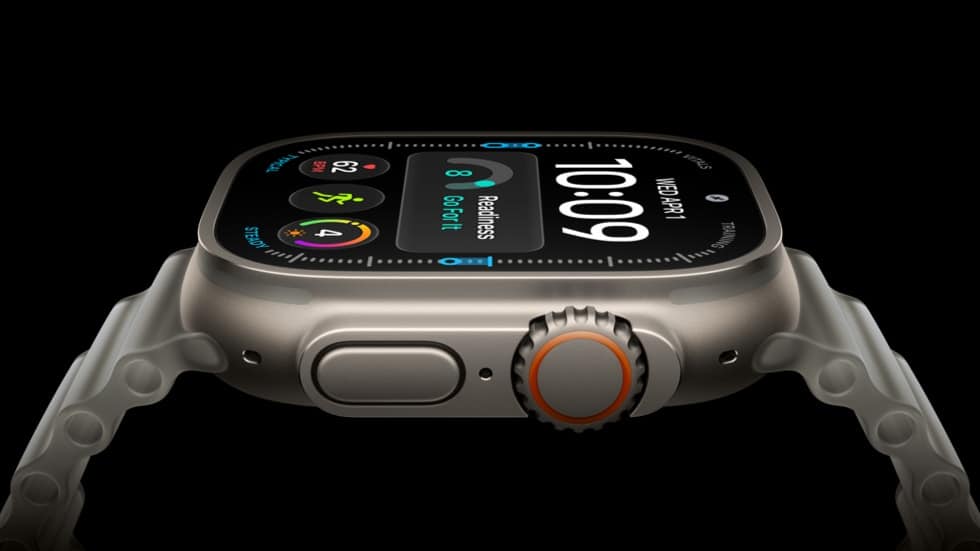
Set up satellite features on Apple Watch Ultra while you still have cellular or Wi-Fi coverage, because Apple’s watchOS 27 guide says the setup has to happen before you leave it. That means adding two shortcuts, running the Emergency SOS demo, and texting the people you’ll want to reach.

Satellite features work on Apple Watch Ultra 3 and later, including the Apple Watch Ultra 4. Apple says availability depends on your country or region, so check its satellite features page before a trip depends on them.
Emergency SOS, Messages and Find My via satellite are free for two years after you activate the watch. Messages and location sharing via satellite also need an active carrier plan. Don’t leave setup to the morning you leave: Apple warns the features may take some time to become active after you first set up the watch.
Don’t miss the best of The Mac Observer
Set us as a preferred source and our Apple reporting ranks higher in your Google Search results and Discover feed — one tap, no account changes.
Add the shortcuts and run the SOS demo
- Add the satellite control to Control Center, and the satellite complication to your watch face.
- Create your Medical ID and add emergency contacts.
- Make sure the Messages app is on the watch. Apple says it’s required to share information with emergency contacts.
- Tap the satellite icon in Control Center or on the watch face, then tap Try Demo. You can also open the Settings app, tap SOS, scroll down, then tap Try Demo.
The demo doesn’t call emergency services. Run it outside on open ground with a clear view of the sky. The watch asks you to turn on Location Services for Satellite Connection if it’s off, and the demo only works in a country or region where that satellite feature is available.
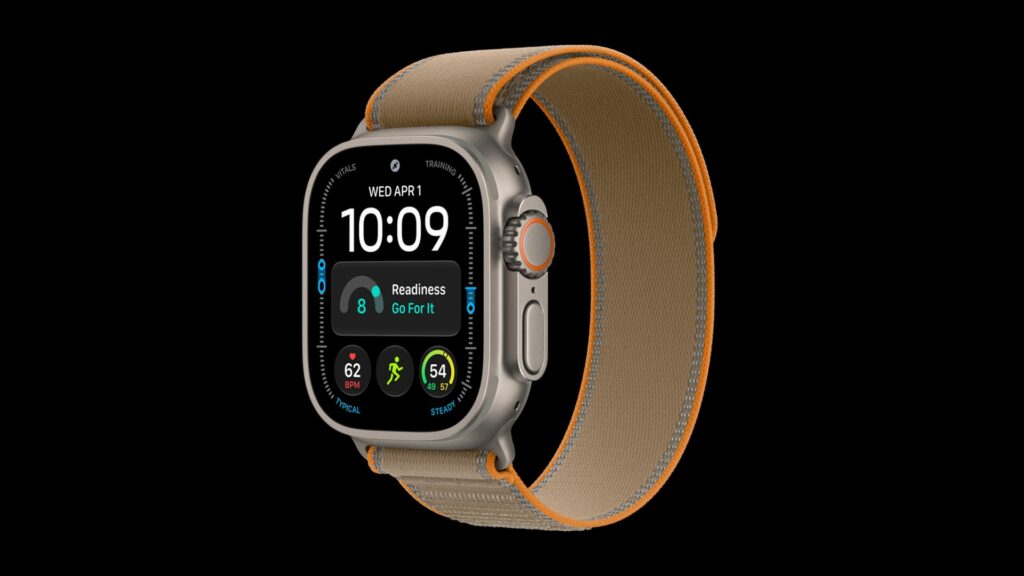
Set up Messages via satellite
- On your iPhone, open the Settings app, tap Apps, then tap Messages, and make sure iMessage is turned on.
- Check that the SIM on your Apple Watch Ultra is active. SMS availability depends on your carrier, and carrier fees may apply.
- Make sure you’ve exchanged messages with each person you’ll want to contact within the last 30 days. If not, send them a message from the watch before you lose coverage.
That last step catches people out. A text to your hiking partner the night before covers it.
Apple describes Messages via satellite as “designed for casual communication with family and friends, not for emergency situations.” SMS via satellite also needs your paired iPhone to be connected to a cellular or Wi-Fi network.
Set up location sharing via satellite
- Open the Find My app on your Apple Watch Ultra.
- Tap the button at the top left, scroll down, then tap Me.
- Below My Location, check that your location is shared from your paired iPhone and Apple Watch Ultra, and that Share My Location is on.
- Tap the button at the top left, tap People, then add the people you want to share your location with.
Off-grid, you can send your location once every 15 minutes, and you won’t see friends’ locations in Find My while you do.
What can block a connection
- An iPhone in Airplane mode: satellite features aren’t available on the watch if that iPhone is nearby.
- Cover: a message might take 30 seconds with a clear view of the sky and over a minute under trees with light or medium foliage. Dense foliage, canyons, hills and tall structures can block it.
- Water: a wet watch may struggle to connect.
- Latitude: connections might not work above 62 degrees, such as northern parts of Alaska.
You don’t need to raise your arm. Wear the watch naturally, and it shows onscreen directions if you need to turn or move.
If you ever start an Emergency SOS session by mistake, don’t disconnect it. Apple says to exchange messages with the responder and tell them you don’t need help. For everything else Apple announced alongside the new Ultra, see our September event recap.



