

So, you have decided to break up with Apple Music. It happens! Maybe you are cutting monthly costs, switching to a different platform, or you just finished binge-listening to your favorite artist during the free trial. Whatever the reason, the good news is that canceling is shockingly easy, and no awkward phone calls are required!
You can cut the cord in just a few taps from your iPhone, Mac, or even a web browser. Here is your friendly, practical guide to stopping those payments instantly.
Table of contents
What You Need to Cancel Apple Music
Honestly? Just your device and your password! You can handle this from anywhere as long as you can sign into your Apple Account.
Don’t miss the best of The Mac Observer
Set us as a preferred source and our Apple reporting ranks higher in your Google Search results and Discover feed — one tap, no account changes.
Wait, Are you sure? Before you hit that big red button, let’s make sure you aren’t leaving for the wrong reasons. If you are quitting because the app feels messy or confusing, you might just need a quick crash course on how to use Apple Music to find the features that actually matter.
Or, if you are leaving because of annoying playback habits, like the app automatically mixing songs together, you might not need to quit entirely. That is a specific setting you can disable. Check out our guide on how to turn off DJ mode on Apple Music (Crossfade) to fix it instantly.
Here’s How to Cancel Apple Music Subscription
1. Cancel via Settings on iPhone or iPad
This is the fastest method. You can do it right now while holding your phone!
- Open the Settings app on your iPhone or iPad.
- Tap on your Name/Apple Account banner at the very top.
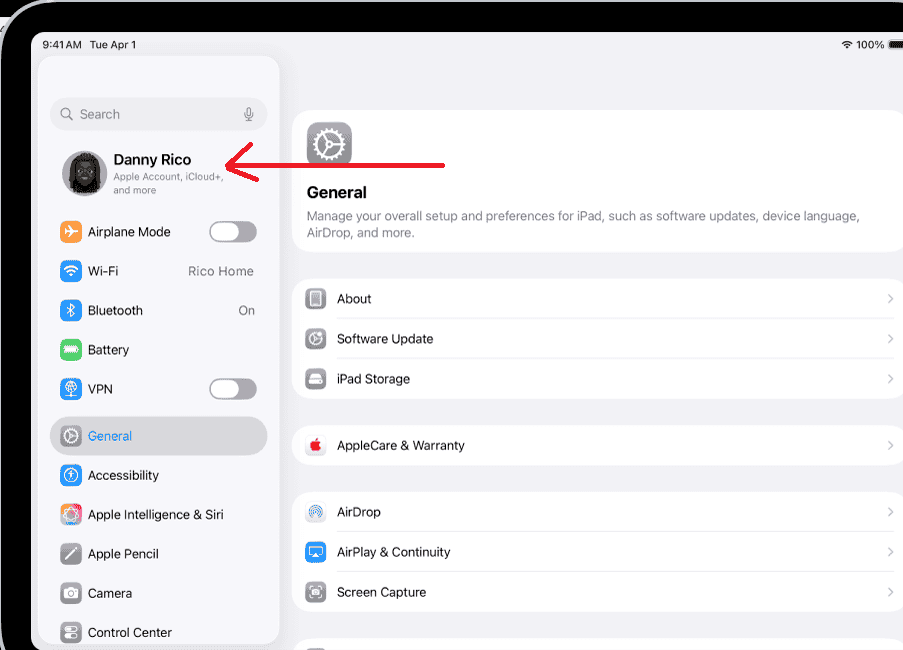
- Tap on Subscriptions.
- Find Apple Music in your active list.
- Tap Cancel Subscription (or Cancel Free Trial).
- Hit Confirm.
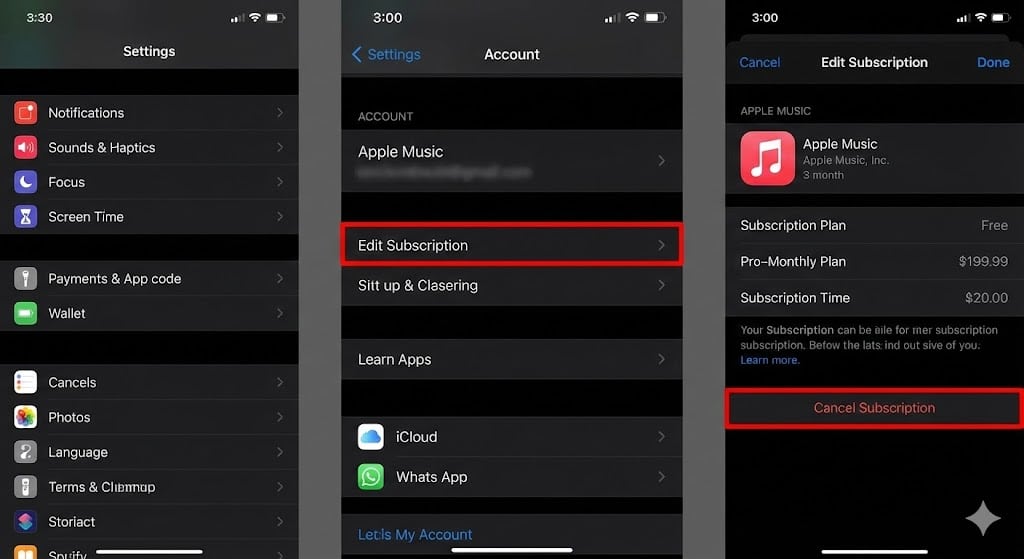


Boom! You are done. If you don’t see the “Cancel” button, relax; it usually means you already canceled it, and you won’t be charged again.
2. Cancel via the App Store on Mac
Prefer doing this on a bigger screen? No problem. Your Mac can handle it through the App Store.
- Open the App Store app.
- Click on your Name (or Sign In) at the bottom left.
- Click Account Settings at the top right.
- Scroll down to Manage and click the Manage link next to Subscriptions.
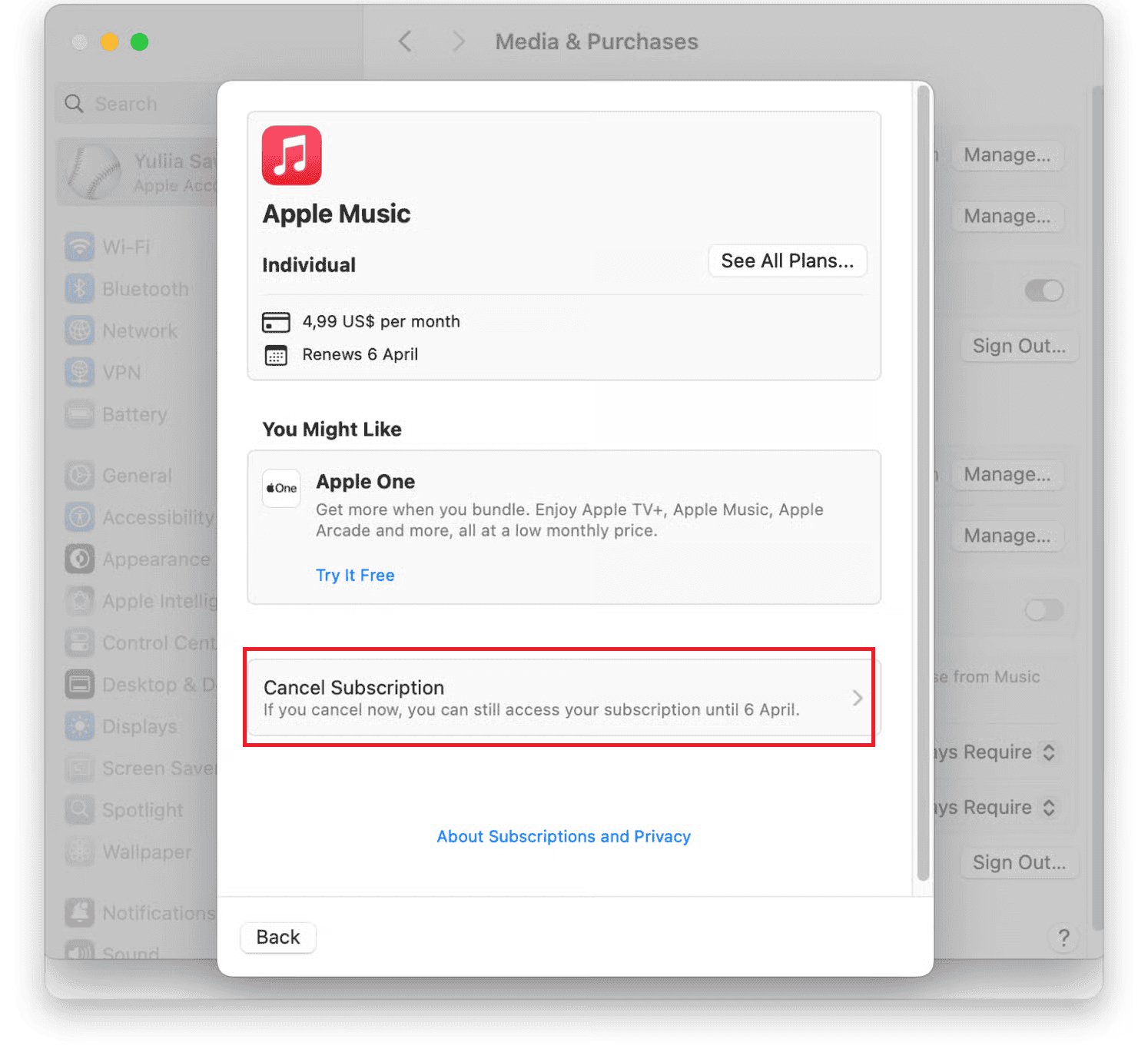
- Find Apple Music, click Edit, and hit Cancel Subscription.

3. Cancel via the Web Player
Don’t have an Apple device handy? You can use any computer! This is actually part of the Apple Music Web Player, which is a super convenient way to stream tunes from a work PC or shared laptop.
- Head over to music.apple.com.
- Sign in with your Apple Account.
- Click your profile icon in the top-right corner and pick Settings.
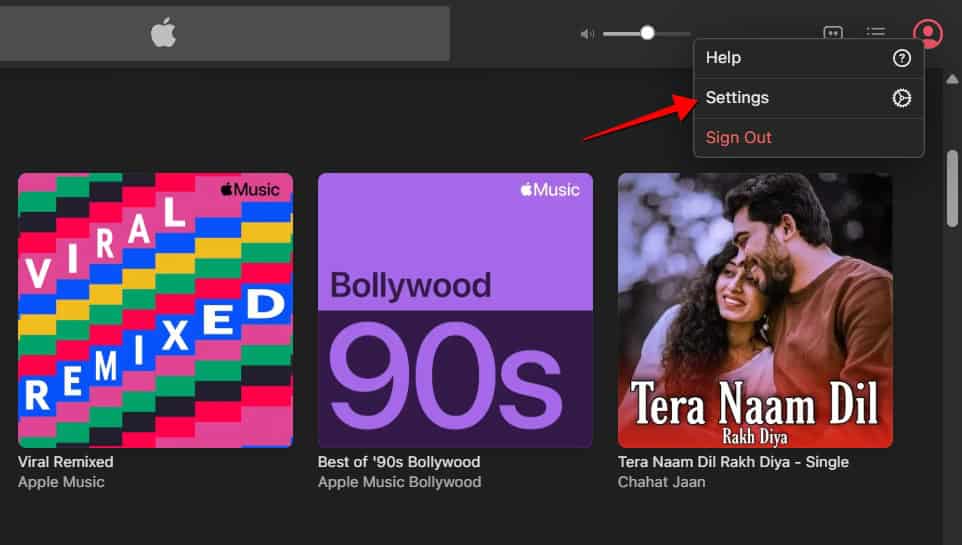
- Scroll down to Subscriptions and click Manage.
- Select Cancel Subscription and confirm. Easy peasy.

Additional Tips
- Trial vs. Paid: If you are on a paid plan, you usually get to keep listening until the month ends. But be careful with free trials: Apple often cuts access the second you cancel!
- The “Library” Danger: Once your subscription fully expires, your offline library vanishes. Poof!
- Coming Back? If you decide to resubscribe later (we all get nostalgic), your playlists might be saved for a short time (usually 90 days), but your downloads will be gone. You will definitely want to learn how to download all songs on Apple Music so you don’t have to tap “download” on every single album again.
Final Thoughts
Canceling a subscription shouldn’t be a headache, and with Apple Music, it really isn’t. Whether you are saving money or moving to a rival service, you are now in total control of your billing. Enjoy the silence, or enjoy your new streaming app!
FAQs
If you paid for the month, you keep access until the billing date. If it’s a free trial, you likely lose access instantly.
Absolutely! Open the Apple Music app on Android, tap the three dots, go to Account > Manage Subscription, and cancel from there.
Not immediately. Apple usually keeps your playlist data for about 90 days, just in case you change your mind.
Good news! That means it’s already canceled, and it won’t renew.


Thanks for the info! Just a reminder, if you cancel your Apple Music subscription, you’ll lose the songs you’ve downloaded. You can preserve them by using DumpMedia Apple Music Converter to convert them to MP3.