

If your Apple Watch feels cluttered, you’re probably looking for apple watch how to hide apps hoping there’s a simple “hide” toggle. There isn’t a true hide feature like on iPhone, but you can get the same result by removing apps from the watch, stopping them from installing in the first place, and keeping only what you actually use.
Once you know where these controls live, the Home Screen becomes a lot easier to manage.
Table of contents
Remove Apps From the Home Screen
The most direct way to hide an app is to remove its Watch version.
Don’t miss the best of The Mac Observer
Set us as a preferred source and our Apple reporting ranks higher in your Google Search results and Discover feed — one tap, no account changes.
On your Apple Watch:
- Press the Digital Crown to open the app grid or list
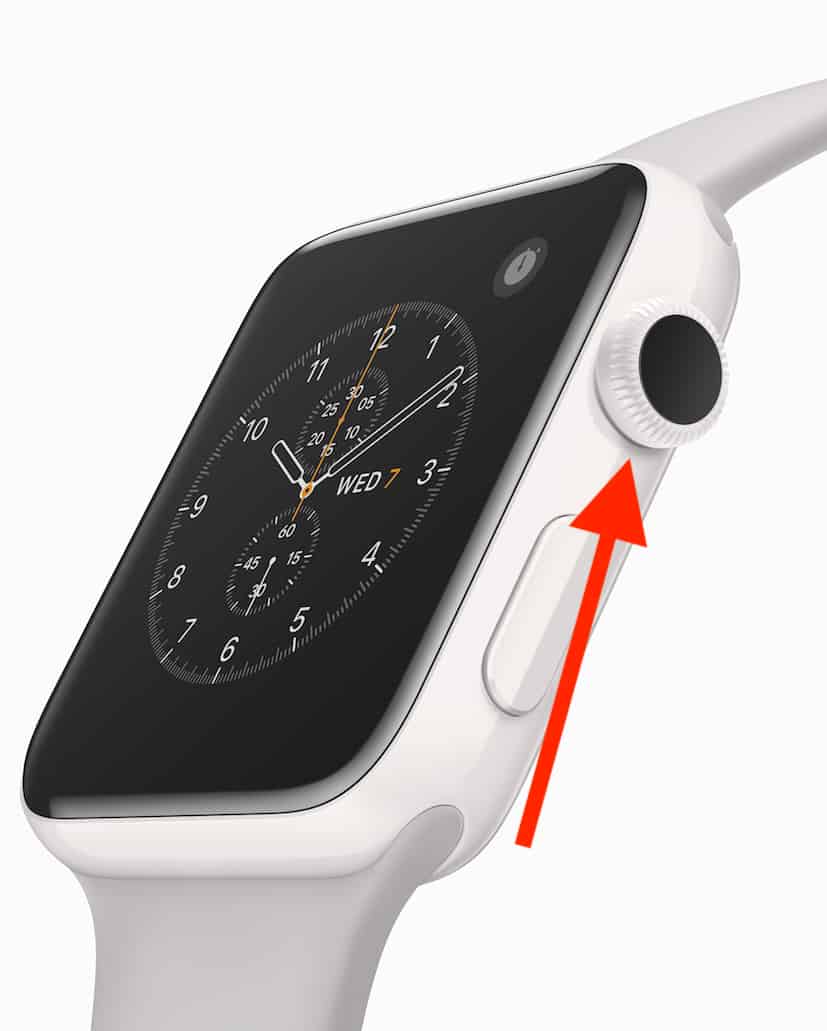
- Touch and hold an app icon until they all jiggle
- Tap the X or Delete App
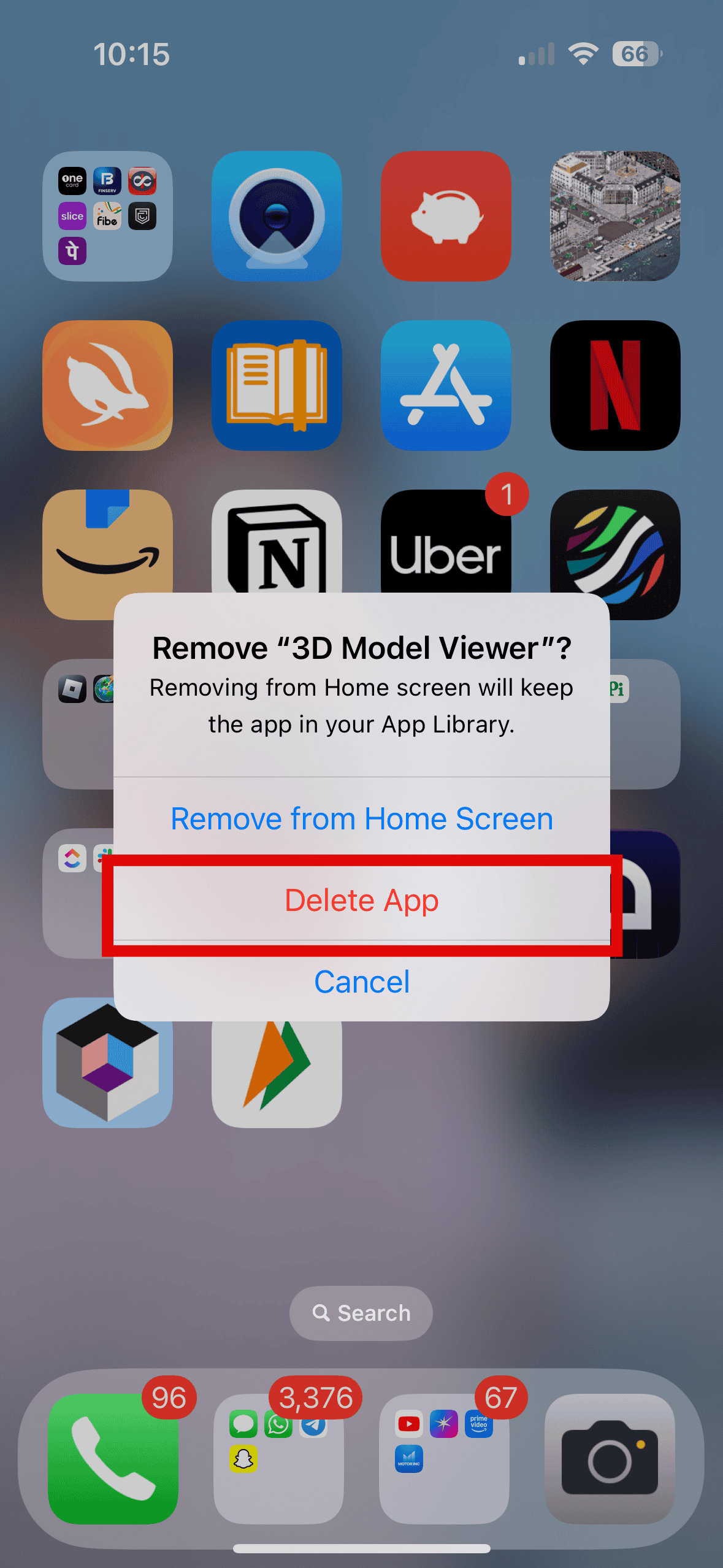
- Confirm


Apple explains this layout and deletion behavior on its page on how to organize apps on Apple Watch,
which also covers switching between grid and list view if you prefer a simpler layout.
Removing the Watch version doesn’t delete the app from your iPhone. It just stops it from appearing on your wrist.
Turn Off Automatic App Installation
By default, Apple Watch tries to install compatible apps automatically. That’s one reason your app list gets crowded without you noticing. You can turn this off so new iPhone apps don’t show up on the watch.
On your iPhone:
- Open the Watch app
- Go to the My Watch tab
- Scroll down to App Store
- Turn off Automatic App Install
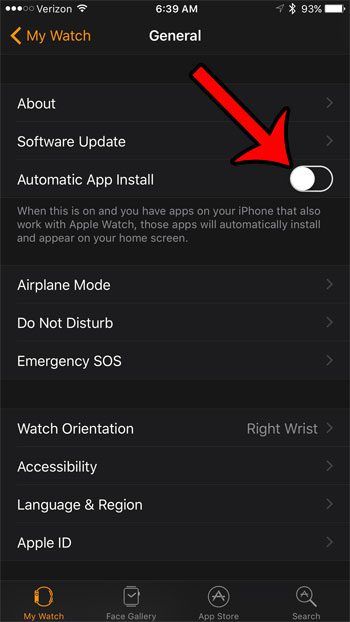


Apple covers this behavior in more detail in its article on turning automatic app installation on or off for Apple Watch.
After this, you decide manually which apps appear on the watch, instead of having everything installed by default.
Hide Apps by Disabling Their Watch Version
Some apps you want on iPhone but never need on the watch. You can disable just the Watch part.
On your iPhone:
- Open the Watch app
- Scroll to the list of apps under Installed on Apple Watch
- Tap an app you don’t want
- Turn off Show App on Apple Watch
The app disappears from your watch but stays on your iPhone.
If you ever change your mind, scroll down to the Available Apps section and tap Install to bring it back.
When You Actually Want to Delete the App
Sometimes hiding isn’t enough. If you never use an app anywhere, deleting it is cleaner than managing it in two places.
You can remove apps directly from the watch or from the phone. MacObserver walks through both angles on how to delete apps on Apple Watch, which is useful when you’re doing a bigger clean-up.
And if you ever hide something you regret, the same kind of logic used when you unhide apps on iPhone applies here too: you’re not truly losing the app, you’re just changing where it’s visible.
Final Thoughts
Hiding apps on Apple Watch is really about control. You remove the ones you don’t need on your wrist, stop new apps from auto-installing, and keep the Dock and Home Screen focused on what you actually use. Once you tweak those settings, your watch stops feeling cluttered and starts feeling like a focused tool again instead of a tiny app drawer on your arm.


Is this article out of date? Almost nothing on my iphone’s watch app, or on the watch itself, matches the article. For instance, contrary to “Scroll to the list of apps under Installed on Apple Watch”, there is no “Installed”.