

If your iCloud Calendar isn’t updating between your iPhone, iPad, or Mac, it’s probably because of sync issues that can pop up for a lot of small reasons—maybe a setting got switched off, your software’s out of date, or your iCloud connection glitched. The good news is, it’s easy to fix once you know where to look. Here’s how to get your calendar back in sync.
Table of contents
Start With the Basics
Before diving into specific fixes, check a few simple things first:
- Check Apple’s System Status: Go to Apple’s System Status page to make sure iCloud Calendar isn’t having an outage.
- Update your software: Make sure your iPhone, iPad, or Mac is running the latest version of iOS, iPadOS, or macOS.
- Use the same Apple ID everywhere: Double-check you’re signed into the same iCloud account on all your devices.
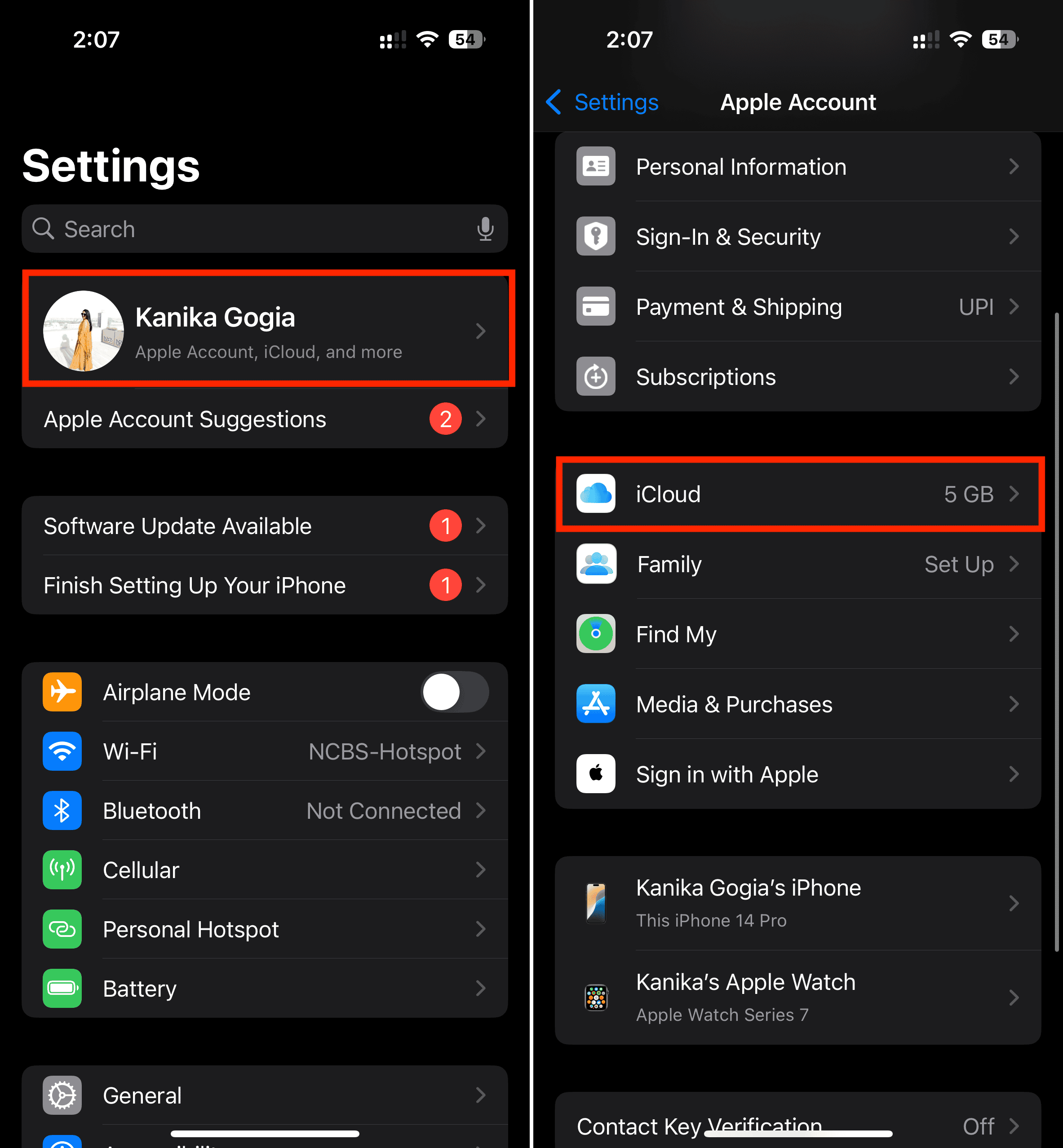
- Turn on Calendar sync: On iPhone or iPad, go to Settings > [your name] > iCloud > Show All, and make sure Calendars is on. On Mac, go to System Settings > [your name] > iCloud > Show All and check the same.
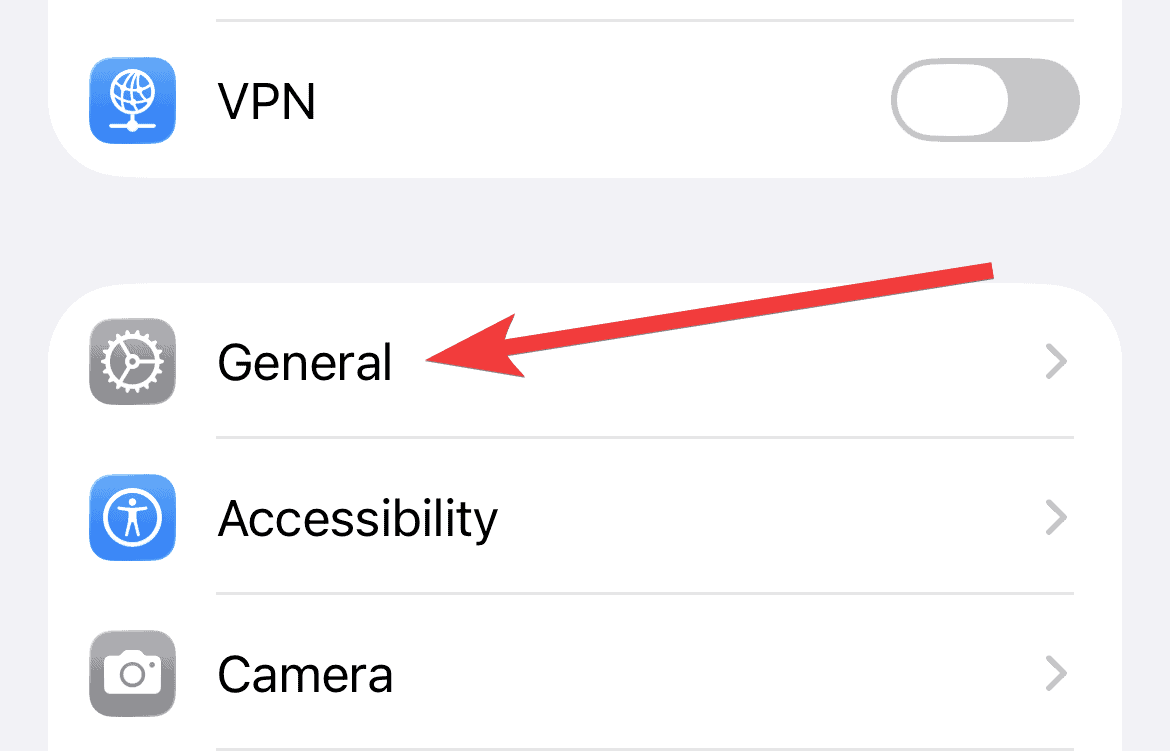
- Set the correct date and time: Go to Settings > General > Date & Time and toggle Set Automatically.


If everything looks right and your events still don’t sync, move on to the fixes below.
Fix Calendar Sync on iPhone and iPad
Here’s how to reset Calendar syncing on iOS and iPadOS:
1. Restart the app
- Close the Calendar app.
- Wait a minute, then reopen it.
- Tap the Calendars tab and swipe down to refresh your events.
2. Check app settings
- In the Calendar app, tap Calendars at the bottom.
- Make sure All iCloud calendars are selected.
3. Adjust sync range
- Go to Settings > Apps > Calendar > Sync.
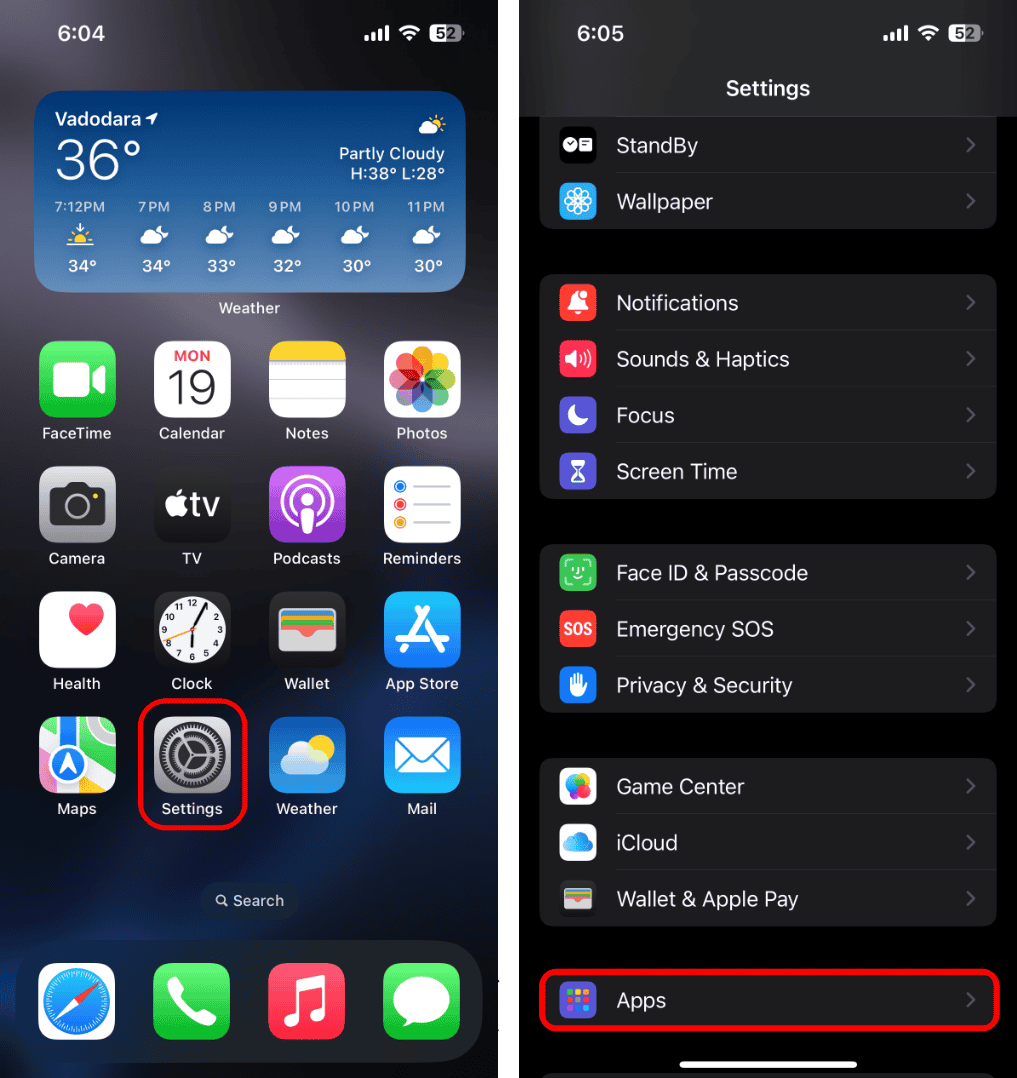
- If All Events is selected, try switching to a shorter timeframe like Events 1 Month Back. Then go back and choose All Events again.
- Return to the Calendar app and swipe down on the Calendars list to refresh.

4. Make iCloud your default calendar
If your events are saving to a Gmail or Exchange calendar, they won’t sync with iCloud.
- Go to Settings > Apps > Calendar > Default Calendar.
- Choose one under iCloud.
5. Restart your device
A simple restart clears temporary bugs and can often get syncing back on track.
Fix Calendar Sync on Mac
If your events aren’t updating on your Mac:
1. Refresh calendars manually
- Open the Calendar app.
- Go to View > Refresh Calendars.
2. Check your default account
- Open Calendar and go to Calendar > Settings > General.
- Make sure your default calendar is one from iCloud, not “On My Mac” or another service.
3. Make sure Reminders and Calendar are turned on in iCloud
- Go to Apple menu > System Settings > [your name] > iCloud > Show All.
- Confirm that Calendars and Reminders are toggled on.
4. Restart your Mac
After restarting, open Calendar and give it a minute to sync.
Fix Calendar Sync on iCloud.com
If your events look fine on your iPhone but not on iCloud.com, try this:
- Update your browser and clear its cache.
- Open another app on iCloud.com (like Mail), then switch back to Calendar.
- Sign out of iCloud.com and sign back in.
Note: The iCloud Birthdays calendar updates daily, so birthday edits might not appear until the next day.
Fix Calendar Sync on Windows
If you’re using iCloud for Windows with Outlook:
1. Refresh Outlook
Click the Refresh button in Outlook.
2. Reset Calendar and Contacts sync
- Open iCloud for Windows.
- Uncheck Calendars and Contacts and click Apply.
- Wait a few seconds, recheck Calendars and Contacts, then click Apply again.
3. Make sure the iCloud Add-in is active
- In Outlook, go to File > Options > Add-Ins.
- Under Active Application Add-ins, confirm the iCloud add-in is listed.
4. Sign out and back into iCloud for Windows
- Open iCloud for Windows.
- Click Sign Out, then log back in with your Apple ID.
- Re-enable Calendars and Contacts, click Apply, and restart your computer.


Thanks for the info! Is there a way to go back to the old calendar version? Leave it to the nerds at Apple to screw with something that works fine and mess it up totally.
I’m ready to go to a Google phone.